WooCommerce Stock Quantity Not Saving: One Rejection, Five Silent Skips
Stock not saving? WooCommerce either refuses the edit — ‘the value has changed since editing’ — or saves nothing and says nothing. Tell which, prove it.
Updated

In this article17 sections
You typed a number into the stock field, pressed Update, and the number is not there. Either WooCommerce told you why, or it did not. Those are two entirely different problems with opposite correct responses, and the reason this goes wrong so often is that from the admin screen they look identical: the page reloads, the notice area says the product was updated, and the quantity is wrong.
This page is about a single write that did not land. If instead your figures have been drifting away from the shelf over weeks, that is a different question with a different answer — the eight things that quietly break WooCommerce stock levels is the page for it, and nothing here repeats it.
Two failures that look identical from the admin screen#
The loud failure is a rejection. WooCommerce read your number, compared it against something, decided writing it would destroy information, and refused. It says so on screen. Everything else on the form saved normally, which is precisely why the page looks like it worked.
The silent failure has no message at all. Nothing objected. The write either never happened, happened somewhere other than where you were looking, or happened correctly and you are reading a stale copy of the answer.
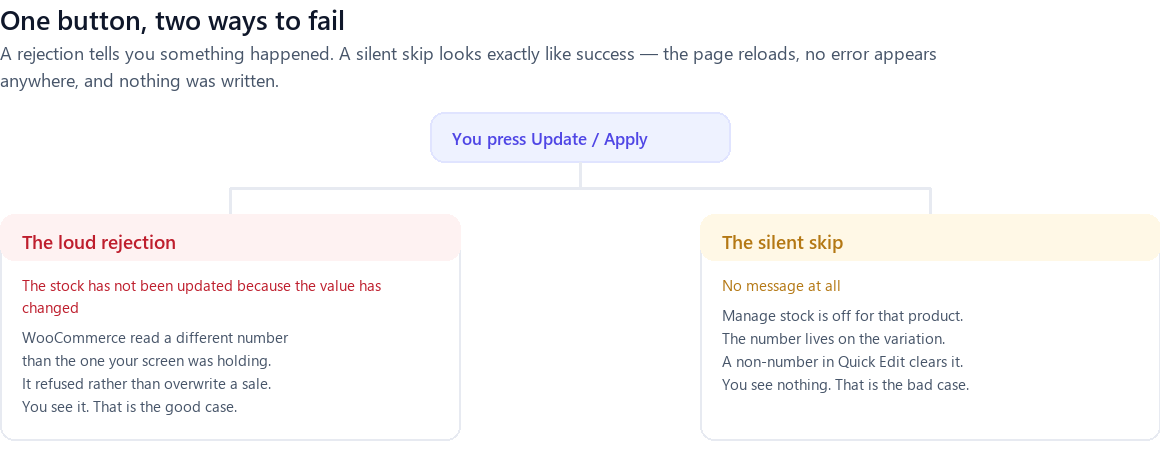
Everything below sorts into those two piles, and the first job is always to work out which pile you are in. It takes about ten seconds: did a message appear?
“The stock has not been updated because the value has changed since editing”#
That is the exact wording, and it is worth quoting exactly because most people search for a half-remembered version of it. The full message names the product and tells you the quantity WooCommerce currently holds:
The stock has not been updated because the value has changed since editing. Product 1482 has 37 units in stock.
Here is the mechanism, and it is simpler than it looks. When the product edit screen renders, WooCommerce writes a hidden field into the form containing the stock quantity as it stood at that moment. When you press Update, it compares that hidden value against the quantity in the database now. If the two differ, something changed the stock between the screen loading and you pressing the button — so it discards your number and shows the message. Variations are handled the same way, each with its own hidden field.
Two consequences follow, and both explain symptoms people report as separate bugs.
Only the stock number is dropped. The title, the price, the description, the categories, the images — everything else on that form is saved exactly as you left it. The product genuinely was updated. It was updated in every respect except the one you cared about.
The field then shows a number you did not type. After the reload, the quantity box is rendered from the database, so it shows the figure WooCommerce has rather than the one you entered. That is what people mean when they say the stock quantity reverts. Nothing reverted; your value was never written.
Why the rejection is WooCommerce protecting a sale#
The gap being guarded is the one between opening the edit screen and pressing the button. It can be ten seconds or it can be the forty minutes your browser tab sat open while you did something else. Anything that moves stock in that window trips the guard: an order, a refund, a second person in the admin, a sync, a scheduled import.
Consider what the alternative would be. Your screen was loaded when stock was 40. An order for three came in. You press Update with 40 still in the box. Without the guard, WooCommerce writes 40 — and the three units that customer just bought are silently back on the shelf. The refusal is not the platform being awkward. It is the platform refusing to lose a sale on your behalf.
Why pressing Update again is the wrong fix#
It works, which is the trouble. The page has reloaded, so the hidden field now matches the current quantity, so the guard has nothing to complain about, so your number is written — over the top of exactly the movement the first attempt protected.
What to do instead takes one thought. The message tells you the quantity WooCommerce currently holds. Ask where your number came from:
- You read it off the screen and adjusted it. Then your number was derived from a figure that is now out of date, and you should start again from the one in the message.
- You counted the shelf. Then your number is still the truth about the shelf at the moment you counted it — but stock has moved since, and writing it flat would undo that movement. This is exactly the problem a counting session solves by freezing the expected figures when it opens, which is why counting while the shop is trading works at all.
One more thing worth knowing, because it is the most common piece of bad advice on this subject: Quick Edit does not have this guard. The full product screen carries the hidden field and refuses; Quick Edit does not check, and writes. So “just use Quick Edit instead, it works” is not a workaround. It is a way of converting a failure you can see into one you cannot.
The silent skips, in order of how often they bite#
No message means the number stopped somewhere along the path between your keyboard and the screen you are looking at. There are five places it can stop, and only the first one is ever announced.
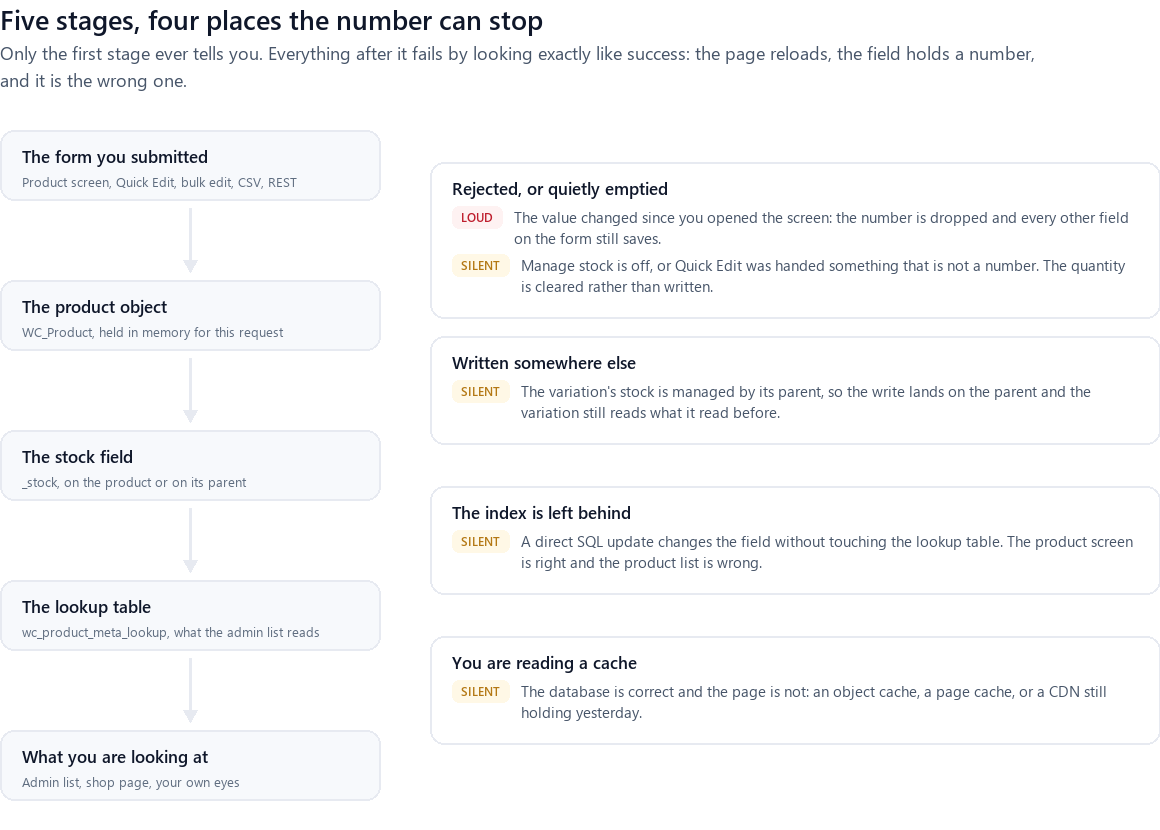
1. Stock is not being managed#
WooCommerce does not write a quantity for a product that is not managing stock. Not an error, not a warning: with the checkbox off the field is not on the form to begin with, and the functions that write stock elsewhere skip the product entirely. A quantity is meaningless on a product whose availability is a yes or a no.
Two switches matter, and the second one catches people. The per-product switch is the Manage stock? checkbox on the Inventory tab. The global switch lives in WooCommerce → Settings → Products → Inventory, and it outranks the first. With the global switch off, a bulk edit does not merely skip the quantity: it clears it and turns per-product stock management off as it goes.
2. The number lives on the variation, not the parent#
On a variable product there are two places a stock figure can live, and only one of them is in use at a time. WooCommerce says so in the help text on the field itself: the parent quantity controls all variations unless you define stock at variation level.
Set stock at variation level and the parent field becomes decorative — you can type in it, save it, and change nothing that anybody sees. The reverse is just as common: editing a variation’s quantity while stock is managed at the parent writes to the parent instead, so the variation you were looking at still reads what it read before. Which pattern a product is on is a per-product fact, and the difference between parent-level and variation-level stock is worth settling once for the whole catalogue.
3. Quick Edit was handed something that is not a number#
Quick Edit only accepts a numeric quantity. Give it anything else — a stray letter, a comma as a decimal separator, a value pasted with a currency symbol — and rather than complaining, it stores an empty quantity. Zero is fine, because zero is a number. “1,5” is not, and neither is anything still carrying a currency symbol.
4. Bulk edit without choosing what to change stock to#
The bulk editor’s stock quantity field is only read when you have also chosen a change mode from the dropdown beside it. Leave that on its default and the editor writes the product’s existing quantity back, which succeeds, changes nothing, and reports success — the purest form of silent skip on this list.
5. Something wrote after you did#
The last one is not a skip at all: the write landed and was then replaced. A sync plugin, an ERP connector, a marketplace listing tool or a scheduled import ran between your save and your check. The tell is timing — the number is right immediately after saving and wrong later, and it goes wrong on a schedule rather than at random.
And the case where nothing failed#
The database can be correct and the screen still wrong. The product list column is drawn from a lookup table rather than from the product itself, so a write that bypassed WooCommerce — a direct SQL update, a tool writing meta straight into the database — leaves the two disagreeing: right on the product screen, wrong in the list. On the front end, a page cache or a CDN can be showing yesterday to logged-out visitors while the admin shows the truth.
| Symptom | Likely cause | Check in one step | Fix |
|---|---|---|---|
| Error message naming the product and a quantity | Stock changed while the screen was open | Read the quantity in the message | Recalculate from that figure, do not press Update again |
| Quantity field is missing entirely | Manage stock is off for the product | Inventory tab, Manage stock? | Tick it, then set the quantity |
| Field saves but nothing changes anywhere | Global stock management is off | Settings → Products → Inventory | Enable it before editing anything else |
| Parent saves, variations unaffected | Stock is managed at variation level | Open one variation and look for its own quantity | Edit the level that is actually in use |
| Quantity becomes blank after a quick edit | A non-numeric value, or manage stock off | Retype the number with nothing else in the box | Use the full product screen for that product |
| Bulk edit reports success, values unchanged | No change mode selected | The dropdown beside the quantity box | Choose the change mode, then re-run |
| Correct on the product screen, wrong in the list | The lookup table is behind | Open the product and compare | Re-save the product through WooCommerce |
| Correct in admin, wrong on the shop page | Page cache or CDN | Load the page in a private window | Purge the cache |
| Right after saving, wrong an hour later | A sync or scheduled import | Change one product and watch it | Find the integration before editing more |
Telling them apart in under ten minutes#
Run these in order. Each one eliminates a whole class of cause, and you can stop as soon as one answers.
- Did a message appear? If yes, you are in the loud case and the rest of this list is irrelevant.
- Is there a quantity field at all? No field means stock is not being managed, and no amount of typing will help.
- For a variable product, where is the number? Open one variation. If it has its own quantity box with a figure in it, the parent field is not the one in use.
- Does the product screen agree with the product list? Disagreement means the write landed and the index did not follow.
- Does the front end agree with the admin? Check in a private window. Disagreement is a cache, not a write.
- Does it change again on its own? Set a number, note the time, come back in an hour. If it has moved without an order, something else is writing.
Prove the write landed: export and diff#
Every check above reads a screen, and screens are exactly what is in question. There is one verification that is not an opinion: export the products before and after and compare the two files.
Use Products → Export, restricted to ID, SKU and stock. Take one export before you make the change and one after, and diff them in a spreadsheet. What you get is a list of exactly which lines moved and by how much — which is both the proof that the write landed and, if it did not, the shortlist of products to investigate.
This sounds like more work than it is, and it has a second benefit worth having anyway: the “before” file is a recovery point. If the write turns out to have landed and been wrong, that file is the fastest route back.
Prove it the other way: open a session and read the expected column#
There is a second proof that comes from the opposite direction, and it is the one that scales past a handful of products.
Open a counting session scoped to the products in question. The expected quantity a session shows is read from stored stock at the moment the session opens, so it is a second, independent rendering of the same figures — one that does not come from the product list, the product screen or any cache. If the expected column shows your number, the write landed. If it shows the old one, it did not.
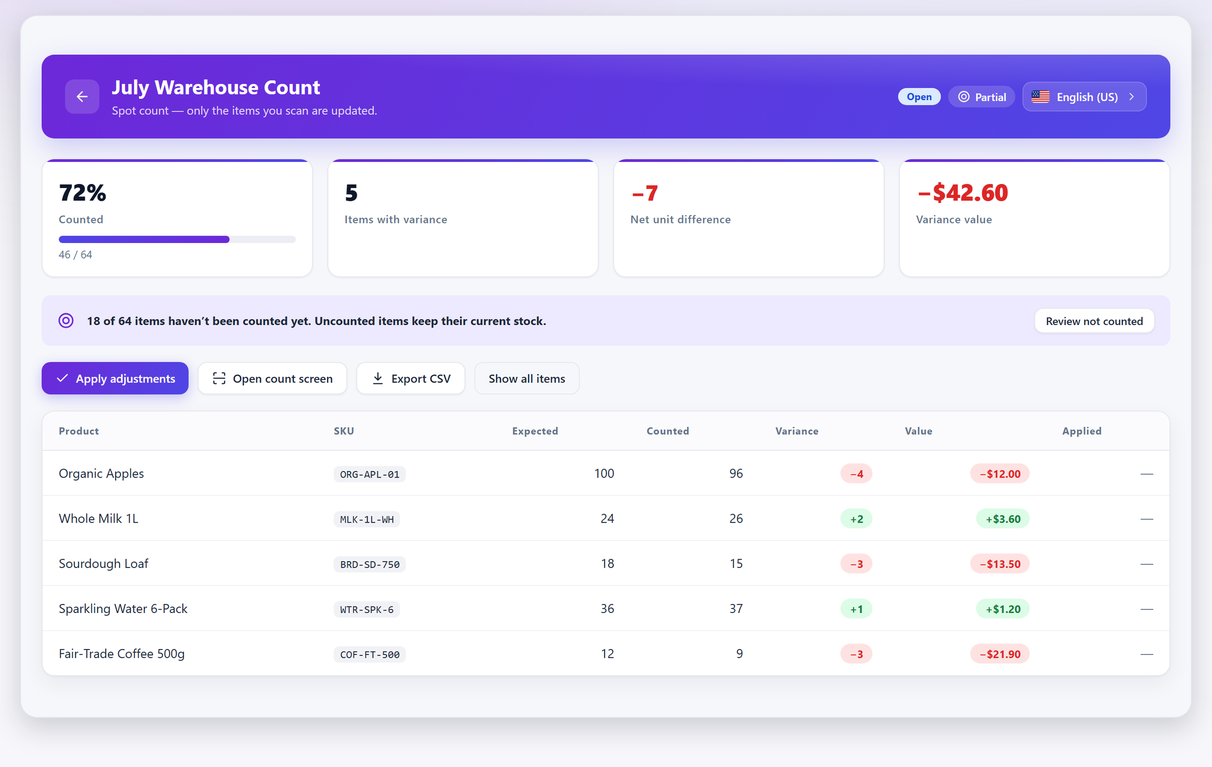
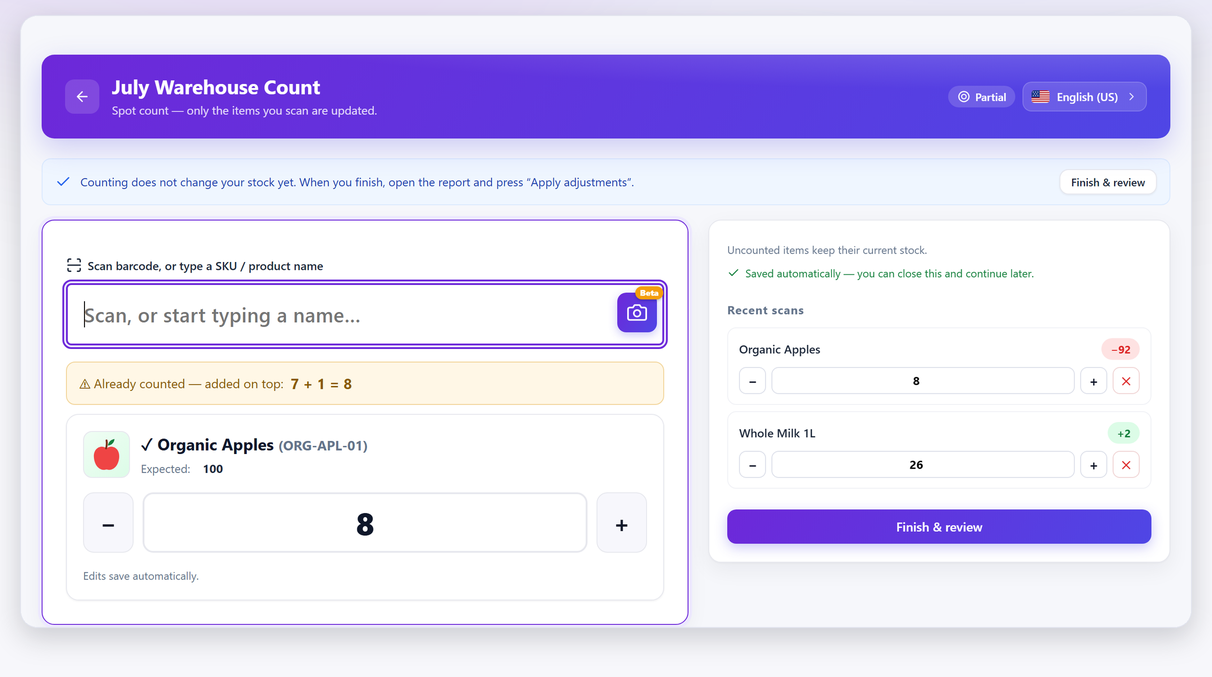
For a single product this is even quicker. Scan or type the SKU into a session’s search box and the line comes back with its current figure attached, which is a one-line answer to “what does the system actually hold for this product?”
Why editing stock in the product screen is the underlying problem#
Step back from the individual causes and there is one shape behind most of them. The product screen is a single-value, optimistic write: one number, typed into a form that was rendered some time ago, saved over whatever is there now, with no record of what it replaced and no review of what is about to change.
The guard you met at the top of this page is WooCommerce admitting as much. It exists because that screen is a bad place to correct stock from, and the platform cannot do anything about that except refuse when it can prove the write is unsafe. The rest of the time it cannot prove it, and writes.
The alternative is not a better form. It is a different shape of operation: figures frozen when the work starts, a review of every line that is about to change, one write, and a saved copy of what was there before. Not every tool that calls itself an inventory plugin works that way, and the difference is the one worth checking.
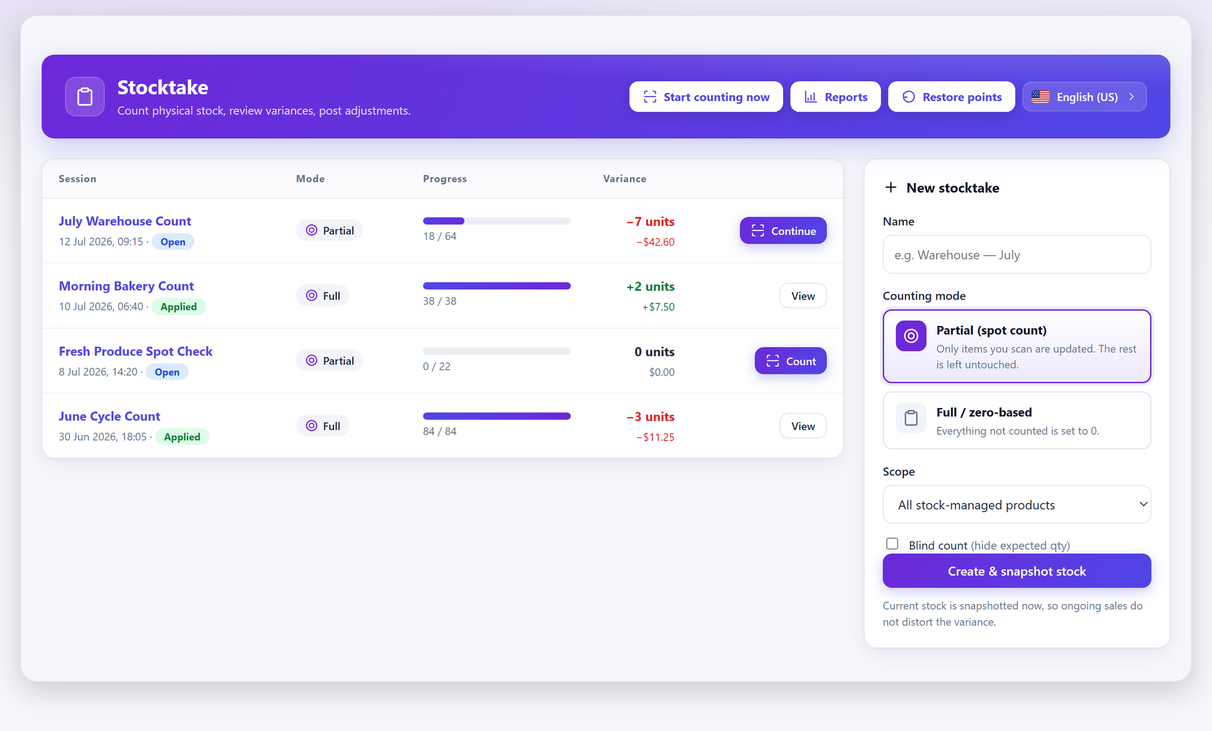
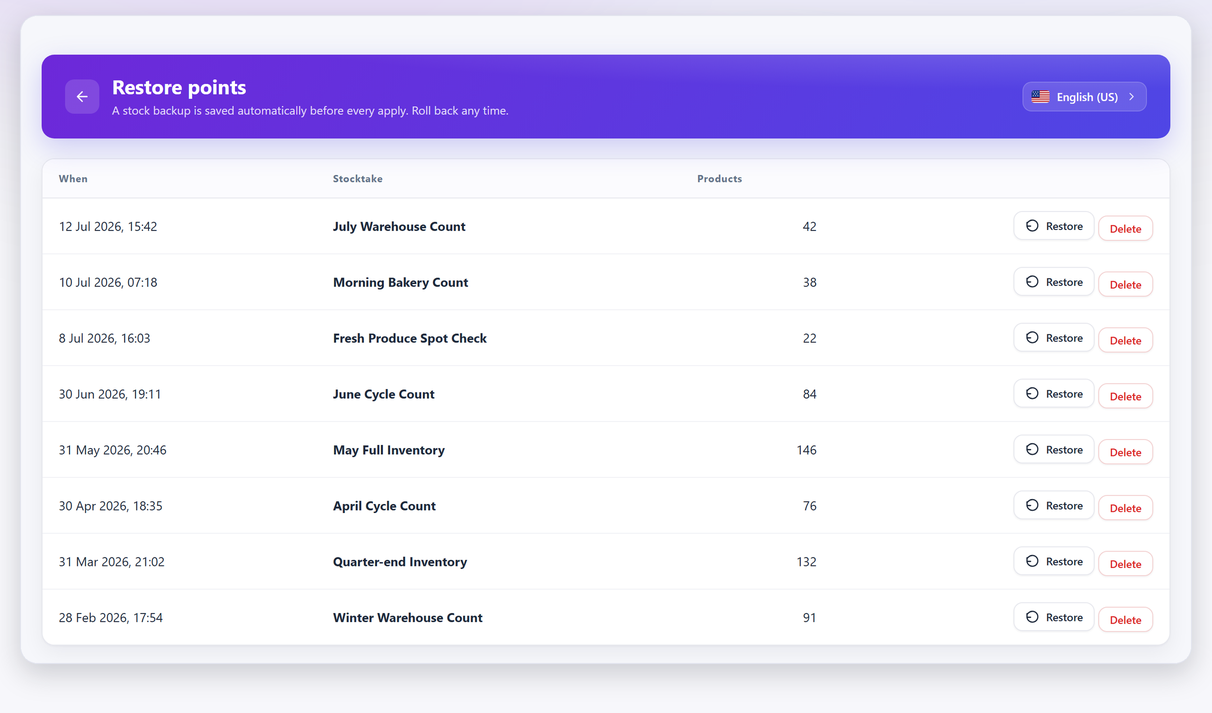
None of that removes the causes on this page — a product with stock management switched off still has no quantity to write. What it removes is the class of failure where the write did not land and nothing told you, because the count is reconciled against stored figures and shows you the result before anything is written.
And if the write did land but the number was wrong#
Then this was the wrong page, and it is worth saying so plainly rather than letting you keep reading.
A write that lands correctly and still leaves you with the wrong figure means the figure you wrote was wrong — which is a counting problem, not a saving problem. If it is one product, count it. If it is the catalogue, the answer is a schedule rather than an afternoon: counting a zone at a time keeps the figures close enough to the shelf that a single bad write is obvious rather than lost in the noise. And if you applied a write you now want back, the routes are on the recovery page in the order to try them.
Frequently asked questions#
What does "The stock has not been updated because the value has changed since editing" mean?
It means the stock quantity in the database changed between the moment your edit screen loaded and the moment you pressed Update — usually an order. WooCommerce discards your number rather than overwrite that movement, and saves every other field on the form as normal. The message includes the quantity it currently holds.
Why does my WooCommerce stock quantity revert when I save?
It did not revert; it was never written. After a rejected save the quantity box is rendered from the database, so it shows the current figure rather than the one you typed. That is the same failure as the message above, noticed from the other side.
Should I just press Update again?
No. The second attempt succeeds precisely because the page reloaded — and it writes your number over the movement the first attempt protected. Read the quantity in the message, work out whether your figure was derived from the old screen or from counting the shelf, and adjust from there.
Why does Quick Edit save the stock when the product screen refuses?
Because Quick Edit does not carry the check. The full product screen compares a hidden copy of the original quantity against the current one; Quick Edit writes without comparing. It is not a workaround — it turns a failure you can see into one you cannot.
I typed a stock quantity and nothing saved, with no error. Why?
The most common reasons, in order: stock management is off for that product or globally; the product is variable and the number lives at the other level; Quick Edit received a value that is not a number and stored an empty quantity; a bulk edit ran without a change mode selected; or something wrote over your value afterwards.
Why does the product list show a different stock figure from the product page?
The list column is drawn from a lookup table that WooCommerce maintains alongside the product. A write that went through WooCommerce updates both. A write that went straight into the database updates only one, and the two disagree until the product is saved again through WooCommerce.
How can I prove a stock update actually saved?
Export ID, SKU and stock before and after the change and diff the two files. It is the only check that does not read a screen, and the “before” file doubles as a recovery point if the write turns out to have been wrong.
Can a stock update fail on variations only?
Yes, and it is common. Variations carry their own hidden original-quantity check, so one variation can be refused while the rest of the product saves. Separately, if stock is managed at the parent, editing a variation’s quantity writes to the parent and the variation appears unchanged.