WooCommerce Stock Levels Wrong: 9 Causes and How to Reconcile Them
Stock says 12, the shelf says 9. What makes WooCommerce stock levels wrong, how to confirm which cause is yours, and how to reconcile the gap.
Updated

In this article16 sections
The product page says 12. The shelf says 9. Somewhere between those two numbers is a process that isn’t working, and the frustrating part is that wrong WooCommerce stock levels almost never have a single cause — they have nine, and yours is probably two or three of them at once.
This is a diagnostic guide. For each cause: what it looks like from the outside, how to confirm it’s actually your problem, and what to do about it. Fixing the number is the easy part; knowing which cause to fix is what stops it coming back next month.
Start by separating two different problems#
Before you touch anything, work out which of these you have:
- Stock is wrong right now. A one-off drift. Something happened, the number is stale, and a count will fix it.
- Stock keeps going wrong. You corrected it three weeks ago and it’s off again. There’s a live process writing bad numbers, and counting will only buy you a few weeks.
The second one is the expensive one, and most of this article is about finding it. If you genuinely only have the first, skip to running a stocktake and get on with your day.
Causes inside WooCommerce itself#
1. Stock is managed at the parent, not the variation#
This is the single most common cause of “my variable product stock is not working”. WooCommerce lets you manage stock in two places: on the parent product, or on each variation. If Manage stock? is ticked on the parent and left unticked on the variations, every variation draws from one shared pool — so selling a Small reduces the number available for Large, and the per-variation quantities you thought you set aren’t being used at all.
How to confirm: open the product, look at the Inventory tab, then open the Variations tab and expand one. If the parent has a stock quantity and the variations have no Manage stock? checkbox ticked, you’ve found it.
What to do: decide deliberately which level owns stock. Shared-pool parents are legitimate for things like a bundle sold in different colours from the same bin — but if each variation is a physical thing on its own shelf, stock belongs on the variation. If the choice isn’t obvious for your catalogue, it’s worth working through properly: whether stock belongs on the parent or the variation sets out both models and what each one costs you later.
2. A cache is serving you a stale number#
Page caching, object caching and CDNs all happily store a rendered product page — including the stock figure printed on it. The number in the database is right; the number the customer sees is from twenty minutes ago. This is a common cause of “it said In Stock but it wasn’t” complaints.
How to confirm: compare what the product page shows with what the product edit screen shows. If admin is right and the front end is wrong, it’s caching. Hard-refreshing or opening the page in a private window usually confirms it.
What to do: exclude cart, checkout and account pages from every caching layer, and purge after bulk stock changes. Don’t try to fix this by lowering cache times everywhere — you’ll trade a correctness problem for a speed problem.
3. Orders that never reduced stock — or reduced it twice#
WooCommerce reduces stock when an order reaches a paid state, and restores it when the order is cancelled. In practice this can go sideways: a gateway callback that never arrives, an order manually flipped between statuses, a plugin that reduces stock on its own schedule as well.
How to confirm: this one has an audit trail, and almost nobody uses it. Open a recent order and read the order notes in the sidebar. WooCommerce writes a note whenever it changes stock, in the form Stock levels reduced: Product (12→11). If you find two notes for the same order, it was reduced twice. If a paid order has no note at all, nothing stock-managed came off it.
That is fine for one order. Nobody is going to do it four hundred times, so run the same check in bulk. Save this as find-unreduced-orders.php somewhere on the server and run wp eval-file find-unreduced-orders.php:
<?php
$orders = wc_get_orders( array(
	'status'       => array( 'processing', 'completed' ),
	'date_created' => '>' . ( time() - 30 * DAY_IN_SECONDS ),
	'limit'        => -1,
	'return'       => 'ids',
) );

foreach ( $orders as $id ) {
	$hits = 0;

	foreach ( wc_get_order_notes( array( 'order_id' => $id, 'limit' => 100 ) ) as $note ) {
		if ( false !== stripos( $note->content, 'Stock levels reduced' ) ) {
			$hits++;
		}
	}

	if ( 1 !== $hits ) {
		printf( 'Order %d: %d stock-reduction notes' . PHP_EOL, $id, $hits );
	}
}
It prints every paid order from the last thirty days that doesn’t have exactly one stock-reduction note. Read that list carefully, because it is easier to misread than it looks:
- One note per order is the normal case. WooCommerce writes every reduced line into a single note, so two notes is the unambiguous finding: that order was reduced twice.
- Zero notes is a weaker signal than it looks. WooCommerce only writes the note when there was something stock-managed to reduce, so an order made up of virtual or downloadable goods, or of any product with Manage stock? unticked, legitimately carries none. Treat the zero list as a shortlist to eyeball, not a list of faults.
- The note text is translated. The source string is
Stock levels reduced: %s, so on a store running WooCommerce in any language other than English this match finds nothing and every single order lands in the output. Open one order’s notes by eye first and substitute your own locale’s wording. - Refunds record their restock separately. A refund that puts stock back writes a differently worded note, so orders you have refunded need eyeballing rather than trusting the count.
On a big catalogue, 'limit' => -1 loads every matching order at once; chunk it with 'limit' and 'paged' instead.
What to do: once you know which orders are affected, you know which plugin or gateway to investigate. A pattern — always the same payment method, always orders created by the same integration — is the answer. Orders keyed in by hand in wp-admin are their own special case; an order that did not reduce stock goes through that one in detail.
4. Backorders or negative stock, quietly enabled#
If Allow backorders is set to “Allow” or “Allow, but notify customer”, WooCommerce will happily sell past zero and show you a negative quantity. That’s working as designed, but if you didn’t intend it, negative numbers look like corruption.
How to confirm: WooCommerce → Settings → Products → Inventory for the global default, then the Inventory tab of any product showing a negative figure.
What to do: if you don’t sell on backorder, set it to “Do not allow” globally, then find the products that were overridden individually.
5. Stock held by unpaid orders#
This is the one cause on the page where both numbers are right. If Hold stock (minutes) is set under WooCommerce → Settings → Products → Inventory, an order that reaches pending payment reserves its lines in the wc_reserved_stock table, and WooCommerce subtracts that reservation from what the next customer is allowed to buy. So the admin figure and the shelf agree with each other, and a customer is still told there isn’t enough in stock. Nothing else in this list produces that combination, which is why it’s easy to spend a day looking for a discrepancy that was never there.
How to confirm: take a product a customer says is unavailable and open its Inventory tab — the quantity will look fine. Then look for pending-payment orders containing that product, created inside the hold window. Abandoned card checkouts are the usual source. Reservations are made at checkout, so an order you keyed in by hand in wp-admin doesn’t reserve anything.
What to do: leave hold stock enabled — it is what stops two people buying the last unit — and check the value instead. The WooCommerce default is 60 minutes. A store that has typed 4320 into that box is locking stock for three days on every abandoned checkout, and it’s the value, not the feature, that’s doing the damage. Reserved rows carry their own expiry and release themselves when it passes, so a stalled scheduler is not what’s holding the stock; what it does leave behind is the pending orders sitting there uncancelled, which is worth tidying from WooCommerce → Status → Scheduled Actions.
Causes that come from outside WooCommerce#
6. Refunds and returns handled outside the order#
When you refund an order in WooCommerce, stock is not automatically restocked unless you explicitly choose to restock the line items in the refund dialogue. Refund a customer, hand the item back onto the shelf, forget that checkbox, and the physical stock goes up while the recorded stock doesn’t.
The mirror image is just as common: restocking an item that came back damaged and went straight in the bin.
How to confirm: pick five recent refunds and check the order notes for a restock line, then check whether that matches what physically happened.
What to do: this is a process fix, not a settings fix. Write down what happens to a returned item and who ticks the box.
7. A CSV import overwrote quantities#
Product CSV imports are the fastest way to be wrong about a thousand things at once. An export taken on Monday, edited on Tuesday and re-imported on Friday reverts every sale in between. A column mapped to Stock when it meant Low stock amount rewrites the catalogue in one pass.
How to confirm: if a large group of products all went wrong on the same day, and the wrongness looks like “the value from an earlier date”, it’s an import.
What to do: never re-import a stock column you didn’t intend to change — delete it from the sheet before uploading. If one has already gone through, how to undo a stock update covers what can be rolled back and what can’t. And if your workflow requires round-trips, that’s a strong argument for counting inside WordPress instead.
8. Two systems writing to the same stock field#
An accounting package, a marketplace integration, a POS, a warehouse tool — the moment two of them can write stock, they will eventually disagree, and the last writer wins. What you see is stock that “corrects itself” back to a wrong number a few minutes after you fix it.
How to confirm: change a quantity by hand, wait ten minutes, and look again. If it moved on its own, something else is writing.
What to do: pick one system as the source of truth for stock and make every other one read-only. Two-way sync fails for a specific reason — both ends can write, and the last writer wins — and one-way sync with a scheduled reconciliation doesn’t have that failure mode.
Causes that aren’t software at all#
9. Shrinkage, breakage and receiving errors#
Theft, damage, samples given away, a supplier who shipped 48 instead of the 50 on the delivery note. None of these events pass through WooCommerce, so no amount of configuration will capture them.
This category is why every store needs periodic counting regardless of how clean its software is. You can drive the software-caused discrepancies to zero; you cannot drive this one to zero, only measure it. Measuring it is worth doing properly: once you have a count, you can calculate what shrinkage is costing you in money rather than in units, which is the form the number needs to be in before anyone will act on it.
How to work out which one you actually have#
The fastest diagnosis is a count, because it turns a vague feeling into a shaped dataset. What matters is the shape of the variance, not its size — and each shape also answers the question behind the question, which is whether counting fixes this for good or only buys you time until you go and fix something else:
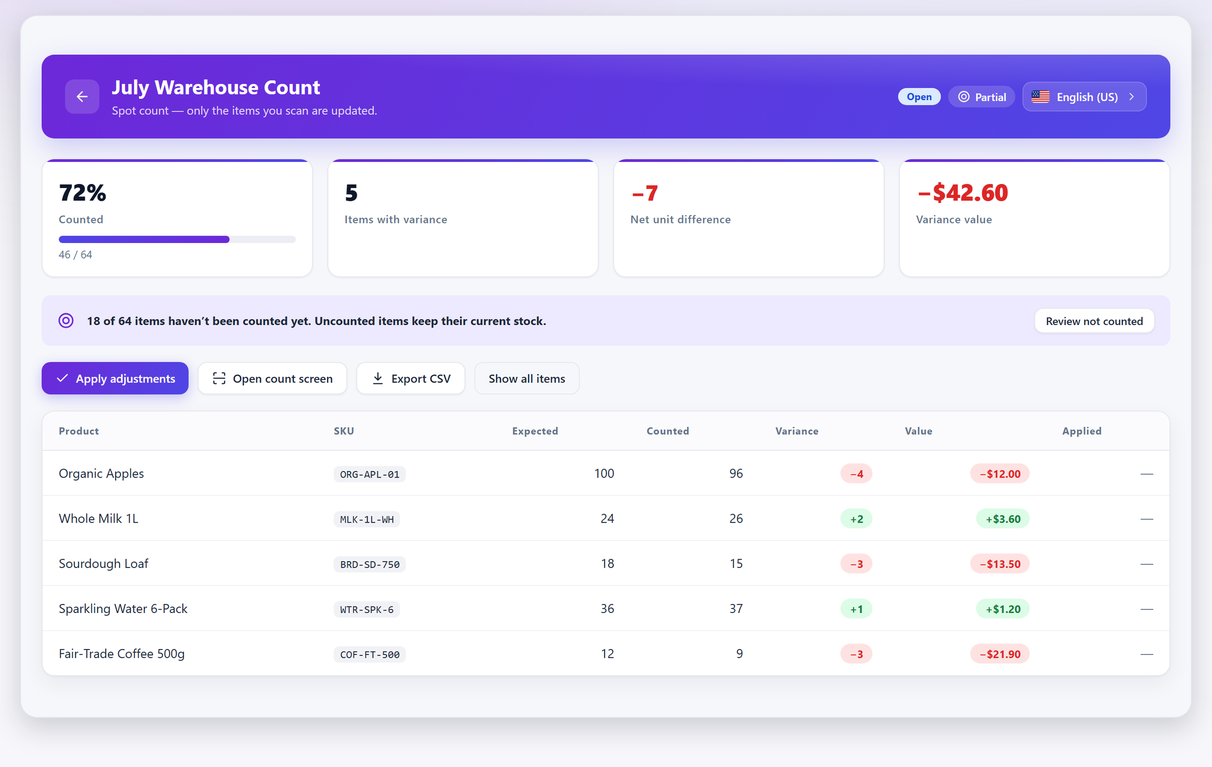
- One product wildly off, everything else fine → a data event: a bad import row, a mis-scan, someone typing a quantity into the wrong field. Counting fixes this one, once.
- Every variation of one product off, parent looks fine → cause 1, parent-level stock management. Counting won’t hold: settle which level owns stock first, or the same variance is back next week.
- A whole category short by small amounts → shrinkage or receiving, cause 9. Look at where that category sits in the shop. Counting measures this one; it cannot stop it.
- Scattered small discrepancies across everything → normal operational drift. Counting is the fix here, just more often than you are doing it; don’t go hunting for a bug.
- Only fast-moving lines off → cause 3 or cause 8: something is losing writes under concurrency. A count buys you a week; the write path is the actual fix.
- Numbers that were right last month and are wrong again in the same way → cause 7 or 8. A recurring process is overwriting you, and it will hand you the same variance next month until it changes.
- A customer sees out of stock and the admin doesn’t → cause 5, stock reserved against an unpaid order. Counting is beside the point here: nothing is actually missing.
You can’t read any of this from a single product page. You need expected versus counted, side by side, for enough of the catalogue to see the pattern — which is exactly what a stocktake produces.
And you reconcile the gap in that same pass, not in a separate exercise afterwards. Inventory reconciliation in a WooCommerce shop is that variance report read twice: once for the shape, once line by line to decide what to change. You look at the outliers before anything is written, you settle each line rather than accepting the whole sheet, and you take the restore point before you apply. It can be done with the doors open — what happens when an order lands mid-count covers the timing. For the procedure itself, the step-by-step stocktake guide walks through snapshot, count, review and apply.
Fixing the number is not the same as fixing the cause#
It’s tempting to correct the quantities and move on. Do correct them — trading on numbers you know are wrong costs you real sales through phantom out-of-stocks, and everything downstream that reads stock status inherits the same error: catalogue visibility, out-of-stock sorting, and a category rule that requires In stock. But record what you found first.
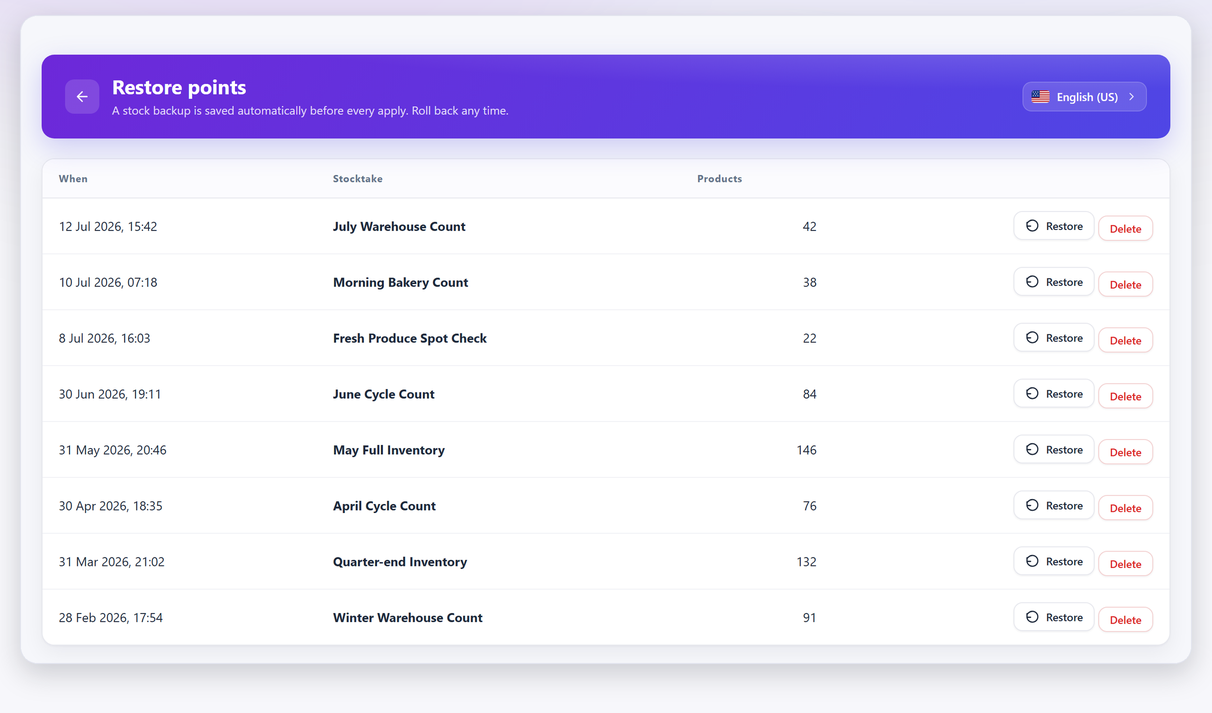
Three habits make the difference between a store that counts forever and one that gets its numbers under control:
- Investigate before you apply. Once you write the corrected quantities, the evidence of what was wrong is gone. Look at the outliers first.
- Keep the count sheet. Export it. Next time you count, the comparison between the two variance reports tells you whether your fix worked — a single count can’t tell you that.
- Make the correction reversible. A bulk write across a catalogue with no way back is the reason people avoid counting. Take a restore point before you apply, so a mistake costs a click rather than an evening.
Be clear about what that buys you, though: counting measures the gap, it does not defend it. A re-import (cause 7), a second system writing stock (cause 8) or a hold window set to three days (cause 5) will re-break the number whatever tool you count with, and no counting plugin — this one included — can stop them. The shrinkage in cause 9 can’t be driven to zero at all, only measured. What counting gives you is the measurement, the pattern inside it, and a write you can reverse.
Those three habits are what the free version of Stocktake for WooCommerce is built around: a variance report you read before anything is written, a CSV export of the count to compare against next time, and an automatic stock backup taken before every apply. Free keeps the undo on your last apply; Pro keeps the full restore-point history. If you’d rather compare before installing anything, what the available counting tools actually do puts the options side by side.
Wrong stock FAQ#
Why does my WooCommerce stock go negative?
Because backorders are enabled somewhere. If Allow backorders is set to “Allow” or “Allow, but notify customer”, WooCommerce will sell past zero by design. Check WooCommerce → Settings → Products → Inventory for the global default, then the Inventory tab of any product showing a negative figure, since products can override the global setting.
Why is my variable product stock not working?
Almost always because stock is managed on the parent product rather than on each variation. When the parent owns stock, every variation draws from one shared pool, so selling a Small reduces what is available in Large. Open the Variations tab and check whether Manage stock? is ticked at variation level.
Why does the product page show a different stock level than the admin?
That is caching. Page caches, object caches and CDNs store the rendered product page including the stock figure, so the front end can be minutes or hours behind the database. Exclude cart, checkout and account pages from every caching layer and purge after bulk stock changes.
Why does a customer see out of stock when the admin shows stock available?
Usually because unpaid orders are holding it. When Hold stock (minutes) is set under WooCommerce → Settings → Products → Inventory, an order that reaches pending payment reserves its lines, and WooCommerce subtracts that reservation from what the next customer is allowed to buy, so both your figures can be correct while the shop still refuses the sale. Look for pending-payment orders containing that product created inside the hold window. The default is 60 minutes; a much larger value locks stock for days on every abandoned checkout.
Does WooCommerce restock items automatically when I refund an order?
No. Stock is only returned if you explicitly choose to restock the line items in the refund dialogue. Refunding a customer and putting the item back on the shelf without ticking that box leaves your recorded stock lower than reality.
How can I tell whether an order actually reduced stock?
Open the order and read the order notes in the sidebar. WooCommerce writes a note whenever it changes stock, in the form “Stock levels reduced: Product (12→11)”. Two notes for one order means it was reduced twice. No note at all usually means the reduction never happened, though an order made up only of virtual, downloadable or unmanaged lines legitimately has none, so check what was on it before calling it a fault. To sweep every recent order at once rather than opening them one by one, there is a short WP-CLI script in the section on orders that never reduced stock.
Will a stocktake stop my stock going wrong again?
A stocktake corrects the numbers and, more usefully, shows you the shape of the error so you can identify the cause. It will not stop a broken process from writing bad numbers again — for that you have to find and fix the process. Counting regularly is how you notice quickly when you have not.