WooCommerce order not reducing stock: only three statuses move it
WooCommerce reduces stock only when an order enters Processing, On hold or Completed. Why yours didn't, and how to move it without double-counting.
Updated
In this article23 sections
A customer takes a jumper off the rail, hands over a twenty, and walks out. Ten minutes later somebody keys the sale into WooCommerce so the books stay straight. A week after that the shelf says two, the screen says five, and nobody can name the moment those numbers parted company.
This is the most common way a WooCommerce store’s stock figure goes wrong once there is a counter involved, and it is not a bug. WooCommerce has a precise moment at which it moves stock, and creating an order in wp-admin is not it. Below: when stock does move, the five ways a hand-keyed sale misses it, and what recording an in-store sale looks like without relying on memory.
The symptom: you keyed the sale in, and the shelf and the screen disagree#
The drift usually runs one way. The screen is high, the shelf is low, because the movement that went missing is a sale that never came off. Two exceptions further down this post — a sale entered twice, and one rung up against the wrong variation — push a figure the other way.
That direction is the expensive one: the website sells something the shop no longer holds, and someone sends the apology email. By the time a stocktake makes it visible, the drift is weeks of small omissions with no order to blame for any given unit. If several causes are running at once, our post on why your WooCommerce stock is always wrong works through them as a set; this one is about selling in person.
WooCommerce moves stock on status, not on creation#
Here is the mechanism, and it explains almost everything else in this post. WooCommerce does not reduce stock when an order is created. It reduces stock when an order transitions into Processing, On hold or Completed. Those transitions, plus payment completion, are the only hooks core attaches its stock reduction to. Restoring works in reverse, on Pending payment, Cancelled and Failed, and only if the stock was reduced first.
| Order status | What WooCommerce does to stock on entering it |
|---|---|
| Pending payment | Restores stock, but only if it had already been reduced |
| Processing | Reduces stock (once) |
| On hold | Reduces stock (once) |
| Completed | Reduces stock (once) |
| Cancelled | Restores stock, if it had been reduced |
| Failed | Restores stock, if it had been reduced |
| Refunded | Nothing automatic — restocking is a tick box in the refund panel |
“Once” is doing real work in that table. When WooCommerce reduces an order’s stock it writes a marker on every line item it touched, recording the quantity it took off, and it flags the order as reduced. On any later transition it skips lines that already carry the marker, and it returns early on orders already flagged. That guard is why re-saving an order does not double-count.
It is not the whole story on the admin screen, though. Saving the items panel runs a second, separate piece of code: for each line it compares the quantity now on the order against the quantity in that line’s marker, moves the difference, and writes an order note beginning “Adjusted stock”. Two conditions gate it. That adjustment only runs on orders at Processing, On hold or Completed, and the panel is only editable at Pending payment, On hold or draft. The one status satisfying both is On hold — everywhere else, a line landing on an already-reduced order stays uncounted.
So a new order left at its default Pending payment has not gone wrong: no transition into a stock-moving status, no stock movement.
There is no “Reduce stock” button, and that trips people up#
Plenty of forum answers and older tutorials tell you to open the order and press Reduce stock. Go and look. While the order is editable the items panel offers Add item(s), Apply coupon where coupons are enabled, and Recalculate, with Refund alongside while something is left to refund, and an edit pencil and delete cross on each row. Once the order is Processing or Completed, most of that goes: the panel says “This order is no longer editable.” and the add, edit and per-line stock controls disappear. The Refund button is rendered separately and stays. The only stock control there is the Restock refunded items tick box in the refund panel, which runs the other way and only shows when global stock management is on.
Those guides describe a screen that no longer exists. The answer now is the status dropdown: set the order to Completed and press Update. It works — and it is a step a human takes on every sale, while a queue forms.
Five ways a hand-keyed sale loses its stock movement#
1. The order never leaves Pending payment#
The commonest one by a distance. New admin orders default to Pending payment. Someone adds the lines, is interrupted by the next customer, saves, and means to come back. The order is correct in every other respect — right products, right total, right day — and it has moved no stock.
2. The line arrived after the stock had already come off#
Start with what WooCommerce will not let you do. Once an order is Processing or Completed you cannot touch its line items, so a forgotten item cannot be added without moving the order backwards first. Where the panel is available it behaves well: on an On hold order, saving it reads each line’s marker, moves the difference, and notes what it did.
What never comes off is a line pushed onto an already-flagged order by something other than that panel — an importer, a renewal, a snippet somebody wrote. It carries no marker, the order-level flag makes WooCommerce skip the order on every later transition, and the order looks complete while a unit sits uncounted.
3. The product is not managing stock#
Stock reduction only touches products with stock management switched on, and only runs at all when WooCommerce’s global “Manage stock” option is enabled under Products → Inventory. A product that never had a stock quantity set is not silently going negative; it is not counted at all.
4. The stock lives on the parent, not the variation#
With variable products there are two places a number can live. If a variation manages its own stock, that variation’s figure moves. If it does not and the parent does, the movement comes off the shared parent pool. If neither does, nothing moves. Shops that believed they had per-size stock and actually had a parent pool see exactly this drift. We wrote about that choice in whether your variations should share one stock pool.
5. The wrong variation, and the duplicate#
The last two are human, and they are the two that push a figure the other way. Ring up the medium instead of the large and the medium reads low while the mediums are still on the rail, the large reads high, and only a per-size count catches either. Or the same sale gets entered twice at the end of a shift. Consistent variation SKUs make the first much rarer; nothing about hand-keying makes the second rarer.
What recording a cash sale should look like when nobody has to remember anything#
Every cause above except the last two is a step someone must remember under pressure. The fix is not a better reminder. It is a screen where finishing the sale is the step.
That is what a till does. You scan or search the item, it lands in a cart, you take the money, you press one button — and the order is created, given its status and reduced on the server. Our Retail POS plugin is a till of that shape, inside the WooCommerce admin you already log into, free on WordPress.org. What WooCommerce itself covers at a counter is in our guide to its built-in point of sale.
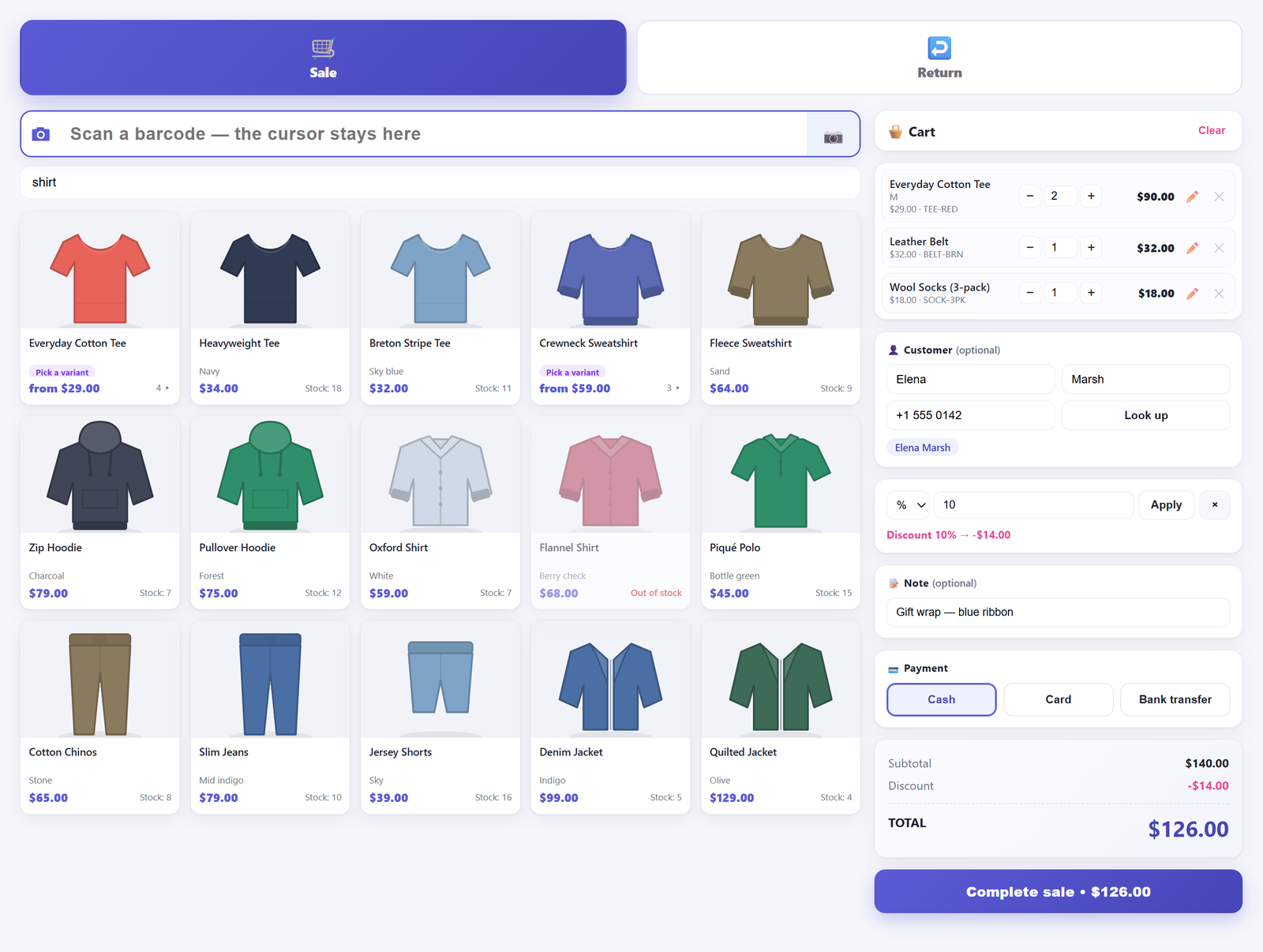
A counter sale is a WooCommerce order, and the stock movement is WooCommerce’s#
The important part of that loop is what it does not do. It keeps no second catalogue, and a sale does not write a stock quantity itself — the only two places the plugin sets a quantity directly are a return putting units back and the quick-edit box on the sale screen. A completed sale is created with wc_create_order(), and its stock is taken down by WooCommerce’s own wc_reduce_stock_levels(): the same per-line markers, the same actions, the same behaviour for anything listening.
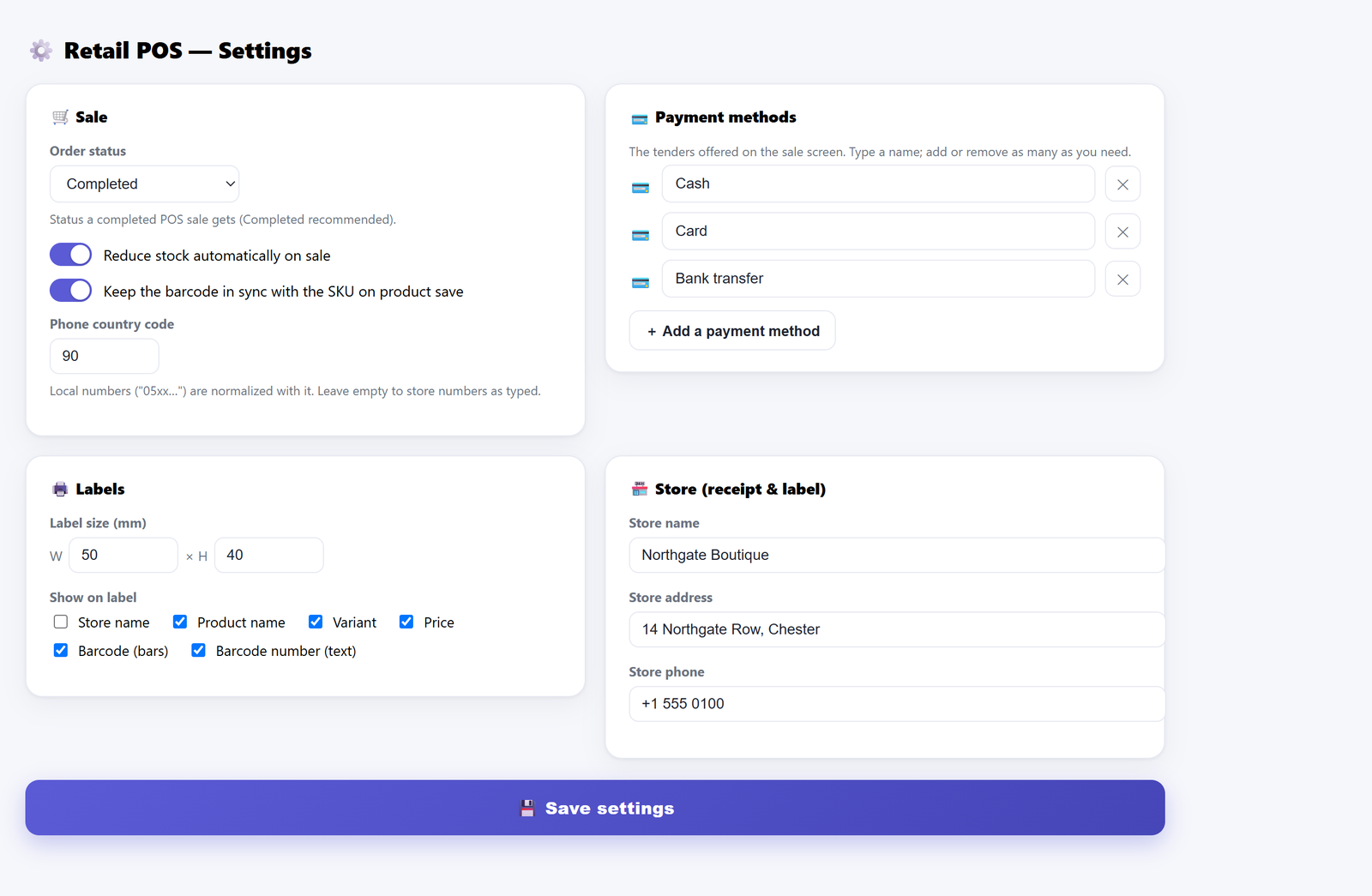
The status a POS sale gets is a setting — Completed by default, with Processing and On hold available — and whether a sale touches stock at all is a second setting. That one governs both directions: with it off, a sale takes nothing down and a return puts nothing back, because a setting meaning different things out and in would invent inventory on every sell-then-return round trip.
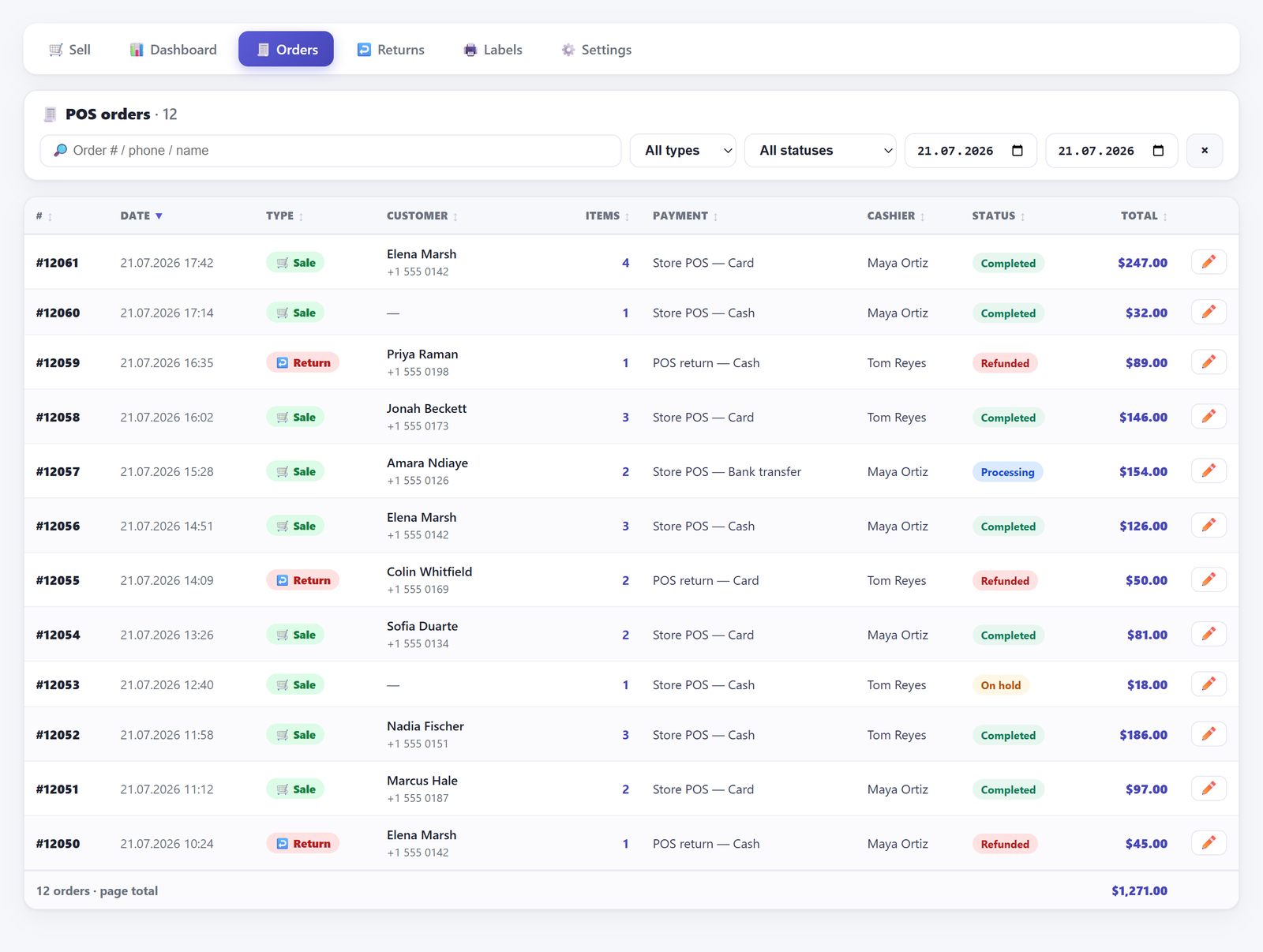
Two side effects worth knowing before you install anything. POS sales do not send the customer the usual WooCommerce order emails — they got a printed receipt — and the admin New order notification is suppressed for POS orders too, so a counter ringing two hundred sales a day does not mail the owner two hundred times about sales they were standing at. Neither has a switch on the settings screen. WooCommerce’s low-stock, no-stock and backorder notices are untouched — those fire off the product, not the order.
Overselling: the cart caps, the server does not refuse#
In the cart, a stock-managed line will not be pushed above the stock figure the screen holds for that product: press plus once too often, or type a bigger number, and it stops at the stock on hand and warns with the figure. There is one deliberate exception: the first unit always goes in, including for something marked out of stock, and the cap applies from the second onwards, because a cashier holding the item needs to ring it up. Products that do not manage stock have no cap.
The server is deliberately softer. It totals demand per product across the whole basket — per product, so the same item on two cart lines is counted and warned about once — compares that to stock, and if the basket is short it completes the sale anyway, returning a warning naming each short product, its stock and the quantity sold. Stock can go negative. That is the right default: the customer is standing there holding the item, so the number on file is what is wrong, not the sale.
Neither half gives you a guarantee. Two tills can both hold a figure fetched a minute ago, and both can sell the last one. With more than one point of sale, treat the cap as a typo-catcher, not a lock.
Proving the number moved#
The other half of trusting a till is seeing the result without leaving the screen. After a sale completes, the confirmation shows the order number, the total, and a remaining-stock block for the products just sold — listing every variant of each, not only the one rung up, with the sold ones marked, all read after the reduction has run.
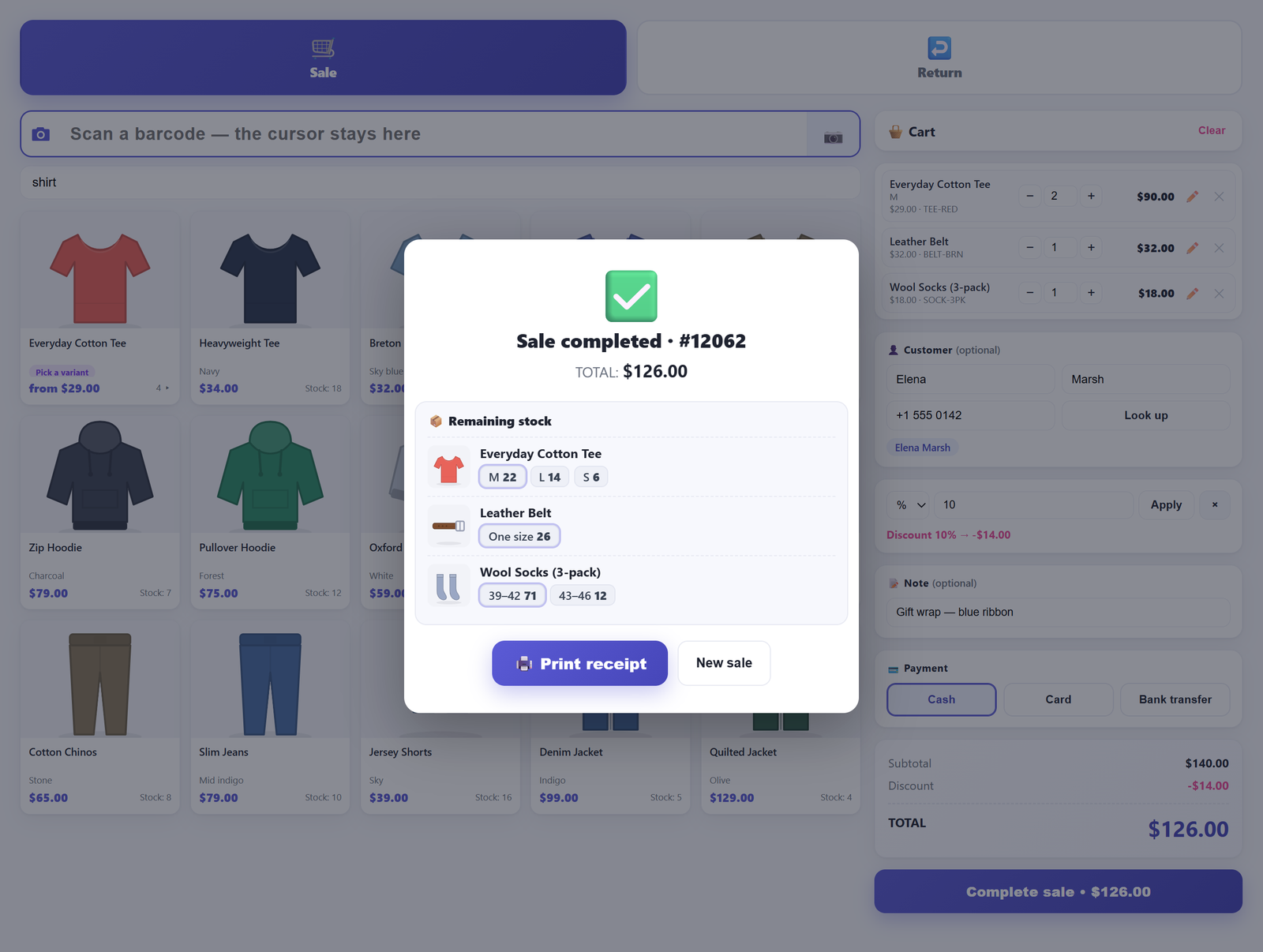
The per-size figures are the point. A cashier who sold a large and watches the medium drop spots the mis-scan while the customer is still there. Thirty seconds later the same mistake is a support ticket nobody can reconstruct.
Still not moving? Work through these in order#
Each makes the next irrelevant, so check them in sequence.
- Global stock management. WooCommerce → Settings → Products → Inventory. If “Manage stock” is off, nothing below matters.
- The product or variation. Is “Manage stock” ticked on the item itself, and is there a quantity in the box? An empty quantity is not zero, it is “not counted”.
- Which object holds the number on a variable product — the variation, or the parent pool.
- The order’s status. Pending payment moves nothing. Confirm the order reached Processing, On hold or Completed.
- Whether the order was already reduced before those lines were added. Re-saving the items panel moves the difference for you, which in practice means an On hold order. A line that arrived from an import or from custom code will not move, so adjust the quantity by hand and note why.
- The plugin’s own stock setting, if you are using a till: reduction can be switched off deliberately.
When the drift is weeks old, none of this recovers it. You need a count, not a fix — stocktaking without closing the shop covers doing that on a trading day, and blind counts covers why showing the expected number ruins the result.
What this does not fix#
A till stops new drift. It does not repair old drift, and there are things it deliberately will not do. It does not hide out-of-stock products from the sale screen — it greys them out, prints “Out of stock” where the number would be, and still lets you ring one up, because a shop often does sell what the database says is gone. It does not work offline, in free or in Pro: every scan, search and sale is a request to your WordPress site. Receipts go through your browser’s own print dialogue, so any printer the browser can reach will do, including a thermal roll printer, but there is no driver-level or ESC/POS integration. In the free version one payment method settles the whole total; splitting a sale between cash and card is a Pro capability, as is any margin or profit figure — though the free build does record a unit cost when you enter one.
Stock going the other way has its own trap — see taking a return without a receipt. If the disagreement is in money rather than units, that is a different diagnosis: why your sales report doesn’t match the till. If lines land in the cart wrong to begin with, start at why a scanner says “product not found”. Every screen and setting is covered in the Retail POS documentation.
Frequently asked questions#
Why doesn’t WooCommerce reduce stock when I create an order manually?#
Because reduction is tied to order status, not to order creation. WooCommerce reduces stock when an order enters Processing, On hold or Completed. A new admin order defaults to Pending payment, which moves nothing — so the order can be entirely correct and still leave shelf and screen disagreeing.
Where is the Reduce Stock button in a WooCommerce order?#
There isn’t one in current WooCommerce. An editable order’s items panel gives you Add item(s), Apply coupon and Recalculate, with Refund alongside; the only stock control is “Restock refunded items” in the refund panel. Guides describing a stock button describe an older screen. Change the status instead.
Does changing an order to Completed reduce stock?#
Yes, once — provided global stock management is on, the products manage stock, and the order has not already been reduced. WooCommerce marks each line it reduces with the quantity it took, flags the order, and then skips both on later transitions.
Can I add a forgotten item to an order and have the stock follow?#
Saving the items panel does move stock for lines you add or re-quantify there: WooCommerce moves the difference between the line’s quantity and its marker. But that only runs on orders at Processing, On hold or Completed, and the panel is only editable at Pending payment, On hold or draft — so On hold is where both are true. A line pushed onto an already-reduced order by an import or custom code carries no marker, and every later transition skips it.
Do product variations reduce stock the same way simple products do?#
Yes, but the movement follows whichever object holds the number. If the variation manages its own stock, its figure drops. If only the parent does, it comes off the shared pool and every size looks identical afterwards. If neither does, nothing moves.
Can I stop staff selling the last item twice?#
Not with certainty, and be wary of anything promising otherwise. Our till stops a stock-managed cart line being pushed past the stock on hand and warns with the figure, which catches the fat-fingered quantity — though the first unit always goes in, and the server completes an under-stocked sale anyway.
Will an in-store sale appear in my WooCommerce reports like any other order?#
Yes. A counter sale made this way is an ordinary WooCommerce order carrying a POS marker and a payment method title such as “Store POS — Cash”, so it counts wherever an order of that status counts and reaches your integrations unchanged. There is no second system to reconcile.