WooCommerce refund with no order: taking a return without a receipt
A WooCommerce refund needs an order. Here is what to do when there is none — the money, the stock, and why Restock refunded items misfires.
Updated
In this article20 sections
A customer walks up to the counter holding a jumper and no paperwork. It was a present, bought three weeks ago. They do not know the order number, they do not have the email, and there is a queue forming behind them. You have already decided you are taking it back — the question is what you type, and where the stock goes.
WooCommerce has a good answer for refunding an order you can find, and none at all for this. A refund in WooCommerce is a child record of an order: no order, no refund, no button to press. This post covers what core actually does, why the usual restock checkbox misfires, and how a counter-shaped return works instead — including the parts our own plugin cannot do. If you are still deciding whether to run a till inside WooCommerce at all, start with does WooCommerce have a built-in point of sale.
The situation WooCommerce has no answer for#
Every returns feature in WooCommerce starts from an order. You open it, click Refund, type quantities or an amount, and WooCommerce writes a refund record against that order. That model is right for a webshop, where every sale arrived through checkout with an email address attached. A shop counter breaks it in four ordinary ways:
- The item was a gift, and the person returning it is not the person who bought it.
- The sale was rung up before you installed anything, or on the old till, or in a notebook.
- The receipt has been through a wash cycle, and the thermal print is a grey rectangle.
- You have twenty seconds and eleven people waiting, and searching three weeks of orders by “blue jumper, maybe Tuesday” is not twenty seconds of work.
Retail shops have a name for the transaction that covers all four: a blind return. You refund the item in front of you, on its own merits, without reference to a specific historical sale — and it still has to produce what a matched refund produces: money out, stock back, and a document proving both.
The refund dialog assumes you know three things it never asks you to confirm: which order, what was paid for each line, and whether the stock ever came out. At a counter you frequently know none of them — only the item, today’s shelf price, and the fact that a customer is owed money. Any workflow that insists on the order first gets worked around, usually by a member of staff refunding cash from the drawer and writing a note that never gets entered — the reconciliation debt described in why your sales report doesn’t match what’s in the till.
Restock on refund: the checkbox, and the two ways it misfires#
When you do refund from an order, WooCommerce offers a “Restock refunded items” option in the refund panel — it appears only when WooCommerce’s own stock management is switched on. Most of the time it works silently and correctly. Two failure modes account for most of the “my stock did not go back” reports.
One: nothing was ever taken out. Restocking on refund gives back the quantity you are refunding, but only on a line WooCommerce recorded as having reduced stock in the first place. An order that never reduced stock has no such record on its lines, so there is nothing to act on — the refund completes, the stock does not move, and no error appears. This is the situation a hand-keyed order creates while it is still sitting at Pending payment, and the one you get when a line is added to an order whose stock was already reduced: see why your WooCommerce manual orders don’t reduce stock.
Two: you refunded money, not items. Type an amount into the refund total and leave the line quantities at zero — which is what everyone does for a goodwill £5 back — and there are no quantities to restock. The money is right and the shelf is untouched, which is usually what you wanted, but it surprises people who expected the box to mean “put everything back”.
A third surprise runs the other way: stock coming back when nobody asked for it. Moving an order to Cancelled — or back to Pending, or to Failed — restores stock through a different code path than the refund dialog, and that path gives back whatever reduction is still recorded against each line. Restocking through the refund panel reduces that record as it goes, so the two do not double up. Refunding with the box unticked leaves it intact, and the units go back on their own the moment somebody cancels the order.
The blind return, step by step#
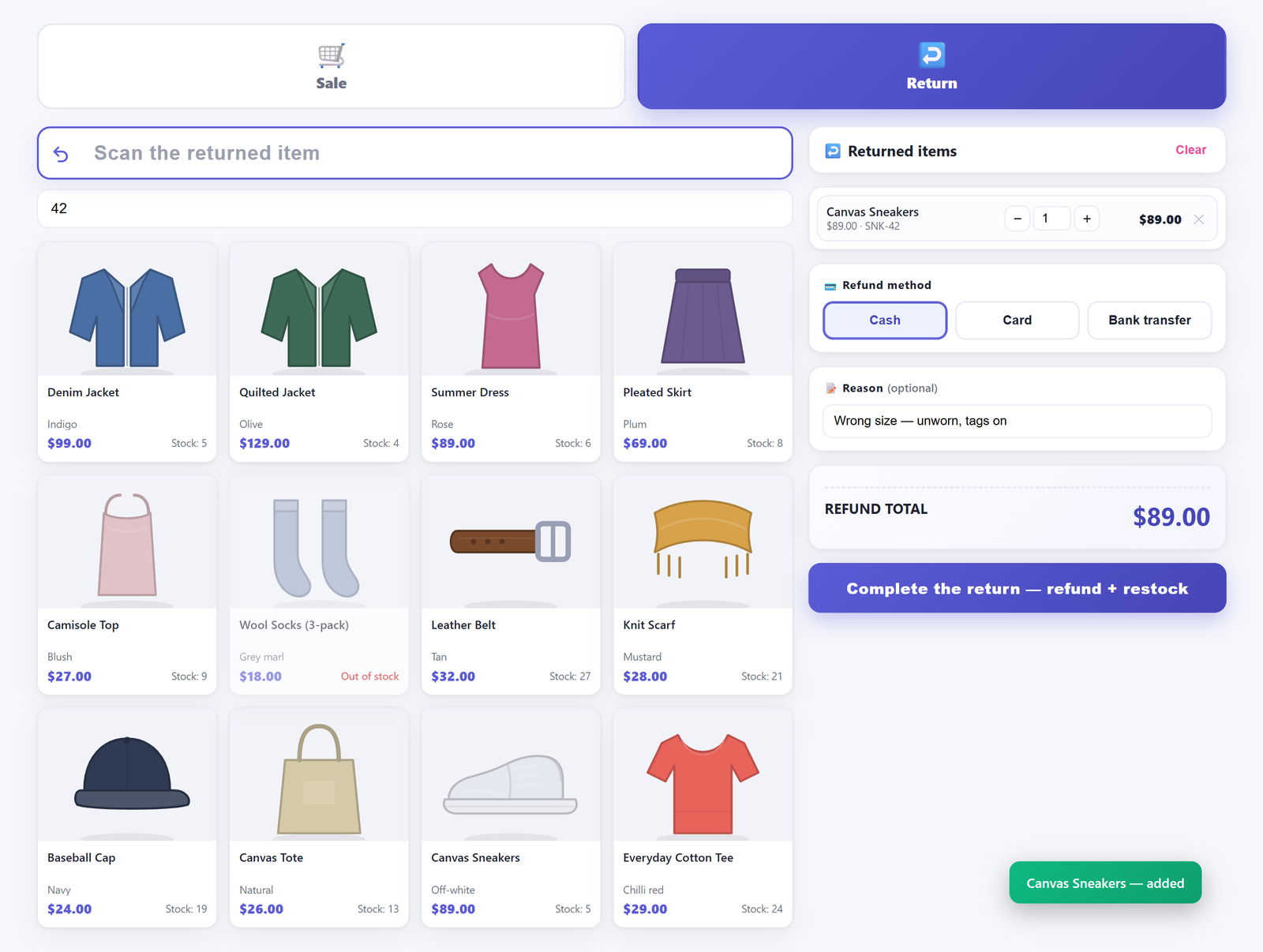
Our plugin’s Returns screen is built around the transaction rather than the order — the sale screen’s layout with the arithmetic pointing the other way.
Scan what came back#
The cursor sits in the scan box when the screen opens. A hardware scanner types the code and the lookup fires by itself; there is also a camera button, so a phone can be the scanner — the mechanics are in using a phone camera as a WooCommerce barcode scanner. If the item has no code on it, the search field underneath finds it by name, and a variable product opens a variant picker so the size that came back is the size that goes back. When a code that should work returns nothing, the reason is usually a field mismatch rather than a broken scanner: why your barcode scanner says product not found covers where codes live.
The returns cart deliberately has no stock cap. On the sale screen, a stock-managed line is capped at the stock on hand once the first unit is in, and the till warns the cashier. On returns there is no cap at all, because a customer can perfectly well hand you three of something you currently hold none of.
Price it, and know what price you are getting#
Each scanned line is priced at the product’s current price in WooCommerce, and the till quotes it gross — tax included — because that is the amount the customer hands over, whether or not your shop displays prices that way. Quantity is editable; the price is not. This is the honest limit of a blind return: the till does not know what the customer originally paid. If the jumper was sold at 30% off and is back at full price today, a blind return refunds today’s price. Where you do have the original order, refunding from it is more accurate and handles discounted lines correctly — see why your discount comes out wrong on tax-inclusive prices.
Choose how the money goes back, then confirm#
The refund method buttons come from the same list of tenders as the sale screen — Cash, Card and Bank transfer to start with, renameable and extendable in Settings. Choosing one records how the money left. It does not contact a payment processor: no gateway call is made, nothing is reversed on a card, no external service is touched. It is a bookkeeping record of a payout you make with your hands. A return records exactly one refund method, in the free version and in Pro alike — split tender applies to sales, not to returns. An optional reason field takes free text — “faulty zip”, “wrong size”, “gift” — and is written to the order as a note. Then the confirm button creates the record.
Why a return should be its own document#
The blind return does not edit anyone’s old order. It creates a new WooCommerce order, marked as a POS return, containing the returned lines, with the payment method title recorded as a return and the status set to Refunded. The refund amount and the tender go into an order note; who processed it is recorded against the order and shows as the cashier column in the POS order list.
That choice is deliberate. A return that edits a historical sale destroys the record of what that sale was: nobody can answer “what did we take on the 4th” once the 4th has been rewritten. A separate document leaves both facts intact.
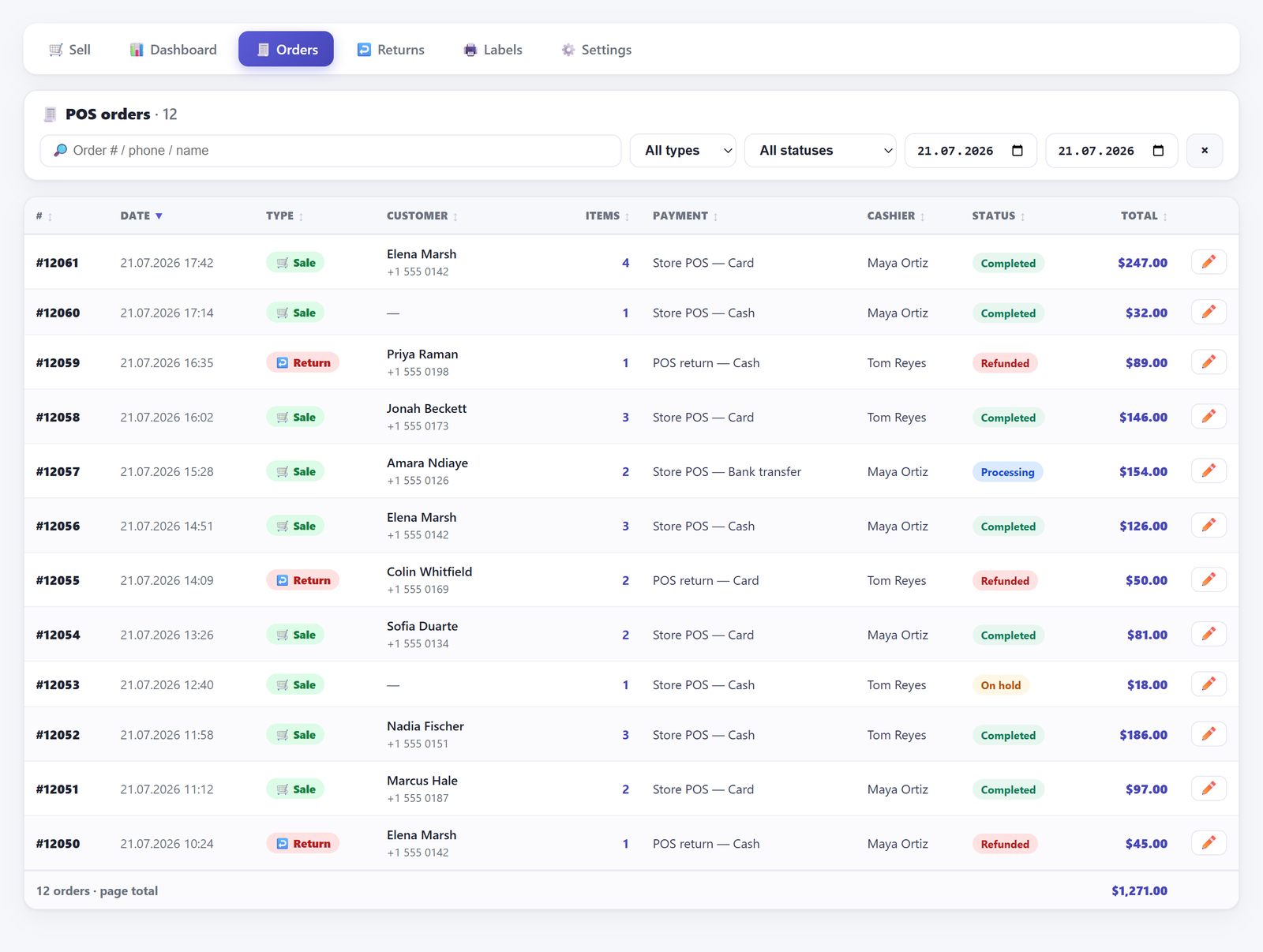
Because it is an ordinary WooCommerce order, everything that works on orders works on it: it appears in the Orders list alongside every other order, and the slip can be reprinted later from the POS order list. That list adds a type filter so you can look at returns alone, and restricts editing to safe fields — name, phone, email, payment method, status and a note — because line and price surgery belongs on WooCommerce’s own order screen.
The refund-note trap#
There is a specific trap here that cost us a build to find. WooCommerce hooks its own handler onto the Refunded status. On a normal shop order that handler is right: it records the full refund and writes an order note telling staff that to return funds to the customer they will need to issue a refund through the payment gateway.
On a blind return that note is actively dangerous. The cash has already gone across the counter, there is no gateway and no charge to reverse, and a member of staff who follows the instruction pays the same customer twice. So the plugin lifts that one callback for the duration of its own status change and puts it straight back. If you build your own returns process, check for this: a refunded status on a document that is the refund produces instructions written for a document that merely records one.
What decides whether the stock goes back#
One setting governs stock in both directions. In Settings, “Reduce stock automatically on sale” decides whether a counter sale takes stock down — and it equally decides whether a return puts stock back.
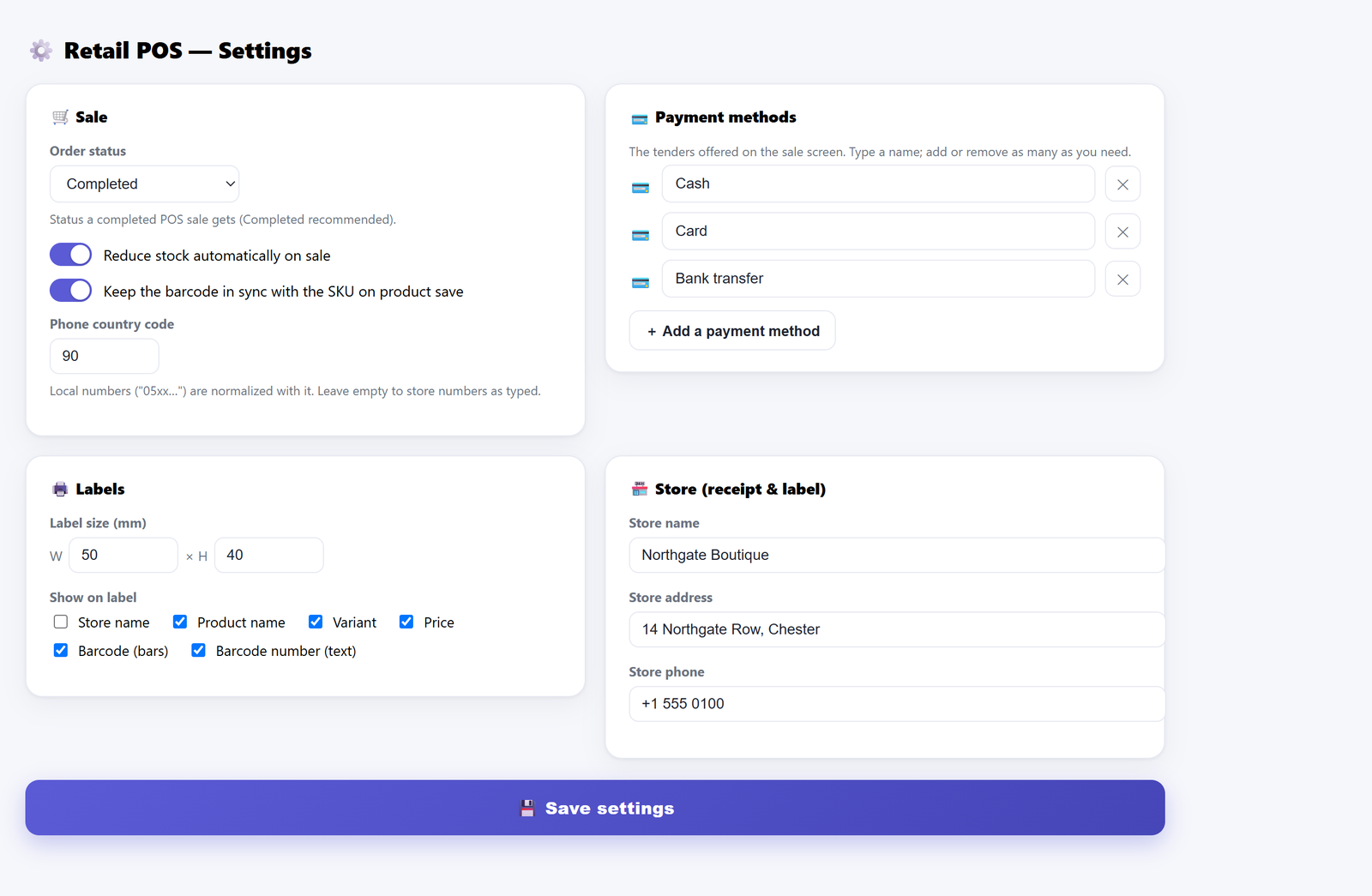
That symmetry is not cosmetic. An earlier build restocked returns unconditionally, and in shops running with stock control off, every sell-and-return round trip quietly invented inventory the sale had never removed. One rough edge: the confirm button reads “Complete the return — refund + restock” whether stock control is on or off, and the on-screen confirmation still says “Return completed — stock restored”. What tells you the truth is the order note on the return, which says either “Stock restored” or “Stock not touched (stock control is off)”. With stock control off, read the note rather than the dialog.
Restocking is also unconditional on condition: a returned item goes back into sellable stock whether or not it is sellable. If the zip is broken and the item is going in the bin, keep it out of the return and refund it from the original order, or correct the stock figure afterwards on the product.
Proof for the customer, proof for you#
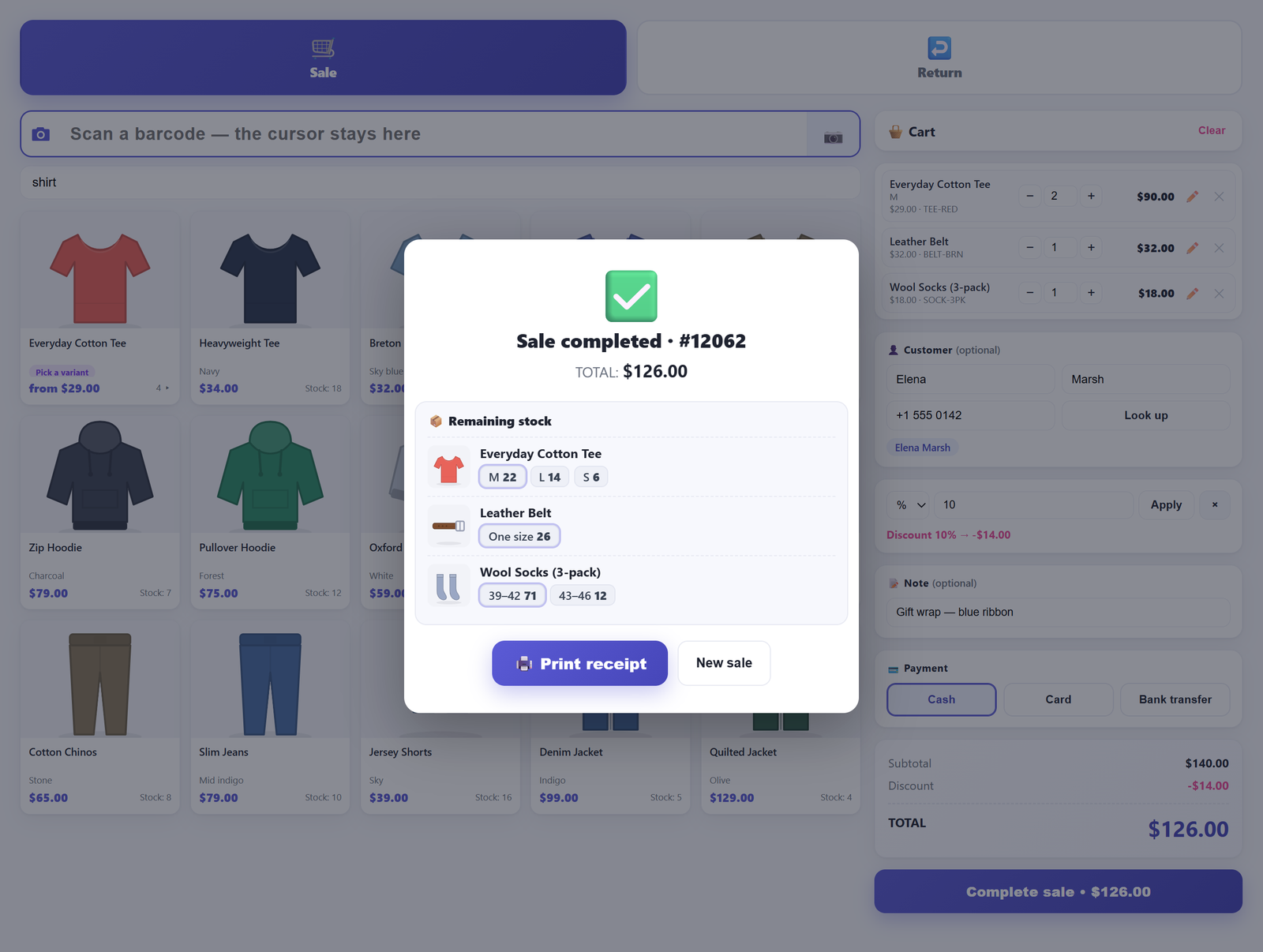
Pressing Print opens a narrow monospace window sized for a till roll, carrying the store name, address and phone from Settings, the order number and time, the returned lines, the total and the method — and hands it to the browser’s own print dialog. There is no printer driver and no direct commands to a thermal printer, and nothing reaches paper unless somebody presses Print and confirms that dialog. If your receipt printer is installed as a normal printer on that machine, it prints. That is the whole integration, in free and in Pro.
POS customers do not receive WooCommerce’s usual order emails, and that includes the refund emails, so the slip in their hand is the record. Keep the copy, or write the return’s order number on the customer’s copy if you keep a paper file.
What a return does to the day’s numbers#
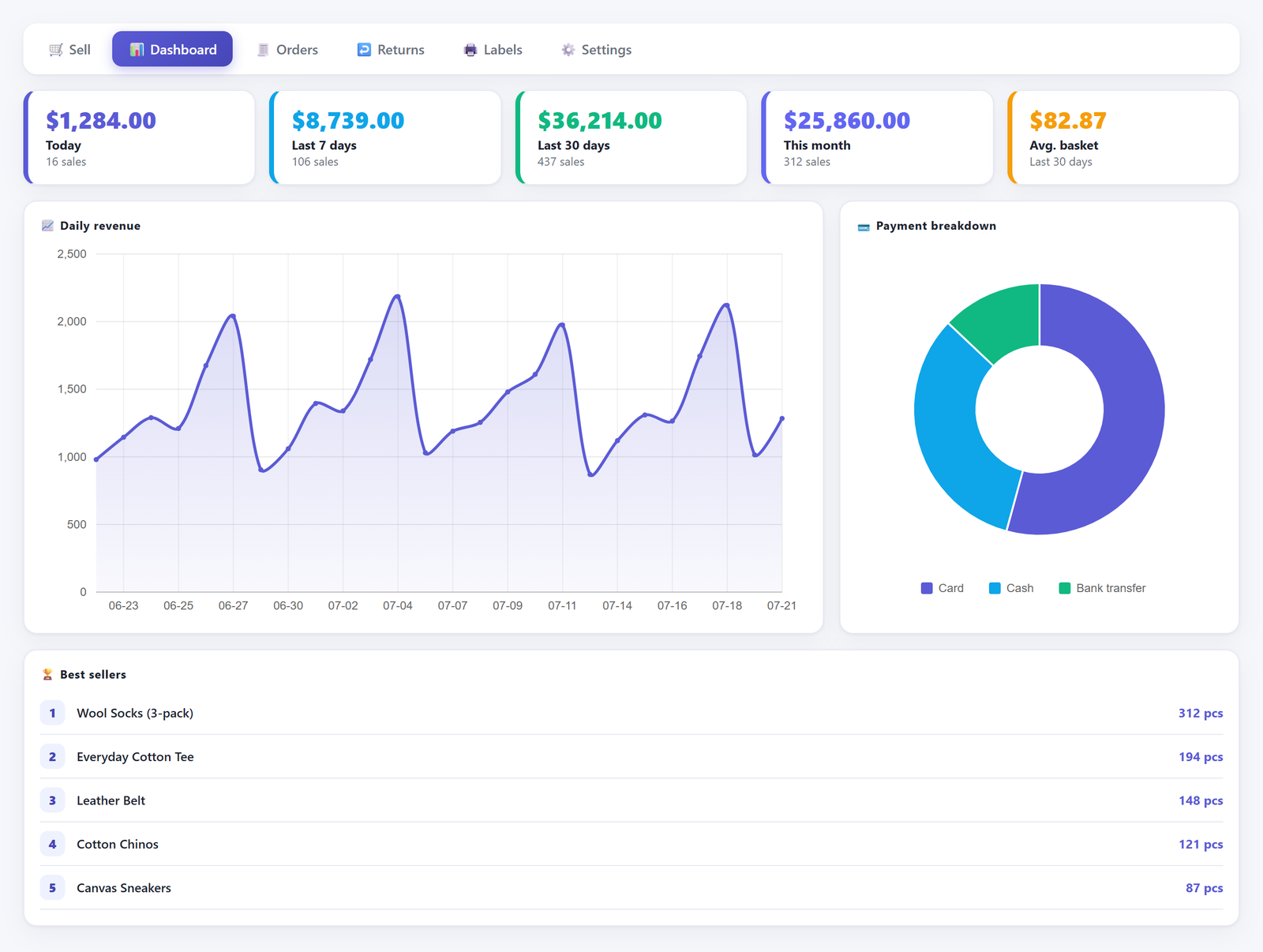
On the POS dashboard, a blind return is subtracted from every period it falls in, and from the slice of the payment breakdown it left by — a cash refund reduces the cash slice, because that is where the note came from. Returned units are excluded from best sellers, so a return cannot push a product up the chart. Average basket divides sales by sales, so it still describes what customers actually spent.
One structural caveat, stated plainly. Because a blind return is its own order rather than a refund line attached to the original sale, no report can net it against that specific sale — nothing links the two, by design. The POS dashboard nets returns out of its own totals because it counts POS returns explicitly. WooCommerce’s own reporting screens do not: to them a return is an ordinary order carrying a positive total and sitting at Refunded status, so whether it appears at all — and with which sign — depends on which statuses each screen counts. Trust the POS dashboard for the counter’s net figure, and see why your WooCommerce sales report doesn’t match what’s in the till for the rest.
A returns policy that survives contact with customers#
A blind return is powerful in a way that should make you slightly nervous: anyone holding a scannable product can, in principle, be given money for it. The controls that matter are policy and access, not software. Access to the till screens requires the WooCommerce management capability, so blind returns are not something a customer-facing account gets by accident, and every return records which user processed it — “who refunded £180 of cash on Saturday” always has an answer.
The rest is four lines near the till: what you take back without a receipt and up to what value, above which staff must find the original order; what the customer gets, whether cash, the original tender or a credit; what condition qualifies, remembering that restocking is automatic and inspects nothing, so anything unsellable has to be written off separately; and who may process one. Then check the numbers the same evening — a return taken at the wrong price or against the wrong variation is trivial to correct while the member of staff who did it is still on shift.
Frequently asked questions#
Can you refund a WooCommerce order when you don’t have the original order?#
Not with core on its own — a WooCommerce refund is a record attached to an order, so with no order there is nothing to attach it to. A blind return creates its own document instead: a new POS order containing the returned items, set to Refunded status, recording the amount and the tender. It is not linked to the original sale, because the original sale is exactly what you do not have.
Does refunding in WooCommerce put the stock back automatically?#
Only if you ask it to, and only when there is something to give back. The refund panel offers a restock option that gives back the quantities you refund, but only on lines WooCommerce recorded as having reduced stock; an order that never reduced stock, or a refund entered as an amount with no line quantities, restocks nothing. A blind return in our plugin follows the “Reduce stock automatically on sale” setting instead: on means it restocks, off means it refunds and records on the order that stock was untouched.
Why were my refunded items restocked when I unticked the box?#
Look for a second path that also moves stock. Moving the order to Cancelled — or to Pending, or to Failed — restores stock through different code than the refund dialog, and that path gives back the reduction still recorded on each line regardless of what you ticked, so a refund you deliberately did not restock will restock itself as soon as the order is cancelled. A later refund entered by a colleague who did tick the box, an inventory plugin listening for the refund, or somebody adjusting the product by hand will do the same. WooCommerce writes an order note when it restores stock, so and those notes are the only trail core keeps — WooCommerce itself has no per-product stock history.
How do I record a cash refund that never went through a payment gateway?#
This is what the returns screen is for. Scan the item in, pick Cash as the refund method, add a reason if it is useful, and confirm. Nothing is sent to a payment processor: you hand over the money, and the resulting order documents the amount, the tender, the time and the member of staff who did it.
Do returns reduce my reported sales for the day?#
On the POS dashboard, yes — today, last 7 days, last 30 days and month-to-date are all net of returns, as is the payment-method breakdown. In WooCommerce’s own reporting, a blind return is a separate order rather than a refund line on the sale it reverses, so nothing can deduct it from that sale, and how each screen treats it depends on which order statuses that screen counts.
Can I take back an item that was never sold through the website at all?#
If it exists as a published product in your catalogue, yes: a blind return is not checked against any sales history. Be aware of the consequence — with stock control on, that return adds stock that no sale ever removed, which is right if the item genuinely came from your shelves and wrong if it did not. Items that are not products in WooCommerce cannot be scanned in, because there is nothing to price or restock.
Where to go next#
Returns are one surface of a counter. The pillar post on selling in person with WooCommerce covers the whole picture; stock on hand-keyed sales is the mirror image of this post, and discounts on tax-inclusive prices explains why refunding a discounted line from its original order beats refunding it blind.
Retail POS for WooCommerce is free on WordPress.org and the blind return described here is part of it — no account, no licence key, no external service. The documentation covers each screen and setting in detail. If your counter also needs to swap one item for another and collect or refund the difference in a single transaction, that exchange terminal is part of Retail POS Pro, along with split tenders and profit reporting.