How to Undo a WooCommerce Stock Update: Bad Count, Import or Bulk Edit
A count, import or bulk edit overwrote your stock. Four routes back, only the first a true undo — ordered by what each costs, worst last.
Updated

In this article13 sections
Somewhere between pressing the button and reading this sentence, a stock write went wrong. A count applied with the wrong quantities. A CSV import that overwrote 900 lines. A bulk edit that caught more products than you meant it to. And the shop is still open, still taking orders, still moving the very numbers you are trying to reason about.
This page is a runbook rather than an explanation. It is ordered by how much you get back and how much it costs you, so you can work down it and stop at the first tier that returns your numbers. The worst option is last because it genuinely is the worst — a database restore does not only roll back stock.
One boundary before we start. If your numbers have been drifting wrong for weeks rather than breaking in one click, this is the wrong page: the eight things that quietly break WooCommerce stock levels is the one you want. This page is for a single write that landed and should not have.
The first five minutes: what not to do#
Almost every recovery that ends badly does so in the first five minutes, and nearly always in the same way — somebody tries to fix it before they have recorded what “it” is.
Three things not to do, in order of how much damage they cause:
- Do not run the same thing again. Re-importing the file, re-applying the session, pressing Update a second time: each one writes another layer over the state you are about to try to reconstruct, and every layer makes the reconstruction harder.
- Do not start counting. Counting is the right long-term answer and the wrong immediate one. A count takes hours you do not have, and if a recovery route is still open you will have swapped a five-minute fix for a two-day one.
- Do not hand-correct the products you happen to notice. Fixing eleven products by hand while a route exists to fix nine hundred properly means that when you take that route, your eleven corrections are overwritten too — and by then you no longer know which eleven they were.
Two things to do instead, and both take under a minute:
- Stop whatever is still writing. Deactivate the import, close the session, pause the sync. If a scheduled job or an ERP connector caused this, it will run again on its own.
- Export the current, broken state to CSV. This feels pointless — it is a record of the wrong numbers. It is also the only record you will ever have of exactly what was wrong, and every verification step later on this page is a comparison against it. WooCommerce’s own product exporter, restricted to ID, SKU and stock, is enough.
Write down the time as well. Not for tidiness: several routes below depend on knowing whether a backup, an export or a restore point predates the incident, and “sometime this morning” is not precise enough to answer that.
Which of these four things actually happened to you?#
The route back depends less on how bad the numbers look than on what wrote them. Four causes cover almost everything:
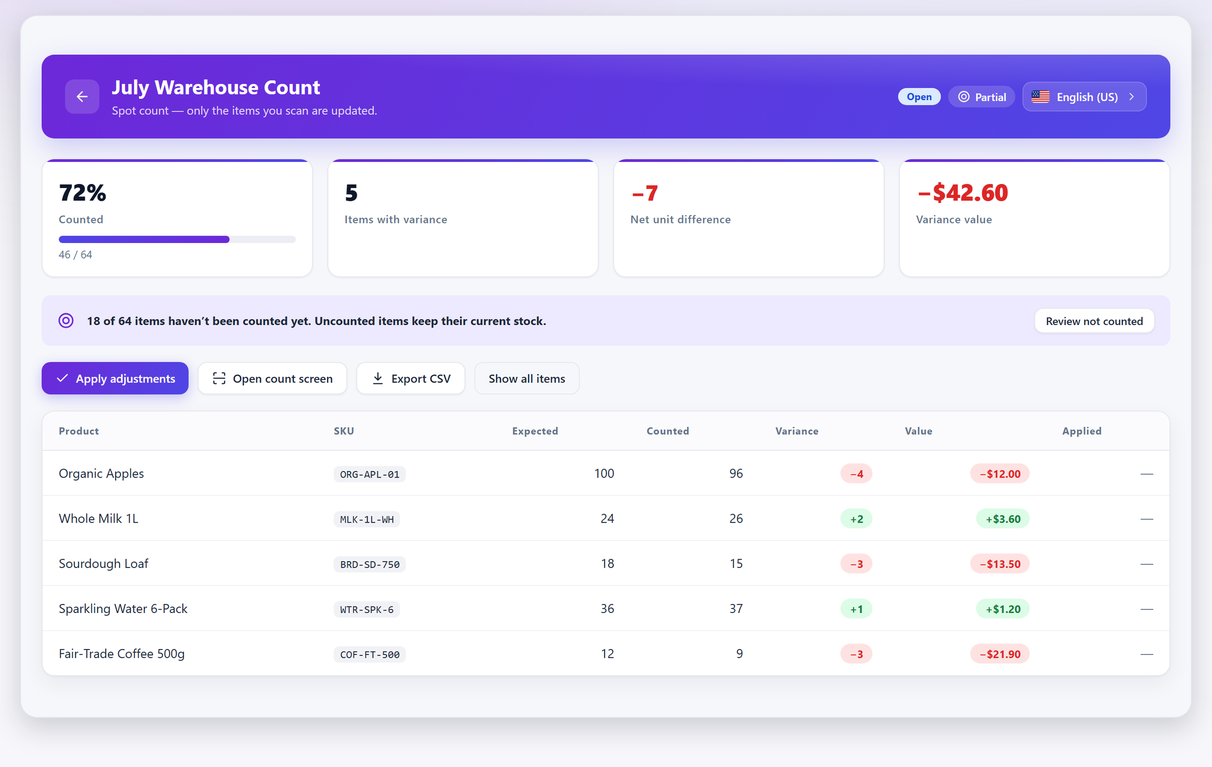
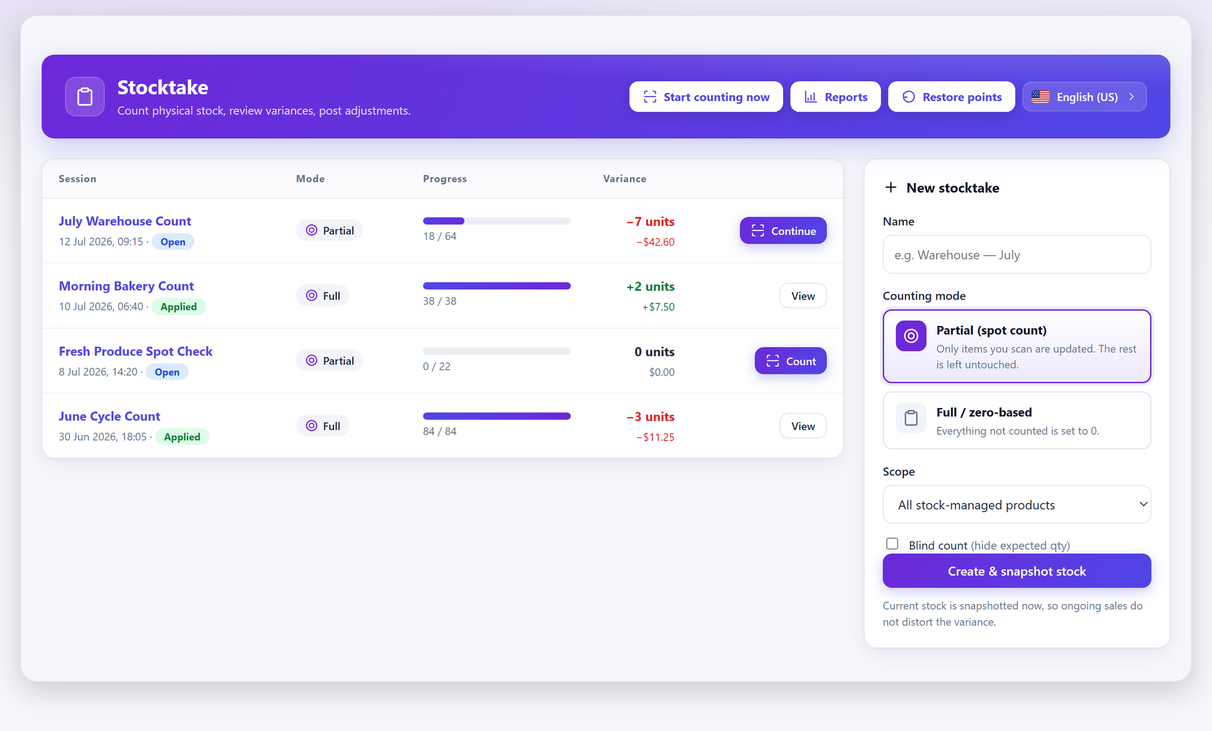
- A count was applied with the wrong figures — the wrong quantities keyed in, or the right quantities applied in the wrong mode. Applying a partial count as a full or zero-based one is the classic version: everything you did not count is written to zero, which is correct behaviour for a complete sweep and a catastrophe for a spot check.
- A CSV import overwrote stock. Usually a file built for something else entirely — a price update, a supplier feed — that happened to carry a stock column nobody noticed.
- A bulk or quick edit hit more products than intended. A filter that was broader than it looked, or Select all quietly meaning all 1,200 rather than the 40 on screen.
- Something else wrote it. A sync plugin, an ERP connector, a REST integration, a marketplace listing tool. These are the hardest, because they will do it again on their next run whatever you fix by hand.
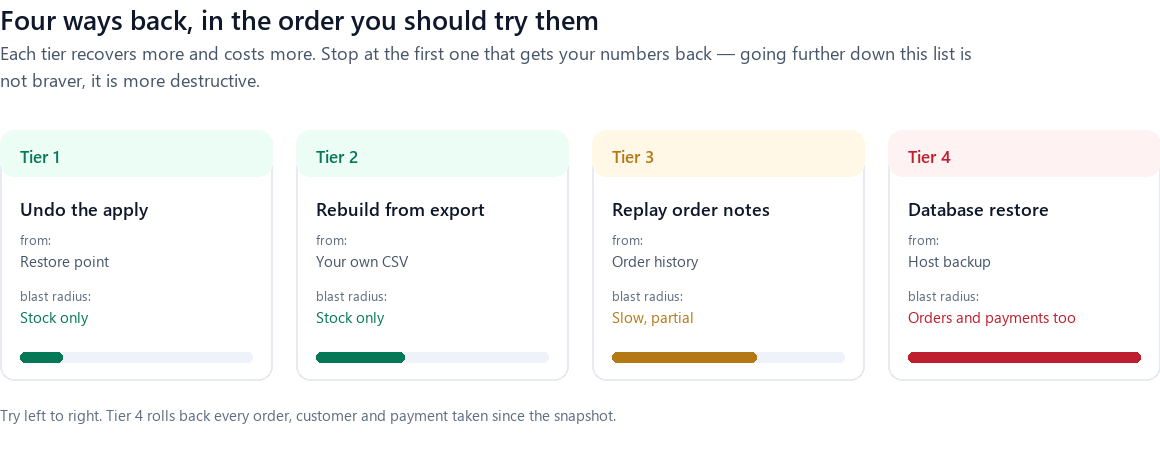
Match the cause to the route before you touch anything:
| What happened | Start at | What you get back | What it costs |
|---|---|---|---|
| A count was applied with wrong figures | Tier 1 — restore point | Every line that apply touched, exactly as it was | Seconds, if you have not applied again since |
| A partial count applied in full or zero-based mode | Tier 1 — restore point | The lines zeroed by the mode, and the counted ones | Seconds, on the same condition |
| A CSV import overwrote stock | Tier 2 — an older export | Every line the export covered, as of the export | Movements since that export are lost |
| A bulk or quick edit hit too many products | Tier 2 — an older export | The same | The same |
| A sync or integration wrote it | Tier 2, after disabling the integration | The same, until it runs again | Stop it first or the fix is temporary |
| No export, no restore point, order-driven changes only | Tier 3 — order notes | A rebuilt figure per product, by hand | Minutes per product. Viable for twenty lines, not 1,200 |
| The damage goes well beyond stock | Tier 4 — database restore | Everything, as of the backup | Orders, customers and payments since are rolled back too |
Tier 1 — undo the apply#
If the bad write came from applying a counting session, the way back already exists and you did not have to do anything to create it. A restore point is written automatically immediately before every apply — which is the entire reason it is written before rather than after.
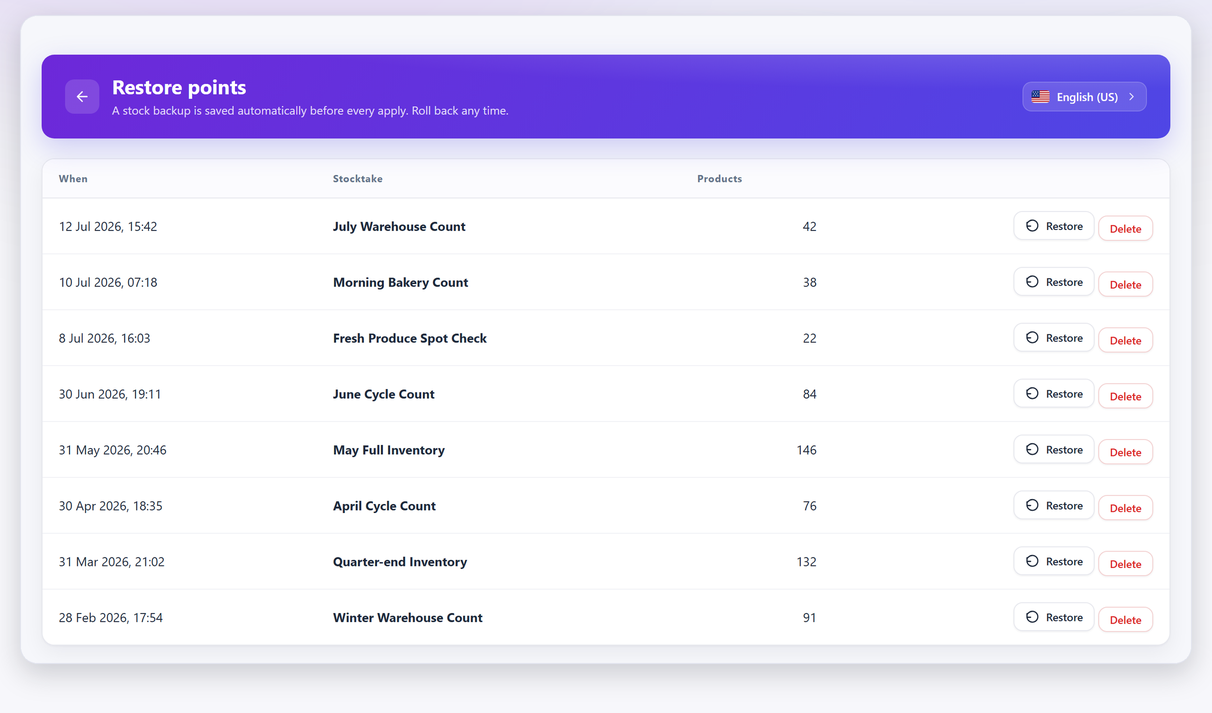
Two things to check before you press it, because a restore is itself a write:
- How long ago was the apply? A restore writes the saved figures back as they were. Anything that moved stock in between — sales, refunds, a second apply — is overwritten along with the mistake. Ten minutes of trading is nothing. A day and a half of trading is a second problem you have chosen to create.
- Has anything else been applied since? If another session has been applied on top, restoring the earlier one will not do what you expect. Work backwards, most recent first.
On the free version, what is available to you is the undo of the most recent apply, and that is the one you almost always want. A full history of restore points — reaching back past later applies to an earlier one — is a Pro feature. The distinction matters at exactly the moment you discover the bad apply was not the last one, which is an argument for reading the variance report before applying rather than an argument for buying anything.
What a restore point captures — and what it does not#
The most common second mistake is assuming a restore point is a backup. It is not, and the gap between what it holds and what people assume it holds is where the next hour gets lost.
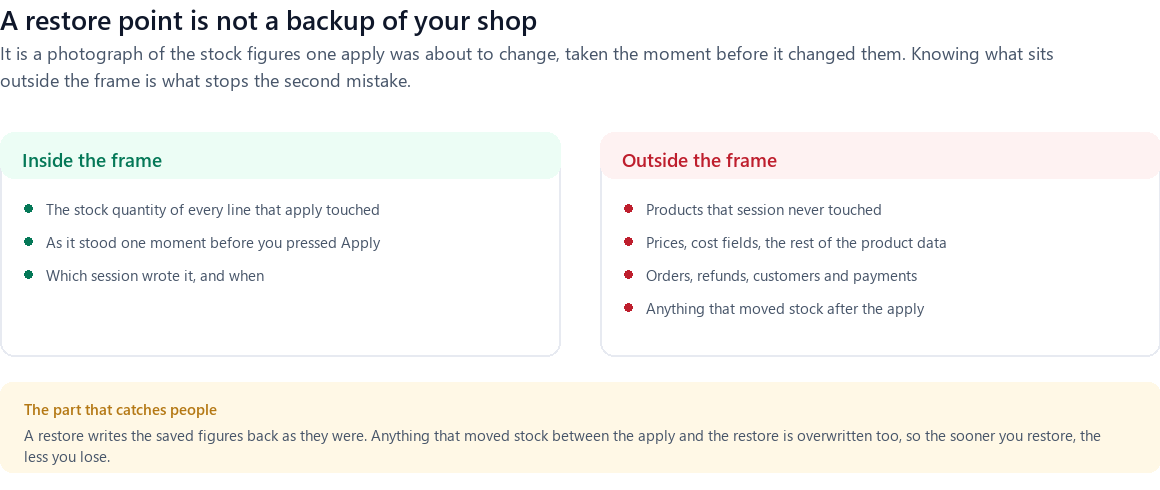
Inside the frame: the stock quantity of every line that apply touched, as it stood the moment before it was touched, plus a record of which session did it. That is exactly enough to undo the apply completely, which is the job it exists to do.
Outside the frame: everything else. Products that session never touched keep whatever has happened to them. Prices, cost fields and product data are untouched — a restore will not undo a price change you made the same afternoon. Orders, refunds and payments are untouched, which is right, and worth stating plainly because it is the exact reverse of Tier 4. And anything that moved stock after the apply is overwritten rather than preserved.
That last point is an operational rule hiding inside a technical detail: restore early. The cost of a restore is whatever trading happened between the apply and the restore, so a restore at 10:05 costs you nothing and a restore on Thursday costs you Wednesday.
Tier 2 — rebuild from an export you already had#
If the write did not come from a count — an import, a bulk edit, a sync — then there is no restore point, and the question becomes whether any file anywhere holds the stock figures from before it happened.
Most shops have one and do not think of it as a backup. Look for:
- A CSV exported from a previous counting session. Exporting the count is a free feature, and most people do it once and then forget they did.
- A WooCommerce product export, from Products → Export, taken for any reason at all.
- The file your accountant asked for at year end. A closing-stock figure filed with accounts is usually backed by a spreadsheet somebody still has.
- A supplier or marketplace feed generated from your own catalogue.
- The spreadsheet somebody built to plan a promotion.
Any of those, if it predates the incident and carries SKU and stock, is a recovery file. Its age determines what you lose: movements between the export and the incident are gone, so a file from Monday used on Friday costs you four days of adjustments. That is usually a far smaller error than the one you are fixing, but it is not nothing, and it is worth writing down so it does not become a mystery next month.
Cut the file down before you import it#
This is the step people skip and then regret. The WooCommerce importer updates every column present in the file — so a full product export re-imported to fix stock also rewrites descriptions, prices, categories and image assignments back to whatever they were on the day of the export.
Delete every column except the identifier and the stock quantity. ID if you have it, SKU otherwise. Two columns, nothing else. Then, on the importer screen, tick Update existing products — without it the importer treats your rows as new products, and you finish with a duplicate catalogue sitting on top of a stock problem.
Import five rows first. Not as a formality: a five-row test tells you whether your identifier column is matching at all, and matching against the wrong column is a failure that looks exactly like success until you open a product and check.
Tier 3 — reconstruct order-driven changes from order notes#
When there is no restore point and no export, WooCommerce still holds one audit trail that nobody thinks of as one: order notes.
Every time WooCommerce reduces stock for an order, it writes a note on that order recording the movement and the figures either side of it — the product, the quantity, and the before-and-after. Restocks from cancellations and refunds are noted the same way. That is a per-product movement log, scattered across your orders rather than collected on one screen, but complete for everything that orders did.
The method, for one product:
- Find a moment when you know the figure was right — the last count, the last export, the day you set it.
- List the orders containing that product between then and now.
- Read the stock note on each one and add the movements up.
- Apply the total to your known-good figure. That is what the number should be, absent anything the orders did not cause.
Two limits, and they are large. First, order notes only cover what orders did. A manual edit, an import, a count apply and a sync leave nothing behind — so if the incident you are recovering from was one of those, this rebuilds the shape of the shelf around the hole rather than filling it. Second, it does not scale: this is a method for the twenty products that matter, not for a catalogue.
One trap worth knowing before you rely on the notes being complete: an order created by hand in the admin does not always reduce stock, and when it does not, there is no note to read. Manual orders that never touched stock is the companion to that gap.
Tier 4 — the database restore, and the price you pay#
Your host has nightly backups and the restore button is right there, which is precisely what makes this tier dangerous. It is the easiest one to press and the only one that can cost you money rather than accuracy.
A database restore does not restore stock. It restores the database. Every order placed since that backup, every customer who registered, every payment recorded, every coupon used, every review left — all of it goes back to how it was. The payments themselves stay taken, because they happened at the processor rather than in your database. You are left with money received and no orders to match it to, which is a considerably worse Monday than wrong stock figures.
So the honest advice is: almost never do this to fix stock. Do it when the damage is genuinely database-wide, and even then, prefer the variant most people never think of.
Restore the backup somewhere else and read it#
You do not need the backup to become your site. You need the numbers inside it.
Restore it to a staging site or a local copy, export the products from there, cut that export down to identifier and stock, and import the result into your live shop. You have turned Tier 4 into Tier 2: you get the stock figures from before the incident, and every order taken since stays exactly where it is.
This takes an hour rather than five minutes, and it is worth the hour every time. If your host offers one-click staging, it is the same hour with much less to go wrong.
What WooCommerce core does not give you#
It is worth being straightforward about the gap, because the reason this page needs four tiers at all is that the platform provides none of them.
- No history on the stock field. WordPress revisions cover post content, not the meta fields where stock lives. There is nothing to roll back to.
- No stock audit log. Order notes record what orders did. Nothing records what people did.
- No undo on the bulk editor, and none on the importer. Both write immediately, and neither keeps what it replaced.
- No warning proportional to the damage. Writing 1,200 stock figures at once looks exactly like writing one.
That last one is the real gap. Nothing in the platform distinguishes a routine edit from a catalogue-wide overwrite, which is why the protection has to come from whatever is doing the writing — a review screen before the write, and a saved copy of what is about to change. Very few tools in this category do either, which is worth knowing before you pick one.
The CSV route: when re-importing helps and when it makes things worse#
Re-importing is the most common recovery attempt and the most common way to turn one problem into two. The difference lies entirely in which file you use and how much of it you keep.
It helps when the file predates the incident, contains only the identifier and the stock column, and is imported with Update existing products ticked.
It makes things worse in four specific ways, all of them avoidable:
- Importing a file you exported after the incident. It contains the broken numbers. This happens more often than it sounds, because the export you can find in five seconds is always the one you just made.
- Importing every column. Stock gets fixed; descriptions, prices and categories are quietly reverted to the day of the export. The stock problem is solved and a content problem is created, and the second one surfaces weeks later with no obvious cause.
- Empty cells. A blank stock cell is not reliably read as “leave this alone” — depending on how the file was produced it can clear the field. Filter the empties out rather than trusting them to be ignored.
- Matching on the wrong column. If the identifier does not match, the importer creates products instead of updating them. The five-row test exists to catch exactly this.
How to never need this page again#
Every route above is a consequence of one decision: something was allowed to write a lot of stock figures at once without keeping a copy of what it replaced. Four habits remove almost all of it.
- Export before every bulk write. ID, SKU, stock. Thirty seconds, and it turns every future incident into Tier 2.
- Count in zones rather than in one pass. An apply that touches 60 lines has a blast radius of 60 lines. A cycle-counting schedule makes every write small enough that recovery is never dramatic.
- Choose partial mode unless you genuinely swept everything. The mode is a per-session decision precisely because it is the most destructive control available, and full or zero-based mode is only correct after a complete sweep.
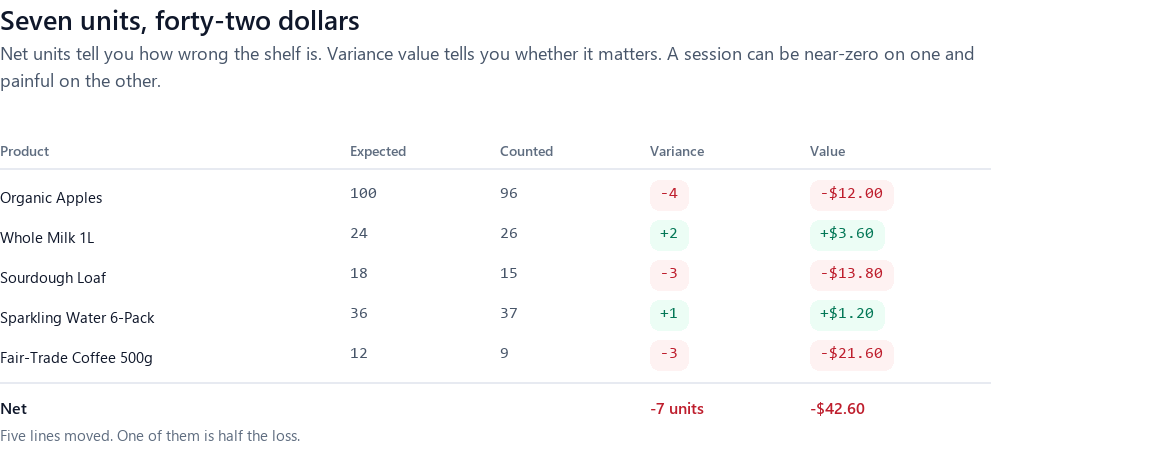
- Read the variance report before applying. Not the total — the line count and the largest few lines. A report saying 900 lines changed when you counted one bay is telling you something before it has cost you anything.
And if the fear of exactly this is the reason you have never counted, the two pages either side of this one are worth the time: how to run a stocktake in WooCommerce for the method, and what happens to orders that land mid-count for the question everybody asks first. And if you are not certain the bad write even landed, telling a rejected stock update from a silent one comes before any of the tiers above.
Frequently asked questions#
Can I undo a stock update in WooCommerce?
Not in WooCommerce itself — the stock field has no revision history, and neither the bulk editor nor the CSV importer keeps what it replaced. What you can undo is an apply made by a counting tool that wrote a restore point first, or a change you can reverse from an export taken before it happened.
Does WooCommerce keep a history of stock changes?
Only for movements caused by orders. Every time an order reduces or restores stock, WooCommerce writes a note on that order with the figures either side of the change. Manual edits, imports and bulk edits leave no record at all.
How do I undo a CSV import that overwrote my stock?
Find any export of your products taken before the import, cut it down to the identifier and stock columns only, and re-import it with Update existing products ticked. Test five rows first. If no such export exists, restore a backup to a staging site and take the export from there rather than restoring over your live shop.
Is a restore point the same as a backup?
No. A restore point holds the stock quantities of the lines one apply was about to change, and nothing else — not prices, not other products, not orders or payments. It undoes that apply completely and undoes nothing else.
How far back can I restore?
The free version covers undoing the most recent apply, which is the case that matters in practice. Reaching back to an earlier restore point, past applies that came after it, is a Pro feature.
Will restoring lose the sales that happened after the bad apply?
A restore writes the saved figures back as they stood before the apply, so stock movements between the apply and the restore are overwritten along with the mistake. Restore as soon as you notice, and if hours of trading have passed, expect to re-count the affected zone afterwards.
Should I restore a database backup to fix wrong stock levels?
Almost never. A database restore rolls back every order, customer and payment recorded since the backup, while the money stays taken at the payment processor. Restore the backup to a staging site instead, export the stock figures from there, and import those into the live shop.
What if I applied a partial count in full or zero-based mode?
That is the most destructive version of this problem and the one restore points handle best, because every line the mode zeroed is a line the apply touched. Restore the apply rather than trying to identify the zeroed products by hand.