WooCommerce Stocktake: How to Run a Physical Stock Count
Run a physical stock count in WooCommerce without closing the shop: snapshot, scan or type, read the variance, then apply it with a restore point.
Updated

In this article18 sections
Every WooCommerce store reaches the same moment eventually: the product page says 12, the shelf says 9, and nobody can say when the other three left. A stocktake — a physical inventory count measured against what the system believes — is the only way to settle it.
This guide walks through running a stock count in WooCommerce from start to finish: how to snapshot expected quantities so ongoing sales don’t corrupt the result, how to count with a barcode scanner or by hand, how to read the variance, and how to write corrected quantities back to WooCommerce without editing products one at a time. You can do all of it while the shop stays open.
The count, in five steps#
The whole of a physical stock count, in the order you do it. Each line links down to the step that explains it.
- Create a session and snapshot the expected stock. Name the count, set its scope, and record what WooCommerce currently believes it has.
- Count, by scanning or typing. A barcode gun, a phone camera or the keyboard — the same box takes a barcode, a SKU or a product name.
- Read the variance. Expected against counted, in units and, where you hold cost data, in money. Nothing has been written to WooCommerce yet.
- Apply the adjustment. One click writes the counted quantities, after backing up current stock to a restore point you can roll back to.
- Export the count sheet. A CSV for the bookkeeper, and the baseline you’ll compare next year’s count against.
The old way, and why it breaks down#
Most WooCommerce stores start with one of two approaches, and reach for a plugin only after both have hurt — which is the right moment to look at what other stock count plugins actually do, ours included.
The CSV round-trip: export products to a spreadsheet, print it, count on paper, type the counts back in, re-import. This works up to a point, but the export is stale the moment it prints, the re-import happily overwrites every sale that happened during the count, and you’re left with no record of what the discrepancy was — only a new number that appeared from somewhere.
Editing products one at a time: open a product, type a new quantity, update, repeat. Perfectly fine for thirty SKUs. Genuinely painful at three hundred, and there’s no undo if you realise halfway through that you were counting the wrong shelf.
Both approaches share the same structural flaw: they change your stock before you’ve had a chance to look at what changed and decide whether you believe it.
Before counting day#
Almost everything that ruins a count is decided before it starts, usually by not being decided at all. Five things to settle the day before:
- Set a cut-off for goods arriving. Either book the delivery in before you start, or leave it in the receiving area unopened and uncounted until the count has been applied. What you can’t do is half of each.
- Check that every line you mean to scan has a SKU or a barcode. Anything without one has to be found by name, which is slow and where most mis-counts come from. Variations are the usual gap — how variations behave in a count is worth five minutes if your catalogue is mostly sizes and colours.
- Decide who counts, and whether blind mode is on. If it’s anyone other than you, it should be: here is what blind mode is for.
- Narrow the scope to what one shift can finish. A slice counted properly beats a catalogue counted halfway, which is the whole argument for counting a slice at a time on a rotation.
- Take a stock export you own. Whatever you count with, hold your own copy of the numbers before anything writes to them. Two ways to do that are at the end of step 4 below.
How to do a stocktake in WooCommerce, step by step#
The workflow below uses Stocktake for WooCommerce, a free plugin that runs the whole count inside wp-admin. The sequence — snapshot, count, review, apply — is what matters, and it’s the same sequence a retail chain uses with far more expensive software.
1. Create a session and snapshot the expected stock#
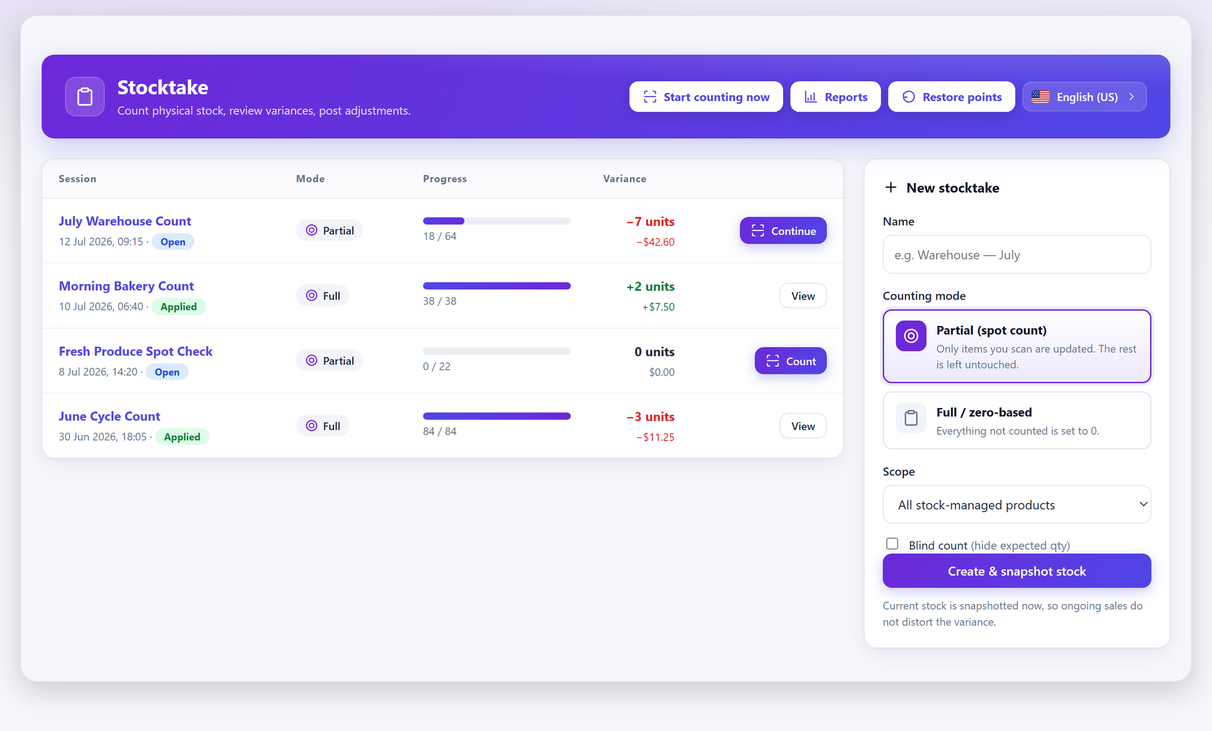
A stocktake starts as a session: a named count with a defined scope. Three decisions matter here.
Counting mode. A partial (spot) count only updates the items you actually scan — everything you don’t touch keeps its current stock. A full / zero-based count sets everything you didn’t count to zero, which is what you want for a genuine end-of-year audit and absolutely not what you want for a quick check of one aisle.
Scope. All stock-managed products, or a subset of categories. Narrow scope is your friend: a count you actually finish beats a count you abandon at 40%.
The snapshot. When the session is created, current quantities are recorded as a baseline. This is the detail that lets you keep trading while you count — the variance is measured against that frozen baseline rather than against a number that’s moving underneath you.
2. Count — scan, type, or both#
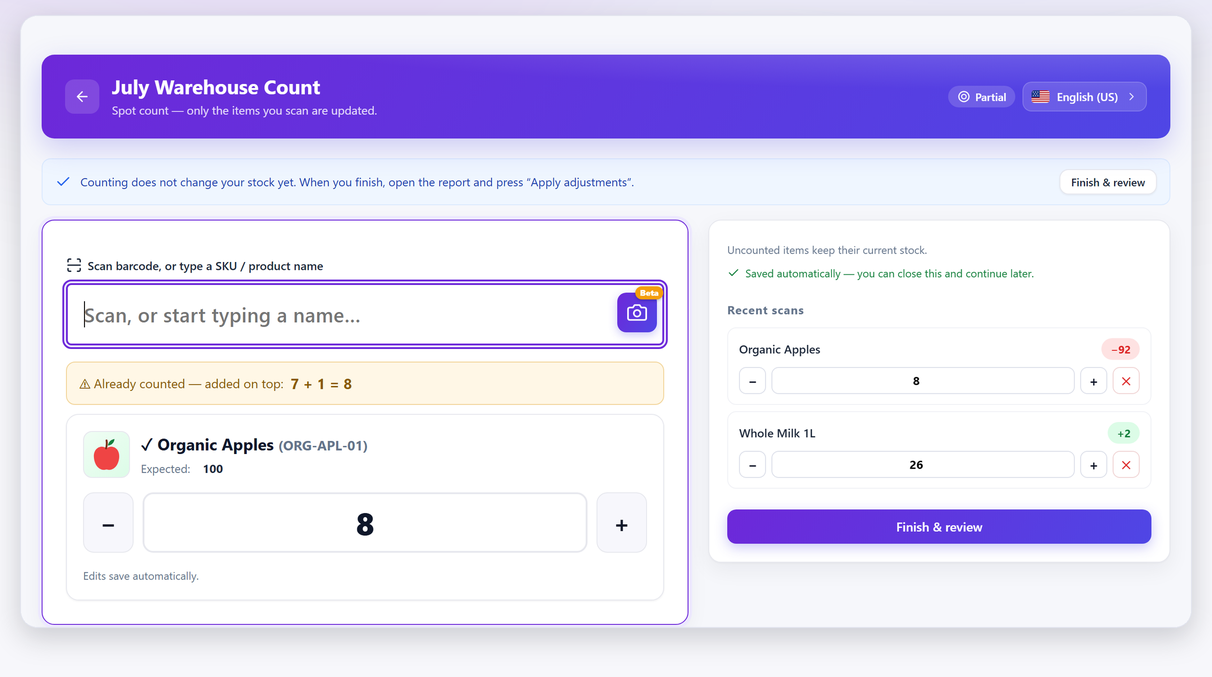
The count screen is designed for the actual physical motion of counting, which is: hold the scanner, look at the shelf, don’t touch the keyboard.
- Scan to count. A recognised barcode is counted on the spot and the cursor stays in the scan box, so you can go item after item without stopping. USB and Bluetooth scanners both work.
- Scan the same item again and it adds on top — 7 + 1 = 8, shown explicitly, so counting a mixed shelf doesn’t quietly overwrite what you already recorded.
- No barcode? Type. The same box accepts a SKU or a product name.
- Fix mistakes inline. Everything you just scanned stays on an editable list — correct a quantity without leaving the screen.
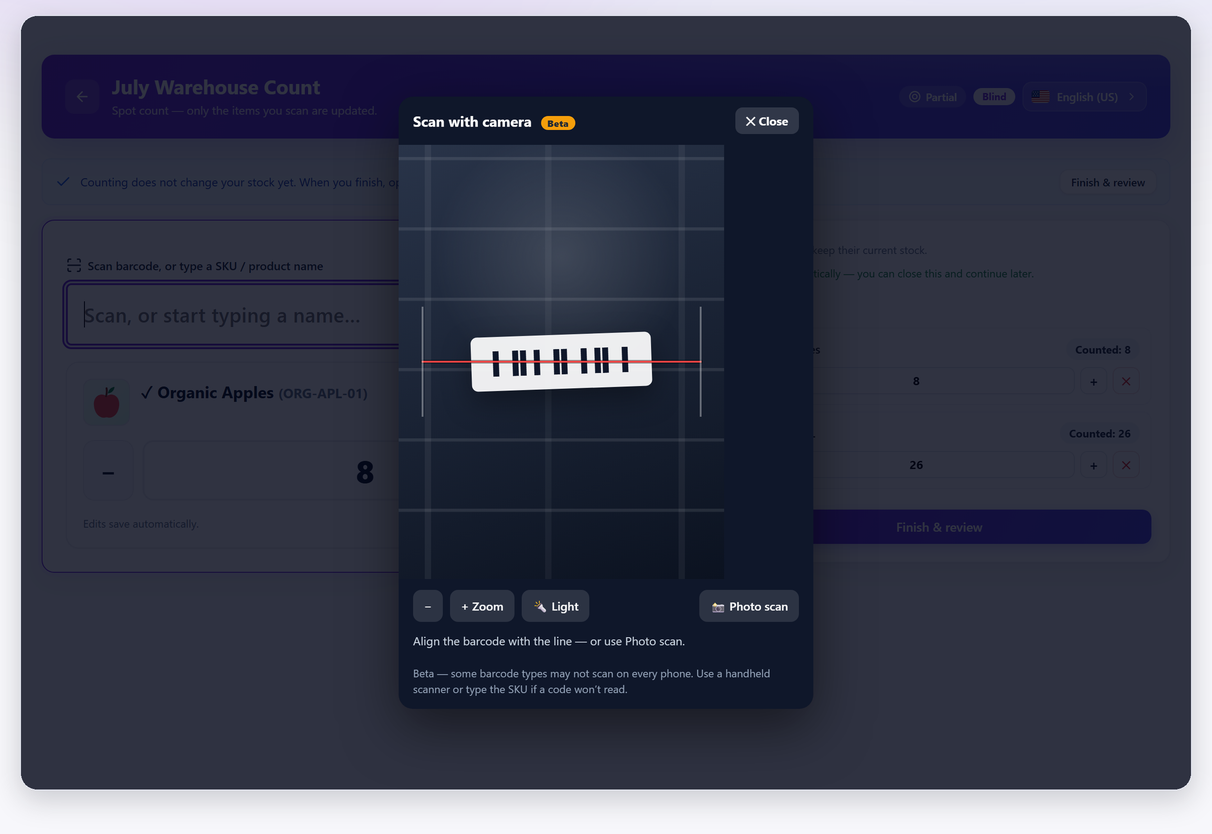
- Phone camera scanning is available as a Beta feature and is genuinely useful for small counts — there’s a longer piece on counting with a phone camera if that’s the route you’re taking. For hundreds of items a dedicated scanner is faster and more reliable, and honestly that’s what you should use.
One thing worth knowing about barcode matching: a scanned code is checked against the SKU first, then against WooCommerce’s own GTIN / UPC / EAN / ISBN field (WooCommerce 9.2 and later). Both work for products and variations — each stock-managed variation counts as its own line, so scanning the barcode on a Medium Blue counts the Medium Blue, not the parent. There’s a separate walk-through of counting stock by variation if your catalogue is mostly variable products.
3. Review the variance before anything changes#
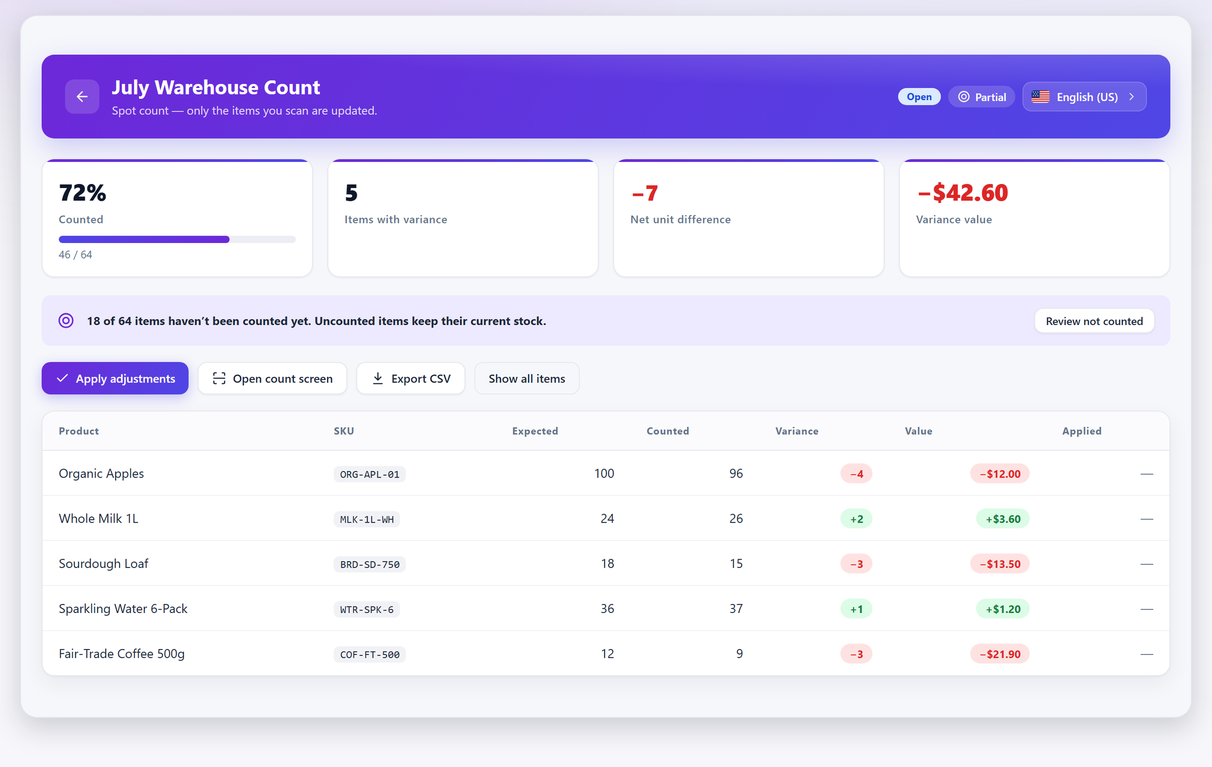
This is the step the CSV workflow doesn’t have, and it’s the most valuable one. Nothing has been written to WooCommerce yet.
You get the count percentage, how many items came back with a variance, and the net unit difference. There’s a money column as well, and it needs a sentence of its own.
The money figure needs a cost per product, and most stores have never filled that in. Where no cost is recorded the line is worth zero in the report — an empty field, not a clean count. The cost can come from WooCommerce’s own cost of goods field, which is a recent addition and on some installs still has to be switched on before it appears, or from PurchaseDesk, which keeps it current from what you actually paid on each purchase order. Fill it in for your top hundred lines and the variance stops being a list of units: it turns “some stock is missing” into a figure you can act on.
Read the outliers before you apply anything. A single item that’s off by 90 units is almost never shrinkage; it’s a units-of-measure mistake, a mis-scan, or someone counting a case as a unit. Recount those. The small, scattered discrepancies are the real ones.
4. Apply the adjustment — with a restore point#
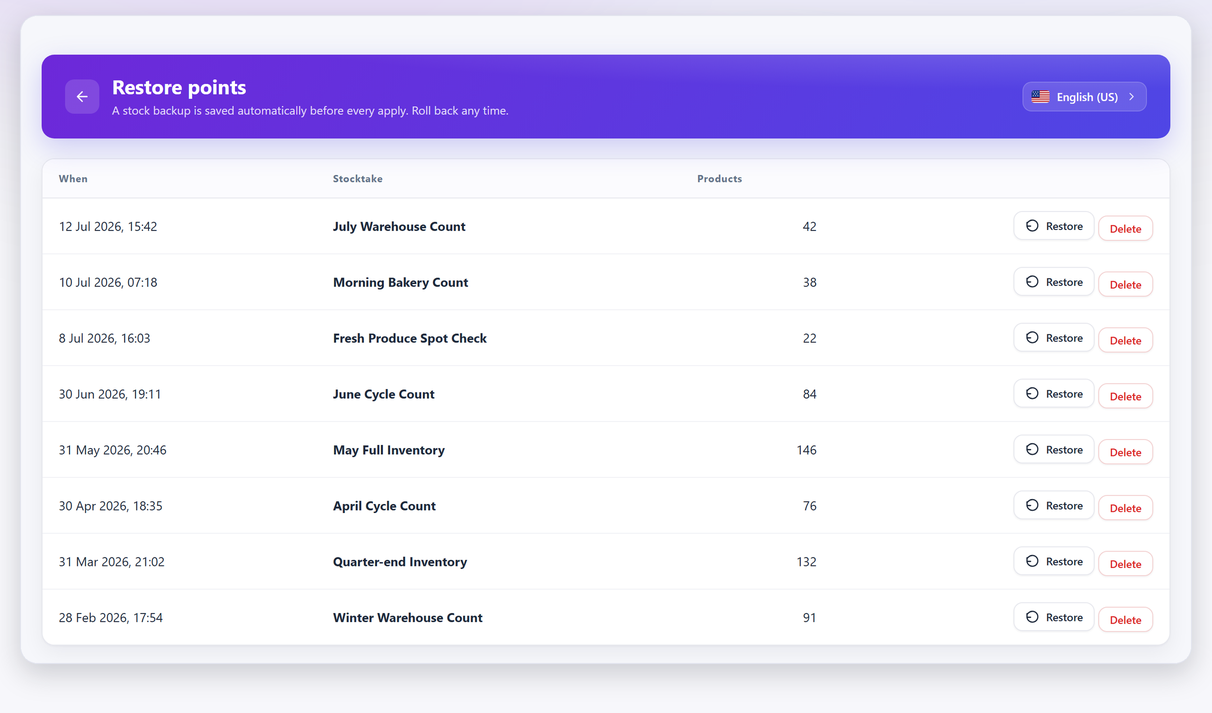
One click posts the counted quantities to WooCommerce stock. Before it does, current levels are backed up automatically, and that backup stays in a restore-points list you can roll back from at any time. If you ever have to use it in a hurry, there’s a step-by-step on how to undo a stock update.
This matters more than it sounds. The reason people put off stocktakes is not the counting — it’s the fear of a bulk write going wrong across the whole catalogue with no way back. An automatic restore point removes that reason.
One thing to check after a large apply: if a quantity refuses to stick — the apply reports success and the product still shows the old number — the cause is usually elsewhere in the stack rather than in the count. Stock quantity not saving works through the usual culprits.
Keep your own copy, whatever you count with
A restore point is only as good as the plugin holding it. Take an independent copy of stock the day before you count and you’re covered regardless of what tool you use, or stop using. Two ways, neither of them ours.
From WooCommerce itself. Products → Export, tick Stock among the columns, and — the part that is easy to miss — set Which product types should be exported? to include Product variations. Left alone, the exporter gives you parent products only, so every variation-level stock figure is quietly absent from the file: exactly the lines this article keeps telling you to count one by one.
From WP-CLI, in one command. Products and variations together, with the SKU joined in so a row can be matched back to a product later:
wp db query "SELECT p.ID, p.post_title, sku.meta_value AS sku, st.meta_value AS stock FROM wp_posts p JOIN wp_postmeta st ON st.post_id = p.ID AND st.meta_key = '_stock' LEFT JOIN wp_postmeta sku ON sku.post_id = p.ID AND sku.meta_key = '_sku' WHERE p.post_type IN ('product','product_variation')" --skip-column-names > stock-before-count.tsvThree notes. wp_ has to match your site’s real table prefix. Including product_variation is what catches variation-level stock — leave it out and you have the same parents-only file as the untouched export. And be clear about what the result is: a tab-separated record you can compare against and re-enter from, not a one-command restore.
5. Export the count sheet#
Export the results and variance to CSV. Your bookkeeper will want it, and next year’s count is much easier to interpret when you can compare it with the last one.
Counting while the shop stays open#
You don’t have to close. The snapshot taken at session start is the baseline for the whole count, so sales that land while you’re counting are measured against that frozen number rather than silently corrupting it. If you sell steadily, read what an apply actually writes when an order lands mid-count once before your first count — sales during a count take care of themselves; goods arriving during one do not.
That said, physics still applies. A few practical habits:
- Count fast-moving sections during quiet hours. Not because the software can’t cope, but because it’s hard to count a shelf someone is buying from.
- Use partial counts for anything you’re doing mid-trade, and save full / zero-based counts for a closed shop.
- Pause and resume rather than rushing. A large count can span shifts or days without losing progress.
Blind counts: hide the expected quantity on purpose#
If the screen says 100 and the counter finds something in the high nineties, a surprising number of people will write 100. Not dishonestly — the brain treats a displayed number as the answer and the count as a confirmation. This is confirmation bias, and it quietly destroys the value of the exercise. We take the argument apart at length in why showing the expected quantity ruins your count.
A blind count hides the expected quantity so the counter records what they actually find. It costs nothing, it’s a per-session toggle, and it’s the single easiest change that improves the quality of your data.
Use it whenever someone other than you is counting, and whenever the count has any consequence attached to it.
Full, partial and cycle counts: which one, when#
| Type | What it does | When to use it |
|---|---|---|
| Full / zero-based | Everything not counted is set to 0 | A year-end inventory count, shop closed, complete audit |
| Partial / spot | Only the items you scan are updated | One aisle, one supplier, one problem category — while trading |
| Cycle count | A recurring partial count on a rotation | High-value or fast-moving lines, on a cycle-counting schedule you will actually keep |
A rhythm that works for most small stores: cycle count your top-value items often enough that an error can’t hide for long, spot count anything that looks suspicious, and run one full count a year for the accounts. Chasing a perfect full count every quarter usually means you stop doing counts at all.
What to do with the variance you find#
Applying the adjustment closes the loop, but it doesn’t answer anything. The count is only worth what you learn from it.
- Investigate before you apply, not after. Once you’ve written the numbers, the evidence of what was wrong is gone.
- Sort by value, not by units. Three missing units of a £400 item matter more than forty missing units of a £2 item. Sorting that way needs a figure to sort on, so it’s worth knowing what a WooCommerce stock value can and cannot tell you before you quote a total to anyone.
- Look for patterns, not incidents. If the same category is short every count, you don’t have a counting problem — you have a receiving, pricing or security problem.
- Track the variance value over time. One count is a snapshot. A trend is a diagnosis, and it’s the number that tells you whether whatever you changed actually worked. If you’d rather have a rate than a raw number, here’s how to turn the variance into a shrinkage figure.
That trend is exactly why the count needs to be honest rather than flattering, and why blind counting is worth the small extra friction.
Why WooCommerce stock drifts from reality#
WooCommerce is a system of record, not a witness. It faithfully stores what it was told, and plenty of things tell it the wrong number:
- Shrinkage and breakage. Theft, damage and write-offs happen off-system by definition.
- Receiving errors. A supplier ships 48 instead of 50 and the delivery note is signed anyway.
- Returns handled outside the order. A refund issued manually without restocking, or a restock on an item that came back broken.
- CSV imports. One column mapped to the wrong field rewrites hundreds of quantities in a second.
- Variation quirks. Stock managed at the parent level on some products and the variation level on others, so the numbers you look at aren’t the numbers being decremented.
- Failed, cancelled and abandoned orders. Stock reduction and restoration don’t always complete symmetrically.
- Manual edits. Someone fixed a number by hand nine months ago and nobody wrote down why.
None of these are bugs you can patch. They’re the normal friction of selling physical things, and the only cure is periodically going out and looking. If you want to work out which of them is happening in your store, we go through eight causes of wrong stock levels one at a time.
A stocktake is not stock management#
These two get conflated constantly, and it matters because the tools are not interchangeable.
Inventory management helps you steer the numbers going forward: purchase orders, suppliers, inbound stock, low-stock alerts, reorder points. It assumes the current quantity is roughly right.
A stocktake asks a different and more uncomfortable question: is the current quantity true? It’s a measurement, not a management process. You count reality, compare it against the record, and reconcile the difference.
You need both. But if your numbers have already drifted, no amount of purchase-order discipline will pull them back — you have to count.
We build one of each, and keep them apart on purpose: PurchaseDesk for the buying side — suppliers, purchase orders, goods received and reorder points — and Stocktake for the measurement. Neither tries to be the other, which is the whole point of this section.
What this workflow does not cover#
Three limits worth knowing before you commit an afternoon to a count.
- One stock number per line. WooCommerce holds a single quantity per product, or per stock-managed variation, and that is what the count is measured against. Per-location, per-bin and multi-warehouse stock don’t exist for it to read. You can narrow a session to one category, but the corrected figure still lands in that one number.
- The money column depends on cost data. Where a product has no cost recorded, its variance is worth zero in the report. Nothing is broken — there’s simply nothing to multiply by.
- A full / zero-based count is destructive by design. Everything in scope that you didn’t count is set to zero. That’s exactly right for a closed-shop audit and exactly wrong for anything else, and it’s the one setting worth reading twice before you start.
Getting started#
If you want to try the workflow above, Stocktake is free on WordPress.org — unlimited sessions, barcode scanning, blind counts, variance review, one-click apply and automatic restore points are all in the free version. There’s a fuller breakdown of what’s included on the Stocktake feature page.
The whole workflow above sits in that free version, so there’s nothing to buy before you find out whether it suits your shop. Pro is $79 a year for a single site, with a 14-day money-back guarantee if it turns out not to fit.
Start small. Pick one shelf, run a partial count with blind mode on, and look at the variance before you apply anything. That first number is usually the most informative one you’ll get all year.
Stocktake FAQ#
Can I count stock while my WooCommerce store is open?
Yes. The session takes a snapshot of expected quantities when it starts, so the variance is measured against that frozen baseline instead of a number that moves while you count. Use partial counts while trading and save full / zero-based counts for a closed shop.
If something sells while I'm counting, does applying the count overwrite the sale?
Applying writes the counted figure for the lines you actually counted. The variance is measured against the snapshot taken when the session started, so a sale that lands mid-count shows up as a difference you can see and decide about rather than disappearing quietly. What an apply actually writes when an order lands mid-count covers the mechanics, including goods that arrive during a count.
What is a blind stock count and should I use one?
A blind count hides the system’s expected quantity from whoever is counting, so they record what they actually find rather than confirming the number on screen. It removes confirmation bias and costs nothing. Use it whenever someone other than you is counting.
Do I need a barcode scanner, or can I use my phone?
USB and Bluetooth scanners are the fastest and most reliable option, and both are supported. Phone-camera scanning is available as a Beta feature and works well for small counts — for hundreds of items, use a dedicated scanner or type the SKU.
How do I bulk update WooCommerce stock after a physical count?
You do not need a CSV round-trip or a bulk editor. After counting, one click writes the counted quantities to WooCommerce stock. Current levels are backed up automatically first, so a single undo restores them if something looks wrong.
Does a stocktake work with product variations?
Yes. Each stock-managed variation is counted as its own line. A scanned code is matched against the SKU first, then against WooCommerce’s GTIN / UPC / EAN / ISBN field (WooCommerce 9.2+), so scanning a variation’s barcode counts that exact variation.
How often should I run a stocktake?
A common rhythm is to cycle count high-value or fast-moving lines weekly or monthly, spot count anything that looks suspicious, and run one full physical count a year for the accounts. Frequent small counts beat an annual count you keep postponing.