Barcode Inventory in WooCommerce: Phone Camera or Scanner Gun
Barcode inventory in WooCommerce: what a scanned code matches against, when a phone camera is enough, when to buy a scanner, and stock with no code.
Updated

In this article10 sections
You don’t need to buy hardware to start counting stock properly. A phone camera can read barcodes, and for a small count that’s genuinely enough.
It’s also not enough for everything, and articles that pretend otherwise waste your afternoon. This covers what barcode inventory in WooCommerce actually involves: what a scanned code is matched against, where a phone is the right tool, and the point at which you should stop and buy a £30 scanner gun. Camera scanning is in the free plugin on WordPress.org — there’s no hardware to buy and no upgrade gating it.
What “scanning to count” actually does#
A barcode is just a number printed in a machine-readable shape. Scanning does three things in sequence: read the number, find the product that number belongs to, add one to its counted quantity.
All the useful design is in what happens between those steps. In a count screen worth using:
- The cursor stays in the scan box after every scan, so you never touch the keyboard between items.
- Scanning the same product twice adds rather than replaces — 7 + 1 = 8, shown explicitly, because a shelf gets counted in handfuls.
- An unrecognised code says so immediately rather than silently doing nothing.
- Everything you just scanned stays visible and editable, so a mistake is fixed on the spot rather than discovered next week.
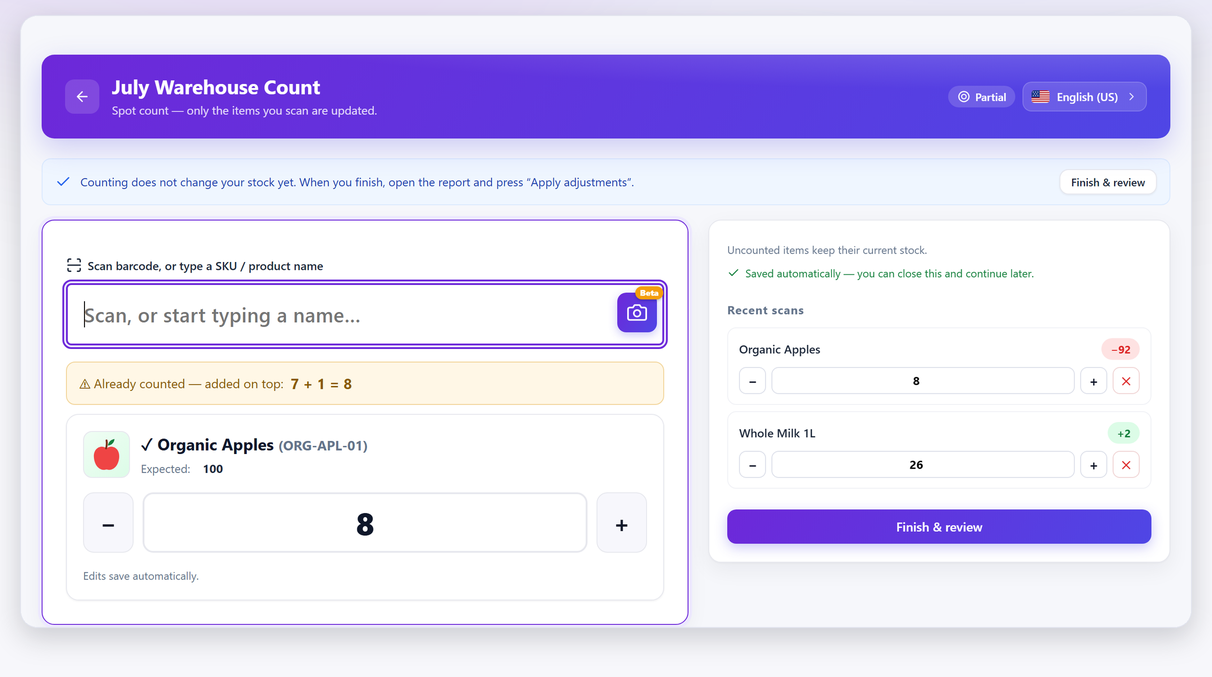
That “adds on top” behaviour is worth checking in any tool you evaluate. If scanning overwrites, counting a bin in two passes silently destroys the first pass.
What a scanned code is matched against#
This is the part that determines whether scanning works at all in your store, and it’s usually skipped.
A scanned string is matched in order against:
- The product SKU. If your SKUs are the barcode numbers, everything just works.
- WooCommerce’s GTIN / UPC / EAN / ISBN field. WooCommerce 9.2 added a dedicated field for this, separate from the SKU, on both products and variations. If you sell manufactured goods with printed retail barcodes, this is where those numbers belong.
Those two are the whole list. A scanned code is matched against the SKU and against WooCommerce’s GTIN field, and against nothing else — which matters if your codes arrived with an older POS or label plugin, because those keep the barcode in a field of their own (_barcode is the common one) and a scan will never look there. Move the numbers into the SKU or the GTIN field before counting day. If a code you know is in the catalogue still comes back empty, why a scan finds nothing works through the rest of the causes.
The distinction matters because SKU and barcode are different things doing different jobs. A SKU is your internal identifier — you choose it, and it can encode whatever you like. A GTIN/EAN/UPC is a globally allocated number belonging to the manufacturer, and the same product carries the same one in every shop in the world.
Putting a manufacturer’s EAN into the SKU field works for scanning but makes a mess of everything else. Use the GTIN field for the printed barcode and keep your SKU as your own code.
Using a phone camera#
Phone-camera scanning in Stocktake for WooCommerce is still marked Beta, and the plugin says what that means on the button itself: some barcode types won’t read on every phone, and a handheld scanner or typing the SKU always will. Under the hood it uses the browser’s native barcode detection where the device offers it, and falls back to a bundled decoder library where it doesn’t — served from your own site, never a CDN.
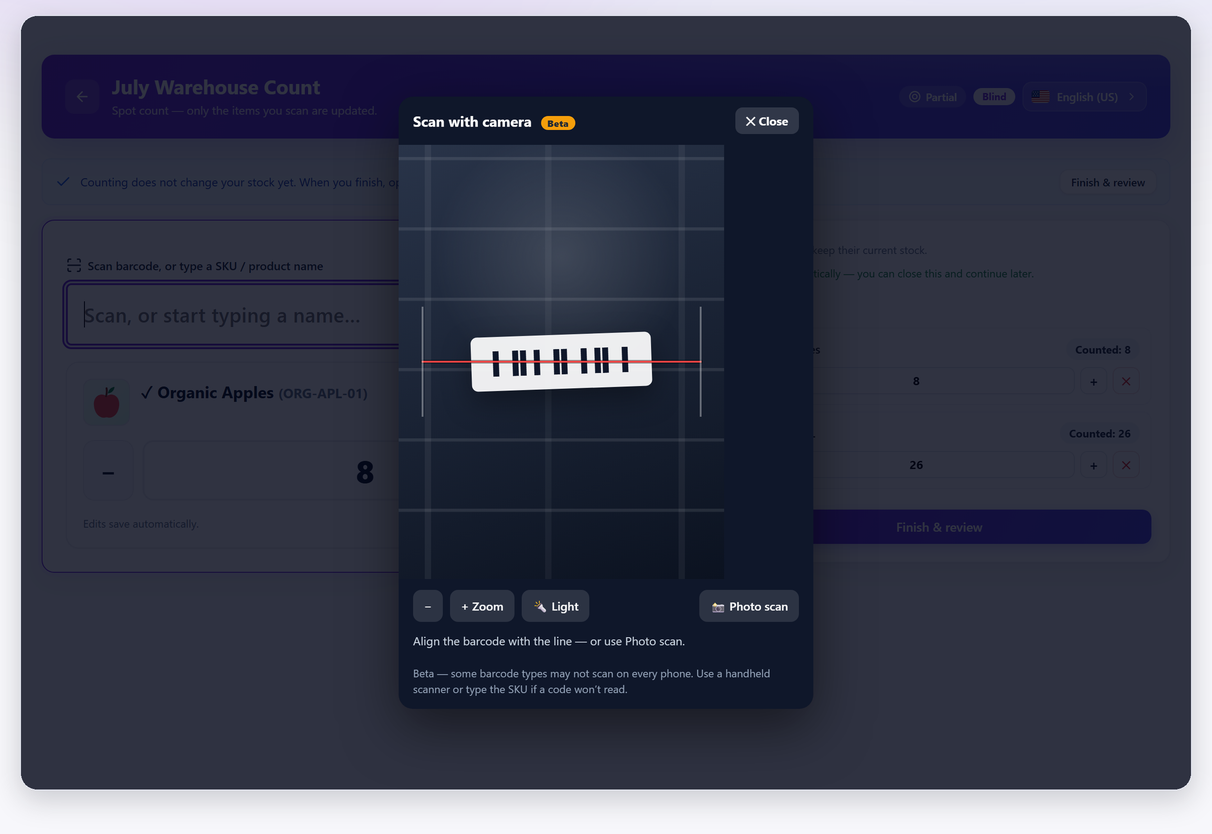
What that means in practice:
- Test it on your worst label first. Open the phone’s own camera app and point it at the most battered code in the stockroom: if the native camera can’t resolve that one, no browser on that phone will either. It only works in one direction — passing doesn’t promise the browser path will be quick — but it costs ten seconds and tells you early, on exactly the labels that ruin a count.
- It needs HTTPS. Browsers won’t give a page camera access otherwise. Any live store already qualifies.
- Which browser you’re holding decides the speed. Chrome on Android exposes the browser’s own barcode detector, and that native path is quick. Safari on iOS exposes no barcode API to web pages at all, so an iPhone runs the decoder bundled inside the plugin and served from your own site. It still scans with nothing installed — it’s just slower, and the gap shows on small dense Code 128 and curled thermal labels rather than on a flat EAN-13.
- Light and focus decide everything. A well-lit, flat, undamaged barcode at 10–20cm reads instantly. The same code crumpled in a dim stockroom will fight you.
- There’s a photo-scan fallback for codes the live view won’t lock onto, plus zoom and torch controls.
Being direct about the trade-off: for twenty or fifty items this is a completely reasonable way to work, and it costs nothing. For four hundred items you’ll feel every extra half-second, and your arm will get tired holding a phone at focus distance.
One thing to settle before you walk into a stockroom: nothing is held on the phone. Every scan is two requests to your own site — one to look the code up, one to record the count — and if the signal has gone, the screen says Could not save. Try again. and that scan is not stored anywhere. It fails out loud rather than quietly, which is the right way round, but a genuine dead spot will cost you the aisle. If you already know where the wifi gives out, either run the phone on its own mobile data instead of the shop network, or tally that aisle on paper and enter it when you’re back in range.
Using a USB or Bluetooth scanner#
Here’s the thing most people don’t realise about barcode scanners, and it’s the reason they’re so painless: a scanner is a keyboard.
Almost every handheld scanner presents itself as a standard HID keyboard device. It reads the barcode, “types” the digits at a speed no human can match, then presses Enter. There are no drivers, no app, no pairing beyond the usual Bluetooth dance, and no integration work. Plug it in, click into the scan box, and it works — with any web page that accepts typed input.
Practical notes:
- Wired USB scanners are the cheapest and most reliable option, and fine for a fixed counting station.
- Bluetooth scanners pair with a phone or tablet, which is what you want for walking the shop floor — the scanner does the reading, the phone just shows the screen.
- Test the Enter behaviour first. Most scanners send a carriage return after the code by default; if yours doesn’t, its manual will have a configuration barcode you scan once to enable it.
- £30 buys a 1D laser, and that is a real limit. A gun at that price reads striped retail codes and nothing else: it won’t read the Data Matrix squares now standard on pharma and cosmetics, and it fights curved and damaged labels where an imager doesn’t. If your stock carries 2D codes, budget for a 2D imager instead of discovering the gap mid-count. For which symbologies read well on a phone, the till-side post goes through them one by one.
- Mind the code on the outer carton. An ITF-14 on a case identifies the case, not the unit inside it, so scanning the box adds 1 where the shelf gained 12 — the most expensive single mistake available in a stock count. Scan an item out of the box, or count cases deliberately and type the multiple. The other reasons a scan finds nothing are worth ten minutes before a big count.
When the phone is enough — and when it isn’t#
| Situation | Use |
|---|---|
| Spot check, 10–50 items | Phone camera |
| Weekly cycle count of one aisle | Phone camera, or Bluetooth scanner if the aisle is dense |
| Full count, hundreds of lines | Bluetooth or USB scanner |
| Cold store, gloves, poor light | Dedicated scanner, no contest |
| Damaged, small or curved barcodes | Dedicated scanner |
| Two people counting together | Two devices; at least one dedicated scanner |
A reasonable rule: start with the phone, and buy a scanner the first time a count takes longer than you budgeted for. That’s cheap information, and you’ll know exactly what you’re buying it for. Counting is a different job from scanning at the till, where somebody is waiting at the counter and the code has to land in an order rather than on a count sheet — if that’s the problem you actually have, start there instead.
Products without barcodes#
Plenty of stock has no printed code — handmade goods, loose items, own-brand products, anything repackaged.
Three options, in order of effort:
- Type the SKU or the product name. The same scan box accepts both, and for a short list of unbarcoded items this is faster than any labelling project.
- Print your own labels with internal codes. Perfectly valid for stock you only handle in-house. Keep them structurally distinct from retail barcodes so nobody confuses the two.
- Buy allocated GTINs. Only necessary if your products are resold through other retailers or listed on marketplaces that require them.
Don’t let a handful of unbarcoded products stop you scanning the rest. A count that’s 80% scanned and 20% typed is still enormously faster than one that’s 100% typed.
Variations: scanning the right thing#
Each stock-managed variation is counted as its own line — a Medium Blue and a Large Red are different things on different shelves — so the code you scan has to identify the variation, not the parent. Both the SKU and the GTIN/UPC/EAN/ISBN field exist at variation level in WooCommerce, so put the variation’s own barcode there; in practice that usually means recording what the manufacturer already printed on that size. If several variations share one code, scanning can’t tell them apart and neither can your stock records. Fix that before counting, not during.
There is more to a variation count than one section holds — a walk order that doesn’t double back, what to do with a variation that has no SKU on counting day, and how to read variance at variation level. Counting stock by variation goes through all of it.
A practical setup for a count#
- Test five codes before you start. Pick items from different suppliers and scan them. Finding out mid-count that a whole supplier’s codes aren’t in WooCommerce is a bad afternoon.
- Charge everything. Obvious, routinely forgotten, and a dead phone halfway through a count is how counts get abandoned.
- Scope the session to one physical area. Count what’s in front of you rather than what’s in a category.
- Decide the fallback in advance. When a code won’t read, do you type the SKU or set it aside? Pick one so nobody stalls.
- Keep the screen where you can see it. The recent-scans list is how you catch a double-scan while you still remember it.
Finding the products with no code at all#
Testing five codes tells you whether scanning works. It doesn’t tell you how many products have no code to scan, and that is the number that decides whether the afternoon goes to plan. One read-only query gives it to you — every published product and variation holding neither a SKU nor a GTIN:
SELECT p.ID, p.post_type, p.post_title
FROM wp_posts p
LEFT JOIN wp_postmeta sku  ON sku.post_id  = p.ID AND sku.meta_key  = '_sku'
LEFT JOIN wp_postmeta gtin ON gtin.post_id = p.ID AND gtin.meta_key = '_global_unique_id'
WHERE p.post_type IN ('product','product_variation')
  AND p.post_status = 'publish'
  AND COALESCE(NULLIF(sku.meta_value,''), NULLIF(gtin.meta_value,'')) IS NULL
  AND NOT EXISTS (
    SELECT 1 FROM wp_posts c
    WHERE c.post_parent = p.ID AND c.post_type = 'product_variation'
  );
Swap wp_ for your own table prefix; it runs unchanged through wp db query. The NOT EXISTS clause is not decoration. It drops variable parents, which legitimately have no code of their own because the code belongs on each variation — without it, a catalogue with 200 variable products hands you 200 rows you are meant to ignore, and the list stops being useful.
Filling the gaps needs no plugin either. Products → Export, with Product variations ticked alongside the ordinary product types, gives you a CSV containing the “GTIN, UPC, EAN, or ISBN” column; fill that column in and bring the file back through Products → Import with Update existing products ticked.
Format that column as Text before you type a single digit, or edit the file in a plain-text editor rather than a spreadsheet. Left to itself, a spreadsheet treats a barcode as a number: 012345678905 loses its leading zero and becomes 12345678905, and a 13-digit EAN is rewritten as 5.0123E+12. Import that and you have written a broken code onto every product in the file — a far worse afternoon than the one you were trying to avoid. Do the round trip on one product first, or on staging, before you import the whole catalogue.
Scanning is only the input method — the count still needs a snapshot before it and a variance review after it. The full stocktake guide covers that loop end to end, and it’s worth reading before your first real session.
And if you haven’t decided which tool to run the count with, that comparison sets the free and paid options against each other, including what each one costs once you get past the first count.
Barcode scanning FAQ#
Can I use my phone camera as a barcode scanner for WooCommerce?
Yes. Phone-camera scanning in Stocktake is a Beta feature that uses the browser’s native barcode detection where available and a bundled decoder where not. It needs an HTTPS site, which any live store already has, and it works well for counts of a few dozen items.
Do I need a special app or driver for a barcode scanner?
No. Almost every handheld barcode scanner presents itself as a standard keyboard: it types the digits and presses Enter. Plug it in or pair it, click into the scan box, and it works with no integration at all.
Should the barcode go in the SKU field or the GTIN field?
Put the printed retail barcode in WooCommerce’s GTIN / UPC / EAN / ISBN field, available since WooCommerce 9.2, and keep the SKU as your own internal code. Scanning matches the SKU first and then that field, so both work — but mixing them makes a mess of everything else. A scan is matched against those two fields only, so a code sitting in an older POS or label plugin’s own barcode field has to be moved before it will scan.
Does barcode scanning work with product variations?
Yes. Each stock-managed variation is counted as its own line, and both the SKU and the GTIN field exist at variation level. Store each variation’s own barcode on the variation — manufacturers already allocate a different code per size or colour.
What about products with no barcode at all?
Type the SKU or the product name into the same scan box, or print your own labels with internal codes for stock you only handle in-house. Allocated GTINs are only necessary if you resell through other retailers or marketplaces that require them.
USB or Bluetooth scanner — which should I buy?
Wired USB is cheapest and most reliable for a fixed counting station. Bluetooth pairs with a phone or tablet and is what you want for walking the shop floor. Either way, check that the scanner sends an Enter after the code; most do by default.