Use Your Phone Camera as a WooCommerce Barcode Scanner at the Till
Your phone can be the barcode scanner at a WooCommerce till, with no app. What works on Android, what is slower on iPhone, and when to buy a scanner gun.
Updated
In this article22 sections
A basic scanner gun is not an expensive piece of kit, so this is not really a money question. It is a timing question. The stock is already in WooCommerce, the counter already has a screen, and somebody is standing in front of you holding a jumper. Can the phone in your apron pocket read the label fast enough to be the thing you reach for, or is it a demo that falls apart on the third customer?
This post answers that from the till, with a queue. If what you actually want is to walk the shelves and count what is there, that is a different job with different tolerances, and we wrote it up separately in counting stock with your phone camera. Selling is the harder case, because a stock count can afford to fail and try again, and a queue cannot.
The queue test#
Here is the honest bar. A scan is fast enough when the cashier can present the label to the lens and look back up at the customer without waiting to see whether it worked. Anything that makes them stare at the screen, tilt the phone, or say “hang on” has failed, even if it decodes in a second and a half.
That bar has three parts, and only one of them is about the decoder:
- Read the code. The camera has to turn a printed pattern into digits.
- Match the code. Those digits have to find a product in your catalogue, which depends entirely on which field the code lives in. That is a separate failure with a separate fix, covered in why your scanner reads the label but matches nothing.
- Land the line. The matched product has to drop into the cart at the right price, with the right variation, without the cashier touching anything.
Camera scanning only owns the first part. If the second part is broken, a better camera makes it fail faster.
Why a browser can scan a barcode at all now#
Browsers grew a barcode API. Chrome on Android ships BarcodeDetector, which hands a video frame to the platform’s own barcode detection rather than to a script the page has to run, and gets back the digits. It is quick, it is native, and there is nothing for the shop to install.
In Retail POS, that is the first thing tried. When you tap the camera button on the scan box, the till asks the browser which symbologies its detector supports, keeps the ones a shop actually uses, and builds the detector from that list. Frames go straight to it.
Where that API is not present, and on a lot of devices it is not, the browser has no built-in answer. That is the gap the next section fills.
The fallback that covers iPhones, and what it costs you#
Safari on iOS does not, at the time of writing, expose a barcode API to web pages. So the plugin bundles the ZXing decoder — a JavaScript library that ships inside the plugin, loads from your own server, and never calls out to anything — and uses it when the native detector is missing. It runs with the “try harder” hint on, which tells the decoder to spend more effort per frame rather than giving up on the first pass.
Two consequences worth knowing before you promise your staff anything.
First, an iPhone will scan. There is no app to install, no configuration, and no separate account. You open the till in Safari, tap the camera button, and point it at a label.
Second, it is slower than the native path, because decoding happens in JavaScript rather than in the phone’s own code. On a clean, flat, well-lit EAN-13 you will not notice much. On a small dense Code 128 printed on a curled thermal label, you will. The gap between the two paths is not a defect anybody can patch away; it is the difference between the operating system doing the work and a script doing it.
Rather than publish a scans-per-minute figure that would be true only of the phone we happened to test, here is what the loop actually does, so you can judge it against your own labels: it grabs the middle band of the frame — roughly the central 86% across and half the height, which is the strip your red guide line sits in — resizes it towards a working width of about 1,280 pixels, enlarging a small frame and shrinking a large one, and alternates between an upright pass and a rotated pass so a code held sideways still reads. That cycle repeats several times a second until something decodes. When it does, the code appears under the viewfinder, and on a phone whose browser exposes vibration — Android, not iPhone — you get a short buzz with it.
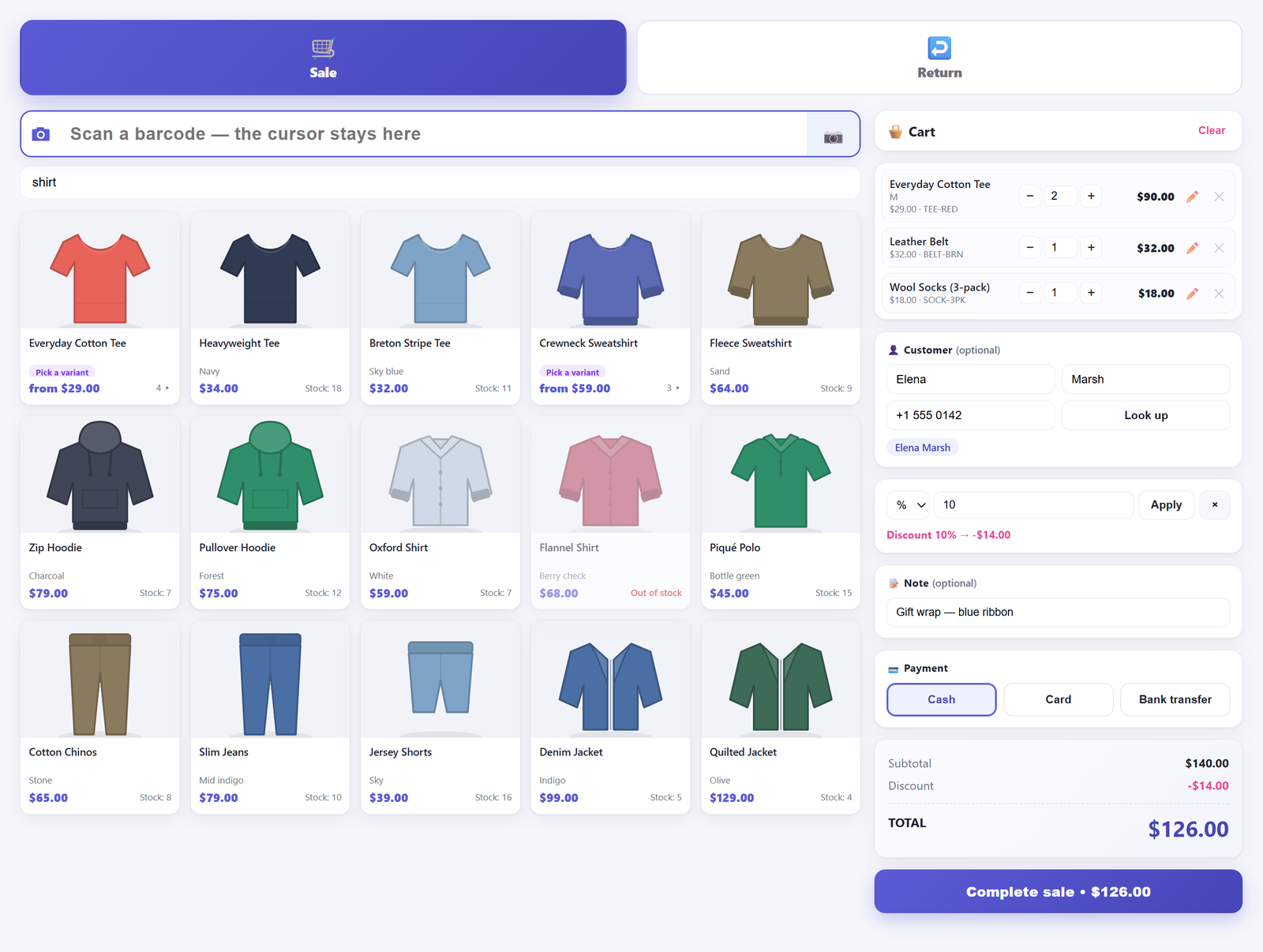
One detail that matters more than it sounds: the viewfinder stays open after a hit. The scanned line drops into the cart behind the overlay and the camera keeps looking, so a three-item basket is three presentations of three labels, not three rounds of opening and closing a camera. The same code read twice inside about two seconds is ignored, so a label resting in front of the lens does not quietly add five units — but deliberately scanning the same item again after that beat does add another one, which is how you ring up two of something without touching the quantity buttons.
Which symbologies a till actually needs#
Retail barcodes are not one thing. The seven below cover essentially everything that arrives over a shop counter, and both decoding paths are set up for all of them.
| Symbology | Where you meet it |
|---|---|
| EAN-13 | The standard retail barcode outside North America — the 13-digit one on almost every packaged product |
| EAN-8 | The short version, used where a full EAN will not fit: cosmetics, confectionery, small tins |
| UPC-A | The North American 12-digit equivalent, common on imported goods |
| UPC-E | The compressed UPC, on small items |
| Code 128 | What most label printers produce for internal codes — and what this plugin prints for any code that is not a plain 13- or 8-digit number, those being printed as EAN-13 and EAN-8 |
| Code 39 | Older industrial and warehouse labels, some supplier cartons |
| ITF | Interleaved 2 of 5 — outer cases and cartons rather than single units |
QR codes decode as well on both paths, which is occasionally handy for internal tagging. Codabar is asked for from the native detector where the device supports it, but it is not in the fallback decoder’s list, so do not build a workflow on it if your staff carry iPhones.
Rear camera, torch and zoom#
Three controls decide whether a scan lands, and all three are things the phone either offers or does not.
The rear camera. The viewfinder asks for the environment-facing camera and requests 1920 by 1080; the phone hands back the closest stream it has. Resolution is not vanity here: a dense Code 128 on a 50 mm label has bars a fraction of a millimetre wide, and if the frame does not resolve them the decoder has nothing to work with.
The torch. Where the browser reports the flashlight as controllable, a torch button appears in the camera overlay. Shop lighting is usually fine and the torch is usually wrong — pointed at a glossy label it produces a hotspot that hides the bars. It earns its place in exactly two situations: a dark corner of the counter, and a dark product where the label is printed on a black background.
Zoom. Where the browser reports zoom, plus and minus buttons appear and the view opens slightly zoomed in, because the failure mode with small labels is holding the phone too far away and asking the decoder to read four pixels of bar. Continuous autofocus is switched on where the device supports it.
Those buttons only appear when the browser actually reports the capability. On some phones, and iOS in particular, you may never see the torch button at all. That is the browser declining to expose the hardware, not the plugin hiding a feature, and there is no setting anywhere that changes it.
When the live view will not read it: the photo path#
Every camera-scanning setup eventually meets a label it cannot read live. The bars are there, your eye can see them, and the stream just will not resolve them — usually because autofocus keeps hunting at close range.
The overlay carries a “Read from photo” button for exactly that. It hands off to the phone’s own camera to take a still, and that still gets worked much harder than a video frame ever could: three different sizes, four rotations each, twelve decoding attempts in total before it reports that it could not read anything. A still has a real exposure and a settled focus, which is why it succeeds on labels the live view gives up on.
It is slower — you take a photo, you wait a beat. It is a rescue path for the one awkward item in a basket, not a way to ring up a whole trolley.
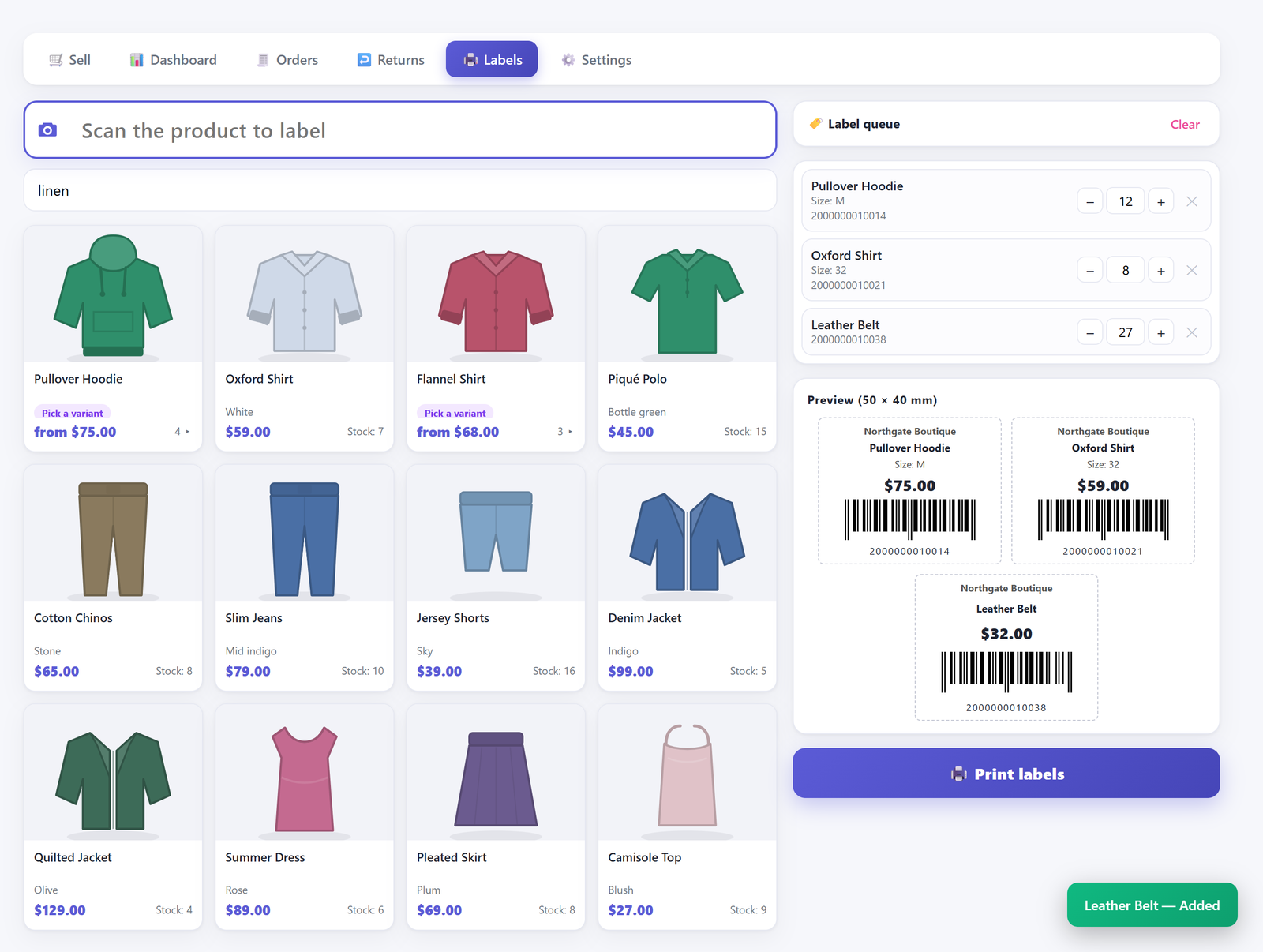
Worth saying plainly, because it is the commonest misunderstanding: the plugin prints codes that already exist on your products. It does not invent a barcode for an item that has none. If a product has no SKU and no barcode, the queue row says so — “No barcode — generate one on the product screen” — and you fix it on the product, not here. And the Labels screen has no camera button — it takes a hardware scanner or a typed code, firing automatically once six characters land. Camera scanning lives on the Sell and Returns screens, where a customer is waiting.
The awkward labels, one at a time#
Faded thermal receipts and old price stickers#
Thermal print fades with heat and light, and a label that has spent a summer in a window may have grey bars on grey paper. Contrast is what the decoder needs. Try the still-photo path first; if that fails too, reprint the label rather than fighting it every time the item comes to the counter.
Curved bottles and cylinders#
A barcode wrapped around a bottle presents its outer bars at an angle, and past a certain curvature no decoder gets them. Rotate the bottle so the code faces you flat rather than moving the phone, and get closer with zoom rather than filling the frame from a distance.
Shrink wrap and glossy film#
The enemy here is a specular reflection sitting across the bars. Change the angle by twenty degrees, which moves the reflection off the code, and leave the torch off — with film, the torch usually makes it worse.
Very small, very dense codes#
Jewellery tags and cosmetics are the hard end. Zoom in, hold the phone about a hand’s width away rather than touching the label, and if it is a recurring line, print your own larger label for it once and stop fighting the same tag at every sale.
What the phone cannot do, stated plainly#
A phone camera replaces a scanner gun. It does not replace a network, and it does not add capabilities the till does not have.
- There is no offline mode. Not in the free version and not in Pro. Every scan asks your WordPress site to resolve the code, so a shop with weak Wi-Fi at the back of the counter feels it as a lag between reading a label and seeing the line appear. If your connection drops, the till stops. We would rather say that here than have you discover it on a Saturday.
- Camera access needs HTTPS. Browsers only grant the camera to secure origins. If your wp-admin still runs over plain HTTP, the viewfinder will not open, and no setting in the plugin can override that.
- Reading a code is not matching a code. The digits still have to exist in a field the till searches. If your scans decode perfectly and nothing lands in the cart, the fix is in the field-mismatch post, not in the camera.
- Printing goes through the browser. Receipts and labels open in their own narrow window, which calls up the browser’s print dialog. There is no printer driver, no direct thermal protocol, and nothing reaches paper until somebody presses the button and confirms that dialog.
- There is no beep. A successful read shows the code on screen and, on a phone whose browser exposes vibration, adds a short buzz; iPhones do not get the buzz. If your counter is loud and your staff want an audible confirmation, a scanner gun is the honest answer.
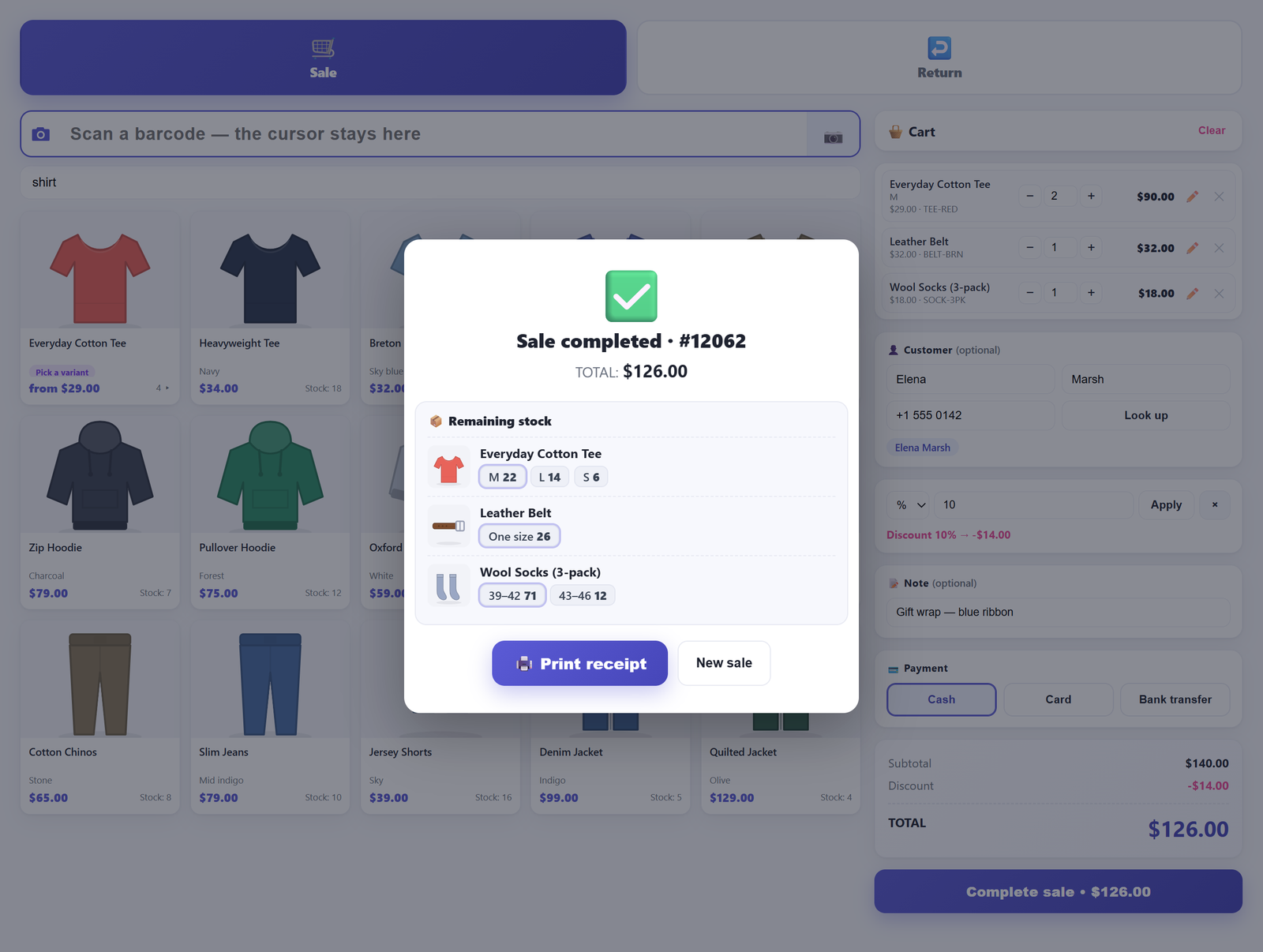
That remaining-stock panel is worth a moment. It is the fastest way to catch a bad count, because it lists every variant of the products you just sold, with the ones on this sale marked, at the moment somebody is still standing there to ask about it. Stock-managed lines are capped at the stock on hand as you increase the quantity, with the stock figure shown as a warning, and if a scanned item looks out of stock the till says so and leaves the decision with the cashier rather than refusing a customer holding the goods. Be clear about what that cap is, though: it stops the quantity buttons running past the stock figure, not the sale. The server never refuses a short-stocked line — it completes the order, lets stock go negative, and tells you so in the success dialog. The mechanics of why a hand-keyed order behaves differently are in why manual orders do not reduce stock.
Phone at the till against phone in the stockroom#
Same camera, same decoder, two genuinely different workflows, and confusing them is how people end up disappointed.
At the till, the phone is scanning three or four items with a customer watching. Speed per scan is everything, the failure cost is social, and a single awkward label ruins the interaction. In the stockroom, you are scanning two hundred items alone. Throughput matters, an awkward label is an annoyance rather than an embarrassment, and you can put an item aside and come back to it — which is precisely the argument in the stock-counting post.
Practically: the counter workflow benefits from a phone kept at the till on a stand with the browser already open on the Sell screen. The Returns screen has the same camera button, which is the fast way to take an item back over the counter — see taking a return without a receipt.
When to stop and buy a scanner gun#
Camera scanning is the right starting point, and for a lot of shops it is the finishing point too. Three signals say buy the hardware.
- Baskets are large. Two or three items is comfortable on a phone. Fifteen is not, on any phone, with any decoder.
- Two hands are busy. If the cashier is bagging while scanning, a gun that sits in a stand and reads whatever passes it wins outright.
- Your labels are hostile. Frozen goods, film-wrapped goods, tiny tags. A red-light laser reads those in conditions a camera struggles with.
What to look for: any HID scanner — one that presents itself as a keyboard. It needs no drivers and no configuration, and you do not have to program an Enter suffix into it, because the till’s scan box fires by itself once four or more characters arrive and stop arriving, and on Enter as well. USB is one less thing to charge; Bluetooth is one less cable to trip over. Both work, and both keep working alongside the camera, so staff can use whichever is nearer.
Setting it up in five minutes#
- Install Retail POS from WordPress.org and open Retail POS → Sell.
- Check the site is on HTTPS. If it is not, fix that first; nothing else here will work.
- Open the same page on a phone, tap the camera button at the end of the scan box, and grant camera permission when the browser asks.
- Scan something from your own shelves. If the line drops into the cart, you are done. If it decodes and nothing lands, the code is in a field the search is not looking at — start with the field-mismatch post.
- Ring one real sale through, print the receipt, and check the remaining stock panel against the shelf.
For the wider question of what a WooCommerce counter can and cannot be — including what WooCommerce’s own POS mode covers — start at does WooCommerce have a built-in point of sale. If the sale that follows the scan sometimes has to be settled across two tenders, that is its own question, and it is answered in taking a split payment in cash and card. Every screen mentioned here is documented at the Retail POS documentation, and the feature list, free and Pro, is on the product page.
Frequently asked questions#
Can I use my phone as a barcode scanner for WooCommerce without installing an app?#
Yes. Camera scanning here runs in the browser: you open the till on the phone, tap the camera button on the scan box, and allow camera access. There is no app, no pairing and no separate account. The decoder either comes from the browser itself or from a library bundled inside the plugin and served from your own site, and no image and no scanned code is ever sent to an outside service.
Does iPhone Safari support barcode scanning in the browser?#
Safari does not offer web pages a native barcode API, so on its own it does not. The plugin ships the ZXing decoder for exactly this case, which means an iPhone does scan — just through JavaScript rather than the operating system, which is slower on small or dense codes. Torch and zoom buttons also tend not to appear on iOS, because the browser does not expose those controls.
Why does the camera open but never decode anything?#
Usually distance or focus: the code is filling too little of the frame, or autofocus is hunting. Bring the label into the middle band where the red guide line sits, use the zoom buttons if they are shown rather than moving closer than the camera can focus, and hold still for a beat. If it still refuses, take a still with “Read from photo”, which is retried at three sizes and four rotations. A code that decodes but produces nothing in the cart is a different problem — that is a field mismatch, not a camera fault.
Can I scan a barcode from a photo instead of a live camera?#
Yes, that is what the “Read from photo” button in the camera overlay does. It is the reliable path for faded thermal labels and awkwardly curved packaging, because a still photo has a settled focus and proper exposure. It takes a few seconds rather than being instant, so treat it as the rescue for one item, not the way to ring up a basket.
Is camera scanning fast enough for a real queue?#
For small baskets on ordinary retail labels, yes, and the viewfinder staying open between items is what makes that true — three items is three presentations of three labels. For large baskets, hostile labels, or a cashier who is bagging at the same time, a cheap HID scanner gun is faster and less tiring, and it works alongside the camera rather than instead of it. We publish no scans-per-minute figure because it would depend entirely on the phone and the label in front of it.
Do I need HTTPS for camera scanning to work?#
Yes. Browsers only grant camera access to secure origins, so if your wp-admin is served over plain HTTP the viewfinder will not open at all. This is a browser rule rather than a plugin setting, and there is nothing in the plugin that can work around it. Get a certificate on the site and the camera button starts behaving.