WooCommerce Barcode Scanner Says Product Not Found: SKU, GTIN or Barcode
A scan that finds nothing is rarely the scanner. WooCommerce keeps product codes in three fields — SKU, GTIN, plugin barcode. Here is how to find yours.
Updated
In this article20 sections
The scanner beeps. Nothing lands in the cart. You scan again, slower, and it beeps again, and still nothing. Somewhere between the trigger and the screen a perfectly good code is being thrown away, and the message — product not found — tells you almost nothing about why.
It is one of the most common complaints in support threads for point-of-sale plugins, ours included, and it is rarely a broken scanner or a broken plugin. It is most often a field mismatch: the code is stored in one place and looked up in another. Here is where a code can live, the order a lookup should try them in, and why a scan comes back empty when the product is plainly there.
The beep does not mean what you think it means#
A scanner gun beeping means one thing only: the decoder recognised a symbol and turned it into characters, which a standard HID scanner types into whatever field has focus, usually with a carriage return at the end. The beep is about optics, not about your database.
So a failed scan raises two questions, in this order: what did the scanner type, and where did the software look for it. Everything below is one or the other, whether you run a till inside WooCommerce or other software on the same catalogue.
WooCommerce has more than one place a code can live#
Ask five shop owners where the barcode goes and you will get three answers, all correct. There are three distinct homes:
- The SKU (
_sku). Free text, one per product or variation, unique across the catalogue. It has been there since the beginning, and every tool reads it. - The GTIN, UPC, EAN, or ISBN field (
_global_unique_id). WooCommerce core added this in version 9.2, in 2024. It sits in Product data → Inventory directly under the SKU, on variations as well as simple products, and it is meant for the manufacturer’s trade item number — the digits on the packaging. - A plugin’s own barcode field. For the years before core had a GTIN field, POS, label and stocktake plugins invented their own.
_barcodeis a common one, and a catalogue populated by a plugin that uses it will have its codes sitting there rather than in the SKU.
“The barcode field” is therefore not one thing, and a lookup that checks only one of the three fails on a catalogue populated through another. That is the failure; everything else is detail.
Why shops deliberately keep the SKU and the barcode apart#
The advice you will find on forums is to copy the barcode into the SKU and be done. It works, and it quietly destroys information.
The SKU is your identity for the item: you chose it, it means something (TSH-BLU-M tells a human what it is), and it appears on your purchase orders and shelf edges. The GTIN belongs to whoever manufactured the goods: it can change when a supplier reissues a line, and own-brand goods may not have one at all. The boring arrangement is the right one: keep your SKU as your SKU, put the retail barcode in the GTIN field, and use a till that reads both.
The resolution order that actually works#
Our plugin, Retail POS for WooCommerce, resolves a scanned code by trying four things in sequence and stopping at the first sellable match:
- The dedicated barcode meta (
_barcode), for catalogues already populated by another plugin. - WooCommerce core’s GTIN field (
_global_unique_id). - The SKU (
_sku). - WooCommerce’s own SKU index, as a final fallback.
Three properties of that lookup matter more than the order itself. The match is exact — the code is trimmed of whitespace and then has to match the stored value in full rather than partially, because a till that guesses is a till that sells the wrong thing. (The comparison happens in the database, so it follows your database’s collation, which normally makes it case-insensitive.) It considers only published products and variations across those three meta fields — with one gap worth knowing: the final fallback, WooCommerce’s own SKU index, filters out only trashed products, so a draft or private product whose code sits in its SKU can still resolve. And a variation wins over its parent, so a code shared by both rings up the child, which is the record that carries the price — and the stock figure, where stock is managed per variation rather than on the parent.
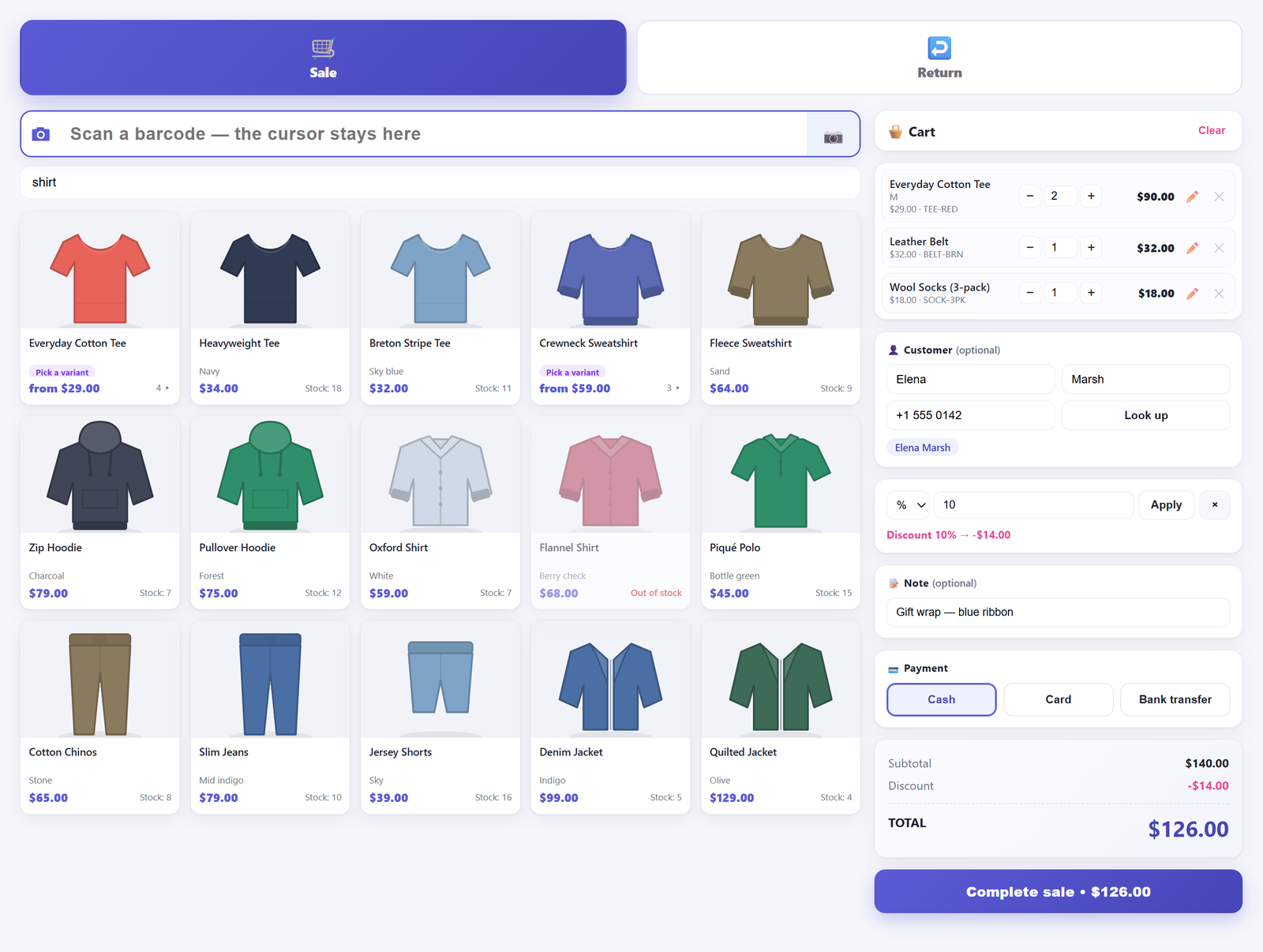
The same resolution runs on the Labels screen and on the returns terminal, which is how a return without the original receipt gets priced.
One thing that is not a cause of “not found”: being out of stock. A zero-stock product still resolves and drops into the cart with a warning, because the shopper is standing there holding the item. What the cart does instead is warn, and refuse to raise a stock-managed line above the stock on hand. The first unit always goes in, so a zero-stock item can still be rung up; the sale then completes with a warning that the stock figure has gone negative.
Variations: the code is on the variation, and most searches only look at the parent#
Retail barcodes are per size and per colour: a medium blue shirt and a large one carry different EANs, because they are different trade items. WooCommerce models this correctly — a variation has its own SKU and GTIN fields — and lookups get it wrong anyway, because they query products and forget that a variation is a separate record with its own meta.
The symptom is unmistakable: the scanner finds the parent but cannot tell you which size, or finds nothing while the code sits on the variation. Our scan queries products and variations together and prefers the variation, which also means stock comes off the right size — the wrong variation is one of the ways a hand-keyed sale goes wrong. The search box collapses a variation hit back to its parent, so typing a variation’s code shows the parent as a “pick a variant” card; opening it lists every variation with its price, its remaining stock and its code.
One honest edge: a variable parent is not a sellable thing, so a code stored on the parent of a variable product will not ring anything up. Type it into the search box and you get the parent’s variant picker, which is the tell. Move the code onto the variations, one per size.
The other four causes#
A stray character at the end of every code#
Most scanners ship configured to append a carriage return, which is what makes them work in a plain form field. Some append a Tab, which moves focus out of the scan box; some prepend a character as well. If you see the code appear and vanish, or the cursor jump elsewhere, that is your cause. Our scan box covers the suffix half of this: it trims whitespace, fires on Enter, and also fires by itself once four or more characters have landed and stopped arriving, so a scanner with no suffix, or one that sends a Tab, still works. A prefix character is not stripped, so a gun configured to prepend one has to be reconfigured at the scanner.
Leading zeros eaten somewhere upstream#
This one is almost always a spreadsheet. Open a CSV of your catalogue, let the application treat the barcode column as a number, and 012345678905 becomes 12345678905. Import that and every scan of the product misses by exactly one character. Format the column as text before importing, and check one product’s stored code against the digits on the packaging.
EAN-13 read as UPC-A, or the other way round#
A 12-digit UPC-A and a 13-digit EAN-13 with a leading zero are the same trade item number written two ways, and scanners can be configured to transmit either form. If your catalogue holds the 13-digit version and the gun sends 12 digits, an exact match fails on every product. Decide which form your catalogue stores, then either reconfigure the scanner — the setting is usually named something like “transmit UPC-A as EAN-13” — or restore the leading zero. The same trap sits behind ITF-14 case codes: the carton’s barcode is a different number from the item’s.
The product is not published#
Drafts, pending and private products are excluded from the three barcode-field lookups deliberately: a till should not sell something the shop has not finished setting up. So if an import left products in draft, a code held in the barcode or GTIN field scans as not found. A code held in the SKU is the exception — WooCommerce’s own SKU index does not filter on status, so it can still come back.
Keeping the SKU and the barcode in sync without retyping anything#
If your codes live in the SKU and something in your stack wants them in _barcode, Settings has a toggle: Keep the barcode in sync with the SKU on product save. It is on by default and copies the SKU into the barcode meta when a product or variation is saved from the product editor. If the SKU is empty it does nothing and leaves whatever is in the barcode meta alone.
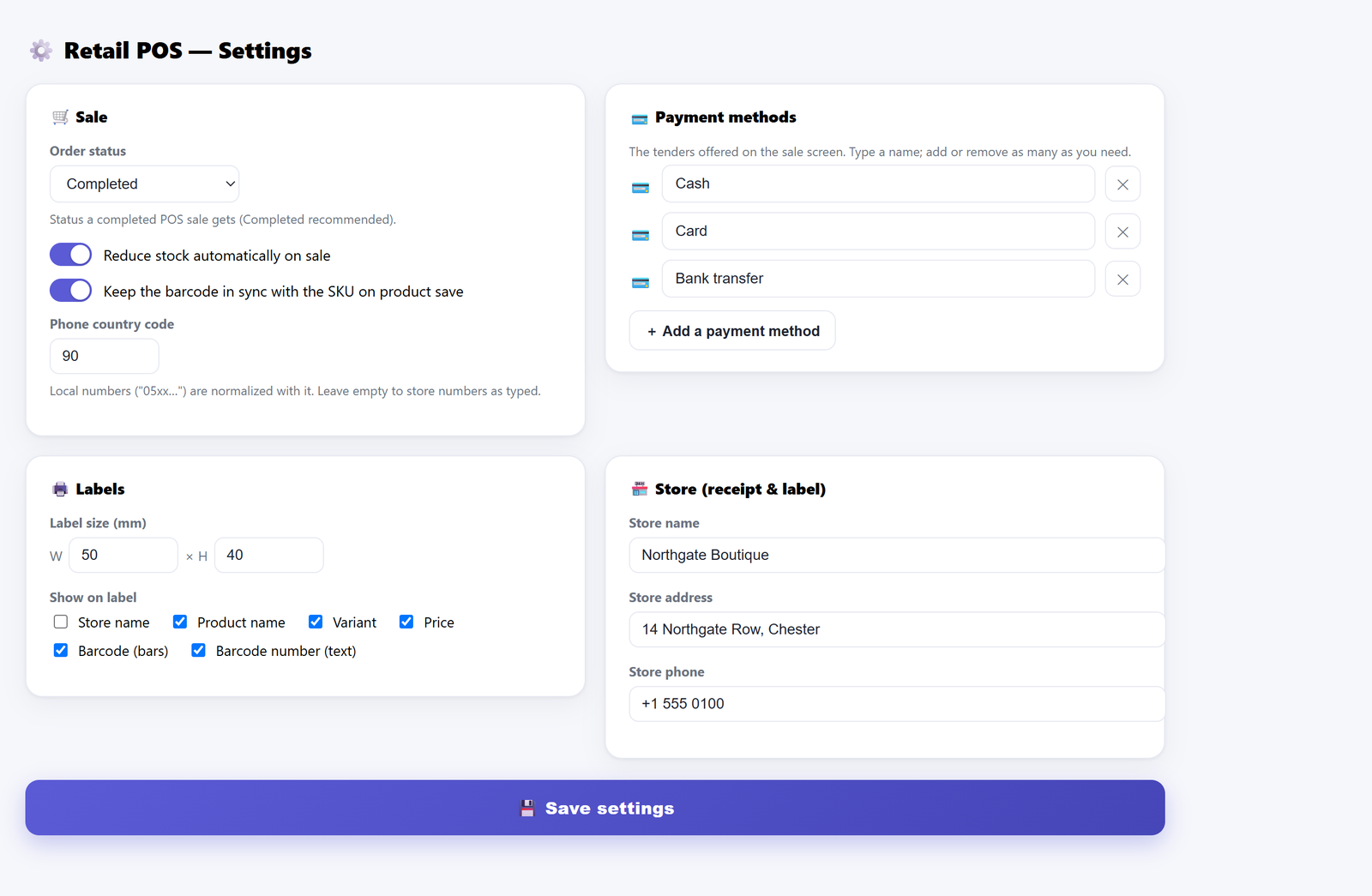
Two limits, both of which have caught people out. It is one-directional: the SKU wins and overwrites the barcode meta, never the reverse. And it runs only when a product is saved from the product editor, so switching it on does not backfill an existing catalogue — codes appear product by product as you open each one and press Update. Quick Edit, Bulk Edit and the CSV importer do not fire the hook the sync listens on, so there is no one-click way to fill the whole catalogue.
That matters if you deliberately keep the two fields different: a shop with the retail EAN in the barcode field and an internal code in the SKU should turn the toggle off, or the next save will replace the EAN with the internal code. The GTIN field is never touched by the sync, which is another reason to keep retail codes there; the documentation lists which setting affects which field.
Print the code you read#
A large part of the “not found” problem is products with no scannable label at all: own-brand goods, loose stock, anything repackaged in the shop. The Labels screen answers that part: scan or search products into a queue, set how many copies of each, and print. Rendering detects EAN-13 and EAN-8 automatically and falls back to Code 128; the label size in millimetres and its contents — shop name, product name, variant, price, bars, digits — are set in Settings. A crisply printed label is also the cheapest fix for a code your phone camera keeps failing to read.
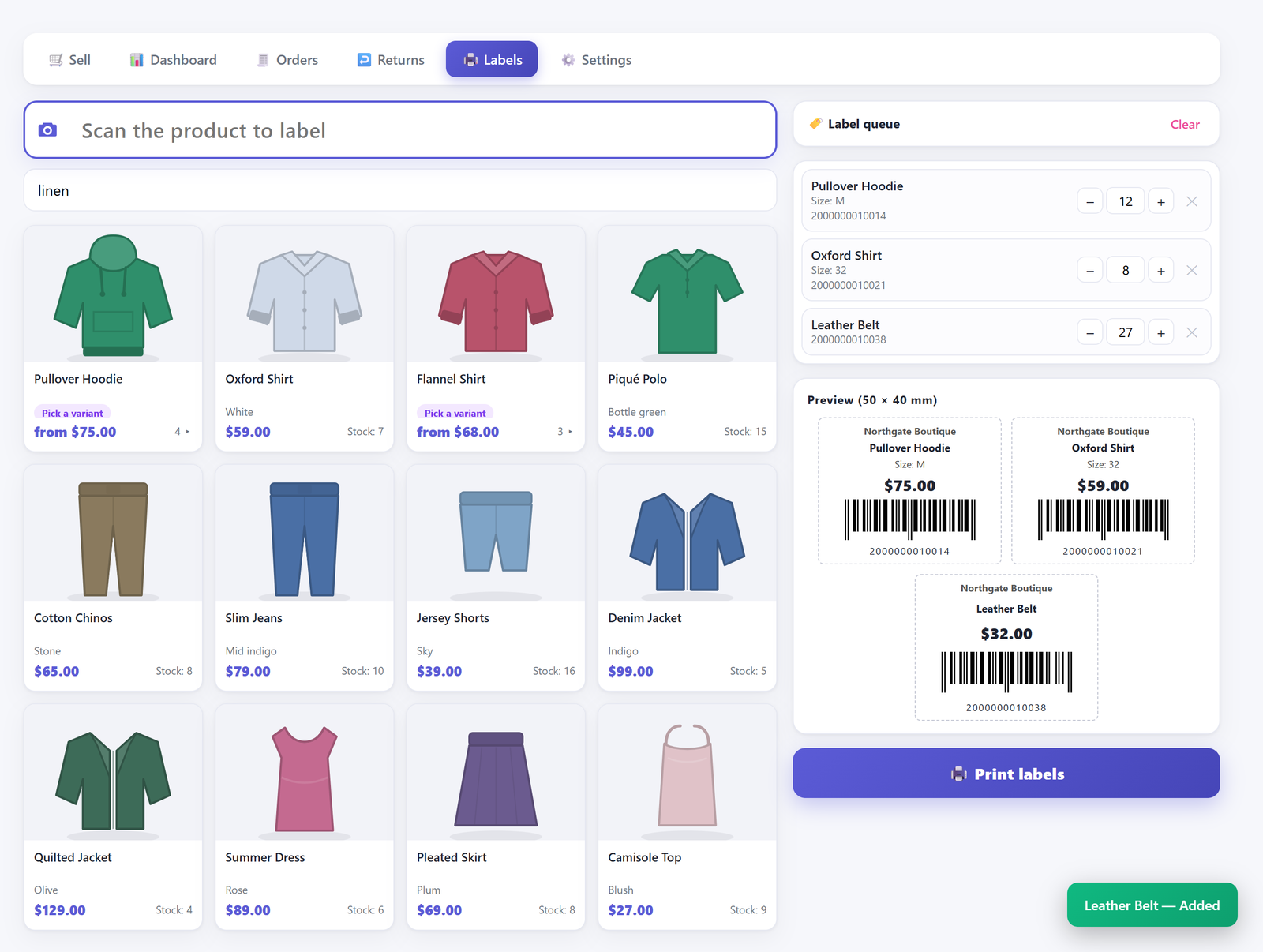
Here is the honest limit: the plugin prints codes that already exist. It does not invent them. Queue a product with no SKU and no barcode and the queue row says so — “No barcode — generate one on the product screen” — and the label comes out with its name and price and no bars, because there is nothing to encode. That message is a prompt to give the product a code yourself; this plugin never mints one. Printing goes through your browser’s ordinary print dialogue — no driver, no ESC/POS integration — so any printer the browser can reach will do.
A five-minute diagnostic: one product, one scan, three fields#
Pick one product that fails. Do not generalise until this one is solved.
- Scan into a plain text field — the search box on the sale screen, or any text editor. Look at what arrived: length, leading zeros, stray characters at either end. That separates a scanner problem from a data problem.
- Type that exact string into the product search box. Search does a partial match across the SKU, the barcode meta and the GTIN field, where a scan does an exact one. If search finds the product and the scan does not, the code is stored but does not match in full — whitespace, a leading zero, or a code sitting on a variable parent instead of on its variations. If search finds nothing either, the code is in none of the three fields, or the product is not published, which hides it from search as well.
- Open the product and look at Inventory. On a variable product, open the variation, not just the parent. Paste the code into the field it belongs in — GTIN for a manufacturer’s number, SKU for your own — save, and scan again from the sale screen.
Each step tells you something even when it passes, which is why it is worth doing in order. The plugin documentation lists the exact field names.
What this does not fix#
A few things sit outside what a field fix can reach.
- Codes are never generated, and there is no fuzzy matching. A scan matches exactly or not at all: a safety property at a till, not an omission.
- We add no barcode field of our own to the product editor. Codes go into WooCommerce’s own SKU and GTIN fields; the plugin also reads the
_barcodekey other plugins use — and writes it, while the sync toggle is on — but it puts no editing box in front of you. - A camera is not a scanner gun. If codes resolve but a phone camera struggles with a faded label, that is a device problem.
- Nothing here works offline. Every scan is a request to your own site. If the connection drops, lookups stop, in the free version and in Pro alike.
If you are still deciding whether to run a till inside WooCommerce at all, the overview post on what core’s own POS mode covers is the place to start.
Frequently asked questions#
What is the GTIN, UPC, EAN, or ISBN field in WooCommerce and when was it added?#
It is core’s dedicated field for a product’s global trade item number, added in WooCommerce 9.2 in 2024 and stored as _global_unique_id. It sits in Product data → Inventory immediately below the SKU, on variations as well. It is intended for a genuine trade number, and WooCommerce enforces what may go in it: the setter keeps only digits, hyphens and a trailing X (the ISBN-10 check digit) and silently discards anything else, rejects a malformed value, and checks the result is unique. An internal alphanumeric code of your own belongs in the SKU, but an internal alphanumeric code of your own invention sits more naturally in the SKU.
Why does my scanner find the parent product but not the variation?#
Because the code is stored on one record and the lookup is querying the other. Variations have their own SKU and GTIN fields, and a lookup written only against products never sees them. Check the code is on the variation itself — ours prefers the variation when parent and child carry the same code.
Does WooCommerce search the GTIN field by default?#
Not everywhere. Your storefront’s product search does not look in it, and any tool written before the field existed does not know about it — which is why a catalogue diligently populated with GTINs can still scan as not found. Our scan checks it second, after the dedicated barcode meta.
My scanner adds a stray character at the end of every code — what is that?#
A suffix, and it is a setting in the scanner rather than in WordPress. Most guns send a carriage return, which submits the field; some send a Tab, which moves focus instead and looks exactly like a failure. The scanner’s manual has a configuration barcode you scan to change it, though our scan box does not depend on it: it trims whitespace, fires on Enter, and fires on its own once four or more characters have landed and stopped arriving.
Can I generate a barcode for a product that has no SKU?#
Not a real one, and no plugin can honestly claim otherwise: GTINs are issued through GS1, and a made-up thirteen-digit number risks colliding with somebody else’s product. Give the item an internal code in its SKU and print that as a Code 128 label.
Once the right line reliably lands in the cart, the next thing worth getting right is what happens to the stock figure afterwards — the subject of why hand-keyed WooCommerce orders leave the shelf and the screen disagreeing. If you are scanning to count rather than to sell, our earlier post on barcode scanning with a phone for stocktaking covers that job, and phone scanning at the till covers the other one. To see the resolution order in practice, Retail POS is free on WordPress.org, and the docs spell out every field it reads.