How to Change a WooCommerce Category Slug Without Losing Rankings
Change a WooCommerce category slug or parent and the old URL 404s: WordPress writes no redirect for terms. Build the map, write one 301, then verify it.
Updated

In this article15 sections
If you want to change your WooCommerce category structure without losing SEO, the whole job reduces to one discipline: every URL you retire gets a single 301 redirect to the URL that replaces it, applied in the same change window. WooCommerce will not do this for you, and neither will WordPress. Change a product category slug and the old address starts returning a 404 the moment you hit Update. There is no equivalent of the old-slug redirect that posts and pages get for free — wp_old_slug_redirect() covers posts, not taxonomy terms.
The rest is detail: what changes in each kind of edit, how to build the redirect map first, the permalink setting that decides how far the damage spreads, and how to verify rather than hope.
The short answer#
Changing WooCommerce category structure without losing SEO comes down to one discipline: every retired URL gets a single 301 redirect to the URL replacing it, applied in the same change window — WooCommerce will not do this for you.
- Renaming is safe, slugs are not. Editing a category’s Name alone does not touch the slug and therefore does not touch the URL, whereas changing the slug returns a 404 the moment you hit Update, because WordPress keeps no history of previous term slugs.
- Your permalink setting decides the spread. Product URLs only carry the category path under a shop base with category, or a custom base containing %product_cat%; on other settings a category restructure leaves product URLs untouched.
- Build the redirect map first. Settle the old-to-new table before you open the admin, using Search Console category URLs from the last twelve months plus a site crawl, and redirect straight to the final destination rather than through chains.
- One change window, then verify. Make all term edits together, deploy redirects immediately, flush caches and rewrite rules, fix internal references, resubmit sitemaps, then check in Search Console that retired URLs report “Page with redirect” and 404s stay flat — expect a dip and do not revert on day three.
- Adding beats moving. Creating new categories instead of restructuring existing ones needs no redirect map and no 404 window, at the cost of someone keeping product assignments current as inventory changes.
What actually changes when you rename, move or merge#
These three operations get lumped together as “reorganising the catalogue”. They have very different blast radii.
Renaming#
In Products → Categories, Name and Slug are separate fields. Editing the Name alone does not touch the slug, and therefore does not touch the URL. If all you want is to relabel “Outerwear” as “Coats & Jackets” in the menu and on the archive heading, you can do that with zero SEO risk. Leave the slug alone and stop there.
Editing the Slug field is the destructive one. /product-category/outerwear/ becomes /product-category/coats-jackets/, and the old path 404s immediately. WordPress keeps no history of previous term slugs, so nothing can guess the redirect for you afterwards. Decide before you save whether the tidier slug is worth the redirect work.
Moving a category under a different parent#
WooCommerce registers product_cat with a hierarchical rewrite, so a child term’s URL contains its ancestors: /product-category/womens/jackets/. Change the Parent dropdown and that path changes, even though the slug did not.
There is a useful subtlety here. For a hierarchical rewrite, WordPress resolves the request on the final slug in the path, then runs its canonical redirect against the term’s real permalink. On most installs that means the stale path /product-category/womens/jackets/ will 301 itself to the new canonical path once the parent changes, because jackets still resolves on its own. Test it on your install before relying on it — themes and permalink plugins interfere with canonical redirects more often than you would like. For any moved category with real traffic, write the explicit rule anyway.
While you are rearranging parents, remember that a parent archive does not list its children’s products by default. If your new structure pushes products a level deeper, read why WooCommerce parent categories come up empty before you conclude the migration broke something.
Merging two categories#
Nothing in WooCommerce merges terms. The sequence is manual: reassign every product from the doomed term to the surviving term, confirm the doomed term’s count reads zero, delete it, then 301 its URL to the survivor.
Deleting a term never deletes products. But a product left with no product category at all picks up WooCommerce’s default category — Uncategorised, unless you have promoted another term with the Make default row action — the next time that product is saved. That is how stores end up with forty products in an archive nobody meant to publish. The reassignment is itself a bulk edit; across several hundred products, how you do the bulk assignment matters more than the redirect does.
What survives all of this#
Term IDs. Renaming a category, changing its slug and moving it to a new parent all leave term_id untouched, which has practical consequences:
- Menu items added as category objects follow the move. They store the term ID and render the current URL. Menu items added as Custom Links store a literal URL string and will quietly point at a 404.
- Blocks and shortcodes keyed on ID survive. Anything of the form
id="12"keeps working. Anything keyed on a slug — a product grid filtered bycategory="outerwear", a hard-coded archive link in a homepage banner — breaks silently. - Product-to-category assignments survive. Renaming and reparenting do not detach products.
The permalink setting that decides how far this spreads#
Under Settings → Permalinks, the Product permalinks options are Default, Shop base, Shop base with category, and Custom base. If you are on Shop base with category, or a custom base containing %product_cat%, your product URLs embed a category path — so restructuring categories rewrites product URLs too, not just archive URLs. On the other three settings, product URLs are untouched by anything in this post. Check which one you are on before planning anything else.
Which category gets used when a product sits in several? Before WooCommerce 10.5 the terms were sorted by parent descending then term ID ascending and the first one won, which in practice usually meant the shallowest, oldest term. From 10.5 the deepest category wins, so a product in both Electronics and Electronics → Phones → Smartphones now resolves to the longer path. Adding a deeper subcategory to an existing product therefore changes that product’s URL.
The saving grace is that WooCommerce ships its own canonical redirect for products, wc_product_canonical_redirect(), which 301s a stale product path to the current one. That is why product URLs mostly self-heal and category URLs do not: a product remains findable by its own slug whatever category path precedes it, while a renamed term is findable by nothing. The category chosen for the permalink still passes through the wc_product_post_type_link_product_cat filter, so the old selection logic can be restored in code if a migration would otherwise move thousands of product URLs at once.
One warning. Changing the Product permalinks setting itself rewrites every product URL on the site — a far bigger migration than reorganising a few categories. Never do both in the same change window.
Build the redirect map before you touch anything#
Audit first, on paper, before a single term is edited. Two sources:
- Search Console, Pages report. Filter URLs containing
/product-category/, set the range to the last 12 months, export clicks and impressions. This tells you which categories actually earn something, and therefore which redirects genuinely matter. - A crawl of your own site. Screaming Frog, Sitebulb or any crawler will enumerate every category URL that is internally linked, including the ones you had forgotten exist.
Put the result in a table and settle it before you open the admin. Improvising in Products → Categories is how chains and orphans happen.
| Old URL | Clicks / 12mo | Action | New URL |
|---|---|---|---|
| /product-category/womens/jackets/ | 1,840 | Move to top level | /product-category/jackets/ |
| /product-category/mens-jackets/ | 96 | Merge | /product-category/jackets/ |
| /product-category/outerwear/ | 0 | Retire | /product-category/jackets/ |
One hop, not a chain#
Google’s site move documentation says Googlebot will follow up to ten hops in a chain, and that permanent redirects do not cost PageRank, so a chain is not fatal. The same page is explicit that you should redirect straight to the final destination, and that where a chain is unavoidable it should stay at no more than three hops. Chains add latency for real users, waste crawl budget and muddy canonical signals.
Chains appear almost entirely from restructuring twice. When you move a category that was already redirected from somewhere, edit the original rule to point at the final target rather than stacking a second rule on top of it. Google also recommends keeping redirects live for at least a year; on a store, keep them permanently — they cost nothing.
Where to put the rules#
For a handful of categories a redirect plugin is fine. Redirection is free and handles this well, Rank Math includes a redirections module, and Yoast’s redirect manager is part of Premium. All of them run in PHP after WordPress boots, and they stop working the moment the plugin is deactivated. For a large restructure, or if you already have server access, put the rules at server level instead — faster, and independent of WordPress entirely.
Apache, added above the # BEGIN WordPress block so a permalink flush cannot overwrite them. The trailing capture group carries the children of a moved subtree along with it:
<IfModule mod_rewrite.c>
RewriteEngine On
RewriteRule ^product-category/mens-jackets(/.*)?$ /product-category/jackets$1 [R=301,L]
RewriteRule ^product-category/outerwear(/.*)?$    /product-category/jackets$1 [R=301,L]
</IfModule>
Nginx, inside the server block, above the location / that hands off to PHP:
rewrite ^/product-category/mens-jackets(/.*)?$ /product-category/jackets$1 permanent;
rewrite ^/product-category/outerwear(/.*)?$   /product-category/jackets$1 permanent;
Check every pattern for loops before deploying. Redirecting /product-category/jackets to /product-category/jackets/mens with a prefix match will loop forever, because the destination also matches the source pattern.
A safe sequence to change your WooCommerce category structure without losing SEO#
- Audit. Export the term list with counts, plus the Search Console data above. Note every place a category is referenced: menus, homepage blocks, banners, shortcodes, email templates, paid landing pages.
- Plan on paper. Complete the old → new table. Anything not in the table does not get edited.
- Rehearse on staging. Run the whole sequence on a copy, then crawl it and confirm zero 404s and zero multi-hop redirects.
- One change window. Make every term edit together — slug changes, parent moves, product reassignments, deletions. A restructure spread over three weeks is three separate crawls of a half-broken site.
- Deploy the redirects in the same window. Immediately, not next sprint.
- Flush and purge. Visit Settings → Permalinks and press Save Changes to rebuild the rewrite rules, then purge page cache, object cache and CDN. Stale cached HTML is the most common cause of “the redirect isn’t working”.
- Repoint internal references. Fix Custom Link menu items, hard-coded slugs in blocks and shortcodes, and any module linking to a retired archive. Internal links should point at the final URL, never through a redirect.
- Regenerate and resubmit the sitemap. Most SEO plugins rebuild it automatically, but confirm the retired URLs are gone and the new ones present before you resubmit in Search Console.
- Verify. Properly, over weeks, as below.
Verify in Search Console rather than assuming#
Resubmitting a sitemap is a request, not a result. Watch three things over the following weeks:
- URL Inspection on a sample of retired URLs. Take five of the highest-traffic old paths and inspect them live. You want “Page with redirect”, not “Not found (404)” and not “Duplicate without user-selected canonical”.
- The Pages report. “Not found (404)” should stay flat. “Page with redirect” should rise by roughly the number of URLs you retired. A 404 spike a week later means a pattern is wrong or a cache is still serving stale HTML.
- Your own crawl, a week after. Filter for any 3xx with more than one hop, and any internal link still pointing at a redirected URL. Fix both.
Expect the new URLs to take weeks to accumulate impressions, and expect a dip while Google reconciles the change. Do not revert on day three. If the new category pages never get indexed at all, that is a different problem with different causes — thin archives, noindex settings and crawl budget are the usual suspects, and no amount of redirect work fixes them.
Worth stating plainly: none of this is handled by WooCommerce, and no category plugin handles it either. Redirects belong to a redirect plugin or your server config. Meta titles, canonicals and noindex rules belong to your SEO plugin.
The lower-risk path: add, don’t move#
Everything above is risk you take on because you moved a URL that already ranks. Worth it when the structure is genuinely wrong; much harder to justify when the real goal is just better browsing, because a new category creates a new URL and retires nothing. No redirect map, no 404 window, and if it earns nothing in six months you delete it and point one URL at its parent.
So ask first whether the outcome is reachable by addition: a “Waterproof Jackets” category alongside the existing tree rather than a reshuffle of it. The honest catch is maintenance — someone has to assign products to the new term and keep doing it as stock and prices change, which is the chore that stops people creating useful categories at all. Both the manual method and the code method are in adding products to a category based on rules.
Where our plugin fits#
Smart Categories for WooCommerce is one way to make the additive path cheap. It attaches a rule set to a real WooCommerce product category — the same product_cat term you would have created by hand, not a parallel taxonomy — and keeps its membership current. Because the term is real, its URL, breadcrumbs, term counts, menus and admin lists behave exactly as WooCommerce intends, and if you later retire it you redirect it like any other category.
The free version on wordpress.org covers 35 match fields — among them Active price, Sale price, On sale, Discount percentage (%), Stock status, Stock quantity, Brand, Tag, Date created, any global attribute, and Custom field (meta) — with unlimited nested groups that are each ALL OF, ANY OF or negated, and a live preview of the matching products and their count before you save. Matching re-runs on product create and update, on price or stock change, and on a daily sweep that catches scheduled sales starting or ending and changes made outside WooCommerce. It runs in the background in batches via Action Scheduler, not on page load, and it records the memberships it created so it only ever removes those — manual assignments are left alone.
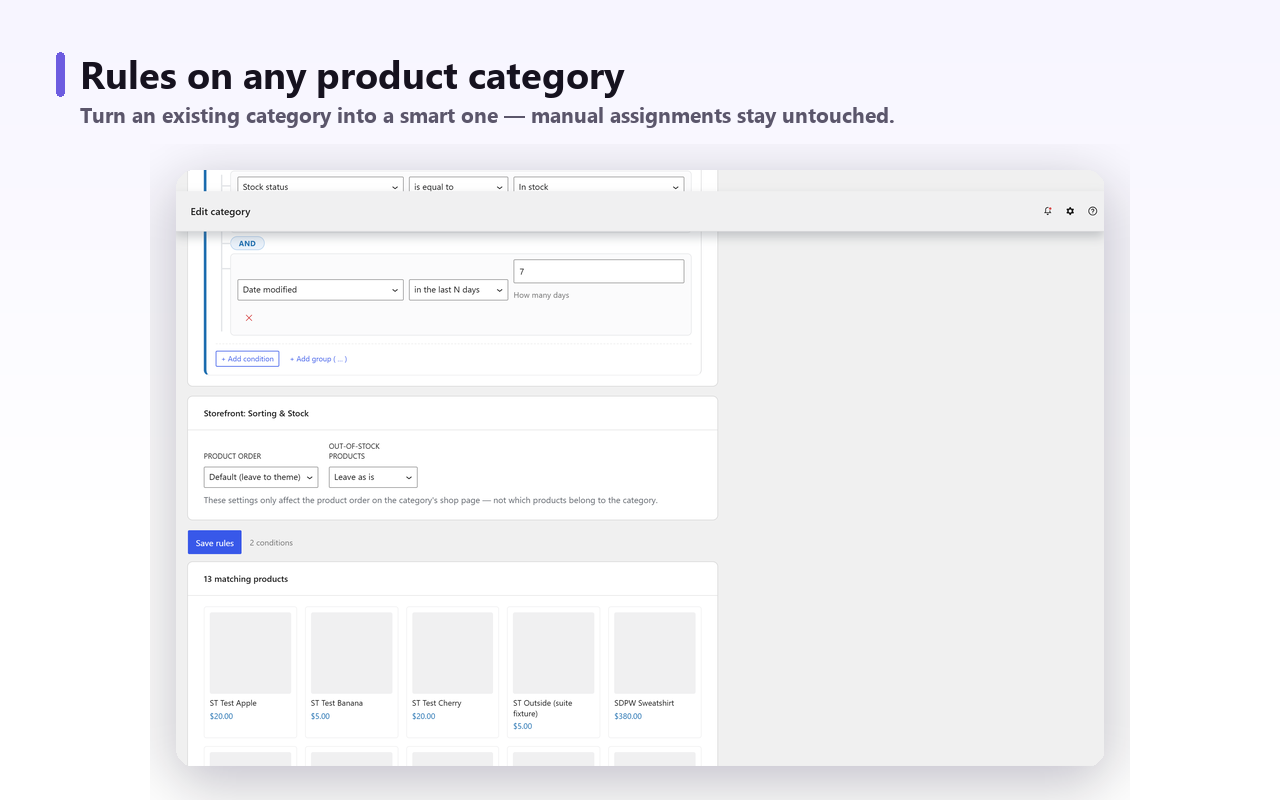
An existing category can be turned into a smart one, with the rules taking over ongoing membership. That is the useful move during a restructure: leave the URL exactly where it is and change only what fills it.
The Pro version ($59/yr for a single site) adds generation of one smart subcategory per attribute value, or per combination of two attributes. That is powerful and correspondingly dangerous — read whether attributes should become categories at all before you generate forty new indexable archives in an afternoon.
The boundaries, clearly: it does not manage redirects, does not write meta titles, descriptions or canonicals, does not merge or delete existing categories, and does not change WooCommerce’s own parent/child archive behaviour. If you are moving URLs, you still need everything in the first three-quarters of this post.
The short version#
Renaming a category label is free. Changing its slug or its parent moves a URL, and moving a URL is a migration however small it looks. Audit what has traffic, write the map, do it all in one window, redirect in one hop, flush the caches, fix your internal links, then watch Search Console for a month instead of assuming. And where the goal can be met by adding a category rather than moving one, add — it is the only version of this job with no downside.