WooCommerce Category Rules: Four Ways to Automate Membership
WooCommerce has no built-in category rules: membership is a stored list. Four ways to automate it, and where each one quietly breaks.
Updated

In this article19 sections
A category whose membership is stored as a rule rather than as a list of product IDs is what most people are after when they search for how to automatically add products to a WooCommerce category based on rules. WooCommerce has no such thing built in. Category assignment is a set of rows in wp_term_relationships: a product is in Clearance because somebody put it there. Nothing re-checks that decision afterwards.
Four approaches try to close that gap, and they fail in four different places. Three of them look like they work for about a month.
The short answer#
WooCommerce has no built-in category rules: membership is a stored list of term relationships, so automating it means adding an engine that writes those relationships as conditions change.
- Core stores lists, not rules. A product sits in Clearance because somebody put it there — a row in wp_term_relationships that nothing re-checks afterwards.
- Four approaches, four weak points. Manual bulk editing is honest and genuinely the right answer for a small catalogue but decays as sales end and stock runs out; a CSV Categories column replaces rather than merges; and both a functions.php query filter and a Product Collection block change only what one page displays.
- Display-time filtering is not a category. With no real term there is no term count, no layered-nav facet, and no agreement from menus, breadcrumbs, the REST API or the Store API.
- Events alone are not enough. A usable engine re-evaluates on product, price and stock changes and on a periodic sweep, because a condition such as “created in the last 30 days” goes stale purely because time passes.
- Two ways an engine goes wrong. An engine that removes memberships it did not create will wipe hand-assigned exceptions, and one that reads an empty or broken rule as a match will put the whole catalogue in Clearance — so check the preview says zero before the first run, and let Action Scheduler batch the work in the background.
A stored list versus a stored rule#
- A stored list is what WooCommerce gives you. Membership is data: correct the moment you save it, decaying from then on, because the world changes and the list does not.
- A stored rule is a definition — on sale AND in stock AND not tagged made-to-order. Membership is derived, and correct as of the last evaluation. The question becomes how often that happens.
The second question, discovered later and more painfully, is where the derived result lands. If the rule produces real term relationships, the category behaves like any other: URL, term count, breadcrumb, menu item, Products list filter, Store API entry. If it only produces a filtered query at display time, you get a page that shows the right products and a category that the rest of WordPress considers empty.
If you came from Shopify: automated collections#
The feature has a name elsewhere. Shopify calls it an automated collection; the older documentation and the API still say smart collection. WooCommerce has no equivalent — not a weaker one, none.
Shopify’s conditions are a single flat list joined by all-or-any, over fields such as title, type, vendor, price, tag and inventory. Nobody arriving here is losing nesting they never had. What they are losing is the maintenance — the part that re-checked membership without being asked.
So the migration splits in two. Of the four methods below, the first two give you a real category and no automation; the second two give you automation and no real category. Only something that writes term relationships hands back both halves, which is what the rest of this post is about.
Four ways to automatically add products to a WooCommerce category based on rules#
1. Doing it by hand, on a schedule#
Products → filter by something → select all → Bulk actions → Edit → add the category. Not automation, but honest, code-free, and for a 200-product catalogue with one seasonal collection it is genuinely the right answer. Do not let anyone talk you out of it.
It breaks on two things. Decay: a sale ends, stock runs out, a price changes, and nothing tells you the category is now wrong. And expressiveness: there is no admin filter for “discounted by more than 30%” or “nothing sold in 90 days”, so you export to a spreadsheet, work out the selection there, and come back to apply it. There is a longer walkthrough of how to bulk assign products to categories, including where the bulk editor stops helping.
2. Maintaining it in the CSV#
If your catalogue already comes from an ERP, a PIM or a supplier feed, the obvious move is to compute the category column upstream and let the WooCommerce importer apply it. Two things about that column decide whether it helps you or hurts you: hierarchy is written as Parent > Child (the importer trims whitespace around the arrow, so Parent>Child works too), and a populated column replaces the product’s whole set of categories rather than merging into it — which leaves exactly two safe configurations, the feed owning categories with nobody assigning them in wp-admin, or the Categories column left unmapped so existing terms survive. The mechanics of the CSV export and import round trip, down to what an empty cell does, are covered separately.
There is also a coverage problem. A feed knows the supplier’s data, not your sales figures, your review counts, or which products your photographer has not shot yet. The rules you can express upstream are a subset of the ones you want.
3. A query filter in functions.php#
This is the answer Stack Overflow gives you. It works, though not the way most published versions of it claim. Hook woocommerce_product_query, remove the term constraint WooCommerce is about to apply, and substitute your own selection. This turns /product-category/clearance/ into a live list of everything currently on sale:
add_action( 'woocommerce_product_query', function ( $q ) {
	if ( ! $q->is_main_query() || ! is_product_category( 'clearance' ) ) {
		return;
	}

	// Resolve the queried term now, while the taxonomy clause still exists, so
	// the archive title, term description and breadcrumb keep working after it
	// goes. get_queried_object() caches its result on the query object.
	$q->get_queried_object();

	// The term constraint comes from the product_cat query var, which WP_Query
	// re-reads in get_posts(). Clearing that var is what drops the clause.
	// Filtering $q->get( 'tax_query' ) does not, because the clause is not in
	// there yet. Leave tax_query alone: WC_Query has already put its
	// product_visibility exclusions in it, and overwriting it un-hides hidden
	// and out-of-stock products.
	$q->set( 'product_cat', '' );

	// Includes variation IDs and the parents of on-sale variations. Cached in
	// the wc_products_onsale transient.
	$ids = wc_get_product_ids_on_sale();

	// An empty post__in is ignored by WP_Query, which would show the entire
	// catalogue. Fall back to an ID that cannot match.
	$q->set( 'post__in', $ids ? $ids : array( 0 ) );
} );
Two dozen lines, no plugin, and the archive is genuinely rule-driven. Read the generated SQL once in Query Monitor before you trust it: the naive version, which filters tax_query and leaves the query var alone, silently ANDs your rule with the original term. What it costs you is everything that reads the taxonomy rather than the archive query:
- Counts are zero. The
counton a product category is maintained from real term relationships by_wc_term_recount(), WooCommerce’s count callback forproduct_cat. Your filter creates none, so the category widget, the subcategory tiles and the Products list all report an empty category. - Everything except that one archive disagrees. Filtering Products by Clearance in wp-admin returns nothing. Layered navigation, filter plugins, the Store API, the REST API and feed exporters all read term relationships, not your archive query.
- Block themes complicate it. A Product Collection block with Sync with current query switched off builds its own query and ignores your filter completely, as does every hand-placed collection elsewhere on the site.
- It scales badly.
post__inwith five thousand IDs is a five-thousand-itemIN()clause on every page load, awkward to cache and to plan. - It is invisible. Nothing in wp-admin says this category is special. The next developer will find out by accident.
Use this when the rule is simple and only ever needs to affect one archive page. It is a poor foundation for a dozen collections.
4. Product Collection and Query Loop blocks#
The Product Collection block will happily show “on sale, in stock, in Dresses, sorted by best selling” on any page you like, with no code. For a landing page or a homepage row this is the correct tool and you should stop reading here.
It is not a category, though. There is no term, so no /product-category/…/ URL, no breadcrumb, no entry in the categories menu, no term count, no layered-nav facet, and nothing for your SEO plugin to attach a title to. It cannot be a parent or child of anything either, so it never appears in the tree shoppers navigate. If your goal is a page, blocks are enough. If it is a category, they are not. The same goes for the core Query Loop block.
Side by side#
| Mechanism | Real term | Survives re-import | Correct counts & menus | Stays true over time |
|---|---|---|---|---|
| Manual assignment | Yes | Only if the feed omits categories | Yes | No |
| CSV re-import | Yes | Feed wins, humans lose | Yes | Only as often as you import |
| Query filter in code | No | Not affected | No | At display time |
| Product Collection block | No | Not affected | No | At display time |
| Rules engine writing terms | Yes | Re-applied after import | Yes | Depends on its triggers |
Building it yourself: the forty-line sweep#
There is a gap between the last two rows of that table. A developer who reads it does not go shopping next; they write a cron job. That option belongs on the page, working, so here it is. It is the last row — a rules engine that writes real terms — built by hand, which is why it is not a fifth numbered method: it is the same mechanism, sourced differently.
Drop this in a small plugin or in functions.php. Once an hour it makes the Clearance category equal to whatever is currently on sale:
add_action( 'init', function () {
	if ( ! wp_next_scheduled( 'sweep_clearance' ) ) {
		wp_schedule_event( time(), 'hourly', 'sweep_clearance' );
	}
} );

add_action( 'sweep_clearance', function () {
	$term = get_term_by( 'slug', 'clearance', 'product_cat' );
	if ( ! $term ) {
		return;
	}

	// The rule. wc_get_product_ids_on_sale() also returns variation IDs, and
	// variations do not carry product_cat - assigning one creates a term
	// relationship on a product_variation post that nothing will ever read.
	$should = array_filter(
		wc_get_product_ids_on_sale(),
		function ( $id ) {
			return 'product' === get_post_type( $id );
		}
	);

	$should  = array_map( 'intval', $should );
	$current = array_map( 'intval', get_objects_in_term( $term->term_id, 'product_cat' ) );

	foreach ( array_diff( $should, $current ) as $id ) {
		// The fourth argument appends. Without it, this wipes the other categories.
		wp_set_object_terms( $id, array( (int) $term->term_id ), 'product_cat', true );
	}
	foreach ( array_diff( $current, $should ) as $id ) {
		wp_remove_object_terms( $id, array( (int) $term->term_id ), 'product_cat' );
	}

	wp_update_term_count_now( array( $term->term_taxonomy_id ), 'product_cat' );
} );
Real terms, real counts, correct menus, and it survives the next import. What it gets wrong is the more useful half, because every item below is the argument for the next section:
- It forgets which memberships are its own. Nothing records that the sweep made an assignment, so the removal loop cannot tell a stale membership from a deliberate one. The product your merchandiser hand-placed in Clearance leaves at the next run.
- The filter is an N+1.
get_post_type()insidearray_filter()is one query per uncached ID. On a large on-sale set that is thousands of queries before a single write happens. - It is unbatched. All of it runs inside one cron request. Invisible at 500 products; at 20,000 it hits the time limit partway through and leaves the category in whatever state it reached.
- The schedule is not a schedule. wp-cron fires on a page request, so a quiet shop can go most of a day without a sweep. That wants a real system cron calling
wp-cron.php. - The rule is PHP. Changing “on sale” to “on sale by more than 30%, excluding made-to-order” is a code change and a deploy, every time, for every collection.
You have just written the naive version of four of the five mistakes below, which is a better way to meet them than reading about them. And if your rule really is this simple — one category, one condition, a catalogue small enough that a missed sweep costs nothing — that is the whole job. You do not need a plugin for it.
What a rules engine has to get right#
The caveat in the last row is doing a lot of work. “Rules engine” describes a category of tool, not a guarantee. Five questions separate one you can trust from one that quietly corrupts your taxonomy.
Can it express the condition you actually have?#
Most rule builders offer a flat list of conditions joined by AND, or by OR, chosen once for the whole list. Real merchandising conditions are not flat. Write one of yours out and it has a shape:
ALL OF
  - On sale = yes
  - ANY OF
      - Discount percentage > 30
      - Brand = Outlet
  - NOT
      - Tag = made-to-order
The negation is at the top level and the OR is nested inside the AND. A flat all-or-any list has nowhere to put either, and nor do two flat rules, because the “but not” would have to apply to both of them and there is no place to say so. Drawing your own condition out like this before you evaluate anything is the cheapest test available: if the shape has more than one level, most builders are already out.
The second half is which fields are exposed. Price, stock status and category are table stakes. Discount percentage, image count, review count, a global attribute, an arbitrary meta key — that is where the useful rules live, and a builder that reads only price and category sends you back to manual work.
What triggers re-evaluation?#
This decides whether the whole thing is trustworthy. The answer needs two halves.
Events. Product created, product updated, price changed, stock changed. Easy to hook, and enough for ordinary editing. One thing worth saying out loud about the last of those: a stock-status rule is only ever as true as the stock number behind it, and an engine that fires perfectly on a figure that is already wrong only propagates the error faster — into the menu, the breadcrumbs and the feed you send Google.
A periodic sweep. Events alone are not sufficient, because some conditions become false with no event at all. “Created in the last 30 days” goes stale purely because time passes: nothing about the product changes, no hook fires, and yesterday’s new arrival stays in New Arrivals forever. That is the mechanism behind a new arrivals category that actually expires, and it applies to every “days since” condition.
Scheduled sales are the other classic case. Current WooCommerce versions queue per-product Action Scheduler events to start and end sales, with the older daily woocommerce_scheduled_sales cron kept as a safety net, so an event-driven engine will usually notice. Usually is not always: ERP syncs writing _price meta straight into the database, bulk SQL updates and pricing plugins that skip the CRUD layer all change the answer without firing anything an engine can hear. A sweep turns “usually correct” into “correct by tomorrow morning”, and it is what makes a sale category that empties itself work.
What happens to the products you assigned by hand?#
Take an existing category with 400 products, attach a rule that matches 380, and press save. A naive engine reconciles the category to the rule and deletes the 20 exceptions your merchandiser added deliberately. There is no undo.
The correct design is for the engine to record which memberships it created and only ever remove those. Test that before trusting a tool with an existing category: hand-assign one product the rule does not match, run the engine, check it is still there.
Put a net under that test, because this particular damage has no undo and stays invisible until a merchandiser notices a product missing weeks later. Before the first run of any rules engine, ours included, take a copy of the two tables that hold the answer — wp_term_relationships and wp_term_taxonomy — with your host’s backup tool, with phpMyAdmin, or with wp db export before-rules.sql --tables=wp_term_relationships,wp_term_taxonomy if you have shell access. Adjust for your table prefix; restoring is wp db import before-rules.sql, or the same file through phpMyAdmin.
One caveat, because this is not the targeted undo it looks like: wp_term_relationships holds every taxonomy relationship on the site, not only product categories. Restoring it rolls back blog post categories, product tags and attribute term assignments along with the memberships you were trying to recover. So take the copy immediately before the run and restore promptly, or do not lean on it at all.
What does a rule that matches nothing do?#
A condition group that is empty, malformed, or references a deleted attribute has two readings: match nothing, or match everything. The first is an empty category and thirty seconds of debugging. The second assigns your entire catalogue to Clearance. Engines that assemble a tax_query or meta_query by concatenation are prone to the second, because an empty clause array is an unconstrained query.
A live preview lets you check this in a minute. Build a deliberately impossible rule — SKU equals a string you know does not exist — and confirm the preview says zero, not twenty thousand. A count shown before you commit is not a convenience; it is the safety mechanism.
Does it batch?#
On 500 products this is invisible. On 20,000 it decides whether the feature is usable at all. Evaluating a rule set across the catalogue is thousands of database writes plus a term recount, and PHP in a page request has a timeout, a memory limit and a user watching a spinner.
The right answer is Action Scheduler, which ships with WooCommerce and is already running on your site: batched actions, processed in the background, visible under WooCommerce → Status → Scheduled Actions. The wrong answer is evaluating on init or on page load. If a tool cannot tell you where its work is queued, assume it is not queued.
What rule-based categories do not fix#
Automating membership solves membership. Several adjacent problems stay exactly where they were.
- Indexation and metadata. A rule-built category still needs a title, a description and a decision about whether Google should index it. That is your SEO plugin’s job; the reasons thin category pages struggle are in why category pages are not indexed.
- Redirects. If this leads you to restructure the tree, the old URLs still need handling — a redirect plugin and a plan. See changing category structure without losing rankings.
- WooCommerce’s own archive behaviour. Parent categories showing subcategory tiles instead of products, and counts that drop out-of-stock items once you hide them from the catalogue, are core behaviour with fixes of their own.
- Too many categories. Nothing merges or deduplicates what you already have, and generating more is not automatically an improvement.
One implementation: Smart Categories for WooCommerce#
We build a plugin in this space, so treat this as a worked example of the five questions rather than a recommendation to skip them. If the manual or CSV route fits, use it.
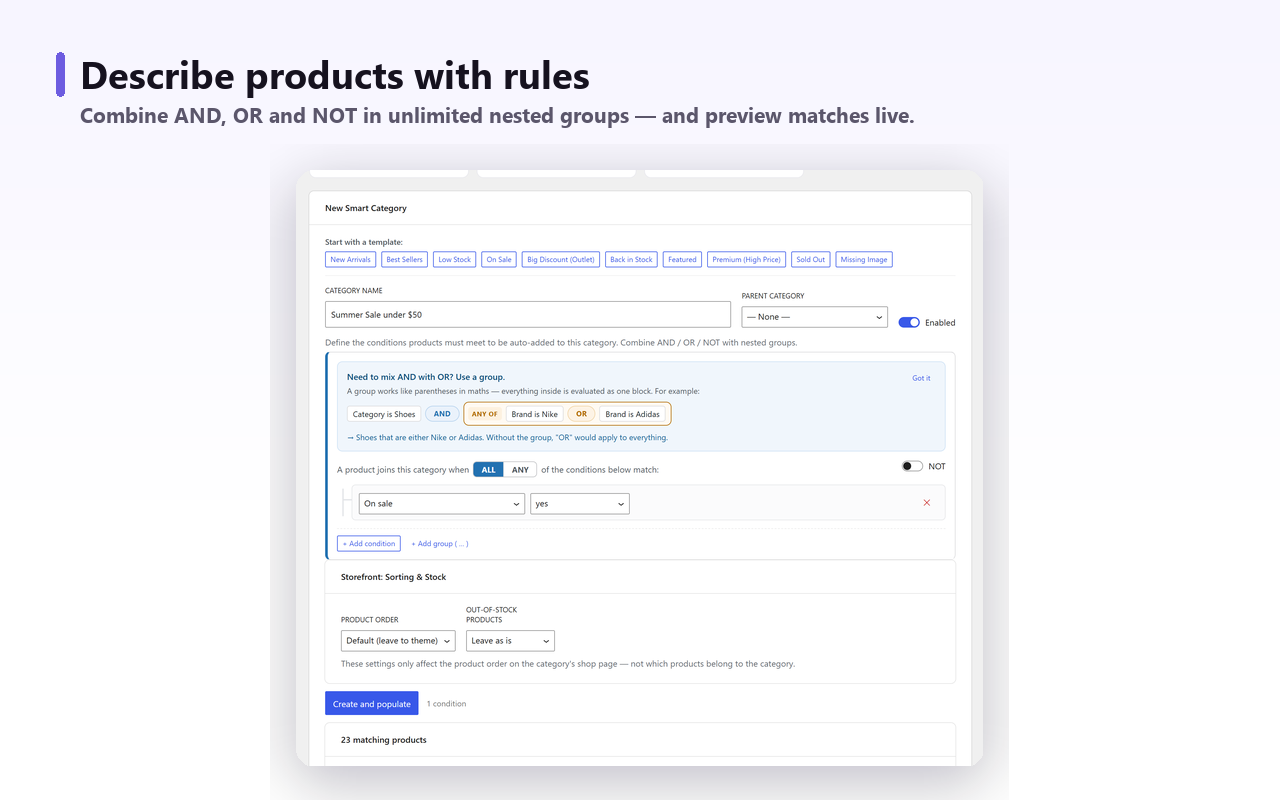
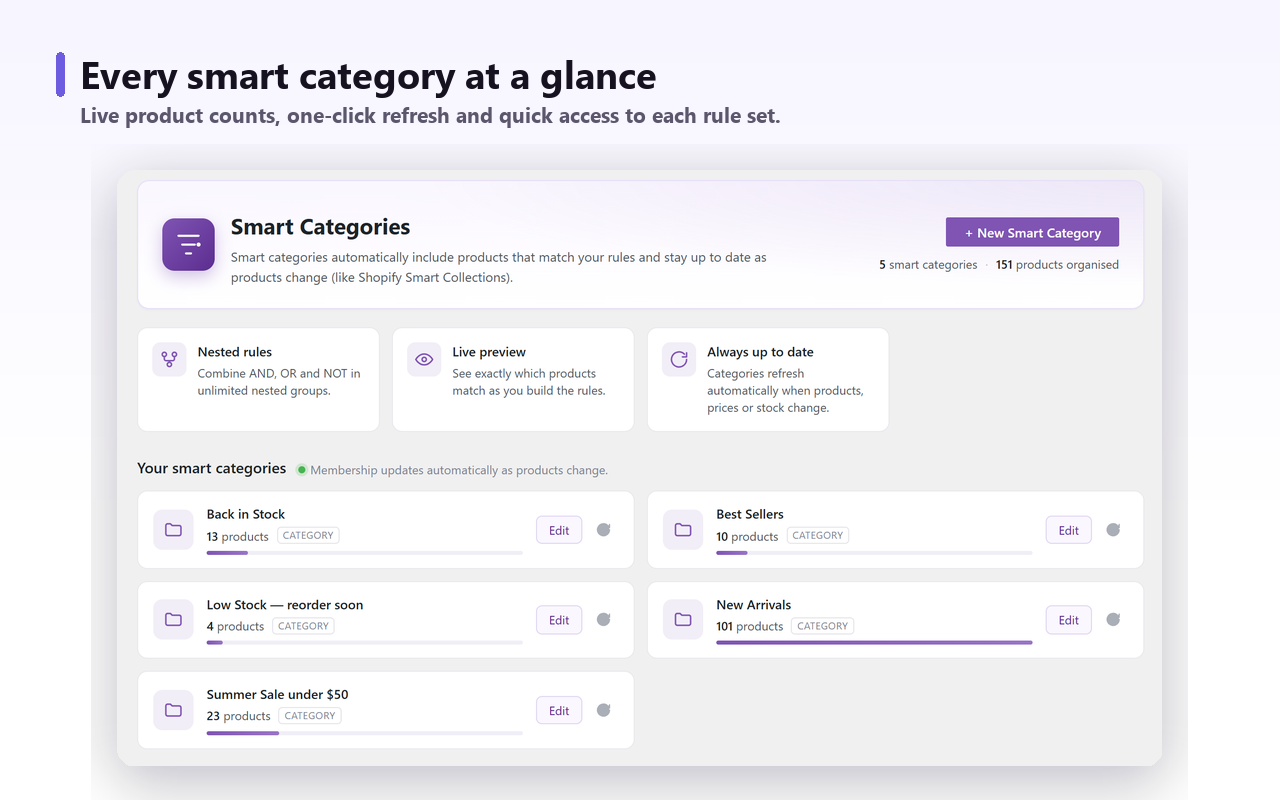
Smart Categories for WooCommerce attaches a rule set to a real product_cat term or a product tag — not a parallel taxonomy — so matching products get the actual term assigned and everything downstream behaves normally. The five questions above, answered in the order they were asked:
| Question | What this one does |
|---|---|
| Can it express the condition you actually have? | Groups nest without limit, each one ALL OF, ANY OF or negated. More than 35 match fields in the free version, among them discount percentage, image count, profit margin, any global attribute and a custom field by meta key. |
| What triggers re-evaluation? | Product create, product update, price change and stock change, plus a daily sweep for the conditions no event can announce. |
| What happens to the products you assigned by hand? | The memberships the plugin created are recorded, and only those are ever removed. Hand-assigned exceptions stay where they were put. |
| What does a rule that matches nothing do? | A live preview shows the count before you save. Run the impossible-rule test there. |
| Does it batch? | Matching is queued through Action Scheduler, visible under WooCommerce → Status → Scheduled Actions. |
One limit to know before you test it: a rule can only read attributes that are global attributes, the ones registered under Products → Attributes and then attached to products. A catalogue built on per-product custom attributes, typed straight into one product’s Attributes tab, leaves a rule with nothing to match on.
The free version is on wordpress.org, with no cap on categories, rules or products. A Pro tier adds subcategories generated per attribute value or per combination of two attributes, plus six sales-intelligence fields such as units sold in the last 30 days.
Where to start#
Write the rule down in English first. If it fits in one sentence with no “and also” clauses and the underlying data barely moves, the bulk editor and a monthly reminder will serve you fine. If the sentence needs a “but not”, or the data changes daily, or you are maintaining more than about three collections by hand, you need something that re-evaluates on its own — and then the five questions above are the only ones that matter. Ask them of whatever you pick.