WooCommerce Parent Category Not Showing Products? Check These in Order
WooCommerce parent category not showing products? Parents already include child products — check display type, catalog visibility, stock and block themes.
Updated
In this article17 sections
If your WooCommerce products are not showing in parent category pages, the usual advice — flush permalinks, clear the cache, switch to Storefront — will almost certainly waste your afternoon. In most cases the archive is doing exactly what it has been configured to do. WordPress already includes child-category products in a parent category archive by default, so “the products all live in the subcategories” is not, on its own, an explanation. Something specific has either suppressed the product loop or excluded the products from it, and the realistic candidates are a short list.
This post works through them in order of likelihood, with the checks a developer would actually run, and finishes with the snippet people are usually looking for — plus an honest account of what that snippet costs you.
The short answer#
WordPress already includes child-category products in a parent category archive, so an empty parent is almost always the category’s Display type set to subcategories, or products hidden from the catalog, out of stock, or not published.
- Check display type first. A category set to “Show subcategories” outputs the tiles and sets the loop total to zero, discarding products on purpose — check the term’s own Display type, then the site-wide fallback under Appearance → Customize → WooCommerce → Product Catalog.
- Block themes change where to look. If the archive is drawn by a Product Collection block in Appearance → Editor → Templates → Product Catalog, that block runs its own query with its own filters, so the display-type rule above may not apply to your store at all.
- Catalog visibility second. Products set to Hidden or Search results only carry the exclude-from-catalog term and drop out of archives, and a mis-mapped column during a CSV import is the usual reason an entire category goes blank at once.
- Out-of-stock hiding third. “Hide out of stock items from the catalog” removes those products from the archive and from term recounts, which is how a category disappears from hide-empty widgets and menus altogether.
- Product status fourth. Draft, pending and scheduled products keep their category assignments but never appear on the front end, and private products render only for administrators and shop managers — so opening the archive in a private window separates a status problem from a query problem.
- Counts explain lists, not archives. Stale counts cached in the wc_term_counts transient only ever explain a category missing from a sidebar or menu; run Recount terms under WooCommerce → Status → Tools, but never treat the count as the cause of an empty page.
First, separate the two symptoms#
“The parent category shows nothing” covers two unrelated failures. One is the archive template rendering no products. The other is the category itself disappearing from a menu, sidebar widget or category block. They have different causes and different fixes, and conflating them is why so many threads run for forty replies without resolving anything.
| What you see | Most likely cause |
|---|---|
| Subcategory tiles render, no products below them | Category display set to subcategories |
| “No products were found matching your selection” | Catalog visibility, out-of-stock hiding, or product status — where the message appears narrows it down |
| Archive works, but the category is missing from the sidebar or menu | Hide-empty behaviour plus a zero or stale term count |
| Count badge disagrees with the products on the page | Term counts not recounted, or the wc_term_counts transient |
| Products appear when logged in as admin, not when logged out | Draft, pending or private products |
The setting behind most “products not showing in parent category” reports#
WooCommerce has a per-category Display type, and a site-wide fallback. If either resolves to subcategories, the product loop on that archive is deliberately emptied.
The site-wide setting lives in Appearance → Customize → WooCommerce → Product Catalog → Category display, whose three choices are Show products, Show subcategories and Show subcategories & products. It is stored as the woocommerce_category_archive_display option. The per-category override lives on the term edit screen at Products → Categories → (edit a category) → Display type, offering Default, Products, Subcategories and Both, and stored as display_type term meta. Term meta wins; the option is only consulted when the term meta is empty.
When the resolved value is subcategories, woocommerce_maybe_show_product_subcategories() outputs the category tiles, sets the loop total to zero with wc_set_loop_prop( 'total', 0 ), and — if this is the main query — also zeroes post_count and max_num_pages on $wp_query, so themes that render products without consulting the loop props still show nothing. The products were fetched. They were then discarded on purpose.
Two details make this hard to spot. First, the suppression only applies when subcategories actually exist — woocommerce_get_loop_display_mode() falls back to products when the term has no children, so the same setting behaves differently on different categories. Second, a parent set to show subcategories looks visually plausible: the page is full of tiles, not obviously broken. If you want both, set the display type to Both rather than writing code.
All of that describes the classic template path, which is where most stores still are. If changing Display type makes no difference in either direction — no products when you set it to Products, no tiles when you set it to Subcategories — then you may not be on that path at all, and the block-theme section below is the one to read.
The myth: parents do not “exclude” child products#
The most repeated explanation online is that WooCommerce only shows directly assigned products, so a parent whose stock all sits in children is legitimately empty. That is not how it works, and acting on it leads people to duplicate every product into its parent category for no reason.
product_cat is registered as a hierarchical taxonomy. On a taxonomy archive, WP_Tax_Query defaults include_children to true, and for a hierarchical taxonomy that means the generated SQL matches the queried term and every descendant term. A parent category archive includes child-category products out of the box.
Counts follow the same rule. WooCommerce registers product_cat with 'update_count_callback' => '_wc_term_recount', and for a hierarchical taxonomy that function merges in each term’s ancestors and counts descendants, so a parent’s count includes products held only by its children. This is also the source of a long-standing quirk: move a subcategory from one parent to another and the old parent can keep counting its products, reported as issue #25491.
So if a parent archive is empty, the children are not the reason. Keep going down the list.
If you run a block theme, the display-type rule may not apply#
Everything above assumes the archive is rendered by PHP templates running the main query. Since Twenty Twenty-Four that is no longer the default theme behaviour, so it is worth finding out what is actually drawing the page before going further: Appearance → Editor → Templates, then open Product Catalog. Some WooCommerce versions also register a separate Products by Category template; if yours does, that is the one a category archive uses.
If the template you land on renders with a Product Collection block, three things follow.
- It builds its own query. The block runs its own
WP_Queryeven when it is set to follow the archive. The control is called Sync with current query in the block’s sidebar — not “inherit the query from the template”, which is the core Query Loop block’s wording, and the reason people hunt for a toggle that is not in their editor. Our post on showing out-of-stock products last runs into the same thing from the other side: a filter written against the main query never reaches this block. - With sync off, the term is ignored. Switch Sync with current query off and the block shows a fixed selection, so the category being viewed stops mattering — which produces an archive that is not empty but shows the wrong products, the same ones on every category page. Rule-based category assignment documents that case in detail, including why counts and layered navigation disagree with what the page shows.
- It has filters of its own. Stock status, hand-picked products, on sale, price range — any of them can empty a category with nothing wrong at the term or the product level, and nothing on Products → Categories will mention them.
One honest caveat on the mechanism. The classic suppression described above is a filter on woocommerce_product_loop_start, which a block-rendered template does not necessarily run at all, so on a block theme Display type may simply have nothing to act on. Rather than assume that either way, use the test: set Display type to Products, reload, set it back. If neither change does anything visible, you are on the block path and the settings that matter are in the Site Editor rather than on the term.
The rest, in order of likelihood#
Catalog visibility set to hidden or search-only#
Each product has a Catalog visibility setting in the Publish box, and what it stores is not a field but terms from the hidden product_visibility taxonomy. WC_Query::get_tax_query() adds a NOT IN clause for exclude-from-catalog on catalog and archive queries, and for exclude-from-search on the main search query. A product carrying exclude-from-catalog still holds its category. It still appears in the admin product list filtered by that category. It will never appear on the archive.
| Catalog visibility | Term attached | Shop page | Category archive | Search results |
|---|---|---|---|---|
| Shop and search results | None | Shows | Shows | Shows |
| Shop only | exclude-from-search | Shows | Shows | Hidden |
| Search results only | exclude-from-catalog | Hidden | Hidden | Shows |
| Hidden | exclude-from-catalog and exclude-from-search | Hidden | Hidden | Hidden |
Shop only attaches exclude-from-search instead, which does not affect a category archive — so only the last two rows explain an empty page. The name is what misleads people: it sounds like the restrictive option, and on a category page it is the one that changes nothing.
If the products were set to Hidden on purpose, because the aim was a shop people can browse but not buy from, the setting that was actually wanted is catalog mode: it leaves products on the archive and takes away the price and the means to buy instead.
More often it was not on purpose. A wrong visibility value is the single most common cause of a genuinely blank category after an import, because several CSV importers and migration tools set visibility per row and a bad column mapping applies it to everything.
Putting a whole category back on the archive
Take a database backup first. Both routes rewrite visibility on every product they touch, and neither has an undo.
Without a shell. Use Export on Products → All Products, limited to the affected category. The file has a Visibility in catalog column holding visible, catalog, search or hidden — the four rows of the table above, in that order. Cut the file down to the ID column and that one, set the rows you want back on the archive to visible, and re-import with Update existing products ticked, matching on ID. The CSV export and import round trip covers the steps people miss. This is the better route if some of those products were hidden deliberately, because you can see which ones before you change anything.
With WP-CLI. Replace your-category-slug with the slug shown in Products → Categories, and remove both visibility terms from every product in the category:
for id in $(wp post list --post_type=product --product_cat=your-category-slug --post_status=any --format=ids); do
	wp post term remove "$id" product_visibility exclude-from-catalog exclude-from-search
done
Remove both terms, even though only exclude-from-catalog empties the archive. A Hidden product that loses just that one is left holding exclude-from-search, which is Shop only: back on the category page, and quietly missing from site search, a state nobody chose. Removing both puts every product in the category on Shop and search results, including any that were hidden for a reason.
Whichever route you take, run Recount terms under WooCommerce → Status → Tools afterwards. The loop above touches only product_visibility and never changes a category assignment, so the category counts that _wc_term_recount() maintains are not rebuilt. They stay wherever they were, and a hide-empty menu or widget can go on leaving the category out after the page itself is back.
Hide out of stock items#
WooCommerce → Settings → Products → Inventory → Out of stock visibility is the checkbox labelled “Hide out of stock items from the catalog”, stored as woocommerce_hide_out_of_stock_items. With it enabled, the outofstock visibility term joins the same NOT IN exclusion list, and a seasonal category can empty itself completely without anyone touching a product.
The setting also feeds term counting: _wc_term_recount() excludes out-of-stock products when the option is on. That is how a category vanishes from a sidebar widget entirely — the count drops to zero, and anything using hide-empty stops listing it. Pushing that stock to the end of the archive instead of hiding it is usually the better trade; showing out-of-stock products last keeps the category populated and keeps the count honest.
Before turning the setting off, though, it is worth checking whether the zeros are true. A category that empties itself overnight can as easily be a stock-accuracy problem as a display one — products still on the shelf, recorded as none — and no visibility setting will fix that.
Product status#
Draft, pending and scheduled products hold their category assignments and show up in the admin list, but never on the front end. Private products are the nastier variant: they render for anyone with read_private_products — administrators and shop managers — and nobody else, which produces the “works for me, empty for customers” report. Always confirm in a private window before diagnosing anything else.
Stale term counts#
This one only affects listings and counts, never the archive itself — but it is the reason a parent category disappears from navigation while its page still works.
On the front end WooCommerce swaps in its own counts through wc_change_term_counts(). That function returns early in the admin and during AJAX, reads product_count_product_cat term meta, and caches the result in a transient called wc_term_counts for MONTH_IN_SECONDS. The transient is deleted at the end of _wc_term_recount(). If products are changed by a route that never triggers a recount — direct SQL, a poorly written importer, or simply toggling a visibility setting — the meta and the transient both keep the old answer. WooCommerce’s own tools page is candid about it: the Recount terms action at WooCommerce → Status → Tools is described as useful when changing settings in a way that hides products from the catalog.
The behaviour has been reported repeatedly over the years, including issue #5204, where the cached counts were served indefinitely without refreshing, and issue #13191, where a category count did not update after assigning that category to a product. Worth knowing what the admin Count column actually means, too: not “products in this category”, but “published, catalog-visible products in this category or below it”.
Another post type sharing product_cat#
Some extensions and a lot of bespoke code register an extra post type against product_cat to reuse the taxonomy. Counts then stop describing your catalogue: issue #27268 reports admin category counts inflated by posts of another type entirely. If you inherited the site, check what is attached with get_taxonomy( 'product_cat' )->object_type before trusting any number.
Bulk-edit drift#
Bulk Edit only adds categories — its checklist has no way to remove one. Quick Edit can remove them, but one product at a time. After a few reorganisations you get products sitting in categories nobody intended and missing from the ones they were supposed to move to. If that is your situation, the fix is procedural rather than technical — see bulk assigning products to categories for a repeatable approach.
When it says “No products were found matching your selection”#
That sentence is the notice WooCommerce’s classic template prints when the product loop comes back empty; on a block theme the wording lives in the template and can differ. It never comes from Display type — a category set to subcategories renders tiles instead — and where the message appears tells you most of what it means.
- On a category archive. Every product in the category was excluded from the query, so it is catalog visibility, out-of-stock hiding or product status — the causes above, in that order — or, on a block theme, a filter set on the Product Collection block.
- On a filtered URL. If the address carries a query string from layered navigation or a filter block, such as
?filter_colour=redor?min_price=40, the message may only mean that combination has no matches. Delete everything from the?onwards and reload: if the bare category URL shows products, the category is fine and the filter is simply empty. - On the shop page itself. The same causes as a category archive, applied to the whole catalogue rather than one term — a visibility change that reached every product, for example, or out-of-stock hiding on a store where everything reads as zero.
Left as it is, an empty archive still answers with HTTP 200, and Google can classify a page like that as a soft 404. What that does to indexing is covered in why category pages end up not indexed; the fix for the page itself is the list you have just worked through.
The diagnostic sequence#
Run these in order. Each one eliminates a block of causes rather than a single setting.
- Open the archive in a private window. If products appear, you have a status or visibility problem, not a query problem.
- Check Display type on the term. Set it explicitly to Products and reload. If products appear, you are done — decide between Products and Both and set the Customizer default to match.
- Ask the database what is actually in the category, ignoring visibility entirely.
No shell is needed for a first pass. Filter Products → All Products by the category, or open /wp-admin/edit.php?post_type=product&product_cat=your-category-slug directly, and read the label beside each product name: Draft, Pending, Private or Scheduled, and nothing at all for a published product. Ignore the status counts across the top of the screen (All, Published, Drafts and so on) — they describe every product on the site, not the category you filtered to. And remember what this list does not do: it ignores catalog visibility, which is exactly how a category can look full here and be empty on the front end.
From a shell, swap your-category-slug for the slug shown in Products → Categories. Left as it is, the command returns nothing, which looks exactly like the empty result described below.
wp post list --post_type=product --product_cat=your-category-slug --post_status=any --fields=ID,post_title,post_statusproduct_cat is the taxonomy’s registered query var, and because the taxonomy is hierarchical the result includes child-category products. An empty result means the assignments are wrong and no amount of template work will help. A long result with every row showing draft answers the question on its own.
- Compare that against the stored counts. A mismatch here points at the recount, not the archive.
wp term list product_cat --fields=term_id,name,slug,parent,count
wp transient delete wc_term_counts
Then run Recount terms from WooCommerce → Status → Tools, which rebuilds the product_count_product_cat term meta and clears the transient properly. Deleting the transient by hand only buys you one page load if the underlying meta is wrong.
- If it is still empty, read the SQL. This shows you the real term list and the visibility exclusions in one line, which beats guessing at which plugin filtered what.
add_filter( 'posts_clauses', function ( $clauses, $query ) {
	if ( ! is_admin() && $query->is_main_query() && is_product_category() ) {
		error_log( 'WHERE: ' . $clauses['where'] );
	}
	return $clauses;
}, 999, 2 );
In a healthy parent archive the WHERE clause contains an IN list of term_taxonomy_ids — the parent plus every descendant — and a NOT IN list holding the visibility terms. One term id in the IN list means something has set include_children to false. A suspiciously large NOT IN list means a visibility filter you did not know about. Find the plugin responsible rather than layering a fix on top of it.
On a block theme, read that output with care. The main query still runs and still passes through this filter, so the log can show a perfectly healthy WHERE clause while the products on the page come from the Product Collection block’s own query, which the is_main_query() guard never lets through. Change the guard to ( $query->is_main_query() || 'product' === $query->get( 'post_type' ) ) and the block’s query is logged as well, along with any other product block on the page. A clause that differs from the main query’s is the one to read, and it sends you back to the block-theme section rather than further down this list. If the log is empty either way, check you are reading the right file: wp-content/debug.log, once WP_DEBUG and WP_DEBUG_LOG are both on.
If you want the opposite: parent shows only its own products#
Once you know children are included by default, the request usually inverts. Stores with a deep tree often want the parent to show only directly assigned products, so “Outerwear” is a curated edit rather than every jacket on the site. Change the parsed tax query:
add_action( 'parse_tax_query', function ( $query ) {
	if ( is_admin() || ! $query->is_main_query() ) {
		return;
	}
	if ( empty( $query->tax_query->queries ) ) {
		return;
	}
	foreach ( $query->tax_query->queries as $i => $clause ) {
		if ( isset( $clause['taxonomy'] ) && 'product_cat' === $clause['taxonomy'] ) {
			$query->tax_query->queries[ $i ]['include_children'] = false;
		}
	}
} );
The hook fires after WP_Query has built its WP_Tax_Query object but before the SQL is generated, which is why editing queries in place works. Be clear-eyed about the cost, though. _wc_term_recount() still counts descendants, so the count next to the category in menus, widgets and the admin list will no longer match the number of products on the page. Layered navigation counts drift the same way, because they are derived from the same term data rather than from your modified query. There is no supported filter that makes counting direct-only; you would be reimplementing the recount, and that is a genuine maintenance burden.
On a block theme, check that the snippet has done anything at all. The is_main_query() guard is right for classic templates, but the Product Collection block runs its own query, so the parent page can go on listing every descendant as though nothing had changed. Widening the guard to ! ( $query->is_main_query() || 'product' === $query->get( 'post_type' ) ) should reach the block’s query as well; confirm it on the page rather than assuming. It also reaches every other product query that carries a category clause, not only the archive, so look at the other pages where you use product blocks before leaving it in place.
A parent that shows a handful of products where it used to show hundreds is also a real ranking change, not just a layout change. If the parent has organic traffic, treat it the way you would any other category structure change, and watch the pages afterwards — thin category archives are one of the reliable ways to end up with category pages that are not indexed.
When the drift itself is the problem#
Work through the list above and one thing becomes obvious. Display type is a setting you chose. Catalog visibility is a value on a product. Stale counts are a cache. But bulk-edit drift, products stranded in an old category, a parent that looked full last quarter and looks thin now — those are all the same failure: category membership is hand-maintained state, and hand-maintained state drifts away from the catalogue it is supposed to describe.
If the drift is occasional, a quarterly audit with the WP-CLI commands above is entirely sufficient, and cheaper than another plugin. If it is predictable — everything under £20, everything published this month — a small scheduled script that calls wp_set_object_terms() from your own rules will do the job and stays in version control. Only when the rules get complicated enough that maintaining that script becomes its own project is a plugin the better trade.
Our own Smart Categories for WooCommerce takes that last route. You attach a rule set to an existing product_cat term — nested AND/OR/NOT groups over 35 match fields, with a live preview of the matching products and their count before you save — and matching products get the real term assigned in the background via Action Scheduler. Because it is the real term, counts, breadcrumbs and menus behave exactly as described in this post. It re-evaluates on product create or update, on price or stock change, and on a daily sweep, and it only removes memberships it created, so manual assignments survive. The same reasoning applies to rule-based category assignment generally, whether you build it or install it.
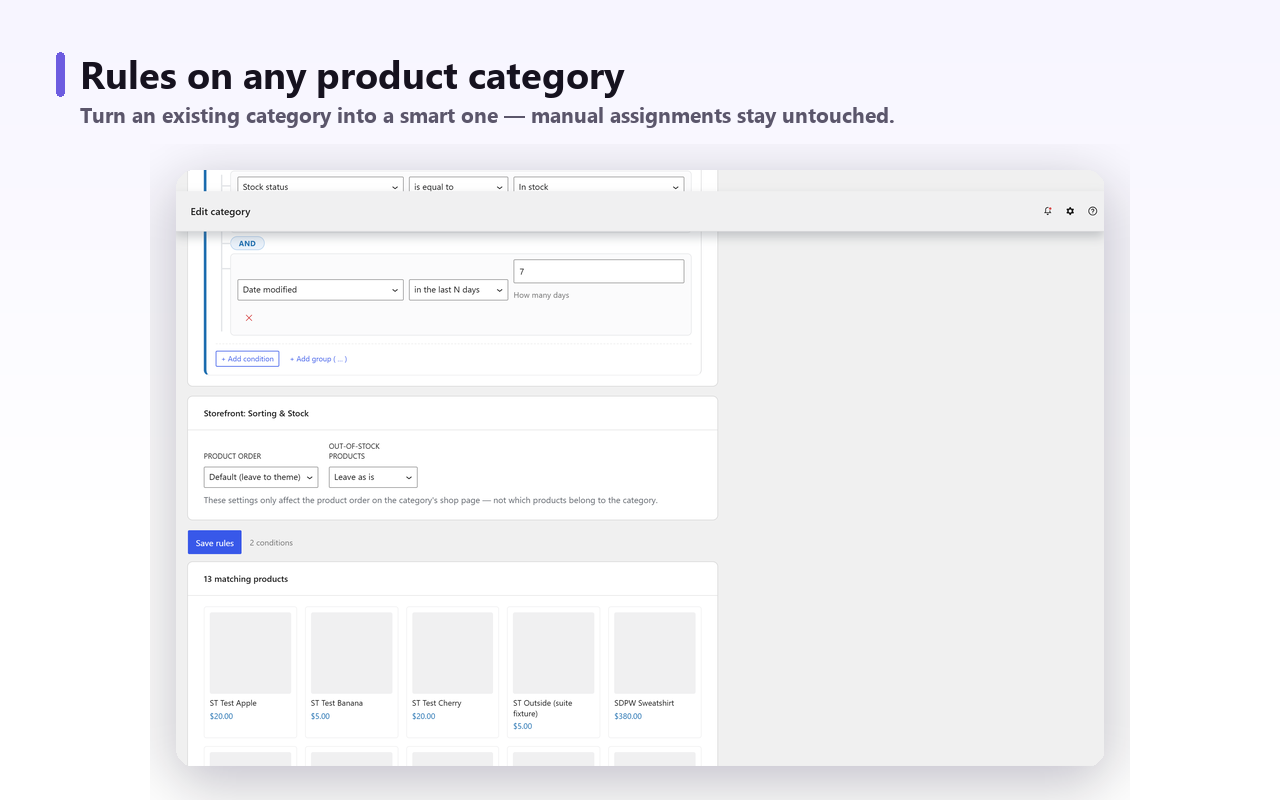
It will not fix the other causes on this page, and it is worth saying so plainly. It does not change display type, does not alter WooCommerce’s counting logic, does not touch catalog visibility, and does not create redirects when you restructure a tree. Those remain WooCommerce settings, and redirects and meta tags remain your SEO plugin’s job.
The short version#
A parent category archive already includes child-category products, and its count already includes descendants. So when the page is empty, check the display type first (or, on a block theme where changing it does nothing, the Product Collection block’s own settings), catalog visibility second, out-of-stock hiding third, product status fourth, and the term count last — because the count only ever explains a category missing from a list, never an empty archive. Every one of those is a piece of state someone set once and nobody revisited. That is the actual bug, and it is the one worth designing around.