WooCommerce Bulk Edit Product Categories: Add, Remove, Uncategorized
Bulk Edit only ever adds — unticking removes nothing. Add in bulk, remove with CSV or WP-CLI, and clear an inherited Uncategorized by moving the default.
Updated

In this article15 sections
There are three reliable ways to bulk assign a category to products in WooCommerce: Bulk Edit on the products list, the CSV export and import round trip, and WP-CLI. Which one you want depends on how many products you are moving and whether you need to remove a category as well as add one. That second half is where people get stuck, because the fastest of the three cannot remove anything at all.
All three work. All three are also snapshots, and the last part of this post is about that, because it is what costs the most time over a year.
The short answer#
WooCommerce bulk-assigns categories three ways: Bulk Edit (adds only, up to a few hundred products), a CSV export and import round trip (larger sets and removals), and WP-CLI (scriptable) — all three are snapshots that need redoing.
- Bulk Edit only ever adds. Under Products → All Products the category checkboxes are an add-these list, so unticking a box removes nothing — the underlying WordPress function merges terms rather than replacing them.
- Uncategorized will not clear. WooCommerce requires every product to hold at least one category, so assign a real category first, change the default with the Make default row action, or use Quick Edit, which does show and remove current values.
- CSV round trip for removals. Export, edit the Categories column with > for hierarchy and full paths — bare names resolve only at the top level, and the importer silently creates anything missing, producing duplicate terms — then re-import with Update existing products ticked, remembering that the column replaces the whole set but empty cells are ignored rather than applied.
- WP-CLI when you have shell access. wp post term add, set and remove give explicit add-versus-replace control and scale to any catalogue size, but remove bypasses the default-category safeguard and can leave products with no category at all.
- Store rules, not lists. Any bulk assignment is a snapshot that ages as products, prices and stock change — sale categories worst of all, because they are bidirectional and the removal step gets forgotten — so membership that depends on price, stock or attributes belongs in rules that re-evaluate themselves.
Three ways to bulk assign a category to products in WooCommerce#
| Method | Good for | Can it remove a category? |
|---|---|---|
| Bulk Edit | Up to a few hundred products, adding one category | No |
| Quick Edit | One product at a time, fixing mistakes | Yes |
| CSV export and import | Thousands of products, restructuring, removals | Yes, with a caveat |
| WP-CLI | Any size, repeatable, scriptable | Yes |
Bulk Edit and Quick Edit on the products list#
Go to Products → All Products and filter the list. The category, product type and stock status dropdowns above the table combine, and the search box works alongside them. Tick the header checkbox, choose Edit from Bulk actions, press Apply. The panel has a Product categories checklist. Tick a category, press Update, and every selected product joins it.
The header checkbox selects the current page, not everything your filter matched, so raise the per-page number in Screen Options before you start or you will do the same job seventeen times.
If most of your catalogue is variable products, note that this panel works at parent level only and does not reach inside variations, so bulk editing the variations themselves is a different job with a different set of tools.
Bulk Edit only ever adds#
The checkboxes start empty and stay empty, even when every selected product is already in that category. They are not showing state. They are an “add these” list, and bulk_edit_posts() in WordPress core is explicit about it — it merges rather than replaces:
$post_data['tax_input'][ $tax_name ] = array_merge( $current_terms, $new_terms );No combination of ticks and un-ticks will take a category off a product: unticking a box is indistinguishable from never touching it. For removal you need Quick Edit, CSV or WP-CLI.
Why Uncategorized will not go away#
This is the one that produces a 2,000-product Uncategorized that nobody can clear. Two mechanisms stack on top of each other.
The first is the merge above. Bulk-assigning a proper category to those 2,000 products adds the new term and leaves Uncategorized exactly where it was. The second is WooCommerce itself: every product is required to hold at least one category, and that is enforced by WC_Post_Data::force_default_term(), registered with add_action( 'set_object_terms', array( __CLASS__, 'force_default_term' ), 10, 5 ). Abridged, it does this:
public static function force_default_term( $object_id, $terms, $tt_ids, $taxonomy, $append ) {
	if ( ! $append && 'product_cat' === $taxonomy && empty( $tt_ids ) && 'product' === get_post_type( $object_id ) ) {
		$default_term = absint( get_option( 'default_product_cat', 0 ) );

		if ( $default_term ) {
			wp_set_post_terms( $object_id, array( $default_term ), 'product_cat', true );
		}
	}
}
Strip a product to zero categories through the normal save path and the default comes straight back. That default lives in the default_product_cat option, it is the term named Uncategorized on a fresh install, and it is why the admin refuses to let you delete it. Three practical consequences follow.
- Quick Edit does remove categories. The inline editor shows current values rather than “No change”, so its checklist arrives pre-ticked and submits the whole set. Unticking Uncategorized works there, provided one other category stays ticked. One product at a time: fine for twenty, useless for two thousand.
- You can move the default. On Products → Categories, hover a category and use the Make default row action. The old Uncategorized then becomes an ordinary category you may delete, and deleting a term removes it from every product at once. That is the fastest fix for an inherited mess, provided the products have somewhere else to be first.
- Assign before you strip. Any bulk removal has to leave each product with a real category, or you are just cycling it back through the default.
One related thing to know while you are moving products around: putting them in a child category does not make them appear on the parent’s archive page. That is separate WooCommerce behaviour, and a parent category showing no products has its own explanation.
The CSV export and import round trip#
For anything above a few hundred products, or any job involving removals, this is the honest tool. It is built into WooCommerce; no extension required.
Export with the Export button on Products → All Products, limiting it to the columns, product types and categories you need. If the job is categories only, untick Variations in the product type selector. They are included by default, and a variation row’s Categories cell is always empty, because product_cat is held by the parent product and a variation carries none of its own — so 1,200 products averaging four variations each export as six thousand rows, most of them blank in the one column you care about. Those rows do no harm if they go back in, since the importer ignores empty values, but they make the file much harder to work in.
Edit the file, then use the Import button on the same screen and — this is the step people miss — tick Update existing products. Without it, every row matching something you already have is rejected rather than applied: you get a screen full of “A product with this SKU already exists” skips and nothing changes. The importer matches by ID first and falls back to SKU.
That matching rule is the reason to keep the ID column. People trim a category CSV down to SKU and Categories to make the spreadsheet manageable, and a product with no SKU then has neither an ID nor a SKU to match on — so the importer reads the row as something new and inserts a second product instead of updating the one you meant. On a catalogue with patchy SKUs, that is how a category tidy-up finishes with several hundred duplicates. Keep the ID column, and if you would rather work in SKUs, confirm none of them are blank before you import. If the blanks turn out to be widespread that is a separate job from this one, and a SKU scheme that survives a large catalogue is better settled before the next import than during this one.
Two things about the run itself. The importer is driven from the browser, posting the file back in AJAX batches, so closing the tab, sleeping the laptop or losing the connection stops it where it stands: half applied, with no resume and no rollback. A progress bar that stalls part-way is usually a PHP time or memory limit reached on one batch rather than a bad file. And take a database backup before any re-import with Update existing products ticked, and before any of the WP-CLI removals below. Both rewrite term relationships in their thousands, and neither has an undo.
The Categories column format#
The column is called Categories and it maps to the product’s category_ids. Multiple categories are separated by commas, and > expresses hierarchy:
Categories
"Clothing > Shirts, Sale"
"Clothing > Shirts > Oxford, Clothing > Formal"
"Kitchen > Knives & Blocks"
An ampersand inside a name needs nothing special, as the third row shows. A comma does: the importer splits the cell on every comma it finds, so a category genuinely named Knives, Blocks & Steels arrives as two categories. A backslash in front of that comma is honoured — explode_values() lifts the escaped pair out of the string before it splits and puts it back afterwards — but the escape has to be right in every cell of every export you ever run, so renaming the category is usually the smaller job. Quoting the field keeps your spreadsheet happy and changes nothing here, because the quotes are gone by the time the importer sees the value.
One correction, because it circulates widely: a tax:product_cat column with pipe separators is not the format for the importer that ships with WooCommerce, whose schema has no such column. That convention belongs to older import extensions and third-party importers. If your tutorial uses pipes, check which importer it was written for before running it against 5,000 rows.
How the importer resolves each name, and the duplicate trap#
The inner loop of WC_Product_CSV_Importer::parse_categories_field() explains every strange result you get from a large import:
$_terms = array_map( 'trim', explode( '>', $row_term ) );
$total  = count( $_terms );

foreach ( $_terms as $index => $_term ) {
	if ( ! current_user_can( 'manage_product_terms' ) ) {
		break;
	}

	$term = wp_insert_term( $_term, 'product_cat', array( 'parent' => intval( $parent ) ) );

	if ( is_wp_error( $term ) ) {
		if ( $term->get_error_code() === 'term_exists' ) {
			$term_id = $term->get_error_data();
		} else {
			break;
		}
	} else {
		$term_id = $term['term_id'];
	}

	if ( ( 1 + $index ) === $total ) {
		$categories[] = $term_id;
	} else {
		$parent = $term_id;
	}
}
Two things follow. Anything that does not already exist is created silently — there is no “unknown category” warning, so a typo in one cell produces a new category. And the importing user needs manage_product_terms, or the loop breaks and nothing is assigned.
The trap follows from the parent argument. Each segment resolves against terms sharing the same parent, so a bare name with no > is only ever looked up at the top level. If your catalogue contains Men > T-Shirts and a supplier feed writes plain T-Shirts, the importer does not find the existing child — it creates a second, top-level T-Shirts, and your products split across two categories with identical names and different URLs.
Slugs collide too: Men > T-Shirts and Women > T-Shirts are legitimately distinct, but only one can own t-shirts, so the second gets a parent slug or number appended. Two habits avoid all of it: write the full path in the CSV, never the leaf name alone, and scan Products → Categories for near-duplicate names after any large import. If a restructure does change live URLs, redirects are a separate job for a redirect plugin or your server config, and changing category structure without losing rankings covers the order to do things in.
The caveat on removals#
The Categories column replaces a product’s category set rather than adding to it, which is what you want for clearing Uncategorized in bulk: export, delete Uncategorized from the column, re-import with Update existing products ticked.
The caveat is that an empty cell is not a replacement with nothing. The importer ignores empty values rather than applying them — deliberately, so a partial CSV does not wipe the columns you left out — which means the round trip cannot clear a field. A product whose only category was Uncategorized comes back unchanged, because once you delete the word the cell is blank. For those, Make default and delete is the only bulk answer.
WP-CLI, for anyone with shell access#
You do not need the WooCommerce CLI for this. Product categories are an ordinary taxonomy, so core WP-CLI handles them, and unlike the admin these commands are explicit about add versus replace. Terms match by slug unless you pass --by=id:
# Add a category, keeping the existing ones
wp post term add 1234 product_cat sale

# Replace the whole set
wp post term set 1234 product_cat shirts sale

# Remove one
wp post term remove 1234 product_cat uncategorized
Combine with wp post list for the bulk version. This adds every published product priced under 50 to an Under 50 category. A shell loop rather than an xargs pipeline, because it is easier to read and easier to turn into a dry run:
for id in $(wp post list --post_type=product --post_status=publish --format=ids --meta_key=_price --meta_value=50 --meta_compare='<' --meta_type=NUMERIC); do
  wp post term add "$id" product_cat under-50
done
Two cautions before you point that at a live catalogue.
- Variable products will over-match. WooCommerce does not store a single
_priceon a variable parent. Itssync_price()deletes the parent’s_priceand re-adds it once per distinct visible variation price, noting that to allow sorting and filtering by multiple values it has no choice. A meta query matches if any one row matches, so the query above means “has a variation under 50”, not “is entirely under 50”. The shop page’s price range is drawn from those same variation prices, lowest to highest, so fixing a variable product’s price range starts in the same place. - Removal has no safety net.
wp post term removecallswp_remove_object_terms(), which does not fireset_object_termsand so never triggersforce_default_term. It will leave a product with zero categories. Confirm there is a replacement before you strip anything.
The second caution has a safe counterpart, for the removal people most often need. Strip Uncategorized only from products that already hold another category, and nothing can be left with none:
# Remove Uncategorized only where a real category already exists
for id in $(wp post list --post_type=product --post_status=any --product_cat=uncategorized --format=ids); do
  if [ "$(wp post term list "$id" product_cat --format=count)" -gt 1 ]; then
    wp post term remove "$id" product_cat uncategorized
  fi
done
Run it once with the wp post term remove line replaced by echo "$id" to see the list before anything changes. Products whose only category is Uncategorized are left alone. They need a real category first, and adding one is the job Bulk Edit is good at; run the loop again afterwards and it picks them up. Expect minutes rather than seconds on a large catalogue, because every wp command boots WordPress from scratch and this runs one or two of them per product.
The WooCommerce CLI works too. Since 3.0 it requires a user to run as, and categories takes an array of objects that replaces the full set rather than appending:
wp wc product update 1234 --categories='[{"id":19}]' --user=1Check it worked#
Products → Categories is the fastest check. Its Count column includes published products only, so a figure below the filtered product list can simply be drafts; if the two still disagree, the count is stale rather than the assignment, and wp term recount product_cat recalculates it. Near-duplicate names on the same screen are where a leaf name written without its full path shows up. Then look for anything a removal left with no category at all:
# List every product that holds no category
for id in $(wp post list --post_type=product --post_status=any --format=ids); do
  [ "$(wp post term list "$id" product_cat --format=count)" -eq 0 ] && echo "$id"
done
The part nobody budgets for: a bulk assignment has a half-life#
This is true of all three methods and is not a criticism of any. Each answers “which products belong in this category right now”, writes the answer down, and does not keep it.
| Event | What goes stale | Typical frequency |
|---|---|---|
| New products added | Missing from every category they belong in | Continuous |
| Sale price set or expires | Sale category holds full-price items, or misses discounted ones | Every promotion |
| Stock runs out or is replenished | In-stock and clearance groupings wrong | Daily |
| Supplier feed updates attributes | Attribute-based groupings drift | Weekly or monthly |
| A product simply ages | New Arrivals fills up and never empties | Continuous |
Put a number on it. A store adding 100 products a month does this job every month, forever. One considered decision per product, done quickly, is still a couple of hours a month on new stock alone — about 24 hours a year before you touch anything that already exists.
Sale periods are worse, because they are bidirectional. Two hundred products go into the Sale category on day one and two hundred have to come back out when the promotion ends. The second half is the half that gets forgotten, and a Sale category still listing full-price products is a support ticket, not a cosmetic problem. A sale category that empties itself is a different design, and the same asymmetry runs through a new arrivals category that expires: adding is easy and everyone remembers, removing is invisible and nobody does.
Bulk assignment is the right tool for a one-off — a migration, a restructure, a cleanup — and the wrong tool for anything that also needs to be true next month.
Making it stop: store a rule, not a list#
The fix in principle is to stop storing a list of products and start storing a definition, then re-run it on a schedule. You can build that yourself. Here is a working version for a sale category, using WooCommerce’s own on-sale helper:
add_action( 'init', function () {
	if ( ! wp_next_scheduled( 'my_refresh_sale_cat' ) ) {
		wp_schedule_event( time(), 'daily', 'my_refresh_sale_cat' );
	}
} );

add_action( 'my_refresh_sale_cat', function () {
	$term_id = 42; // The "Sale" product_cat term ID.

	$should_be = array_map( 'intval', wc_get_product_ids_on_sale() );
	$currently = array_map( 'intval', get_objects_in_term( $term_id, 'product_cat' ) );

	foreach ( array_diff( $should_be, $currently ) as $id ) {
		wp_set_object_terms( $id, array( $term_id ), 'product_cat', true );
	}

	foreach ( array_diff( $currently, $should_be ) as $id ) {
		wp_remove_object_terms( $id, array( $term_id ), 'product_cat' );
	}
} );
That genuinely works, and for one simple category it may be all you need. Know what it costs. It runs daily, so a price change waits up to 24 hours. It cannot tell a membership it created from one you added by hand, so anything a merchandiser assigns is removed on the next run. wp_remove_object_terms() does not fire set_object_terms, so a product whose only category was Sale finishes with none. And each extra condition — margin above 40%, brand in a list, in stock — is more code to keep working. Where this pattern breaks is covered in adding products to a category based on rules.
If you would rather not maintain that#
This is the problem our plugin exists to solve, so treat this section as the interested party talking. If the CSV round trip or the snippet above fits your store, use them; they cost nothing.
Smart Categories for WooCommerce is the generalised version of that snippet, and it is free on wordpress.org. A rule set attaches to a real WooCommerce product category — the existing product_cat term, not a parallel taxonomy — and matching products get that real term assigned, so admin lists, term counts, breadcrumbs, menus and other plugins all keep behaving normally.
- Rules instead of lists. Unlimited nested groups, each ALL OF or ANY OF, and any group can be negated. More than thirty-five match fields in the free version, among them active price, sale price, discount percentage, profit margin, stock status, stock quantity, total sales count, average rating, brand, any global attribute, weight and dimensions, and a custom field whose meta key you supply.
- Preview before you commit. Matching products and their count are shown while you compose the rule, not after you save it.
- Re-evaluated on its own. On product create and update, on price or stock changes, plus a daily sweep that catches scheduled sales starting and ending and changes made outside WooCommerce.
- Manual assignments survive. It records the memberships it created and only removes those — the flaw in the snippet above.
- Batched in the background. Matching runs through Action Scheduler in batches, not on page load.
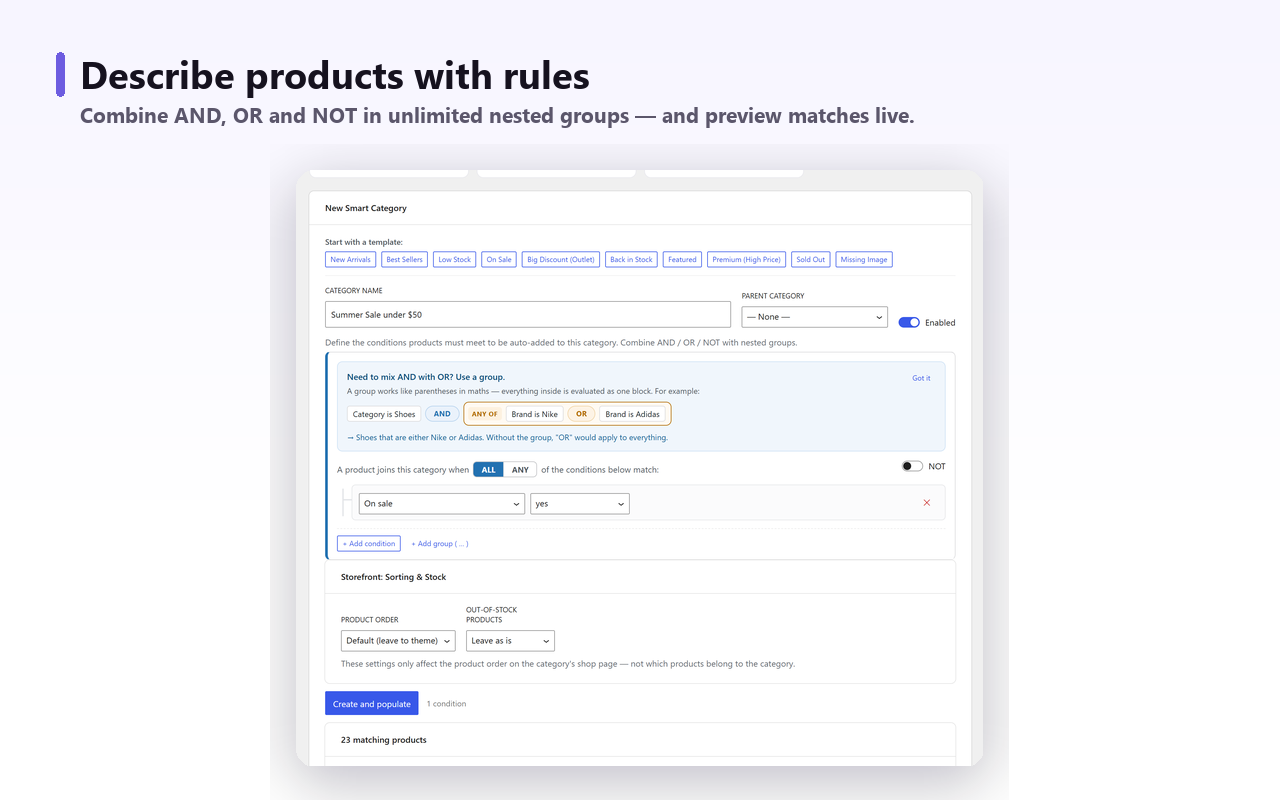
Because the rule set attaches to a category you already have, the path from here is two steps: do the one-off bulk assignment with whichever method suits your catalogue, then attach a rule so the result stays right.
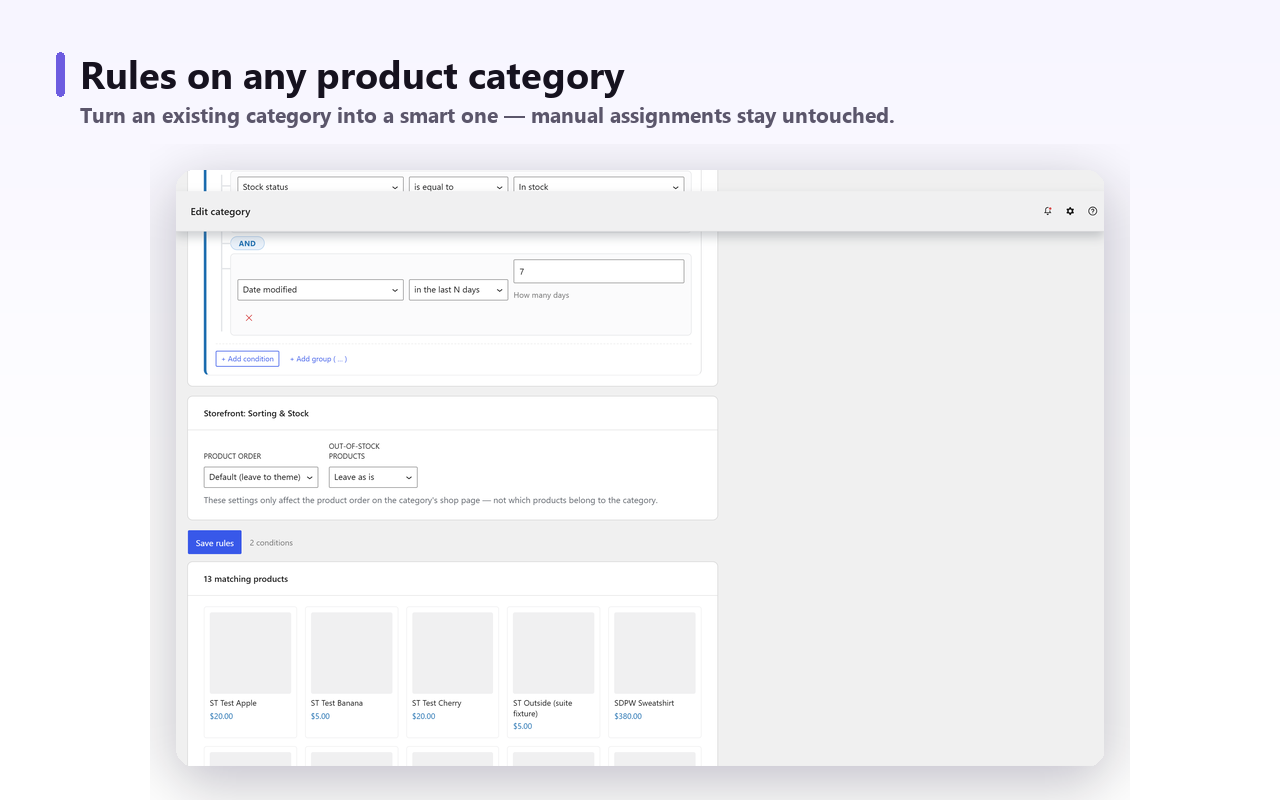
What it does not do, to be clear: it does not write SEO titles or meta descriptions, create redirects when you restructure, merge or delete the categories you already have, or import or edit product data. It assigns category and tag membership. The rest belongs to your SEO plugin, a redirect plugin and your importer.
Choosing#
- Adding one category, under a few hundred products. Bulk Edit. It only adds, and the header checkbox only covers the current page.
- Removals, or anything larger. The CSV round trip, with Update existing products ticked and full category paths in every cell.
- Shell access and a job you will repeat. WP-CLI — and keep the script, because you will run it again.
- Membership that depends on price, stock, sales or attributes. Do not bulk assign at all. Write a rule, in your own scheduled code or with a plugin, and let the category maintain itself.
And if you have inherited a large Uncategorized: change the default with Make default, give the products a real category, then delete the old term. That clears it everywhere in one action — the one thing Bulk Edit will never do for you.