WooCommerce Variable Product Price Range: Show “From”, or One Price
Two free ways to change it: price every variation the same, or add one snippet so it reads "From £15". Plus why an edited price will not update.
Updated

In this article15 sections
WooCommerce shows a variable product price range — “£15.00 – £55.00” — whenever your variations carry different prices. There are two free ways to change that, and they change different things. Give every variation the same price and the range disappears on its own, with no code: WooCommerce prints a single figure the moment the minimum and the maximum match. Leave the prices alone and add one filter, and the same product reads “From £15.00”. The filter is below.
Before either, sort the variations by price. A large share of ranges that look wrong are wrong — one variation at £5 that should be £50, a leftover sale price from a campaign that ended, a decimal in the wrong column. A display filter hides that number more attractively rather than fixing it, and you find out about it when someone buys it.
Which of these do you actually want?#
| You want | How | Cost |
|---|---|---|
| One price, no range | Give every variation the same price | Free, no code |
| “From £15.00” | One filter on woocommerce_variable_price_html — below | Free, about fifteen lines |
| The range to be correct | Sort by price and find the outlier | Free |
| No price at all until login or enquiry | A data-layer job across the parent HTML, the variation JSON and the Store API | Its own post: hide the price range entirely on variable products |
Show “From £15” instead of the range#
If the spread is genuine and the entry price is the hook, one filter turns “£15.00 – £55.00” into “From £15.00” everywhere the parent product’s price is printed. Put it in a small site plugin rather than functions.php, so a theme switch cannot change how your prices read without telling you.
add_filter( 'woocommerce_variable_price_html', 'shop_from_price', 100, 2 );

function shop_from_price( $price_html, $product ) {
	$prices = $product->get_variation_prices( true );
	$min    = current( $prices['price'] );
	$max    = end( $prices['price'] );

	if ( '' === $min || $min === $max ) {
		return $price_html; // Already a single price. Leave core's output alone.
	}

	return sprintf(
		/* translators: %s: lowest variation price. */
		esc_html__( 'From %s', 'my-shop' ),
		wc_price( $min )
	) . $product->get_price_suffix();
}
Four things about it are worth knowing before you paste it in:
- The hook is
woocommerce_variable_price_html, notwoocommerce_get_price_html. The second one fires for simple products too, so filtering there rewrites the price on your whole catalogue and you may not notice for a week. - Core has already appended the price suffix.
WC_Product_Variable::get_price_html()passes$price . $this->get_price_suffix()into this filter, so if you replace the string you have to append the suffix yourself — which is what the last line does. If you have no “inc. VAT” suffix configured, it returns an empty string and costs you nothing. - The guard earns its place. Without the
$min === $maxcheck, a product whose variations are all priced identically gets a pointless “From” in front of a single figure. - Don’t copy snippets built on
woocommerce_variable_sale_price_html. That filter is a WooCommerce 2.x leftover.get_price_html()builds the string, passes it throughwoocommerce_variable_price_htmland thenwoocommerce_get_price_html, and the sale variant is not among the filters it calls, so a callback on it never runs.
One consequence to expect: the figure this prints is the sale-adjusted minimum, so a single discounted size makes the “From” shout louder rather than quieter — see Sale prices widen the range below. And because the guard hands a flat product straight back to core, a product where every variation is on sale at the same price keeps its strikethrough; the “From” case doesn’t.
To answer the question this gets asked alongside: Quick Variable Products has no setting that changes the range. It writes the numbers; the range is WooCommerce’s own rendering of them, and the filter above is how you change the rendering. Setting prices and displaying them are different jobs.
Why the range doesn’t match the prices you typed#
Before you go looking for a plugin conflict, there are three reasons core itself prints numbers you never entered:
- Tax display. The range is built from
get_variation_prices( true )— the for display form — which follows WooCommerce → Settings → Tax → “Display prices in the shop”. On an inc-VAT storefront the shop shows inc-VAT figures while the variation fields in wp-admin hold ex-VAT ones, and the two legitimately differ. - Out-of-stock variations. With WooCommerce → Settings → Products → Inventory → “Hide out of stock items from the catalog” ticked, out-of-stock variations are left out of the set the range is built from. Your cheapest size sells out, the “from” figure jumps, and nothing else has changed. This is the one most often misdiagnosed as a conflict.
- Empty prices. A variation with a blank price field is skipped entirely when the range is built — it isn’t purchasable, so it never appears at either end. Draft and private variations are left out on the same principle.
All three take about a minute to check, and none of them is a conflict: two are settings doing exactly what they say, and the third is a field nobody filled in.
The range didn’t update after you changed a price#
WooCommerce caches the price set of every variable product in a transient named wc_var_prices_<product_id>, versioned by WC_Cache_Helper::get_transient_version( 'product' ) and otherwise good for thirty days. Saving through the product editor or the CRUD layer moves that version on, so the range rebuilds. Direct SQL, some CSV importers and anything that writes _price meta straight into the database do not, and the old range keeps rendering against prices that no longer exist.
For one product, wc_delete_product_transients( $product_id ). For the whole store, WooCommerce → Status → Tools and clear the WooCommerce transients. Then check your page cache and your CDN, because by that point the range is rendered HTML like anything else on the page.
One footnote for developers: if you filter woocommerce_variation_prices_price to vary prices by role or by customer, add the same factor to woocommerce_get_variation_prices_hash. That hash is what the cached price set is keyed on, so without it one role’s range is served quite happily to another. Core says as much in the data store, immediately beside the filter.
Why WooCommerce shows a range#
Showing the range isn’t a design decision you can argue with — it’s the only honest thing to display when the product page doesn’t yet know which variation the customer wants. The question is whether the spread it’s reporting is one you meant to create.
Everything from here is the other half of the question: not how to change the range, but whether the range is the thing that needs changing.
What a wide range actually costs you#
Before deciding it’s a cosmetic problem, notice what a range does:
- The customer doesn’t know what they’ll pay. “£15.00 – £55.00” answers no question. Someone comparing three shops has to click into yours and interact with a dropdown to learn what the other two told them on the listing page.
- It reads as the top number. People anchor on the higher figure more than sellers expect, especially where the spread is large.
- It travels badly. Category listings, search results, product feeds and comparison sites all have to render something, and a range is the least useful thing to give them.
So a range is worth fixing. The question is whether you fix the price or the picture of it.
Four shapes a variation matrix can have#
Sort your variations by price and see which of these you’re looking at:
| Shape | What it looks like | Display result |
|---|---|---|
| Flat | Every variation the same price | One price. No range at all. |
| Stepped | S/M/L at one price, XL/XXL at another | A narrow, explicable range |
| Genuinely varied | Every combination priced independently | A wide range that is honest |
| Accidental | One outlier nobody meant | A wide range that is a bug |
Check for the fourth shape first. Sorting by price puts the outlier at one end of the list, on its own, where it takes a second to spot. It is the only one of the four shapes where the range is a bug rather than a report, and it is behind a large share of the complaints about ugly ranges.
Choosing the shape deliberately#
The useful principle: an axis should only change the price if it changes your cost or your value.
- Colour almost never changes cost. Price it flat. A red shirt and a blue shirt costing different amounts needs an explanation you probably don’t have.
- Size sometimes does — more fabric, more shipping weight. Stepping the price at the point where cost genuinely jumps is defensible and easy to explain.
- Material or capacity usually does. Leather versus canvas, 500ml versus 2L. A wide range here is correct and the customer expects it.
If you’re pricing per variation because you never decided, that’s the accidental shape wearing the third shape’s clothes. And if an axis changes neither your cost nor your stock nor your SKU, it is worth asking which attributes should be variations at all — fewer axes means fewer rows carrying a price you have to keep deliberate.
The case for flat pricing#
Worth stating plainly because it’s underused: pricing every variation identically makes the range disappear entirely, without any code, plugin or filter. One price on the listing page, one price in your feed, one number for the customer to hold in their head.
If the cost difference between your sizes is small, flattening to a single price — absorbing the difference on the large ones and taking slightly more on the small — is frequently worth more in conversion than it costs in margin. That’s a commercial decision rather than a technical one, which is exactly why no snippet article covers it.
Setting prices when you build the matrix#
Whichever shape you choose, the mechanics are the same: a base price for the product, and overrides only where the price genuinely differs.
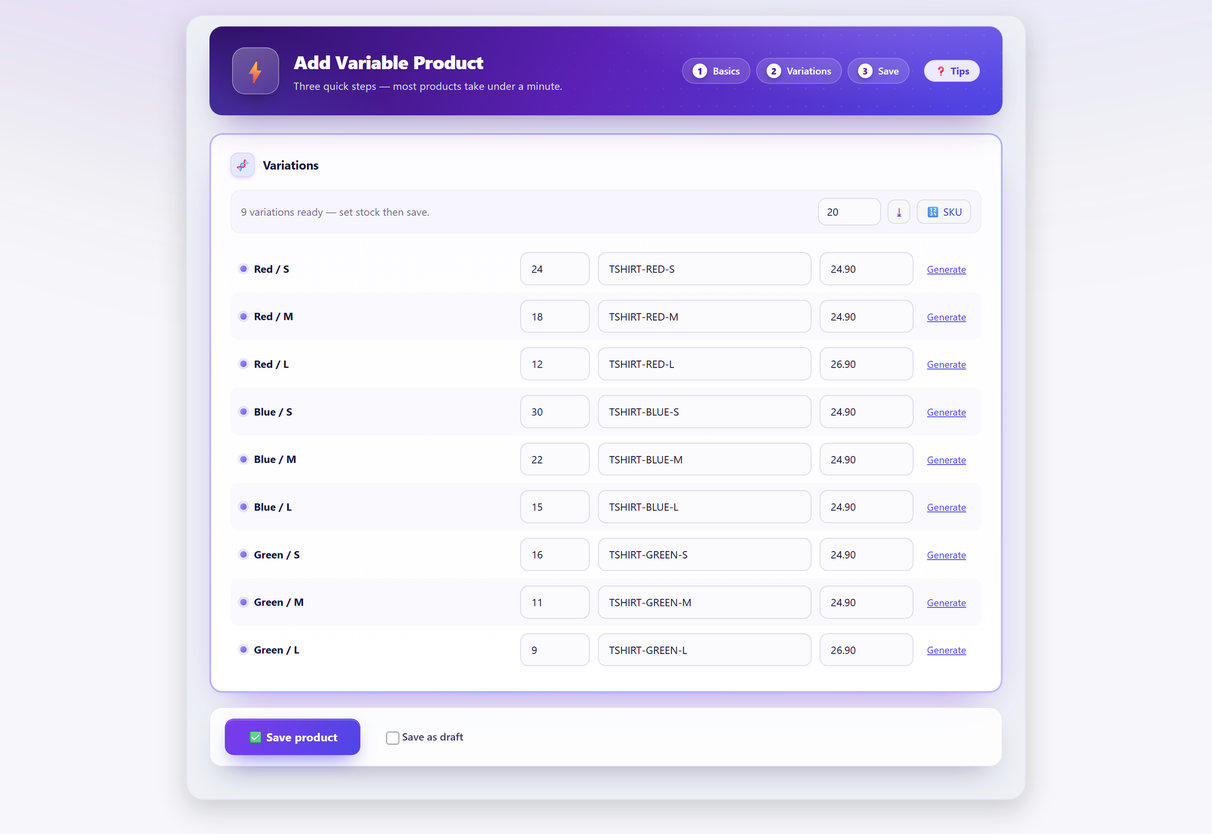
Doing this at build time is considerably safer than fixing it later. When the whole matrix is on one screen you can see the price column as a column — an outlier is visible immediately, which is the moment it costs nothing to fix. In Quick Variable Products you set the base price once and type an override only on the rows that differ; everything else inherits, so the flat shape is the default rather than something you have to maintain. If you want to see that screen end to end, here is how to set every variation price on one screen.
The alternative — discovering a mispriced variation because a customer bought it — is a considerably more expensive way to find out. Repricing a matrix that already exists is a different job with different tools, and “bulk” means three unrelated things in WooCommerce depending on which one you need: bulk-editing variations you already have sorts out which is which.
Sale prices widen the range#
A detail that catches people out: putting one variation on sale changes the bottom of the displayed range, so a product with a single discounted size suddenly advertises a much lower “from” figure than most of it costs.
That’s not necessarily wrong — it’s a legitimate promotional tactic — but decide it deliberately. If you meant to discount the whole product, discount every variation. If you meant to clear one size, expect the listing to shout about that size’s price.
When changing the display is the right answer#
Sometimes the range is correct and you still don’t want to show it. Legitimate cases:
- “From £15” instead of a range. Reasonable when the spread is genuine and the entry price is the hook. That’s the filter earlier in this post — about fifteen lines, and nothing else to configure.
- Showing each variation’s price in a table, for products where customers want to compare options at a glance.
- Hiding prices entirely until login or on request — normal in B2B, wholesale and made-to-order. That is a bigger job than a display filter, because the price is printed in more than one place: hide the price range entirely on variable products covers where it has to be done and how to confirm it stuck. Verify the price is actually gone rather than merely out of sight, because prices leak through the Store API and structured data far more often than people expect.
The number underneath the price#
One last thing worth doing while you have the matrix open: record the cost alongside the price. The Quick Variable Products create screen carries a cost of goods field next to tax class and shipping class, so it goes in with the same save that makes the product rather than in a second pass you will not come back for.
Price without cost tells you what you charge but not what you keep. With cost of goods data set, you can see the margin per variation — and once the sizes that genuinely cost more carry their own figure, it’s common to find that the largest size, priced identically to the rest out of convenience, is the one you make nothing on. That’s also the figure that lets a stock count report its variance in money rather than units, which is what inventory valuation depends on.
Keeping that figure true over time — what you actually paid the supplier this month, not what you paid a year ago — is a different job again, and the one PurchaseDesk does with purchase orders and goods receiving.
In order#
- Sort variations by price and look for outliers. Fix the data before anything else.
- Decide the shape — flat, stepped, or genuinely varied — and make each axis earn its price difference.
- Set a base price with overrides only where they belong.
- Check sale prices aren’t widening the range by accident.
- Only then, if the range is correct and still unhelpful, change how it’s displayed.
All five are free. The first four change what is true; the fifth changes only what is shown, which is why it is worth reaching for last even though it is the one everybody searches for first.
Variable product pricing FAQ#
Why does WooCommerce show a price range on my variable product?
Because the variations have different prices and the page does not yet know which one the customer wants, so it shows the lowest and highest. If every variation carries the same price, WooCommerce shows a single figure and the range disappears entirely.
How do I get rid of the price range?
The free way is to price every variation identically, which removes the range without any code or plugin. If the prices genuinely differ, you can change how the range is displayed — as “From £15”, as a table of variation prices, or hidden until selection — but that is a presentation change and a different tool from the one that sets your prices.
My price range looks wrong. What should I check first?
Sort the variations by price and look for an outlier. A large share of ugly ranges are a single mispriced variation, a decimal in the wrong place, or a leftover sale price from a finished campaign. No display plugin fixes that — it just hides a wrong number more attractively.
Should colour variations have different prices?
Almost never, because colour rarely changes your cost. An axis should only change the price if it changes your cost or the value to the customer. Size sometimes qualifies, material and capacity usually do, colour usually does not.
Why did putting one variation on sale change my listed price?
A sale price on any variation lowers the bottom of the displayed range, so a product with one discounted size will advertise that size’s price on listing pages. That can be a deliberate tactic, but decide it — if you meant to discount the product, discount every variation.
Is flat pricing across all variations a good idea?
Often, yes. If the cost difference between your sizes is small, absorbing it and charging one price removes the range from every listing, feed and comparison, and the conversion gain frequently outweighs the margin. It is a commercial decision rather than a technical one.
How do I show 'From £15' instead of a price range?
One filter on woocommerce_variable_price_html, returning your own string and appending the price suffix core had already added. The snippet is earlier in this post. It is a display change only: your stored variation prices are untouched, and the customer still pays the price of the variation they choose.
I changed a variation price and the range is the same. Why?
WooCommerce caches the price set of each variable product in a transient, wc_var_prices_ plus the product ID. Saving through the product editor clears it; direct SQL and some CSV importers do not, so the old range keeps rendering. Clear it with wc_delete_product_transients() for one product, or WooCommerce → Status → Tools for the whole store, then check your page cache.
My range starts higher than my cheapest variation. Why?
Usually that variation is out of stock while “Hide out of stock items from the catalog” is ticked, which leaves it out of the set the range is built from. The other two causes are a blank price field on that variation, or a variation that is not published.