WooCommerce Attributes vs Variations (and Global vs Custom)
Attributes describe, variations sell. One test for which attributes should become variations, and the widely repeated claim that is not true.
Updated
In this article12 sections
WooCommerce asks you to understand two related ideas before you can sell a t-shirt in three sizes, and it doesn’t explain either of them particularly well. Worse, a lot of what’s written about WooCommerce attributes vs variations contains a claim that isn’t true, which sends people down the wrong path from the first product.
Here’s the actual distinction, the global-versus-custom question underneath it, and the myth worth correcting.
The one-sentence difference#
Attributes describe. Variations sell.
An attribute is a property with possible values — Colour: Red, Blue, Green. On its own it does nothing commercial. It has no price, no stock, no SKU. It’s structured information about the product.
A variation is one specific combination that a customer can put in a basket — Red / Small — with its own price, its own stock level, its own SKU and optionally its own image. Variations are the things you actually sell.
Every variation is built from attribute values, but not every attribute becomes a variation. That second half is where most catalogues go wrong.
The test is one question, asked of each attribute: does this change the price, the stock or the SKU? If yes to any of the three, it is a variation. If no to all three, it is a display attribute — and the full table for the usual suspects is further down.
Attributes: the vocabulary#
Think of attributes as the words your catalogue is allowed to use. “Colour” is a word; “Red” is one of its permitted meanings.
Attributes do three jobs:
- They inform. Displayed in the Additional Information tab, they tell a customer what they’re buying — fabric, weight, country of origin.
- They filter. Global attributes power layered navigation, so shoppers can narrow a category down to just the blue ones.
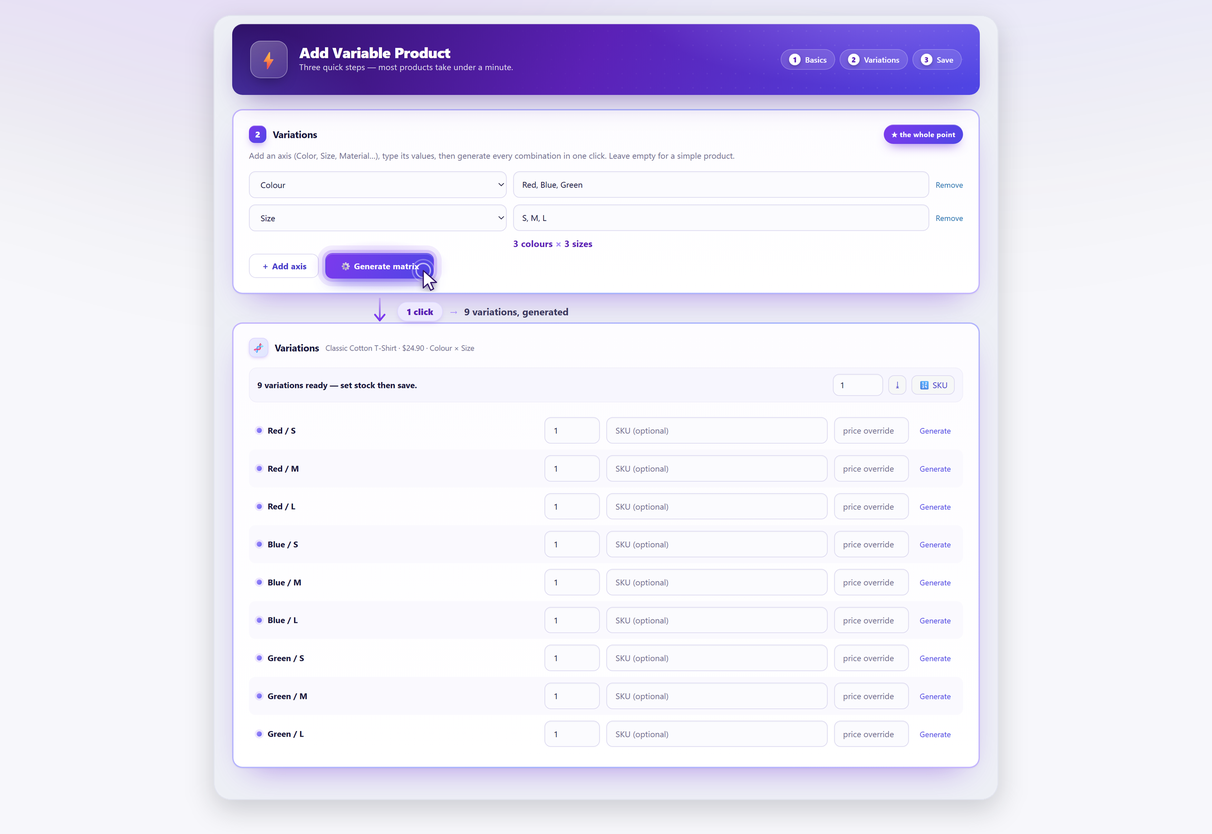
- They generate. When you mark an attribute as used for variations, WooCommerce can build every combination of its values.
An attribute can do the first two without ever doing the third, and for a lot of product data that’s exactly right.
Variations: the things people buy#
A variation is a real record in the database — a child of the parent product, with its own fields. That matters for two reasons that come up later:
- Each variation can be priced, stocked, photographed and coded independently. This is the whole point.
- Each variation carries a real cost in database rows and page weight, which is why variation count becomes a performance question faster than people expect.
Global vs custom attributes#
WooCommerce has two kinds, and the difference is about scope rather than capability.
| Global attribute | Custom (product-level) attribute | |
|---|---|---|
| Created at | Products → Attributes | Inside one product’s Attributes tab |
| Reusable | Across every product | That product only |
| Powers filters / layered nav | Yes | No |
| Has its own archive pages | Optional — only if Enable archives? was ticked when the attribute was created; off by default | No |
| Can create variations | Yes | Yes |
| Central management | One place, renames propagate | Retyped per product |
That archive row hides a decision of its own: whether to publish those pages at all, and whether an attribute value ought to become a real product category instead — attributes vs categories covers what the Enable archives? checkbox actually creates, and the three tests before you promote a colour to a category.
Converting a custom attribute to a global one#
There is no button for this. WooCommerce has no built-in conversion from a product-level attribute to a global one, so the route is manual, and it is per product:
- Create the global attribute and its terms at Products → Attributes.
- On the product, delete the custom attribute row and add the global one in its place.
- Re-tick Used for variations and save.
- Reopen each existing variation and reselect its value. The variations survive the swap, but their attribute selection resets to “Any …”.
That last step is where the cost is. On a handful of products this is an edit; on eighty it is a rebuild — the same arithmetic that makes adding a value to products you already have a different job from building the first one. Which is the real reason the global-versus-custom choice matters at product one rather than product ninety.
One honest limit while we’re here: Quick Variable Products doesn’t migrate custom attributes to global either. It makes the rebuild cheap, which is a different claim.
The myth: “custom attributes can’t create variations”#
You’ll read this in a number of otherwise reasonable guides. It’s wrong.
WooCommerce’s own documentation for variable products tells you to add “a global/existing attribute or create a new one (specific to the product)” and then generate variations from it. A product-level attribute with Used for variations ticked produces variations exactly like a global one does.
The reason to prefer global attributes is real, but it isn’t this. It’s that custom attributes are invisible to filtering, can’t be reused, and have to be retyped — with all the spelling drift that implies — on every product. Three products with “Medium”, “medium” and “Med” are three separate values as far as WooCommerce is concerned, and no filter will ever unite them.
So the honest guidance is: custom attributes work, and you should still mostly use global ones. Not because of a capability limit, but because consistency is a catalogue-level property and custom attributes can’t provide it.
The checkbox that decides everything#
One thing first, because it stops people cold: the checkbox only exists on a variable product. Set Product data to Variable product at the top of the panel — on a Simple product the Attributes tab is still there, but the Used for variations column is hidden entirely. And once you’ve ticked it, click Save attributes; the Variations tab won’t offer Generate variations until the attributes are saved (older installs show this as “Create variations from all attributes” in the Add dropdown).
On the Attributes tab, each attribute has a Used for variations checkbox. It is the switch between the two worlds:
- Unticked: the attribute is display-only. It shows in the Additional Information tab, it can filter (if global), and it never appears in the variation matrix.
- Ticked: the attribute becomes an axis. Every value multiplies your variation count.
Most catalogue problems trace back to this checkbox being ticked on something that should have been informational.
Two settings that come with ticking it#
The moment an attribute becomes an axis, two settings that were irrelevant a minute ago become yours to get right. Neither is where you’d look for it.
Term order. For a global attribute, the order the values appear in on the storefront isn’t set on the product, and it isn’t the order you typed them. It comes from the attribute’s Default sort order, chosen when you create or edit the attribute at Products → Attributes: Custom ordering, Name, Name (numeric) or Term ID. On Name, a size attribute sorts alphabetically and the dropdown reads L, M, S, XL — which is why so many size lists look scrambled. On Custom ordering, the drag handles under Configure terms decide, and S, M, L, XL becomes available to you.
Default form values. At the top of the Variations tab, WooCommerce lets you pre-select one combination so the product page loads with it already chosen. Leaving it empty is the safe default. Setting it to a combination that’s out of stock means the first thing a customer sees is a product they can’t buy.
Which attributes should be variations?#
The test again, in full, applied honestly to each attribute:
Does this change the price, the stock, or the SKU?
If yes to any, it’s a variation axis. If no to all three, it’s a display attribute. The SKU part of that question is the one people postpone: once the variations exist, a SKU scheme that survives the next round of them is much easier to design than to retrofit.
| Attribute | Usually | Why |
|---|---|---|
| Size | Variation | Different stock per size, often different price |
| Colour | Variation | Different physical items on the shelf |
| Material | Depends | Axis if you stock both; display if the product is one material |
| Fabric composition | Display | Describes the product, doesn’t change what ships |
| Care instructions | Display | Same for every combination |
| Country of origin | Display | Information, not a choice |
| Gift wrapping | Neither | An add-on, not a product variant — use a product add-on |
That last row is worth dwelling on. Optional extras feel like variations and behave nothing like them: turning “gift wrap: yes/no” into an axis doubles your entire matrix to represent a checkbox.
A worked example#
A cotton t-shirt: 3 colours, 4 sizes, 100% cotton, machine washable, made in Portugal.
Right: Colour and Size as global attributes used for variations — 12 variations. Composition, care and origin as display attributes, or simply in the description.
Wrong: all five ticked as used for variations. 3 × 4 × 1 × 1 × 1 is still 12 variations, but now every one of them carries three redundant axes, your variation dropdowns show five selectors where two would do, and adding a second fabric later multiplies everything.
The wrong version isn’t obviously broken on day one. It becomes obvious at product ninety.
Fixing a catalogue that already went wrong#
If you’ve inherited a store where everything is an axis:
- Audit the attributes, not the products. Products → Attributes tells you what vocabulary exists. Anything that looks like a sentence is a display attribute wearing the wrong hat.
- Untick before you delete. Removing Used for variations keeps the information and stops the multiplication; deleting the attribute loses the data. But unticking isn’t the whole job — the variations that attribute helped create are still sitting in the database, still real records, still counted and still potentially purchasable. The full sequence is: untick Used for variations, save, then on the Variations tab delete the variations that no longer make sense (or Delete all variations) and regenerate. Past orders are unaffected, because WooCommerce stores the chosen attribute values on the order line item — an old order goes on reading Red / Small whatever you do to the product afterwards.
- Consolidate spelling drift in global attribute terms — “Medium” and “medium” merged into one — before you rebuild anything.
- Rebuild the worst offenders rather than editing them. A product with the wrong axes is usually faster to recreate cleanly than to unpick, especially if generating the matrix takes a minute.
Step one has no screen behind it. Products → Attributes lists the vocabulary, but nothing in the admin tells you which products treat which attribute as an axis — which is the thing you are actually auditing. If you have WP-CLI, save this as audit-axes.php and run wp eval-file audit-axes.php:
<?php
$counts = [];

foreach ( wc_get_products( [ 'type' => 'variable', 'limit' => -1, 'return' => 'ids' ] ) as $id ) {
    $product = wc_get_product( $id );
    if ( ! $product ) {
        continue;
    }
    foreach ( $product->get_attributes() as $attribute ) {
        if ( ! $attribute->get_variation() ) {
            continue;
        }
        $label = $attribute->is_taxonomy()
            ? wc_attribute_label( $attribute->get_name() )
            : $attribute->get_name() . ' (custom)';
        $counts[ $label ] = ( $counts[ $label ] ?? 0 ) + 1;
    }
}

arsort( $counts );

foreach ( $counts as $label => $n ) {
    printf( "%-40s %d products%s", $label, $n, PHP_EOL );
}
It prints every attribute currently acting as an axis and how many products it is an axis on, with custom attributes marked as such. Anything near the top of that list that isn’t a real choice a customer makes is your problem. One caveat: 'limit' => -1 loads every variable product, so on a catalogue in the thousands run it on staging or add a paged loop.
No WP-CLI? There is no admin screen for this, so the manual substitute is to filter the Products list by product type, open the worst-looking variable products and read their Attributes tab — slower, but it finds the same offenders on a catalogue small enough to walk.
Do the vocabulary work first. Every product you create afterwards inherits it, and every product you created before it will need it eventually.
Rebuilding is not free, and it is worth knowing the bill before you start. The new variations get new IDs, so per-variation images, stock levels and any prices you had set have to be re-entered, and anything pointing at an old variation ID — a product feed, a saved URL, an external listing — stops resolving. On a handful of badly-shaped products that is still the faster route. On a catalogue, it is a project.
Rebuilding is only cheap if creating is cheap. Quick Variable Products generates every combination of the attributes you pick on one screen, with price, SKU and stock per row, so recreating a product with the right axes takes about as long as deciding what they should be.
Attributes and variations FAQ#
What is the difference between an attribute and a variation in WooCommerce?
An attribute is a property with possible values, like Colour: Red, Blue, Green. It describes the product and has no price or stock of its own. A variation is one specific purchasable combination, like Red / Small, with its own price, stock level, SKU and image.
Can custom attributes create variations, or only global ones?
Both can. WooCommerce’s own documentation tells you to add either a global attribute or a new one specific to the product, then generate variations from it. The claim that custom attributes cannot create variations is repeated in several guides and is not correct.
Why prefer global attributes then?
Because they are reusable across products, they power filtering and layered navigation, and they are managed in one place so the values cannot drift. Custom attributes have to be retyped on every product, and “Medium”, “medium” and “Med” become three unrelated values that no filter will ever unite.
What does the "Used for variations" checkbox do?
It decides whether an attribute is an axis or just information. Unticked, the attribute is display-only and appears in the Additional Information tab. Ticked, every one of its values multiplies your variation count.
Which attributes should be variations?
Ask whether the attribute changes the price, the stock or the SKU. If it changes any of those, it is a variation axis. If it changes none of them — fabric composition, care instructions, country of origin — it is a display attribute and making it an axis only multiplies your matrix.
How do I fix a product where everything was made a variation axis?
Untick “Used for variations” rather than deleting the attribute, so you keep the information but stop the multiplication. Unticking on its own leaves the variations it helped create in the database, so go to the Variations tab afterwards, delete the ones that no longer make sense and regenerate. Past orders are unaffected: WooCommerce stores the chosen values on the order line item. Consolidate any spelling variants in your global attribute terms first, then rebuild the worst products cleanly — usually faster than unpicking them, as long as you accept that rebuilt variations get new IDs and their images, stock and prices have to be re-entered.