“Please Select Some Product Options”: WooCommerce Variations Not Showing
No dropdowns, no Add to Cart, “please select some product options”, or an empty Variations tab: four symptoms, four causes, and which to check first.
Updated

In this article14 sections
You built a variable product. On the front end it’s wrong: no dropdowns, or dropdowns with no Add to Cart button, or the message “Please select some product options before adding this product to your cart” from a customer who definitely selected them. Or the front end never gets its turn, because the Variations tab in wp-admin is the thing that’s empty.
WooCommerce variations not showing is four different problems wearing one description, and they have four unrelated causes. Identify which symptom you have first — it eliminates most of the checklist immediately.
Which symptom do you have?#
If the dropdowns render but no Add to Cart button appears, check the variation’s Regular price field before anything else — a variation with an empty price is not purchasable, and WooCommerce shows no button and no warning. In the tickets I see, that’s the one.
| What you see | What it means |
|---|---|
| No dropdowns at all | WooCommerce doesn’t think this product has variations |
| Dropdowns, but no Add to Cart | The variations exist but aren’t purchasable |
| “Please select some product options” | The selection isn’t resolving to a variation |
| Variations tab empty in wp-admin | The variations were never saved, or the admin cannot load them |
Work the section that matches. Guessing across all four is how an afternoon disappears. Start by ruling out the last row: if the variations aren’t in wp-admin either, nothing in the three front-end sections applies to you.
When the variations are missing in wp-admin, not on the shop#
This is the other question the phrase covers, and it’s a different animal. The rows you typed aren’t on the Variations tab at all, or the tab sits empty after a save that reported success. Two causes, in this order.
The admin couldn’t load them, or couldn’t save them#
Since WooCommerce 2.4 the Variations tab isn’t part of the page you loaded. It fetches variations over AJAX a page at a time — fifteen rows by default, and the number runs through the filter woocommerce_admin_meta_boxes_variations_per_page — and it saves them the same way, in a separate POST to admin-ajax.php carrying action=woocommerce_save_variations while the product screen stays where it is.
So when that request fails, the tab renders empty while every row still sits in the database, and a save can report success having written nothing. Open the browser’s Network tab before you touch anything: click into the Variations tab and look for woocommerce_load_variations, then press Save changes and look for woocommerce_save_variations. A 500, a response that isn’t JSON, a memory limit hit partway through a few hundred rows, or a security plugin returning 403 on admin-ajax.php all produce the same empty tab, and none of them say so on screen.
PHP is truncating the POST without telling anyone#
max_input_vars caps how many variables PHP will accept in a single request — 1000 in a default build. Past the cap PHP does not error, does not warn and does not tell WooCommerce: it drops the rest of the array and WooCommerce saves what arrived. That silence is why this one costs people whole afternoons.
Because of the fifteen-at-a-time save above, an ordinary product update posts around fifteen rows and never comes near the cap. Where it genuinely bites is narrower: a global attribute with hundreds of terms in one multi-select on the Attributes tab, a host that has lowered the limit below PHP’s own default, or an importer posting a whole matrix in one request. Read the value you actually have in WooCommerce → Status, under Server environment, where the row reads PHP max input vars — then raise it in php.ini or .user.ini if it’s low.
Both causes get likelier at once on products with hundreds of variations: more rows per load, more terms in the multi-select, more to go wrong in one request. That post is about living with the scale rather than rescuing one product.
Symptom 1: no dropdowns at all#
The product page looks like a simple product with no options. Three causes, in order:
- The product type isn’t Variable. Product data dropdown, top of the Product data box. Obvious once you look, easy to miss when a product was duplicated from a simple one.
- The attribute isn’t marked “Used for variations”. On the Attributes tab, each attribute has this checkbox. Without it the attribute is display-only — it shows in the Additional Information tab and never becomes an axis. This is the single most common cause of symptom 1. What changes when an attribute is marked Used for variations, and when a display-only attribute is what you actually wanted, is a post of its own.
- No variations have been created. The attributes exist, the checkbox is ticked, but nobody pressed Generate variations. The Variations tab will be empty and will tell you so.
Symptom 2: dropdowns but no Add to Cart#
The selectors render, the customer picks a combination, and nothing happens — no button, no price.
The variation has no price#
In the tickets I see, this is the one — and it deserves its own heading because it’s so unhelpfully silent.
A variation with an empty price field is not purchasable. WooCommerce will not render an Add to Cart button for it. Nothing in the admin flags it — the variation looks complete, it just has one empty box.
Check by expanding each variation and looking at the Regular price field. On a product where some sizes work and others don’t, the ones that don’t work are the ones with no price. Nearly always.
That check works for nine variations and not for nine hundred, which is a problem on exactly the catalogues where this happens most. One query finds every priceless variation in the shop at once:
SELECT p.post_parent AS product_id,
       p.ID          AS variation_id,
       rp.meta_value AS regular_price,
       pr.meta_value AS active_price
FROM wp_posts p
LEFT JOIN wp_postmeta rp ON rp.post_id = p.ID AND rp.meta_key = '_regular_price'
LEFT JOIN wp_postmeta pr ON pr.post_id = p.ID AND pr.meta_key = '_price'
WHERE p.post_type = 'product_variation'
  AND p.post_status = 'publish'
  AND (rp.meta_value IS NULL OR rp.meta_value = '')
ORDER BY p.post_parent;
Change wp_ to your own table prefix. It only reads, so phpMyAdmin, Adminer or wp db query on the command line will all run it safely. It filters on _regular_price deliberately: that’s the box you type into, whereas _price is the active price WooCommerce derives from it, and a variation can have a perfectly good regular price while _price is stale — which is a different problem, handled further down. Selecting both lets you see the difference.
Two things to read properly in the output. post_status = 'publish' means you get the variations that are meant to be on sale, so a variation you deliberately disabled — stored as private — won’t appear and won’t waste your time. And post_parent is the parent product’s ID, so the first column is your actual worklist; ordering by it groups the broken rows under the product you have to go and open.
Worth separating this from the neighbouring complaint: a price range that looks wrong is about prices that are all present and reading badly on the shop. This section is about a price that is absent, which produces no range and no button at all.
The variation is out of stock#
Either explicitly set to Out of stock, or managing stock with a quantity of zero and backorders disabled. Correct behaviour, but it looks identical to a bug if you weren’t expecting it.
The variation is disabled#
Each variation has an Enabled checkbox. Unticked variations exist in the admin and don’t exist to customers.
Symptom 3: “Please select some product options”#
The most confusing one, because the customer did select the options. This message means WooCommerce received a form submission it couldn’t match to a specific variation.
- The stored attribute value no longer matches the term slug. A variation records its choice in postmeta as
attribute_pa_colour= the term slug, while the dropdown is built from the terms themselves. Edit a slug after the variations were generated, or let a CSV import write a display name (Navy Blue) into a field that wants a slug (navy-blue), and every dropdown renders correctly while nothing resolves. Check by opening a failing variation in the admin: a value that no longer matches shows as blank, or as Any…, rather than as the term. Fix by re-selecting the value on the variation and saving, or re-importing with slugs — then clear WooCommerce’s own caches, as below. - The combination doesn’t exist. You have Red and you have XL, but no Red / XL variation was ever created. Whether the dropdowns even let a customer pick it depends on the size of the product: below WooCommerce’s front-end AJAX threshold — the 30 that isn’t a limit — the whole variation set is embedded in the page and the second dropdown narrows to values that exist, so an impossible pair is usually unpickable. Above the threshold the form resolves over AJAX, the dropdowns are built from the attribute values rather than from the variations that exist, and they’ll happily offer a combination nobody created.
- A JavaScript error is breaking the form. The variation form is client-side; another script failing before it will stop the selection from resolving. Open the browser console and look for errors.
- Caching — and there are two kinds. A cached page, or a plugin that combines and defers JavaScript, can serve a version where the handler and the variation data disagree: purge the page cache and the CDN, then retest in a private window. But WooCommerce keeps caches of its own as well — variation price ranges in
_transient_wc_var_prices_*transients, and a copy of price and stock in thewc_product_meta_lookuptable — so a price you have just typed into a variation can fail to take effect on the shop until those are cleared too. WooCommerce → Status → Tools: Clear transients, then Regenerate on the Product lookup tables row. Clearing transients is instant; the regeneration runs in the background in batches. Purging the page cache and concluding “it isn’t caching” is how this one hides. - A theme override. Themes that replace the single-product template sometimes don’t reimplement the variation form correctly. Switch to Storefront temporarily — if it works there, it’s the theme.
One near neighbour that isn’t this at all: if the selection resolves fine, the price and the button appear, and only the image doesn’t change when they pick a colour, the variation form is working and the gallery is the part that isn’t. Different mechanism, different fix.
The checklist, in cost order#
If you’re not sure which symptom you have, work down this list. Each step is cheaper than the next.
- Does the Variations tab load at all in wp-admin? If not, check the admin-ajax call first, then
max_input_vars. - Is the product type Variable product?
- Is Used for variations ticked on each axis attribute?
- Do variations actually exist on the Variations tab?
- Does every variation have a price? ← start here if the dropdowns render
- Is each variation Enabled, and in stock?
- Does the specific combination the customer chose exist?
- Do the variation’s stored attribute values still match the term slugs?
- Any errors in the browser console?
- Does it work after a full cache purge, in a private window?
- Have you cleared WooCommerce’s own caches — transients, then the product lookup tables?
- Does it work on a default theme?
Everything up to and including the attribute slugs is data — things you read off the admin in a few minutes, at no cost. Only move on to the console and the caches if the data is clean, otherwise you’ll be debugging JavaScript to explain an empty price field.
Why this happens more on bulk-created products#
There’s a pattern worth naming. Products built one variation at a time rarely have this problem, because you were looking at each price box as you filled it in. Products built by generating a matrix, importing a CSV, or duplicating an existing product frequently do — because generation creates the rows and something else was supposed to fill them.
A CSV import with a missing price column produces dozens of priceless, unpurchasable variations that look completely normal in the admin. So does adding a new size across many products without setting its price, which is why extending an attribute across a catalogue needs its own care.
The structural fix is to make the empty field visible at the moment it’s created. When the whole matrix is on one screen, an empty price is a gap in a column you’re looking at — rather than something hidden inside the fortieth collapsed row.
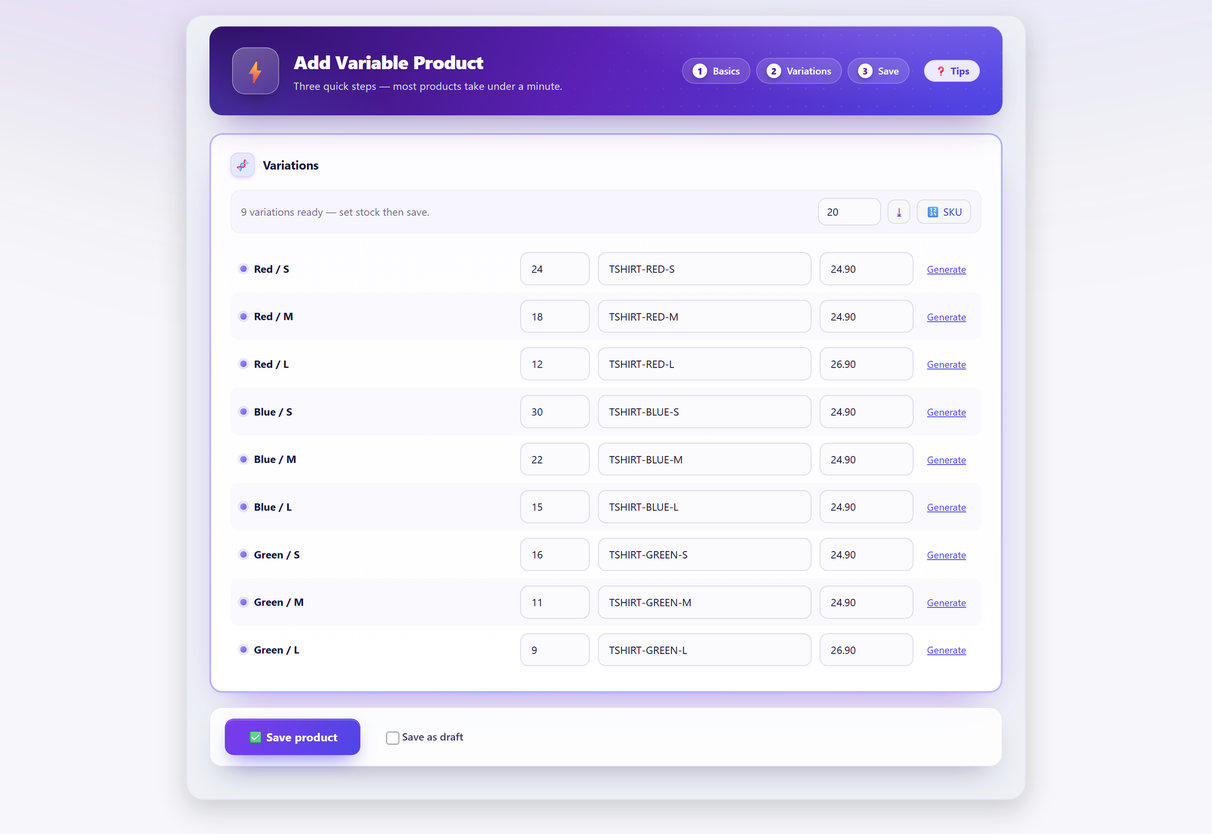
That’s the shape Quick Variable Products uses when you build the product: a base price applied to every row by default, with overrides on the rows that genuinely differ, so the priceless-variation failure doesn’t have anywhere to hide.
Be clear about what that is and isn’t, because most people reading this page have the mess already. The contribution is preventive — it changes what you can see while the matrix is being built. It does not scan an existing catalogue for unpurchasable variations and it does not repair one; the query above does that part, for nothing. Bulk editing variations that already exist is a third thing again — and worth reading about properly before you buy anything for it, because the phrase covers three unrelated tools. On this plugin that job sits in Pro: $59/year for one site, with a 14-day money-back guarantee.
Preventing it#
- Never save a variation with an empty price. If a combination shouldn’t be sold, disable it or don’t create it — don’t leave it priceless and hope.
- Look at the front end after generating. Thirty seconds, on the product you just built, before you build the next ninety the same way.
- Check a combination you didn’t test — the last one in the list, not the first. The first one is usually fine.
- Don’t create combinations you don’t sell. Every generated-but-unstocked combination is a future “please select some product options” report.
Four habits, all free, and in the tickets I see they cover nearly all of this.
Variations not showing FAQ#
Why are my WooCommerce variations not showing on the product page?
Identify the symptom first. No dropdowns at all usually means the product type is not Variable, the attribute is not marked “Used for variations”, or no variations were created. Dropdowns with no Add to Cart button usually means a variation has no price. The “please select some product options” message means the selection is not resolving to a variation.
What causes "Please select some product options before adding this product to your cart"?
WooCommerce received a selection it could not match to a specific variation. Either that exact combination was never created — above WooCommerce’s front-end threshold the dropdowns are built from the attribute values rather than from the variations that exist, so they will offer a pair nobody made — or the variation’s stored attribute value no longer matches the term slug, which a slug edit or a CSV import written with display names both cause. Failing those, a JavaScript error, a cached page, or a theme template override is stopping the form from resolving.
Why is the Add to Cart button missing on my variable product?
In the tickets I see, the reason is almost always that the variation has no price. An empty Regular price field makes a variation unpurchasable and WooCommerce shows no button, with no warning in the admin. Also check that the variation is enabled and in stock.
Why do some variations work and others do not?
Compare the ones that work with the ones that do not, field by field. Almost always the broken ones have an empty price, are disabled, or are set to out of stock. If the difference is that the broken combinations do not exist at all, generate the missing ones.
Why did my variations disappear after I saved the product?
Usually because the save never landed. Variations are saved by their own admin-ajax request, separately from the product, so if that request failed — a 500, a memory limit, a security plugin blocking admin-ajax.php — the screen can report a successful save having written nothing. The second cause is PHP’s max_input_vars, which silently truncates an oversized POST with no error anywhere, dropping whatever came after the cap. Check the browser Network tab for the woocommerce_save_variations request first, then the PHP max input vars value in WooCommerce → Status.
Why does this happen more with imported or bulk-created products?
Because generation creates the rows and something else was supposed to fill them. A CSV import with a missing price column produces dozens of priceless, unpurchasable variations that look completely normal in the admin. Building one variation at a time rarely causes this, because you were looking at each price box as you filled it.
How do I stop this happening again?
Never save a variation with an empty price — disable it or do not create it. Check the front end on the product you just built before you build ninety more the same way, and test a combination from the end of the list rather than the beginning, because the first one is usually fine.