WooCommerce Variation Image Not Changing: Find Your Symptom First
They pick Blue and the photo stays red. Match the symptom first, then work the causes in cost order — from a missing image to the 30-variation threshold.
Updated
In this article17 sections
You’ve set an image on every variation. A customer picks Blue and the photo stays stubbornly red. Or it changes once and then never again. Or it changes on desktop and not on mobile.
WooCommerce variation images are one of those features that works perfectly until it doesn’t, and the reason is almost never the thing people try first. Here’s how the mechanism actually works, the eight things that break it — ordered by what each one costs you to check — and how to set images up so this doesn’t come up again.
Match your symptom before you start, though. A photo that never changes and a photo that changes once and then stops have almost nothing in common, and the table below sends you to the one cause that fits rather than all eight. One thing to rule out first: if the dropdowns themselves aren’t behaving — empty, or refusing to accept a selection — that’s a different problem.
| What you see | What it usually means | Where to go |
|---|---|---|
| Never changes, on any variation | The form or the gallery isn’t doing the swap — it isn’t your product data | Theme gallery override, block theme gallery, JavaScript error |
| Changes for some variations, not others | The ones that don’t change have no image of their own | Not every variation has an image |
| Works on your small products, breaks on the big one | You’re past the variation threshold and the AJAX call isn’t coming back | The 30-variation AJAX threshold |
| Main image changes, gallery thumbnails don’t | Core behaviour, not a fault | The symptom that isn’t a bug |
| Changes on desktop, not on mobile | The theme’s mobile gallery or slider is a different component | Theme gallery override |
| Changed once, then stopped | A cached page, or a script failing after the first swap | Caching, JavaScript error |
How variation images actually work#
Three separate images are in play on a variable product, and confusing them is the root of most of the trouble:
- The product image (featured image) — belongs to the parent product. It’s what shows before anyone has chosen anything, and it’s the fallback.
- The product gallery — additional images on the parent, shown as thumbnails under the main image.
- The variation image — one image, set inside an individual variation.
When a customer selects a complete combination, WooCommerce swaps the main image for that variation’s image via JavaScript. Two conditions have to hold for this to happen: the selection must resolve to one specific variation, and that variation must have an image of its own.
Miss either and you get the parent’s featured image instead — which looks exactly like “the image didn’t change”.
The symptom that isn’t a bug: the thumbnails don’t follow#
One report comes in constantly and isn’t a fault at all, so it’s worth clearing out of the way first. The main image changes when Blue is selected, but the thumbnails underneath it are still the red ones — and clicking any of them puts the red photo back on screen.
That is WooCommerce behaving as designed. The swap replaces the main image and nothing else; the thumbnails are the parent’s gallery, and the parent gallery is the same on every variation. There is no core setting that makes those thumbnails variation-aware — it’s the one-image-per-variation limit seen from the front of the shop. If that’s the complaint you’re actually chasing, read that section instead. The causes below won’t help you, because nothing is broken.
Two console lines that halve the list#
Every article on this subject tells you to open the browser console and look for errors. Here is what to type once you’re there. Load the product page, open the console, and run:
jQuery('.variations_form').data('product_variations')Four possible answers, and they point in four different directions:
- An array of variation objects. The data is embedded in the page and each object carries its own
image.src. Your product data is fine and the fault is in the swap itself, so go to the gallery and theme causes. false. WooCommerce has left the data out because the product is past the variation threshold, and each combination is being fetched over AJAX instead. Go to the threshold cause.undefined. Nothing on the page matched.variations_form, or the attribute isn’t on it. That is a theme rendering something other than WooCommerce’s standard variation form — often a block gallery. It is not a JavaScript error, and reading it as one is how people lose an afternoon in the wrong plugin.jQuery is not defined, or anything thrown. That’s the JavaScript error branch, and the console will already be showing you which script did it.
If the data is there and looks right, the second line watches the swap as it happens:
jQuery('.variations_form').on('found_variation', function (e, v) {
  console.log(v.image && v.image.src);
});
Now pick a combination. If the correct image URL logs and the picture on screen still doesn’t change, WooCommerce has done its half correctly and the problem is downstream in the gallery — which removes half the list below before you’ve touched a setting.
The eight things that break it#
Broadly in cost order — the early ones are a couple of minutes of looking, the later ones mean opening DevTools or editing a template. If the table at the top sent you to one of them, start there instead of reading down.
1. Not every variation has an image#
The most common cause, and the most boring. If Red / Small has an image and Red / Medium doesn’t, selecting Medium falls back to the parent image. To the customer this reads as broken; to WooCommerce it’s correct behaviour.
Check: expand every variation and look for a set image. On a nine-variation product that’s quick. On a sixty-variation product it’s exactly the kind of audit nobody does, which is why it’s the top cause.
2. The theme has replaced the gallery#
The image swap depends on WooCommerce’s own single-product gallery markup and its JavaScript. Themes routinely override that template to add zoom, lightboxes, sliders or vertical thumbnails — and some of those overrides don’t re-implement the variation swap. This is also the usual answer to “it changes on desktop but not on mobile”: the mobile view is frequently a separate slider component that was never wired to the same event.
Check: switch to Storefront or a default theme temporarily and try again. If the images swap correctly there, it’s your theme, and the fix belongs with the theme author rather than in your product data. It takes two minutes, and in my experience it settles more of these than any other single test.
3. A block theme is rendering a different gallery#
On a block theme the Single Product template can be assembled from blocks rather than run through WooCommerce’s classic woocommerce_show_product_images template. The classic swap is bound to the .woocommerce-product-gallery markup and to the found_variation jQuery event; a gallery that doesn’t produce that markup has nothing for the swap to act on, and every hour you spend on your product data is wasted.
Check: view source on the product page and search for woocommerce-product-gallery. WooCommerce’s own Product Image Gallery block does emit that class on plenty of setups, so being on a block theme is not by itself the diagnosis — the class being genuinely absent is. If it isn’t there, stop looking at variations.
Fix: the repair belongs with whoever built the gallery. The dependable fallback is to put WooCommerce’s Classic Template block (woocommerce/legacy-template) back into the Single Product template in the Site Editor, or to reset that template’s customisations, which returns the page to the classic markup the swap expects. There is no “classic gallery” switch to flip — it’s that block you’re looking for.
4. The product is past the 30-variation threshold#
Up to thirty variations, WooCommerce embeds the whole set — prices, stock, image URLs — as JSON in the page, and the swap is instant because everything it needs is already there. Above thirty it stops embedding and resolves each combination over an AJAX call instead. The number comes from the woocommerce_ajax_variation_threshold filter and its default is 30.
If that request doesn’t come back, the form never receives an image URL and the photo never swaps. A page cache caching ?wc-ajax=get_variation, a security plugin blocking it, a nonce served stale from cache, a plain 403 — they all produce the same silence. The tell is unmistakable: the small products are fine and the big one isn’t. The sixty-variation product from the first cause is past the line and a nine-variation one isn’t, which is why two products on the same site with the same theme behave differently.
Check: DevTools → Network, filter for wc-ajax or get_variation, then pick a combination. You want to see a request to /?wc-ajax=get_variation coming back 200 with JSON. Filter for admin-ajax instead and you’ll see nothing at all — variations don’t go through admin-ajax.php — and you’ll walk away certain something is blocking a request that was never made.
You can raise the threshold so the data stays inline on larger products:
add_filter( 'woocommerce_ajax_variation_threshold', function ( $threshold, $product ) {
	return 100;
}, 10, 2 );
That is a trade rather than a repair: every visitor to that product now downloads the full variation set, which at a hundred variations is a noticeably heavier page. If something is blocking the AJAX call, unblocking it is the real fix. There’s more on where the limit comes from and what it costs in the 30-variation threshold.
5. A JavaScript error earlier on the page#
The swap is client-side. If another script throws before WooCommerce’s variation handler runs, nothing happens and there’s no visible error — the page just quietly stops responding to the selectors.
Check: open the browser console on the product page and look for red. One broken slider plugin will take the whole variation form down with it.
6. Caching is serving an older page#
Page caches, CDNs and optimisation plugins that combine or defer JavaScript can all serve a version of the page where the variation data or the handler isn’t what you think it is. Aggressive JS deferral is a particularly common culprit because it changes the order things load in.
Check: purge everything and test in a private window. If it works there and not in your normal browser, you were looking at a cached page.
7. A lazy-load plugin has taken ownership of the image#
Lazy-loading and image-optimisation plugins work by replacing the src attribute with a placeholder and holding the real URL in data-src until the image scrolls into view. WooCommerce’s swap sets src, srcset and sizes on an element that plugin now considers its own, so the new URL is either overwritten on the plugin’s next pass or never painted at all. From the customer’s side it is indistinguishable from a missing variation image.
Check: exclude the product gallery image from lazy loading and try again. Most of these plugins accept a class or selector exclusion — wp-post-image, or .woocommerce-product-gallery__image img — and if the swap starts working, that was it. Test this separately from a cache purge. Purging changes nothing here, so having already purged and seen no difference doesn’t rule it out.
This means third-party plugins specifically. WordPress core’s own loading="lazy" attribute doesn’t rewrite src, so it isn’t the cause and turning it off isn’t the fix.
8. The selection is ambiguous#
If a customer has picked Colour but not Size, WooCommerce doesn’t yet know which variation they mean — so it can’t pick an image. On products where only one axis affects the photo this feels like a bug, but the customer genuinely hasn’t finished choosing.
This is why “one image per colour” products often feel broken: the picture can’t change until every dropdown is answered, even the ones that don’t affect what it looks like.
Worth checking which problem you actually have before you debug the gallery. If a complete selection gives you no Add to Cart button at all, or the “please select some product options” message, the image was never going to change — the variation isn’t resolving, and that is a different fault with a different fix.
The one-image-per-attribute-value approach#
That last cause suggests its own fix, and it’s a workflow choice rather than a setting.
You rarely need a photo of every combination. A t-shirt in three colours and four sizes doesn’t need twelve photographs — the Small and the Large look identical in a product shot. What you need is one image per colour, applied to every size within that colour.
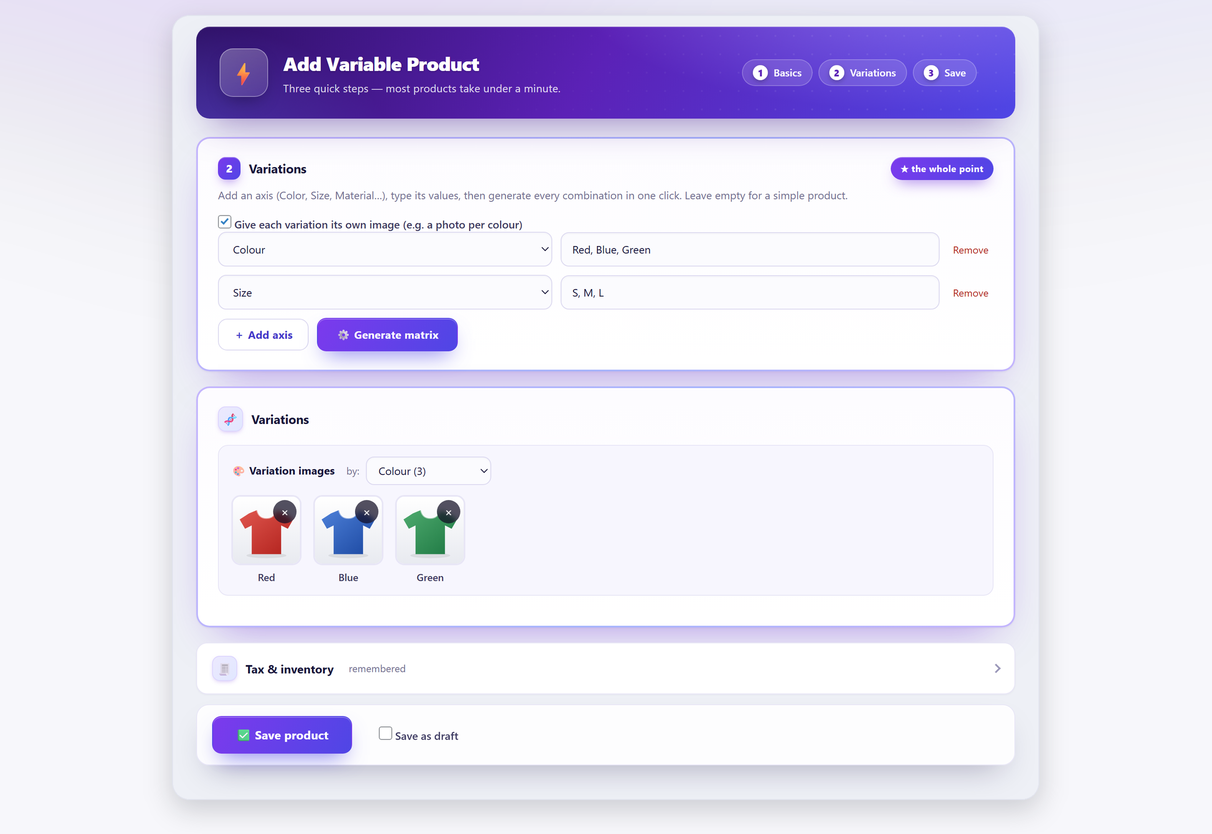
Set up this way, every variation has an image — which removes the commonest cause outright — you shoot three photos instead of twelve, and the gallery stays consistent. In Quick Variable Products you tick “give each variation its own image”, pick which axis drives the photo, and assign one image per value while you’re building the matrix — rather than expanding sixty variation forms afterwards.
The output is still ordinary WooCommerce variation images. Nothing special is stored; each variation ends up with the standard image field filled in, which is precisely why it keeps working with themes and galleries that expect the normal structure.
What about multiple images per variation?#
WooCommerce core supports one image per variation. Not a gallery — one.
So if you want three angles of the blue jacket and three of the red, there is no field for it and no setting you’ve overlooked. That’s a genuine gap in core rather than something you’ve configured wrong, and it’s also why the parent thumbnails never follow the selection. Two ways round it, and both are extensions of one kind or another.
The first is a dedicated additional-variation-images extension. The thing to check before you buy one is that it does both halves of the job: storing the extra images against the variation, and rendering them on the front end. Core has no variation-gallery field for a theme to read, so something has to take over the display as well.
The second is Quick Variable Products Pro, which lets you attach a gallery to each attribute value while you’re building the product — several photos per colour rather than one. It’s an admin-side tool: it writes the images onto your products and then gets out of the way, so what a customer actually sees still depends on the gallery doing the displaying. Worth trying against your own theme’s gallery before you decide it solves your problem.
A setup that doesn’t break#
- Always set a parent featured image. It’s the fallback for the pre-selection state, and a product with no featured image looks broken in category listings, search results and social shares regardless of what the variations do.
- Decide which axis drives the photo. Usually colour, sometimes material. Never size. If it isn’t settled yet which attributes should be variations at all, decide that before you start assigning images.
- Give every variation an image — the same photo repeated across sizes within a colour is correct, not lazy.
- Keep dimensions and crop consistent. Images of different aspect ratios make the page jump when the swap happens, which reads as a glitch even when it’s working.
- Test one product on a default theme before you build a hundred more the same way.
Diagnosing in order#
When it breaks, work through this rather than guessing:
- Does the variation you selected have its own image? → If not, that’s your answer.
- Does it work on a default theme? → If yes, it’s the theme.
- Is
woocommerce-product-galleryanywhere in the page source? → If not, the gallery on the page isn’t WooCommerce’s. - Does the product have more than thirty variations, and does
/?wc-ajax=get_variationreturn 200 with JSON? → If not, it’s the threshold. - Any errors in the browser console? → If yes, it’s another plugin.
- Does it work in a private window after a cache purge? → If yes, it was caching.
- Does it work with the gallery image excluded from lazy loading? → If yes, it was the lazy loader.
- Have you selected every dropdown? → If not, WooCommerce doesn’t know which variation you mean.
Broadly in that order, because each step is cheaper than the one after it. Most of the reports I see end at step one or two, and neither of those costs anything.
Variation images FAQ#
Why do my WooCommerce variation images not change?
Usually because the variation you selected has no image of its own, so WooCommerce falls back to the parent product’s featured image. The other common causes are a theme that has replaced the product gallery template without reimplementing the image swap, a block theme rendering a gallery the swap cannot act on, a product past the 30-variation threshold whose AJAX call is being blocked or cached, a JavaScript error from another plugin, a lazy-load plugin overwriting the image src, caching, or a selection that has not yet resolved to one specific variation.
How do I test whether it is my theme?
Switch temporarily to Storefront or another default theme and load the same product. If the images swap correctly there, the problem is in your theme’s gallery override and belongs with the theme author rather than in your product data. It takes two minutes and it is the test I reach for first on anything that never swaps at all.
Why do the gallery thumbnails still show the parent product's images?
Because WooCommerce swaps the main image only. The thumbnails underneath belong to the parent product’s gallery and are the same on every variation, so clicking one puts the parent photo back. There is no core setting that makes them variation-aware; it needs an extension that renders a gallery per variation.
Why do variation images work on my small products but not on a large one?
Above thirty variations WooCommerce stops embedding the variation data in the page and fetches each combination over an AJAX call instead. If a page cache, a stale nonce or a security plugin interferes with that request, the form never receives an image URL and the photo never changes. Check the Network panel for wc-ajax rather than admin-ajax, since that is the endpoint variations actually use. The limit is the woocommerce_ajax_variation_threshold filter and its default is 30.
Can a variation have more than one image?
Not in WooCommerce core — each variation supports a single image. If you need a gallery per variation, several angles of each colour for example, that requires an extension: either a dedicated additional variation images plugin, or Quick Variable Products Pro, which stores a gallery per attribute value while you build the product. Whichever you choose, check what it renders on your own theme, because core has no variation gallery field for a theme to display. It is a genuine gap in core, not something you have configured wrong.
Do I need a photo of every single combination?
No, and you should not. One image per colour, reused across every size in that colour, is almost always the right amount of effort. Photographing all twelve combinations of a three-colour, four-size product tells the customer nothing the three colour shots did not.
Why does the image only change after I select every dropdown?
Because WooCommerce cannot know which variation you mean until the combination is complete. On a product where only colour affects the photo, this feels like a bug, but the customer genuinely has not finished choosing yet.
Should I still set a featured image on the parent product?
Always. It is what shows before any selection is made, and it is the fallback for variations without their own image. It is also what appears in category listings, search results and social shares, so a product without one looks broken in several places at once.