How to Create a WooCommerce Variable Product (and Where It Quietly Stalls)
Attributes, generate, fill, save — plus what nothing warns you about: commas that don't split, generation that stops at 50, and 15 rows to a page.
Updated

In this article16 sections
A t-shirt in three colours and four sizes is twelve things to sell. In WooCommerce it’s also twelve rows you expand one at a time, because the SKU on each one is different and so, usually, is the stock figure on the piece of paper next to you.
This walks through how to create a variable product in WooCommerce the standard way, the places it quietly stalls on a first attempt, and a faster shape for the same job — plus the decisions worth making before you generate anything, because a variation matrix is much easier to get right the first time than to unpick later.
The standard flow, and where it stalls#
In order, with the two steps that stop most first attempts spelled out:
- Set the product type to Variable product.
- Open the Attributes tab and add your first attribute. If it is a custom (product-level) attribute, the Value(s) box is pipe-separated —
Red | Blue | Green— and commas do not split it, so a comma-typed list is stored as one single value and generates one useless variation called “Red, Blue, Green”. Global attributes are picked from a term list instead, so there is nothing to separate. - Tick Used for variations and press Save attributes. Both, for every attribute. Until both are done, the Variations tab has nothing to generate from — which is why it looks empty, or dead, to almost everyone on their first product.
- Repeat for each additional axis.
- Open the Variations tab and press Generate variations.
- Fill in a price, a SKU and a stock quantity on each row, then save.
Generation is quick. Filling is not, and it is worth being precise about which part is slow. Core will set one price or one stock figure across all twelve rows in a single action — the bulk-actions dropdown is better than its reputation, and the FAQ below lists what it reaches. What it will not do is the values that differ: the SKU on every row, the price on the two sizes that cost more, the stock number on each of the twelve. Those are expanded, filled and collapsed one panel at a time, and with a third axis there are sixty of them.
So the frustrating part is not the number of decisions — it’s the shape of the screen. You made one pricing decision and one SKU decision. The interface makes you apply them twelve times, in twelve separate panels, with no view of the matrix you are filling.
A faster shape for the same job#
The fix is not a different data model, and it is not setting one value everywhere — core already does that. It’s putting the whole matrix on one screen, so the rows that differ are as quick to fill as the rows that don’t.
It helps to be exact about where core stops, because “bulk edit variations” is a search where three unrelated problems share that phrase:
| Core bulk actions do this | Still one row at a time in core |
|---|---|
| One uniform value across every row: a price, a stock quantity | SKUs, which are different on every row by definition |
| A fixed-amount or percentage change to the prices already there | Images, including the one photo per colour |
| Toggles: Enabled, Downloadable, Virtual, Manage stock | Prices that differ per row — the two sizes that cost more |
| Stock status, low stock threshold, length, width, height, weight | Stock numbers that differ per row, which is most real stock |
| Scheduled sale dates, and sale prices set from the regular ones | Shipping class, tax class, and anything else that depends on which attribute value the row carries |
The left column is a genuinely useful dropdown that too many articles pretend does not exist. The right column is the afternoon.
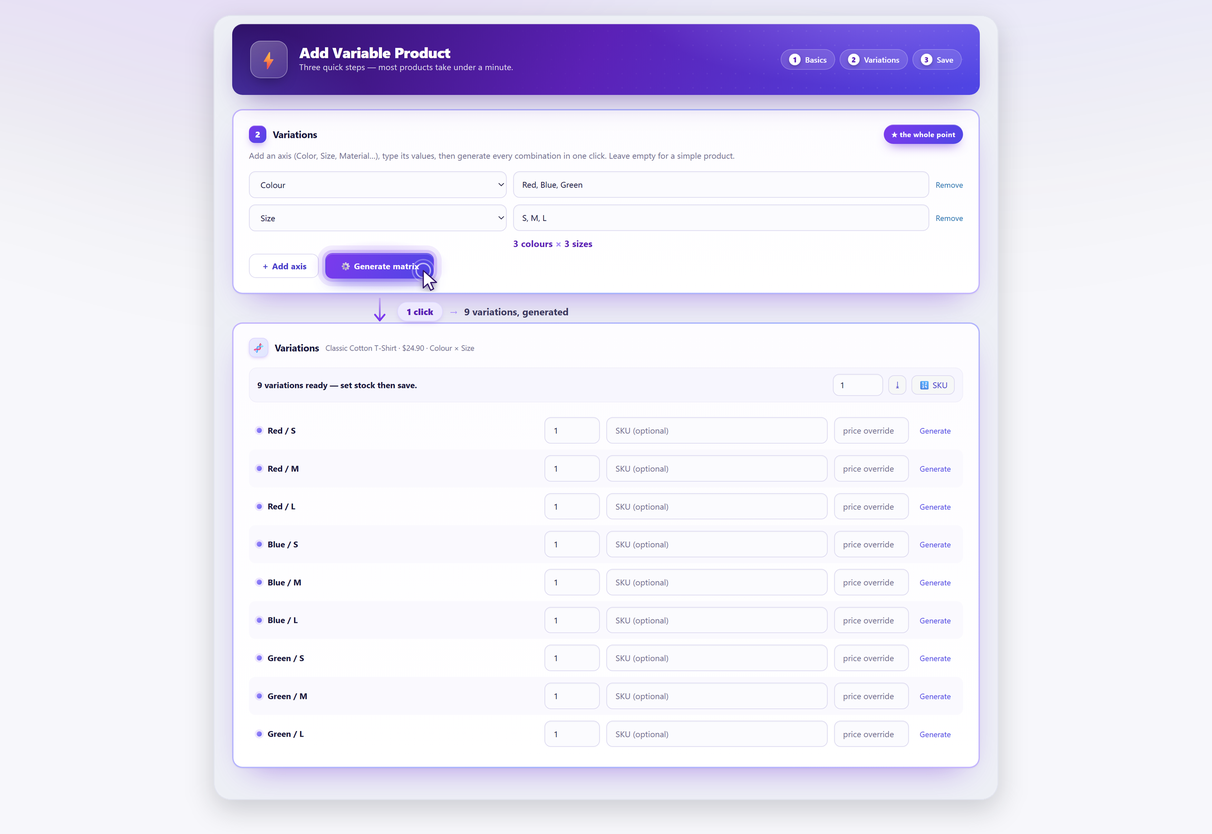
That’s what Quick Variable Products does, and the right-hand column is what it is aimed at. You pick your attributes, type their values, generate every combination in one click, then fill in price, SKU and stock per row without opening anything. No CSV, no spreadsheet round-trip, no leaving WordPress.
Worth being clear about what comes out: ordinary WooCommerce products. No custom tables, no parallel data. Deactivate the plugin and everything you built stays exactly as it is, editable in the standard product editor like anything else.
And the boundary, because arriving with the wrong job wastes an install: this is a creation screen. If the products already exist, it is not the tool — adding a size to products you already have is a different and riskier operation, and editing fields across variations that already exist is the Pro bulk editor, not the free plugin. If the data is already sitting in a spreadsheet, WooCommerce’s own CSV importer is a better route than retyping it into any grid.
Step by step#
1. Decide your axes before you type anything#
An axis is an attribute that genuinely changes what the customer receives — colour, size, material. The test is simple: if it doesn’t affect price, stock or SKU, it shouldn’t be an axis.
Care instructions, country of origin, fabric composition: these are information, not choices. They belong in a display-only attribute or the description. Making them variation axes multiplies your matrix for no commercial reason, and it’s the most common cause of a product with four hundred variations that nobody can manage. The difference between attributes and variations is worth twenty minutes if this is new.
2. Use global attributes where you can#
Global attributes (the ones under Products → Attributes) are reusable across products and can power filtering and archive pages. Product-specific attributes work for variations too — that part is often misreported — but they’re invisible to filters and can’t be reused, so you’ll end up retyping Small, Medium and Large for the rest of your career.
Practical rule: if you’ll use the attribute on a second product, make it global. If it truly applies to one product only, custom is fine.
3. Generate the matrix#
Type the values for each axis — Red | Blue | Green and S | M | L — and generate. Nine real variations appear, ready for data. Whether you’re doing this in the core Variations tab or on a single-screen form, this is the step to sanity-check the count, because two numbers decide how the rest of the afternoon goes: fifty and fifteen.
| Axes | Combinations | Generate presses (50 per press) | Admin pages (15 per page) | Verdict |
|---|---|---|---|---|
| 3 × 4 | 12 | 1 | 1 | Fine. |
| 3 × 4 × 5 | 60 | 2 | 4 | Workable, but check every row ended up with a price. |
| 5 × 6 × 4 | 120 | 3 | 8 | You want a single screen by now. |
| 10 × 10 × 5 | 500 | 10 | 34 | Stop and re-read how many variations is too many. |
Why generation stops at fifty
WooCommerce writes at most fifty variations per press of Generate variations. A 3 × 4 × 5 matrix is sixty combinations, so the button has to be pressed twice — and nothing on screen tells you that, so the first press reads as a generation that silently lost ten rows. Press it again; the remaining ten appear.
The limit is the constant WC_MAX_LINKED_VARIATIONS, which WooCommerce sets with wc_maybe_define_constant() — meaning a value defined earlier wins. There is no filter for it. A file in wp-content/mu-plugins/ loads before WooCommerce, so the define lands first:
<?php
// wp-content/mu-plugins/raise-variation-cap.php
defined( 'WC_MAX_LINKED_VARIATIONS' ) || define( 'WC_MAX_LINKED_VARIATIONS', 200 );
And the honest recommendation: don’t. One request writing two hundred variations is precisely where PHP timeouts and half-built products come from, and a half-built product is the failure this whole page is trying to help you avoid, as 5. Save once below explains. Press the button twice.
One disambiguation, because the same number means something else elsewhere in this cluster: this fifty is a cap on how many variations get written per press. It is not the point at which a product page gets measurably slower — that is a different fifty, and it belongs to the last row of the table above.
As for the fifteen: the Variations tab paginates at fifteen rows a page by default (filterable with woocommerce_admin_meta_boxes_variations_per_page), so a sixty-variation product shows you fifteen and looks like it mislaid three quarters of your work — variations that look like they vanished covers the rest of the reasons that happens.
4. Fill the rows#
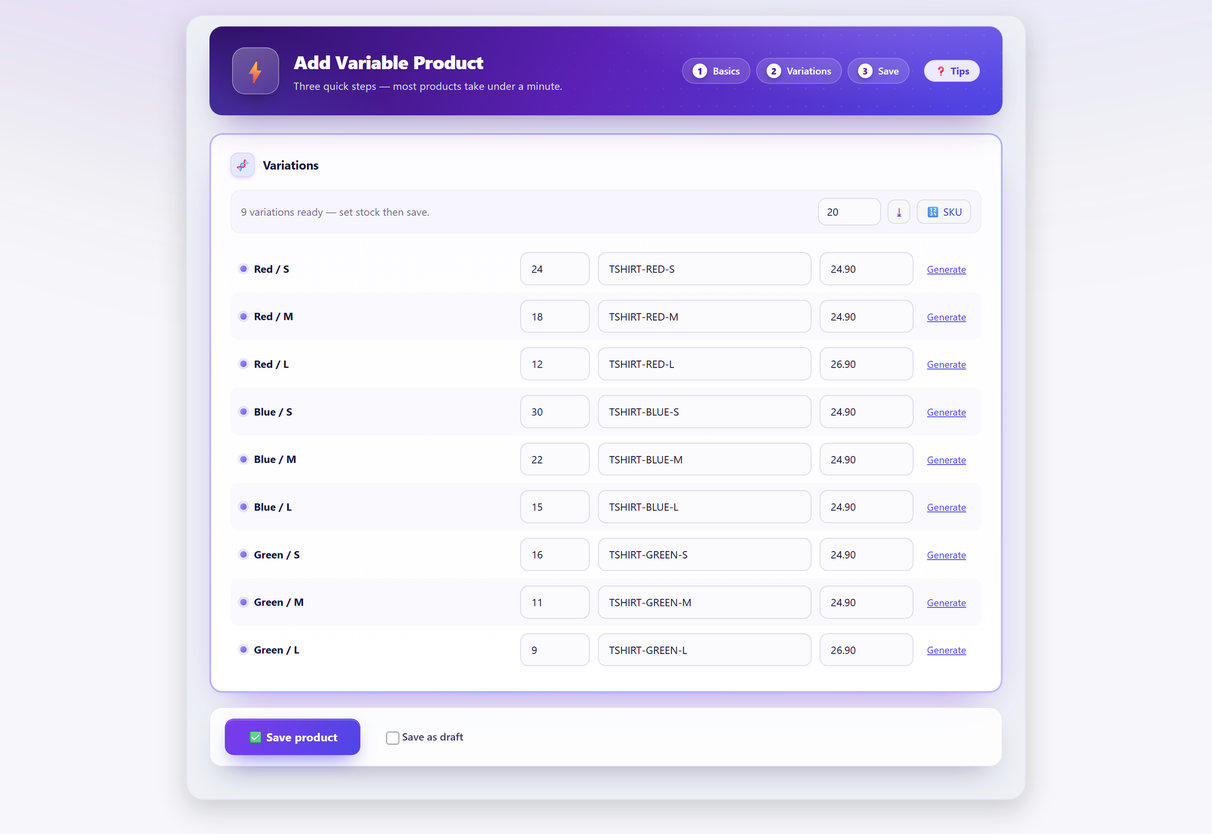
Three shortcuts remove most of the typing:
- Set all quantities at once, then correct the handful that differ. Most products have one stock figure across most variations.
- Generate the SKUs rather than typing them. Consistent by construction, no typos, no duplicates — see variation SKU schemes for what a good pattern looks like.
- Enter moves you to the next row, so you can walk the list from the keyboard. If your supplier barcodes are your SKUs, that also means you can put the cursor in the first SKU cell and scan down the column — each scan types the code and drops you on the next row. If they aren’t, generate the SKUs and leave the scanner alone; it types a code and an Enter, and that is all it does.
Only override the price on the rows that genuinely differ. If Large costs more, set Large. Everything else inherits.
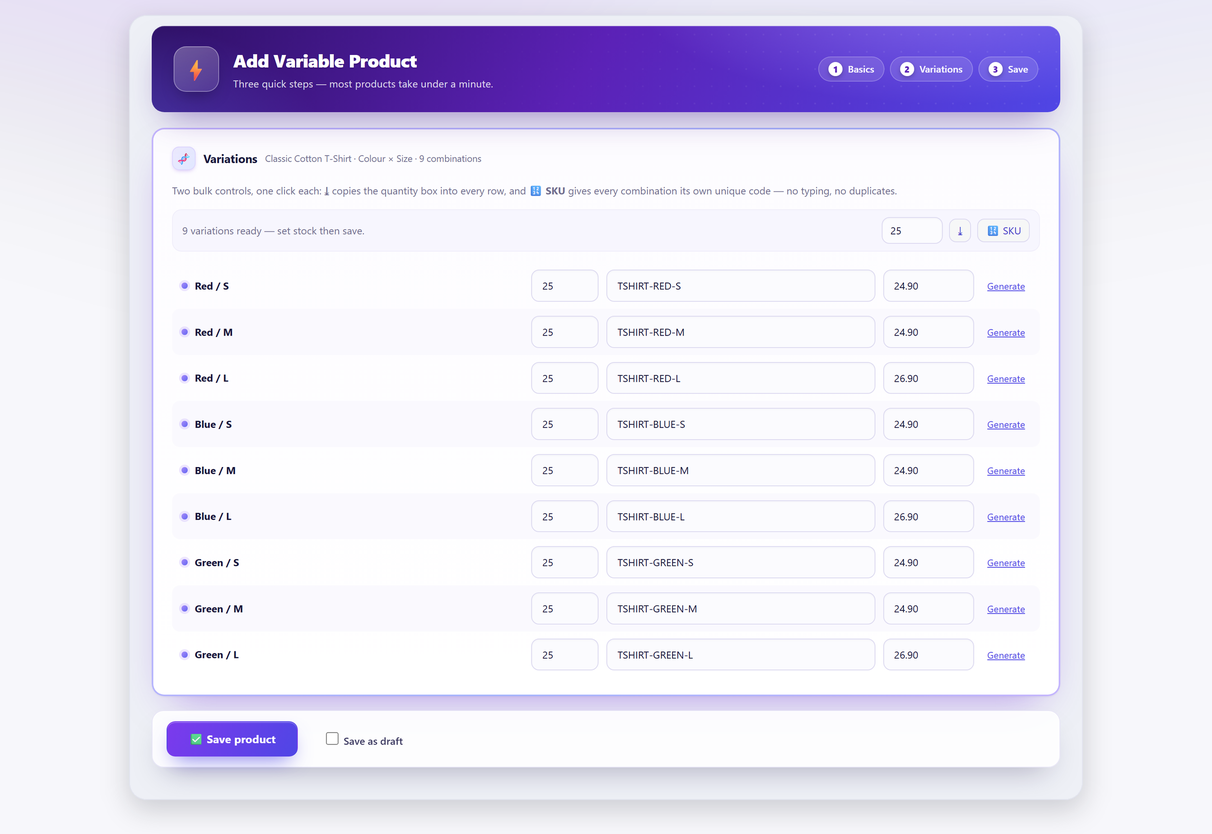
5. Save once#
One save writes the parent product and every variation. This is the step where things quietly go wrong on badly-behaved sites, and it’s worth knowing why: WordPress fires save_post for every variation, and a single third-party callback that throws an error partway through can abandon the loop and leave you with a half-built product — some variations written, some not, and no obvious sign which.
Quick Variable Products briefly detaches core post hooks while it writes, then re-fires the important ones once for the finished product. The point is the ordering, not a list of compatible plugins: anything keyed to a post being saved sees one complete product at the end, rather than a partial one mid-loop. That’s an unglamorous detail, and it’s the difference between a product that saves and a product you have to rebuild.
What the shop looks like afterwards#
The moment two variations carry different prices, the storefront stops showing one price and shows a range — £10.00 – £18.00 — on the shop page, the category archive and the product page itself. That is correct behaviour, and it is the single most common thing people report as a bug five minutes after their first successful save. It is worth knowing the difference between a range that is right and one that is wrong, because a range left over from a price you have already changed looks identical from the front end: why the shop shows a price range is that post’s job, and building the matrix is this one’s.
The decisions worth making up front#
SKUs: generate, don’t type#
Every variation should have its own SKU. Not because WooCommerce demands it, but because everything downstream does — picking, counting, reordering, supplier orders. A variation without a SKU can’t be scanned, which means it can’t be counted properly either.
Generating them from the attribute values gives you TSHIRT-RED-S, TSHIRT-RED-M and so on: predictable, readable off a label, and unique by construction.
Images per variation#
One photo per attribute value is usually the right amount of effort — one image for Red, one for Blue, one for Green, shared by every size within that colour. If a colour swap isn’t changing the photo on the front end, that has its own five causes, and a missing image on one variation is the first of them. Photographing all twelve combinations rarely tells the customer anything the three colour shots didn’t.
One stock pool, or one per variation?#
This is the decision people get wrong most often, and it’s worth pausing on.
Per-variation stock is right when each variation is a distinct physical thing on a shelf. A Medium Blue and a Large Red are different objects; they need different numbers.
A shared pool — one quantity on the parent, drawn down by every variation — is right when the variations aren’t physically separate: made-to-order goods, print-on-demand, anything where the “variation” is a specification rather than an item in a box.
Choosing the shared pool when the items are physically distinct is the single most common cause of overselling in WooCommerce, because selling a Small silently reduces what’s available in Large. The full comparison is here if you’re not sure which you need.
Simple products from the same screen#
Not everything needs axes. Leave the attributes empty and the same fast form saves an ordinary simple product, with the same fields for cost, tax, inventory, shipping, categories and tags. It’s a small thing that removes the “wrong tool, start again” moment when a product turns out not to have variations after all.
Before you build a hundred of these#
Two habits that pay for themselves on the second product:
- Fix your attribute vocabulary first. Decide whether it’s “Colour” or “Color”, “S/M/L” or “Small/Medium/Large”, once. Global attributes make this a decision rather than a habit, and filters only work when the values match.
- Decide your SKU pattern once. Changing a SKU scheme after two hundred products means touching invoices, supplier orders and accounting exports — it’s a migration, not an edit.
Neither takes long. Both are considerably cheaper now than in six months.
Variable product FAQ#
How do I create a variable product in WooCommerce?
Set the product type to Variable product, open the Attributes tab, add each attribute with its values, tick “Used for variations” and press Save attributes, then open the Variations tab and press Generate variations. WooCommerce creates every combination; you then set a price, SKU and stock quantity on each one. Two details trip up most first attempts: a custom attribute’s Value(s) box is pipe-separated, not comma-separated, and the Variations tab generates nothing until “Used for variations” has been ticked and the attributes saved.
Why does adding a variable product take so long?
Because the values that differ are entered per variation. Anything uniform is quick — core’s bulk actions will put one price or one stock figure across all twelve rows in a single action. The SKU on each row, the prices that differ by size and the stock number on each variation are not uniform, so each of those rows gets expanded, filled and collapsed by hand. Generation is fast; that part is where the time goes.
Can I set price and stock for all variations at once?
Yes, for values that are the same on every row. The core Variations tab has a bulk-actions dropdown that sets regular and sale prices, raises or lowers the existing prices by a fixed amount or a percentage, toggles Manage stock, and sets stock quantity, stock status, low stock threshold and weight and dimensions across every variation at once. What it cannot do is the values that differ per row: SKUs, images, the price on the two sizes that cost more, the stock number on each variation. Those are still one expanded panel at a time in core, which is what a single-screen grid is for.
Why did WooCommerce only create 50 variations?
Because Generate variations writes at most fifty per press. A 3 x 4 x 5 matrix is sixty combinations, so the button has to be pressed twice, and nothing on screen says so. Press it again and the remaining ten appear. The limit is the WC_MAX_LINKED_VARIATIONS constant; raising it is possible but unwise, because one request writing hundreds of variations is where PHP timeouts and half-built products come from.
Does every variation need its own SKU?
Every stock-managed variation should have one, because picking, counting and reordering all happen at variation level. A variation with no SKU cannot be scanned, which makes stock counts far slower and less reliable.
Should all my variations share one stock quantity?
Only if they are not physically separate items — made-to-order goods, print-on-demand, or configurations assembled at fulfilment. If a Medium and a Large sit in different places and can run out independently, they need their own stock records.
Are products made this way still normal WooCommerce products?
They should be, and it is worth checking before you commit to any tool. Quick Variable Products writes ordinary WooCommerce products and variations with no custom tables, so deactivating the plugin leaves everything intact and editable in the standard product editor.