WooCommerce Variation Stock: Parent-Level or Per-Variation?
Parent-level or per-variation stock: what ticking Manage stock does in each place, how to tell which you're on, and how to switch without overselling.
Updated

In this article13 sections
WooCommerce lets you manage stock for a variable product in two places, and it doesn’t make much fuss about which one you pick. That’s unfortunate, because picking the wrong one is the most common cause of overselling on variable products — and it fails silently for months before anyone notices.
This is the decision between parent-level stock and per-variation stock: what each one actually does, how to tell which you’re on, and how to change your mind safely.
Short answer: if you would count them separately — sizes on a rail, colours with their own barcode — tick Manage stock? inside each variation. Leave the single quantity on the parent only when the variation is something you do at fulfilment rather than something on a shelf.
| What you’re selling | Manage stock on | What “In stock” then means | The stocktake line |
|---|---|---|---|
| A t-shirt in six sizes, each size with its own barcode | Each variation | In stock in that size | One line per size |
| One mug blank printed with three designs | The parent | Blanks remaining | One line: the blanks |
| A course with two tiers and thirty seats in total | The parent | Seats left across both tiers | One line: capacity |
| A single item with a gift-wrap option | The parent | Units of the item | One line: the item |
Backorders and the low-stock threshold follow the same setting: set on the parent they apply to the pool, set on a variation they apply to that variation alone.
The two models#
Parent-level stock: one shared pool#
You tick Manage stock? on the product’s Inventory tab and enter one quantity. Every variation draws from that single number. Sell a Small and the pool drops by one — for everyone, including Large.
Per-variation stock: a number each#
You leave the parent alone and tick Manage stock? inside each individual variation, giving each its own quantity. Selling a Small reduces Smalls. Large is untouched.
Both are legitimate. They describe different physical realities, and the right choice follows from one question.
The question#
Are the variations separate physical things, or the same thing described differently?
If a Medium Blue and a Large Red sit in different places and you could run out of one while having plenty of the other, they are separate things and they need separate numbers.
If the “variation” is a specification applied at the point of fulfilment — a size printed on demand, an engraving, a configuration assembled from common parts — then there is one pool of raw capacity, and a shared number describes reality better than several fictional ones.
When a shared pool is right#
- Made-to-order and print-on-demand. You hold blank stock; the variation is what you do to it. One pool of blanks is the truth.
- Bundles or kits drawn from one bin, where the variation is packaging rather than a distinct item.
- Services and bookings where the variation is a tier or duration and the constraint is your capacity, not a shelf.
- Digital goods with a licence cap, where the limit applies to the total rather than per option.
In these cases per-variation stock isn’t just unnecessary, it’s actively misleading — you’d be maintaining five numbers that don’t correspond to anything you could count.
When per-variation is right#
Almost everything else you can hold in your hand. Clothing, footwear, packaged goods, anything with a barcode per variant, anything where a supplier ships you a specific breakdown by size.
Counting is the honest test here, because it’s the moment the physical world and the database have to agree. A supplier who ships you eight Small and twelve Large has already broken the product into separate records; the barcode on each garment does it again at the till. Separate records on the shelf want separate records in WooCommerce.
Keeping one pool but taking one option off sale#
There is a third state the screen offers, and the parent-or-variation framing hides it. A variation that does not manage its own stock still has a Stock status select of its own — In stock, Out of stock, On backorder — and a variation is purchasable only when the parent pool and that select both say in stock. So you can run a genuinely shared pool and still take one option off sale by hand.
The limit is the whole point, so here it is flatly: nothing decrements that select and nothing restores it. It is a flag you set and a flag you have to remember. For a shared pool with one option temporarily unavailable — the blue ink has run out, the engraving machine is away for service — it does exactly what you want. It is not a substitute for per-variation stock and it is not a way to run a rail of clothing, because the first week you forget it exists is the week you are listing something you haven’t got, with no number anywhere that disagrees.
The failure you’re avoiding#
Here’s what parent-level stock does to a clothing product with 40 units split across four sizes.
WooCommerce shows 40 available. A customer buys 12 Small — and Small was only 8 units on the shelf. Nothing warns anybody, because as far as the system is concerned you had 40 of the product and now you have 28. The oversell is discovered in the stockroom, by a person holding a picking list, several hours later.
The mirror problem is just as expensive and much quieter: Large runs out physically, the shared pool still shows 28, so the product stays listed as available. You keep taking orders you can’t fill. Nobody reports a bug, because the site looks fine. Category pages are fooled the same way: they read the parent’s stock status, and the parent only knows the pool, so if you push out-of-stock products to the end of a category, this one keeps sorting alongside fully stocked products.
This is why parent-level stock on physically-distinct variations is the first entry on my own list of causes of wrong stock levels. It’s not a bug — it’s a setting doing exactly what it says, applied to the wrong situation.
How to tell which one you’re on#
Two places to look, in this order:
- The product’s Inventory tab. If Manage stock? is ticked here and there’s a quantity, you’re on a shared pool.
- Any variation, expanded. If Manage stock? is ticked inside the variation and it has its own quantity, that variation is managed independently.
The mixed state is the one worth hunting for: some variations managed, others falling back to the parent. It usually happens when a product was built one way, edited later, and half-converted — most often when a variation was added to a live product later and arrived with no stock management of its own. Symptoms are variations that behave inconsistently — two sizes track properly and the rest don’t.
Those two places are enough for one product. Across a whole catalogue you need an audit, and it has to be an audit of settings rather than of quantities: a count finds discrepancies, not configuration. A shared pool whose single total happens to be right counts perfectly clean while every per-size number beneath it is fiction.
Without touching the command line: Products → Export, tick Product variations alongside the ordinary product types, and include the Stock column. Then read each parent row against the variation rows beneath it. A parent with a quantity whose variations are blank is a shared pool. A parent with a quantity whose variations also carry quantities is the mixed state. A parent with no quantity whose variations all carry one is the state you’re aiming for.
If you have WP-CLI, the same question takes a script. Save this as audit-variation-stock.php and run wp eval-file audit-variation-stock.php:
<?php
// audit-variation-stock.php
// Reports every variable product that is not cleanly per-variation.

$page = 1;

while ( true ) {
	$products = wc_get_products(
		array(
			'type'   => 'variable',
			'limit'  => 200,
			'page'   => $page,
			'status' => array( 'publish', 'private', 'draft' ),
		)
	);

	if ( empty( $products ) ) {
		break;
	}

	foreach ( $products as $product ) {
		$children = $product->get_children();
		$total    = count( $children );
		$managed  = 0;

		foreach ( $children as $child_id ) {
			$variation = wc_get_product( $child_id );

			// 'parent' is a truthy string, so this has to be a strict check.
			if ( $variation && true === $variation->get_manage_stock() ) {
				$managed++;
			}
		}

		if ( $total > 0 && $managed === $total ) {
			continue; // Cleanly per-variation. Nothing to report.
		}

		if ( 0 === $managed ) {
			$state = $product->get_manage_stock() ? 'shared pool' : 'no stock mgmt';
		} else {
			$state = 'MIXED';
		}

		printf(
			"%-8d  %-14s  %-45s  %d/%d managed\n",
			$product->get_id(),
			$state,
			$product->get_name(),
			$managed,
			$total
		);
	}

	$page++;
}
The detail that makes that work is the one nobody warns you about. On a variation, get_manage_stock() returns the string 'parent' when the variation inherits and the parent is managing, false when neither is, and true only when the variation manages its own stock. 'parent' is a non-empty string, so a loose if ( $variation->get_manage_stock() ) counts every inherited variation as managed: the audit runs, reports nothing wrong, and you conclude the catalogue is clean. The test has to be true === $variation->get_manage_stock().
Choosing it at creation time#
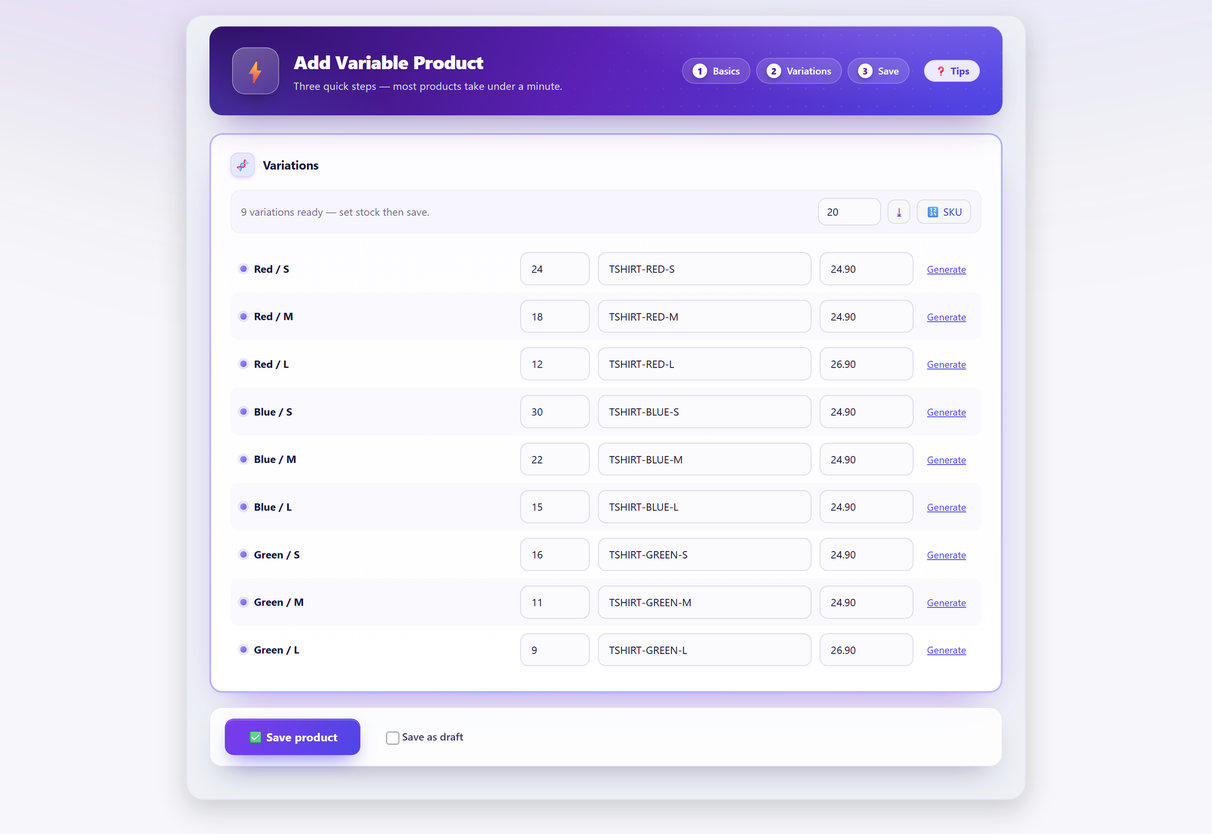
This is much easier to get right when you build the product than to correct afterwards. When you generate a variation matrix, the same screen should let you decide: give every row its own quantity, or opt into a single shared quantity on the parent.
In Quick Variable Products the shared pool is exactly that — an opt-in that sets WooCommerce’s own parent-level stock management. No shadow inventory, no plugin-specific table; if you deactivate the plugin the product behaves identically, because it’s a standard WooCommerce configuration all along.
Changing your mind later#
Switching from a shared pool to per-variation stock is not a settings change — it’s a data migration, because you have one number and need several.
The safe order:
- Count first. You cannot distribute 40 units across four sizes from a database that only knows “40”. You need the actual breakdown, which means physically counting. A partial stocktake scoped to the affected products does this. Count and enter in the same session per product family if you can: orders that land during the count decrement the parent pool, not the variation numbers you are about to type, so the breakdown in your hand goes stale by however long the gap is. If the gap is unavoidable, list the orders that landed in it and adjust before you untick the parent. The drift falls hardest on the fastest-moving sizes, which are exactly the ones that oversell.
- Enable stock management on each variation and enter the counted quantities.
- Turn off parent-level management — after the variations have numbers, not before, so you’re never briefly selling with no constraint at all.
- Watch the first week. Anything that oversells now is a variation you missed.
That order is safe per variation, not merely per product, and it is worth knowing why. The moment a variation’s own Manage stock? is ticked, WooCommerce stops routing that variation’s sales through the parent pool: WC_Product_Variation::get_stock_managed_by_id() returns the parent’s id only while get_manage_stock() is 'parent', and the variation’s own id once the variation manages itself. So a half-finished migration is not a half-broken product. The sizes you have done are already accurate; the ones you haven’t still draw the pool exactly as they did yesterday. You can do one product family a day for a week.
Step three is the only one that has to wait. Until the parent’s Manage stock? is unticked, the un-migrated variations are the only thing the parent’s number still describes — untick it early and they are selling with nothing behind them.
Going the other way — per-variation to shared — is arithmetically easier (sum the quantities) but think hard about why. Usually it means someone found per-variation stock annoying to maintain, and the fix for that is better counting, not less accurate data.
It is worth being exact about what tooling does here, because the honest answer is narrow. Nothing shortcuts step one: the counted breakdown comes off the shelf, and no plugin, script or export can produce a number that was never recorded. Step two is typing, and typing is what a tool is for — Quick Variable Products Pro’s catalogue editor bulk-edits variation stock quantities across products, so the figures go in on one grid instead of one variation form at a time. It enters numbers you already have. It does not produce them.
Counting either way#
Whichever model you’re on, the count is what keeps it honest:
- Per-variation stock means every stock-managed variation is its own line in a stocktake. Scanning a variation’s barcode counts that variation, so the count matches the model exactly.
- A shared pool means one line for the product, and your count is of the underlying capacity — the blanks, the components, the licences. It follows that a shared pool cannot give you a per-size variance: one line, one number, one answer. If you need to know which size is wrong, that isn’t a counting problem you can solve — it’s the migration in the section above, and then one line per size when you come to count.
Both are countable. What isn’t countable is a mixed, half-converted product, which is a good reason to pick a model deliberately and apply it consistently across a product family.
Whichever model you picked, the counting tool has to follow it. Stocktake counts each stock-managed variation as its own line, and a scanned code is matched against the SKU first, then against WooCommerce’s own GTIN/UPC/EAN/ISBN field, so a variation’s barcode counts that exact variation rather than the parent.
Variation stock FAQ#
Should I manage stock on the parent product or on each variation?
On each variation if they are separate physical things that can run out independently — clothing sizes, colours, anything with its own barcode. On the parent if the variation is a specification applied at fulfilment rather than an item on a shelf, such as made-to-order or print-on-demand goods.
What happens if I manage stock at the parent level by mistake?
Every variation draws from one shared pool, so selling twelve Small reduces what is available in Large. You will oversell sizes you do not have while continuing to list sizes that have physically run out, and nothing in WooCommerce will warn you, because the setting is doing exactly what it says.
How do I tell which model a product is using?
Check the product’s Inventory tab first: if Manage stock is ticked there with a quantity, you are on a shared pool. Then expand a variation and look for its own Manage stock checkbox. Watch for the mixed state, where some variations are managed independently and the rest fall back to the parent.
How do I switch from a shared pool to per-variation stock?
Count first, because you have one number and need several and no database can tell you the breakdown. Then enable stock management on each variation with its counted quantity, and only afterwards turn off parent-level management, so you are never selling briefly with no constraint at all.
Can I keep one stock number but stop selling one size?
Yes, within limits. A variation that does not manage its own stock still has its own Stock status select, and a variation is purchasable only when the parent pool and that select both say in stock — so you can set one variation to Out of stock by hand and keep the single shared quantity. Nothing decrements that setting and nothing restores it, so it suits an option that is temporarily unavailable rather than a rail of clothing you sell from every day.
Is a shared stock pool ever the right choice?
Yes. Made-to-order and print-on-demand goods, kits drawn from one bin, services and bookings limited by capacity, and digital goods with a total licence cap are all cases where one pool describes reality and per-variation numbers would be fiction you have to maintain.
How does the stock model affect counting?
Per-variation stock means each stock-managed variation is its own line in a stocktake, and scanning its barcode counts that exact variation. A shared pool means one line, and what you are really counting is the underlying capacity — the blanks, components or licences behind it.