Hide Out-of-Stock Products in WooCommerce, or Show Them Last?
WooCommerce’s hide out-of-stock setting skips search, ignores backorders and empties category counts. What it does, and the snippet that sorts instead.
Updated

In this article13 sections
There is no setting that will show out of stock products at the end in WooCommerce category pages. The Inventory settings give you exactly one lever, hide them or show them, and the catalogue sort options — default, popularity, average rating, latest, price — ignore stock status entirely. Pushing unavailable products to the bottom takes a filter on posts_clauses. The working snippet is below, along with the parts most guides skip: what the built-in hide setting really touches, and what happens to products on backorder.
The short answer#
There is no native setting to show out-of-stock products at the end in WooCommerce; the fix is a `posts_clauses` filter joined to `wc_product_meta_lookup` at priority 20, ranking stock status ahead of the shopper’s chosen sort.
- Hide only when not returning. The checkbox is at WooCommerce → Settings → Products → Inventory → Out of stock visibility, labelled “Hide out of stock items from the catalog” and stored as
woocommerce_hide_out_of_stock_items. Hiding suits seasonal lines that are not coming back and discontinued SKUs paired with a redirect; otherwise keep the products on the page, where they hold their URLs, internal links and back-in-stock forms. - The built-in setting is partial. Ticking “Hide out of stock items from the catalog” removes them from shop, category, tag and attribute archives, related products and variation dropdowns, but not from site search, their own URLs or the XML sitemap. Category counts are not left alone either: the setting quietly rewrites them without the hidden products, so a category can recount to zero and drop out of the category list block and the subcategory tiles on your shop pages.
- Sort on the lookup table. Three details carry the snippet: priority 20, so WooCommerce’s own callbacks do not override it; a `strstr()` join guard against a duplicate table alias; and prepending the stock rank so the shopper’s chosen sorting survives within each stock group.
- Give backorders their own rank. WooCommerce counts `onbackorder` as in stock, so those products never receive the hidden visibility term and the hide setting will not touch them, which is why the `CASE` statement should rank them separately rather than with out-of-stock.
- The filesort cost is marginal. Wrapping the column in a `CASE` expression makes its index unusable and forces a filesort, but WooCommerce category archives already filesort on `menu_order` and `post_title`, so this widens an existing operation rather than introducing a new one.
First decide: hide them, or show them last?#
These are different decisions with different costs, and the usual advice — “hiding is bad for SEO” — is not quite right about the mechanism.
Ticking Hide out of stock items from the catalog does not unpublish anything. The product keeps its publish status, its URL still resolves, it stays in your XML sitemap, and it stays indexable. What it loses is every internal link it had from your own catalogue. Category pages, the shop page, attribute archives: the product disappears from all of them, so the only remaining routes to it are Google, an inbound link, or a bookmark. Over months, pages with no internal links get crawled less often and carry less internal ranking weight. That is a slow erosion, not a cliff.
The sharper cost is on the shopper side. Someone who bought from you last season searches for the product, finds nothing, and concludes you stopped selling it. A returning visitor lands on the product page from history, sees “Out of stock”, clicks the breadcrumb back to the category, and cannot find what they were just looking at. Both are avoidable.
Showing out-of-stock products last keeps the URL working, keeps the internal link, and lets you put a back-in-stock form on a page people still reach. It also keeps category pages full, which matters if a supplier delay would otherwise leave a category with four products on it. Thin category pages are one of the more common reasons WooCommerce category pages are not indexed, and emptying them through a stock setting is a fast way to create that problem.
Hiding is the right call in three cases: seasonal lines that will not return this year, discontinued SKUs whose product page has no future, and categories where a page of greyed-out cards reads as an abandoned shop. For discontinued products, hiding is only half the job. The rest is a 301 to the closest live product or the parent category, and WooCommerce does not create redirects — that belongs to your SEO plugin or a dedicated redirect plugin.
What the built-in hide setting actually does#
The setting lives at WooCommerce → Settings → Products → Inventory, under Out of stock visibility. The mechanism is worth knowing, because it explains every edge case you will hit.
WooCommerce maintains a hidden taxonomy called product_visibility. Whenever a product is saved, the data store checks its stock status and, if that status is exactly outofstock, assigns the product an outofstock term. With the setting on, WC_Query adds a tax query to product archives that excludes that term:
array(
	'taxonomy' => 'product_visibility',
	'field'    => 'term_taxonomy_id',
	'terms'    => $product_visibility_not_in,
	'operator' => 'NOT IN',
)
Because it is a taxonomy exclusion bolted onto the product archive query, it applies where that query runs, and nowhere else.
| Surface | Affected by the setting? |
|---|---|
| Shop page, category, tag and attribute archives | Yes |
| Related products | Yes — the product data store adds the same term to the query’s excluded term IDs |
| Variation dropdowns on a variable product | Yes — get_available_variations() skips variations that are not in stock |
Site search, including ?s=shirt&post_type=product | No — search only excludes the exclude-from-search term |
| The product’s own URL | No — the page still loads normally |
| XML sitemap | No — that is your SEO plugin, and it goes by post status |
| Front-end category counts: widgets, the category list block, subcategory tiles | Yes — recounted into the product_count_product_cat term meta, which wc_change_term_counts() swaps in, once a recount runs |
wp_term_taxonomy.count and the admin Count column | No — that number is written by _update_post_term_count(), and wc_change_term_counts() returns early in the admin |
The search row is a genuine gap in core. WC_Query::pre_get_posts() returns early unless the query is a product post type archive or a product taxonomy archive. On a search results page it takes that early branch, which excludes only the exclude-from-search term, so the out-of-stock exclusion is never added and those products keep appearing in search with the box ticked. It has been reported repeatedly and was still the behaviour in WooCommerce 10.x, checked September 2026; if you want search filtered too, add the exclusion yourself.
Out-of-stock products still showing in search#
This is what brings most people back to the setting a second time. The box is ticked, the category pages are clean, and then someone searches for the thing you thought you had hidden and lands on it. The remedy is the same taxonomy exclusion WooCommerce applies to archives, added to the search query yourself. It reads the option before doing anything, so it follows the checkbox instead of fighting it — untick the box and this stops having an effect.
add_action( 'pre_get_posts', 'el_hide_out_of_stock_in_search' );

function el_hide_out_of_stock_in_search( $query ) {

	if ( is_admin() || ! $query->is_main_query() || ! $query->is_search() ) {
		return;
	}

	if ( 'product' !== $query->get( 'post_type' ) ) {
		return;
	}

	// Follow the setting rather than overriding it.
	if ( 'yes' !== get_option( 'woocommerce_hide_out_of_stock_items' ) ) {
		return;
	}

	$visibility_terms = wc_get_product_visibility_term_ids();

	if ( empty( $visibility_terms['outofstock'] ) ) {
		return;
	}

	$tax_query = $query->get( 'tax_query' );

	if ( ! is_array( $tax_query ) ) {
		$tax_query = array();
	}

	$tax_query[] = array(
		'taxonomy' => 'product_visibility',
		'field'    => 'term_taxonomy_id',
		'terms'    => array( $visibility_terms['outofstock'] ),
		'operator' => 'NOT IN',
	);

	$query->set( 'tax_query', $tax_query );
}
Four things about that, in the order they bite.
- The field is
term_taxonomy_id, notterm_id.wc_get_product_visibility_term_ids()hands you term taxonomy IDs, so the two have to match. Pass them as term IDs and the exclusion matches nothing at all, silently, which looks exactly like the snippet not running. - Append to the existing
tax_query. Read what is already on the query and push onto it rather than assigning a fresh array. Something else may have put a clause there, and replacing it throws away whatever that clause was doing. - It follows the product search form. The
post_typeguard matches the?s=shirt&post_type=productsearch that WooCommerce’s own product search form submits. A blended search across posts and products does not match it, and its product results stay as they were. - WordPress search only. Relevanssi, SearchWP and Algolia answer from their own index and never run this query at all, so each needs the same exclusion expressed in its own filters.
What hiding does to category counts#
The setting reaches further into category counts than its label suggests. With the box ticked, _wc_term_recount() leaves out every product carrying the outofstock visibility term and writes what remains to the product_count_product_cat term meta, and on the front end wc_change_term_counts() shows that number in place of the stored one. The category list block, the [product_categories] shortcode and the subcategory tiles on shop pages all skip a category whose count is zero, so when the last line in a seasonal category sells out, the category recounts to zero and disappears from them. That takes the category page itself out of your navigation, not just the products on it, and on its own it is a reason to sort rather than hide. The classic Product Categories widget is the exception: it decides what is empty from wp_term_taxonomy.count before WooCommerce swaps the number, so it keeps listing the category, with a zero beside it when counts are shown. The same recount sits behind part of the parent category not showing products problem, where a parent’s count also includes products held only by its children, so a parent can stay listed while a subcategory under it drops out.
You may not see any of this the moment you tick the box, because ticking it does not start a recount. WooCommerce recounts a product’s categories when that product’s stock status changes, through wc_recount_after_stock_change(), which returns early unless the option is on, and when a product’s categories or publish status change. Until one of those happens, the old numbers stay in the term meta and in the wc_term_counts transient, which caches them for a month and is cleared at the end of _wc_term_recount(). Recount terms under WooCommerce → Status → Tools rebuilds both at once. Run it after changing the setting in either direction: unticking the box leaves the reduced counts in place just the same.
How to show out of stock products at the end in WooCommerce#
Since WooCommerce 3.6 there has been a lookup table, wp_wc_product_meta_lookup, holding one denormalised row per product: price range, total sales, rating, stock quantity and stock_status. WooCommerce’s own price, popularity and rating sorts all join it, and the stock_status column carries its own index. Use that table, not postmeta.
Put this in a small site plugin, or your child theme’s functions.php:
add_filter( 'posts_clauses', 'el_in_stock_products_first', 20, 2 );

function el_in_stock_products_first( $clauses, $query ) {

	if ( is_admin() || ! $query->is_main_query() ) {
		return $clauses;
	}

	if ( ! is_shop() && ! is_product_taxonomy() ) {
		return $clauses;
	}

	global $wpdb;

	// WooCommerce may have joined the lookup table already, for price or
	// popularity sorting. Joining it twice is a duplicate-alias SQL error.
	if ( ! strstr( $clauses['join'], 'wc_product_meta_lookup' ) ) {
		$clauses['join'] .= " LEFT JOIN {$wpdb->wc_product_meta_lookup} wc_product_meta_lookup
			ON {$wpdb->posts}.ID = wc_product_meta_lookup.product_id ";
	}

	$stock_rank = "CASE wc_product_meta_lookup.stock_status
			WHEN 'instock'     THEN 0
			WHEN 'onbackorder' THEN 1
			ELSE 2
		END ASC";

	// Prepend, so the shopper's chosen sort still applies within each group.
	$clauses['orderby'] = '' !== trim( $clauses['orderby'] )
		? $stock_rank . ', ' . $clauses['orderby']
		: $stock_rank;

	return $clauses;
}
Three details in there are load-bearing.
- Priority 20. WooCommerce registers its own
posts_clausescallbacks at the default priority 10, and those callbacks replace the wholeorderbystring rather than appending to it. Run at 10 and a shopper choosing “Sort by price” wipes out your stock ordering. Run at 20 and you prepend to whatever WooCommerce decided. - The join guard. Core uses exactly this
strstrcheck in its ownappend_product_sorting_table_join()helper. Skip it and any page where the visitor sorts by price throws a duplicate-alias SQL error. - Prepending, not replacing. Stock becomes the primary key and everything else becomes the tiebreaker. In-stock products still sort by price, or by
menu_order, or by total sales on a best sellers page. The out-of-stock ones just do it below the fold.
One behaviour to watch. The join is a LEFT JOIN, so a product with no row in the lookup table gets NULL for stock_status, falls into the ELSE branch and sinks to the bottom regardless of its real stock. If the lookup table is stale — imports and direct SQL updates are the usual culprits — this shows up as in-stock products mysteriously ranked last. Rebuild it with Regenerate product lookup tables under WooCommerce → Status → Tools. If a product still sinks after the rebuild, the table is faithfully copying what is stored and the sort was never the problem: the stock statuses themselves are wrong upstream. If you would rather a missing row fail the other way, invert the CASE so only a known outofstock value is demoted:
$stock_rank = "CASE wc_product_meta_lookup.stock_status
		WHEN 'outofstock'  THEN 2
		WHEN 'onbackorder' THEN 1
		ELSE 0
	END ASC";
The postmeta version, and why it is second choice#
If you are on something older than WooCommerce 3.6, or the lookup table is unreliable on a site you inherited, the same idea works against _stock_status in postmeta. Swap the join and the CASE in the function above for these:
$clauses['join'] .= " LEFT JOIN {$wpdb->postmeta} AS stock_meta
	ON {$wpdb->posts}.ID = stock_meta.post_id
	AND stock_meta.meta_key = '_stock_status' ";

$stock_rank = "CASE stock_meta.meta_value
		WHEN 'instock'     THEN 0
		WHEN 'onbackorder' THEN 1
		ELSE 2
	END ASC";
Keep the same trim() check when you prepend $stock_rank. Concatenating onto an empty orderby leaves a trailing comma and a SQL error on any archive WooCommerce did not sort itself.
You will see this written as a plain meta_value ASC sort instead. That happens to produce the right order by coincidence rather than design: instock sorts before onbackorder, which sorts before outofstock. Any plugin registering a custom stock status can land anywhere in that sequence, so the explicit CASE is safer. More to the point, postmeta on a real store runs to millions of rows, and its index gets you to the right meta_key, not to a sorted set of values. Prefer the lookup table.
Why ordering on a joined column is a performance question#
Be honest about catalogue size before shipping this. The stock_status column is indexed, but the index cannot help here. Wrapping the column in a CASE expression makes it unusable for lookup, and you are then sorting on a second key from a different table. MySQL resolves that with a temporary table and a filesort across every row the category matched, before applying LIMIT 16.
The mitigating fact is that WooCommerce category archives already filesort. Default catalogue order is menu_order then post_title, and menu_order carries no index either, so the query was already building a temporary table. You are widening an existing sort, not introducing a new one. Across a few thousand products in a category that is not measurable against everything else a WooCommerce page load does. Somewhere in the tens of thousands of matched rows it becomes the slowest part of the query, and that is the point to run EXPLAIN rather than guess.
Two mitigations if you get there. Page caching removes the cost for anonymous traffic, which is most of it. Or precompute the rank into menu_order on a scheduled job — at the cost of the field WooCommerce uses for manual product ordering.
One compatibility note. The snippet is guarded on is_main_query(), which is correct for classic themes. If you run a block theme and nothing changes, the archive is most likely rendered by a Product Collection block, which builds its own WP_Query even when set to inherit the query from the template. Test the query’s post_type for product instead of is_main_query(). Shortcodes and product blocks on ordinary pages are separate queries too, and will not pick this up.
Backorders, the third state most guides ignore#
Nearly every snippet you will find treats stock as a boolean. WooCommerce has three states, and the third behaves in a way that catches people out.
- instock. Buyable now.
- outofstock. Not buyable.
- onbackorder. Buyable, shipping later. You get this when stock management is on, quantity has run down, and Allow backorders is set to “Allow, but notify customer”. Set it to plain “Allow” and the product simply stays
instockinstead.
Here is the part that matters. The hide setting keys off the exact string outofstock, and WC_Product::is_in_stock() is defined as “the status is not outofstock“. A backordered product is therefore in stock as far as WooCommerce is concerned. It never receives the outofstock visibility term, so ticking the hide box does not hide backordered products. Merchants who assume otherwise end up with a catalogue that looks fully stocked while a third of it ships in six weeks.
That is why the CASE above has three branches. Backorders are still revenue, so they should not sit at the bottom with dead stock, but they should not outrank something a customer can have on Thursday either. Rank them in the middle. If your backorder lead times are long enough that they behave like out-of-stock in practice, give them THEN 2 as well and move on.
Variable products with one size left still sort as in stock#
Those three branches are three states of one row, and on a variable product the row is the parent’s. Archive queries match post_type = product, so the lookup row the snippet joins always belongs to the parent; the variations are separate product_variation posts and never enter the join. What the parent’s row says depends on whether you run parent-level or per-variation stock.
On per-variation stock the parent holds no quantity of its own, and WooCommerce derives its status from the variations: WC_Product_Variable_Data_Store_CPT::sync_stock_status() marks it instock while any single variation is in stock, onbackorder if none is but one is on backorder, and outofstock only when neither is true. A jacket with only XXL left therefore sorts to the top alongside a jacket with every size on the rail. The hide setting will not touch it either, because the parent only receives the outofstock visibility term once its own status is outofstock, which on per-variation stock means no variation is left in stock or on backorder. On parent-level stock the parent’s status follows the one shared quantity instead, so it reads as in stock while the pool is above the out-of-stock threshold, whichever sizes are actually left.
That is a limit of the approach, not a bug in the snippet. The parent’s row has no column for how much of the size run is left, so no CASE over it can rank a half-sold-out jacket below a full one. You could work the number out with a subquery over the variations, but it would run for every product the category matched, before the LIMIT, on top of the filesort the performance section already describes. If that ranking matters, precompute it: a scheduled job that writes a rank to a meta field, or into menu_order at the cost mentioned there.
When sorting is not the real problem#
Sorting fixes the order of one page. It does not give you a landing page for paid traffic where every product must be buyable, or a “Ready to ship” collection you can link from the navigation. Those need a different page, not a different sort: one whose membership is defined by stock status and stays correct on its own.
You can do a version of this by hand, and on a small catalogue you should. Create the category, go to Products, use the Filter by stock status dropdown, tick the results and bulk-assign the category through the Edit bulk action. That is genuinely the cheapest answer when stock is stable. It stops working the moment stock moves daily, because the membership is a snapshot and the snapshot is wrong by Tuesday — the same trade-off that applies to any bulk assignment of products to categories.
Doing it with Smart Categories for WooCommerce#
Smart Categories for WooCommerce is our plugin, and it covers both halves of this. It attaches a rule set to a real product_cat term rather than a parallel taxonomy, so the resulting category behaves like any other WooCommerce category in menus, breadcrumbs and term counts. A rule of Stock status is In stock keeps a collection populated with buyable products only, re-evaluated on product create and update and on price or stock change, plus a daily sweep. Groups nest, so Stock status is In stock AND (Category is Jackets OR Category is Coats) AND NOT Tag is clearance is one saved rule set rather than a filter you rerun by hand. The same mechanism drives a sale category that empties itself.
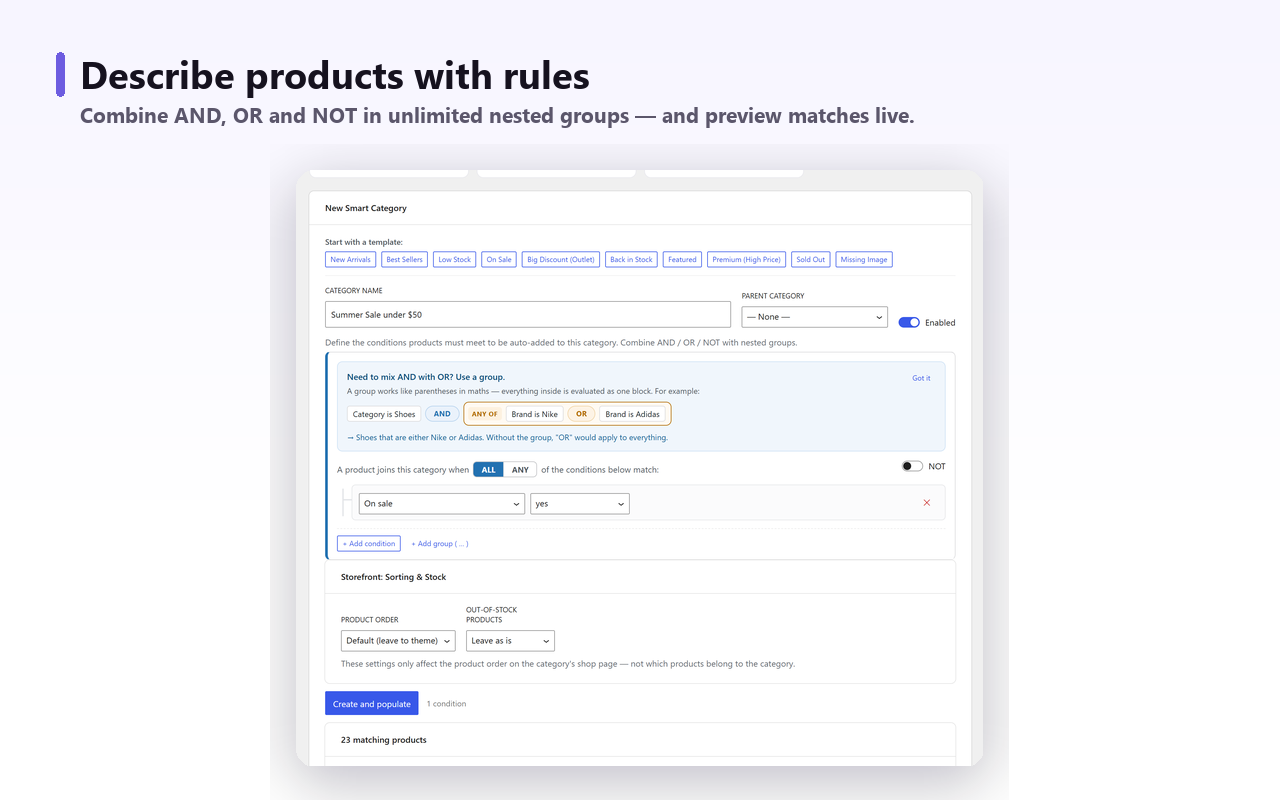
For the ordering problem specifically, the free version has a per-category storefront setting that pushes out-of-stock products to the end of that category’s shop page, or hides them there. It applies to smart categories, so it is the right tool if you were building these collections anyway and the wrong one if all you want is a site-wide sort — there, the filter above is fewer moving parts. The plugin assigns category and tag membership and nothing else: no meta titles or descriptions, no redirects, no setting for hiding thin categories. Those stay with your SEO plugin.
The short version#
Hide out-of-stock products only when they are not coming back, and pair that with a redirect. Otherwise keep them on the page and sort them to the bottom with a posts_clauses filter joined to wc_product_meta_lookup, at priority 20 so shopper-selected sorting survives. Give backorders their own rank, because WooCommerce counts them as in stock and the hide setting will not touch them. A variable product sorts on its parent, and the parent counts as in stock while any variation is. If you do hide, add the search exclusion too, then run Recount terms and check which categories are still listed: the counts are rebuilt without the hidden products, and a category can recount to zero.