WooCommerce Category Pages Not Indexed: Crawled vs Discovered
Crawled – currently not indexed, or Discovered? The exact status tells you which cause is keeping your WooCommerce category page out of Google.
Updated
In this article10 sections
A WooCommerce category page not indexed by Google is rarely a mystery, but it is often misdiagnosed. There are six realistic causes, they are not equally likely, and the fix for one makes another worse. Before you rewrite a single category description, work out which one you have. Search Console already knows, and the difference between two of its statuses decides whether you are looking at a tag in your <head> or a judgement Google has made about the page itself.
The short answer#
WooCommerce category pages go unindexed for one of six reasons — a noindex tag, indistinguishable content, an empty category, crawl waste from filters and pagination, no internal links, or canonical conflicts — and Search Console’s exact status tells you which.
- Read the status first. Paste the live category URL into Search Console’s URL Inspection tool and read the exact status string, because “Discovered – currently not indexed” means Google has not yet spent crawl resources on the page rather than that it has rejected it.
- Rule out noindex first. This check is binary and takes two minutes: the WordPress search engine visibility checkbox, Rank Math’s “Noindex Empty Category and Tag Archives” setting which ships enabled, Yoast’s category settings and per-term overrides are the usual sources, and a URL blocked in robots.txt cannot have its noindex read at all.
- Distinguishability, not word count. What separates an indexed category from an unindexed one is usually how clearly it differs from the category next door, so two or three sentences of specific copy and a genuinely different product selection matter more than templated boilerplate or length.
- Empty categories fall out. “Hide out of stock items from the catalog” and a display type set to Subcategories can both leave a category showing nothing while the Count column in Products → Categories still reports the raw total, and empty terms are noindexed by default in Rank Math.
- Links, filters and pagination. A category nothing links to beyond the XML sitemap is rarely crawled, layered-navigation filter URLs are most effectively blocked in robots.txt, and page two of a category should carry a self-referencing canonical rather than one pointing back at page one.
Start here: what “woocommerce category page not indexed” means in Search Console#
Open the URL Inspection tool, paste the live category URL, and read the exact status string. It is not decoration. Each status points at a different stage of the pipeline, and only some of them are your fault.
| Status | What it actually means | Check first |
|---|---|---|
| URL marked ‘noindex’ | Google fetched the page and found a robots meta tag or X-Robots-Tag header telling it not to index | SEO plugin taxonomy settings, per-term override |
| Discovered – currently not indexed | Google knows the URL exists but has not fetched it yet | Internal linking and crawl demand, not your meta tags |
| Crawled – currently not indexed | Google fetched it and decided not to index it | Whether the page is distinguishable from your other categories |
| Duplicate, Google chose different canonical than user | Google indexed a different URL in its place | Filter and pagination URLs, dual product paths |
| Alternate page with proper canonical tag | You told Google to index something else | Your own canonical logic |
| Soft 404 | The page returned HTTP 200 but reads as empty | Empty categories, hidden out-of-stock products |
| URL blocked by robots.txt | Never crawled at all | robots.txt, security plugins, host-level rules |
The single most common misreading is treating Discovered – currently not indexed as an indexing rejection. It is not. Google has seen a link or a sitemap entry and has not yet spent a crawl on the URL. Auditing your meta robots tags to fix it is wasted effort, because Google has not read them. That status is a demand problem, and it is covered further down.
Cause 1: something really is setting noindex#
Check this first because it takes two minutes and it is binary. Do not trust the plugin UI; read the response.
curl -sIL "https://example.com/product-category/jackets/" | grep -i "x-robots-tag"
curl -sL "https://example.com/product-category/jackets/" | grep -i -E "robots|canonical"
If a noindex is there, these are the places it comes from, in rough order of frequency.
- Settings → Reading → Search engine visibility. The site-wide checkbox left on after a staging launch. It noindexes everything, so if only your categories are missing, this is not it.
- Rank Math → Titles & Meta → Global Meta. The option Noindex Empty Category and Tag Archives ships enabled. It applies only while the term has nothing in it, so the tag appears and disappears with your stock — which is exactly why it is hard to catch. If you have a category that empties periodically, look here before anywhere else.
- Yoast SEO → Settings → Categories & tags. Yoast leaves product categories visible in search results out of the box, so a noindex here is something a person switched off. What Yoast keeps out of the index by default is date and format archives, not product taxonomies.
- Per-term overrides. Both plugins add an advanced section to the individual category edit screen. A term-level noindex beats the global setting and leaves the global settings page looking perfectly normal.
- Attribute archives. If the missing pages are
pa_colourorpa_sizearchives rather thanproduct_catterms, check the taxonomy row for product attributes specifically. Those are often noindexed on purpose.
One caveat that catches people out: if a URL is blocked in robots.txt, Google cannot read the noindex on it. Blocking and noindexing the same URL means the page can linger in the index as a bare URL with no snippet. Pick one.
Cause 2: the page is crawled and judged not worth indexing#
This is the Crawled – currently not indexed case, and it is where the folklore lives. You will read that a category page which is only a product grid is a “doorway page”. That is not what the term means. Google’s spam policies describe doorway abuse in terms of pages generated to funnel visitors into the usable part of a site, or multiple domains and pages targeted at particular regions or cities that funnel users to one page. A normal category page inside a normal shop hierarchy is not that, and telling yourself it is will send you off writing 600 words of filler under every grid.
The real problem is duller. A page whose only content is links to products gives a ranking system very little to tell it apart from the category next door, and the usual response — a few hundred words of generated preamble under the grid — makes matters worse rather than better. Google’s spam policies name scaled content abuse as producing large amounts of unoriginal content that adds little or no value, however it was made. What separates an indexed category from an unindexed one is usually distinguishability, not word count.
- Two or three sentences of specific copy. Saying what the category contains and how it differs from the one next to it. Specific beats long.
- Different products. If “Winter Coats” and “Warm Jackets” share nineteen of twenty products, Google will pick one and drop the other. That shows up as Duplicate, Google chose different canonical than user.
- Templated boilerplate is worse than nothing. The same paragraph with the category name swapped in is the definition of unoriginal content produced at scale.
- Enough products to justify the page. A category holding three items rarely earns an index slot, whatever you write on it.
Cause 3: the category is empty, or empties itself#
An empty archive returns HTTP 200 with a “no products were found” message, which Google may well classify as a soft 404 — and, as noted above, Rank Math will noindex it for you by default. One WooCommerce setting produces empty categories without anyone deleting a product, and one more makes a healthy category look empty to a crawler.
The first is WooCommerce → Settings → Products → Inventory → Out of stock visibility. With “Hide out of stock items from the catalog” ticked, a category whose stock has sold through renders as an empty archive. Watch where the counts diverge, because this is the part that wastes an afternoon: WooCommerce substitutes its own visibility-aware term counts on the front end, so category widgets and blocks show the reduced number, while the Count column in Products → Categories keeps showing the raw total, because that substitution is skipped in the admin. The category looks perfectly healthy in wp-admin and empty to Googlebot.
The second is display type. Every product category has a Display type field on its edit screen — Default, Products, Subcategories, Both — with the site-wide default at WooCommerce → Settings → Products → Default category display. Set to Subcategories, a parent archive renders a grid of child category tiles and no product grid at all, however full the subtree beneath it. Note that this is a rendering choice, not a query limitation: WordPress includes child terms in a hierarchical term archive query, so products sitting only in children do otherwise appear on the parent. The widespread belief that WooCommerce parents are empty by design is wrong, and the actual mechanics are worth reading in full — see WooCommerce parent category not showing products.
To find the genuinely empty terms quickly, WP-CLI beats clicking through the admin. wp term list defaults to hide_empty=false, so the zero-count terms are in the output:
wp term list product_cat --fields=term_id,slug,count --format=csv | awk -F, '$3==0'That reports the WordPress term count, which counts published products regardless of stock status. A category that is empty only because everything in it is out of stock will still show a number here, which is the point: cross-check it against the front end.
Time-bound categories deserve a decision rather than a default. A sale category or a seasonal collection will legitimately empty out, and an empty page that stays live and linked is worse than one deliberately noindexed while dormant. Decide up front whether it stays crawlable all year — the mechanics of a sale category that empties itself are worth understanding before you point links at it.
Cause 4: pagination and filter URLs are eating the crawl#
This is where a lot of stores generate their own problem. A WooCommerce archive with layered navigation produces URLs like ?filter_pa_colour=blue, ?min_price=20&max_price=50, ?rating_filter=4 and ?orderby=price, in every combination, each one crawlable. Three attributes with a dozen values each, combinable in any order, is tens of thousands of URLs pointing at one catalogue.
Google’s published guidance on faceted navigation is more specific than the advice usually repeated about it. When you do not want those URLs crawled, the recommendation is to prevent crawling: a robots.txt disallow on the parameter patterns, or filter state held in a URL fragment, which Google generally does not crawl or index. The alternatives are weaker by Google’s own description — a rel="canonical" may over time reduce the crawl volume of the non-canonical versions, and rel="nofollow" only works if every anchor pointing at the URL carries it. A noindex tag has the same structural weakness, because the URL still has to be fetched before the tag can be read.
User-agent: *
Disallow: /*?*filter_
Disallow: /*?*min_price=
Disallow: /*?*max_price=
Disallow: /*?*rating_filter=
Disallow: /*?*orderby=
Apply that only to URLs that are not already indexed. If filter URLs are indexed today and you want them gone, noindex them first, let Google recrawl, then block. If you genuinely want a few high-demand filter combinations indexed, Google’s guidance is to keep the parameter order consistent, use standard & separators, and return a 404 when a combination has no results rather than a friendly empty page.
Pagination is smaller and simpler. Page two of a category should carry a self-referencing canonical, not one pointing back at page one; canonicalising every page to the first hides the products on deeper pages from discovery. Google stopped using rel="prev" and rel="next" as an indexing signal years ago, so their presence or absence is not what is holding you back. Paginated URLs showing as not indexed is normal and usually harmless, provided the products on them are linked from somewhere Google does crawl.
Keep a sense of proportion, though. Crawl budget is a genuine constraint for large catalogues, not for a shop of a few thousand URLs. If that describes your site, crawl budget is not why your categories are missing, and the robots.txt work above will not fix it.
Cause 5: nothing on your site links to the category#
This is the usual explanation for Discovered – currently not indexed. The category exists in your XML sitemap and nowhere else. A sitemap is a hint that URLs exist, not an argument that they matter; internal links are the argument. Orphaned categories are easy to create in WooCommerce without noticing, because most of the places a category would normally appear hide empty terms by default.
- Navigation menus. Product categories are not added to menus automatically. If a category is not in a menu, a footer block or a curated landing page, it may have no site-wide link at all.
- Category widgets and blocks. The product categories widget and the equivalent block both offer a hide-empty option. A term that was empty when the page was last cached can still be missing from it.
- Breadcrumbs. They give every product page a link up to its category, which is often a category’s largest source of internal links by volume.
- Depth. A third-level category reachable only by drilling through two parents gets crawled less often than one linked from the shop page.
If you create categories in bulk, this is the step that gets skipped. Fifty new terms in the sitemap and none in the navigation produces exactly the Search Console report people then blame on thin content. A category nobody can reach is a category Google will not spend crawls on, and no amount of copywriting under the grid substitutes for a link to it.
Cause 6: canonical conflicts from dual product URLs#
Under Settings → Permalinks → Product permalinks, WooCommerce offers “Shop base with category”, giving product URLs like /shop/jackets/waxed-cotton-jacket/. When a product sits in several categories only one of them ends up in the permalink, and historically that choice was opaque. From WooCommerce 10.5 the selection is the deepest category in the hierarchy rather than a sort by parent term ID, and WooCommerce’s own canonical redirect 301s old product URLs to the current one. Custom bases containing %product_cat% are affected the same way; Default and plain Shop base structures are not.
The practical implication is narrower than the topic’s reputation suggests. This is a product-page concern, and it very rarely explains why a category archive is missing from the index. What it does affect is stability: if recategorising products silently rewrites their URLs, you accumulate redirect chains and lose the internal links that pointed at the old paths. If you are reorganising the tree rather than fixing one page, handle the redirects deliberately — that is covered in changing your category structure without losing rankings.
Where Smart Categories fits, and where it does not#
To be plain about it: Smart Categories for WooCommerce does not write meta titles or descriptions, does not set canonicals, does not control noindex and does not create or manage redirects. Not one of the six causes above is a thing it fixes. Keep Yoast or Rank Math for the tags, and a redirect plugin for the redirects.
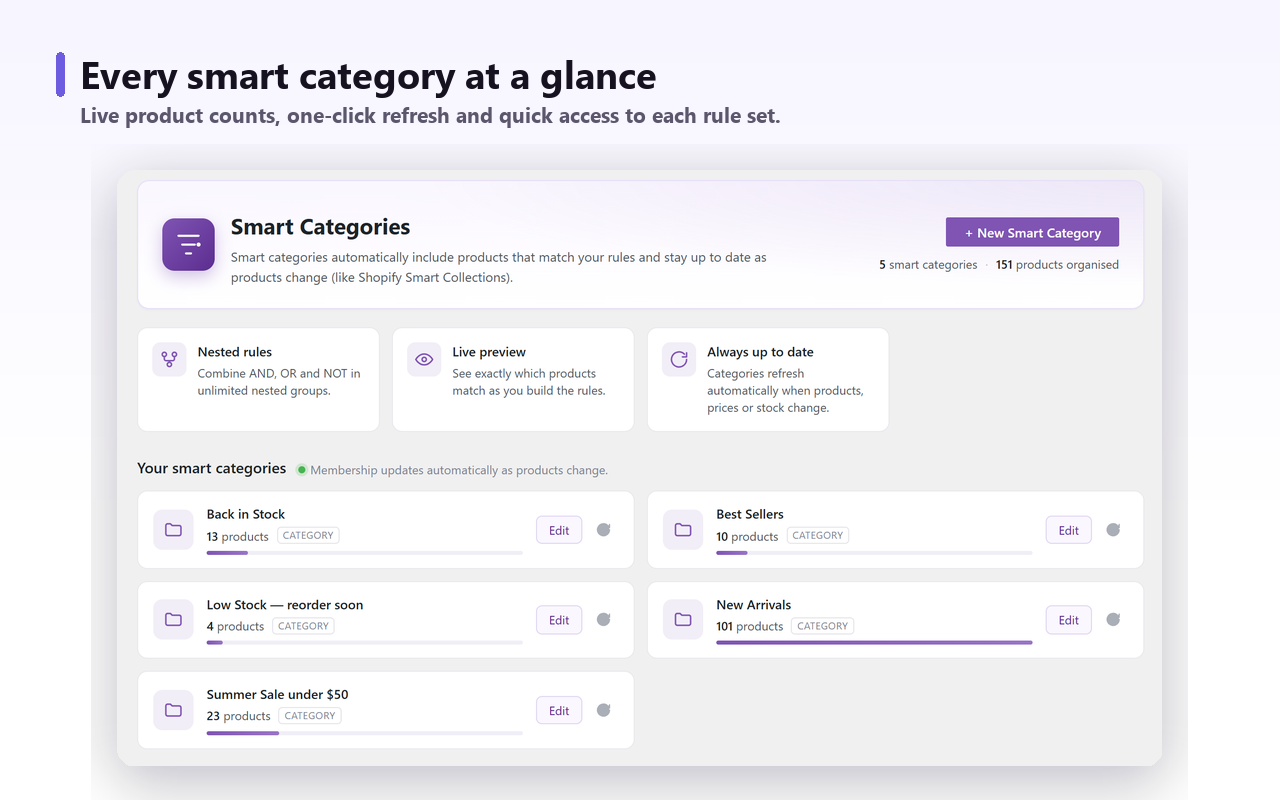
Its relevance is narrower than that, and it is to cause three. An empty category is a maintenance failure rather than an SEO problem, and it is one of the most common reasons a category never gets indexed at all. The plugin attaches a rule set to a real product_cat term, or to a product tag, and keeps the membership current: products are matched on fields including Active price, Sale price, Stock status, Stock quantity, Category, Tag and Date created — thirty-five of them in the free version — combined in nested groups of ALL OF, ANY OF and NOT, with the matching products and their count shown before you save. Re-evaluation runs on product create or update, on price or stock change, and again on a daily sweep, in the background through Action Scheduler rather than on page load. It only ever removes memberships it created, so manual assignments survive. The term stays an ordinary WooCommerce category, so menus, breadcrumbs and term counts behave exactly as before.
What that buys you is a category whose contents are defined by a rule rather than by whoever last edited a product, and a list of live counts you can read at a glance instead of discovering the empty one in Search Console three months later. It is worth being clear about the limit of that: keeping a term populated does not create a single internal link, so cause five is still your job. It only helps sideways, in that the widgets and blocks which hide empty terms will keep listing a category that stays populated.
The risk runs in the other direction too. The Pro version generates one smart subcategory per attribute value, or per combination of two attributes, which is how a store ends up with several hundred new archives in an afternoon. Some of those are pages people genuinely search for. Most are the near-duplicate, thin, orphaned pages this whole article is about, and creating them at scale is a real cost rather than a free win. Generate the combinations you have evidence of demand for, link them properly, and noindex the rest — the trade-off is set out in should you turn WooCommerce attributes into categories.
The short version#
Most unindexed WooCommerce categories are not a technical SEO failure. They are pages nobody links to, holding products nobody can tell apart from the category next door, or standing empty because the stock ran out and a default setting quietly took them out of the index. Work in that order: read the status, read the response headers, count the products on the front end rather than in wp-admin, count the links, then compare the category with its siblings. Filter and pagination URLs come last, and only on a catalogue big enough for them to matter.