WooCommerce Attributes vs Categories: When a Colour Earns Its Own Page
Attributes drive variations, categories drive navigation. What the WooCommerce Enable archives box creates, and three tests before a colour earns a page.
Updated

In this article17 sections
Should a colour or a size get its own category? Most of the time, no. WooCommerce attributes vs categories comes up as a question because the two look interchangeable in the admin — both are taxonomies, both group products, both can produce a URL you can put in a menu. They are not interchangeable. Attributes drive variations and filtering. Categories drive navigation, and give you an archive page worth landing on from Google. Turning an attribute value into a category is occasionally right, and the test for “occasionally” is search demand, not tidiness.
The short answer#
Attributes and categories are not interchangeable: attributes drive variations and filtering, categories drive navigation and archive pages worth landing on, so turning an attribute value into a category is only occasionally right — and the test is search demand.
- Different jobs entirely. Attributes drive variations and filtering; categories drive navigation, and only they bring hierarchy, descriptions, thumbnails and breadcrumb trails.
- Attribute archives are thin. “Enable archives?” publishes attribute terms onto the standard shop grid — no per-term image, no subcategories and no distinct layout unless you override the template — and SEO plugin control over them is inconsistent; Yoast has a feature request for it (wordpress-seo issue #9152).
- Three tests, not tidiness. Promote a combination only if it is actually searched, has enough stock to be worth landing on, and will still have products next month.
- The arithmetic kills it. Twelve colours and eight sizes on one parent is 96 combinations, and across ten parents that is 960 category pages from a 2,000-product catalogue — mostly near-empty grids, plus a maintenance cost nobody budgets for.
- Build the survivors properly. When a combination passes all three tests, create it as a real product category rather than an attribute archive, and leave everything else as a filter within layered navigation.
WooCommerce attributes vs categories: what each one actually is#
A global attribute is a taxonomy registered by WooCommerce with a pa_ prefix — pa_colour, pa_size. Categories use product_cat. And tags use product_tag, a public product taxonomy that comparisons like this one usually leave out. All three are terms attached to products, but WooCommerce registers them with very different arguments, and the differences show up the moment you leave the edit screen.
| Behaviour | Global attribute (pa_*) | Product category (product_cat) | Product tag (product_tag) |
|---|---|---|---|
| Drives variations | Yes — the only thing that can | No | No |
| Drives layered nav and filter widgets | Yes | No, not as a facet | No |
| Public archive page | Only if you tick “Enable archives?” | Always | Always |
| Hierarchy (parent/child) | No — registered as non-hierarchical | Yes | No — registered as non-hierarchical |
| Term fields in admin | Name, slug, description | Name, slug, parent, description, display type, thumbnail | Name, slug, description |
| In a product’s breadcrumb trail | No | Yes | No |
Two rows there do most of the work. Attribute taxonomies are registered with hierarchical set to false, so you cannot nest “Red” under “Dresses” — an attribute archive is always store-wide. And attribute terms have no display type and no thumbnail, so the things a merchandiser normally does to a landing page are not available without custom work. If the real question underneath yours is whether an attribute should become a variation at all, that is a different decision with a different answer — attributes vs variations covers it, including the global-versus-custom question and one widely repeated claim that is false.
And the third option: a product tag#
Framing the decision as attributes-or-categories throws away the taxonomy that often fits best. Tags are flat like attributes and publicly archived like categories, but they bring no hierarchy, no thumbnail and no display type, they never appear in a product’s breadcrumb trail, and they do not feed layered navigation — a tag is not a filter.
So the rule is narrower than it looks: use a tag for a cross-cutting property that gets searched but is not navigation — “waterproof”, “vegan”, “made in Britain” — where you want one indexable page and no place in the menu.
The caveat matters as much as the rule. A tag archive is the same bare shop grid as an attribute archive, so the three tests further down apply to a tag unchanged: searched, fillable, still full next month. A tag created for tidiness becomes thin content exactly as fast. Smart Categories points a rule set at a WooCommerce product category or a product tag and runs the same engine on both, so a rule-built tag stays as current as a rule-built category — but it still will not tell you the page deserved to exist.
What “Enable archives?” actually creates#
The checkbox lives on Products → Attributes, on the edit screen for a global attribute — not on the individual terms. Ticking it is what makes WooCommerce register that pa_* taxonomy as public, so every term under it gets a front-end archive at once. Until then the taxonomy is not public, there is no URL, and there is nothing for an SEO plugin to control.
The URL is the part people get wrong. It is not /pa_colour/red/. WooCommerce strips the pa_ prefix from public URLs, so a “Colour” attribute with the slug colour produces:
https://example.com/colour/red/The prefix was dropped in WooCommerce 3.0.4, which broke stores that already had /pa_colour/red/ URLs indexed — those started returning 404s with nothing redirecting them (woocommerce/woocommerce issue #14773). Worth knowing if you inherit an old store with dead attribute URLs in Search Console.
You can prefix the whole set at Settings → Permalinks → Optional, in the Product attribute base field. Set it to attribute and you get /attribute/colour/red/. It is empty by default, so attribute slugs sit at the site root competing with page and category slugs — if you have a page called “Colour”, you have a collision. Set a base.
Why the documentation is so thin#
The official WooCommerce doc on managing product taxonomies gives this feature one sentence — with it enabled, “you can view a page with all products having any term of this attribute” — plus an example of adding that URL to a menu. That is the whole treatment.
The brevity is honest, because the feature genuinely is thin. WooCommerce does ship a template for attribute archives, templates/taxonomy-product-attribute.php, but its entire working body is one line: it loads archive-product.php. An attribute archive is your shop grid with a different query behind it — no per-term image, no intro block, no subcategory listing, just products and, if the theme prints it, the term description.
To make one look different, the template loader picks up a file in your theme’s woocommerce folder named after the taxonomy: taxonomy-pa_colour.php for one attribute, taxonomy-product_attribute.php for all of them. Note the underscores — the override uses the real taxonomy name, though the file inside WooCommerce is hyphenated. On a block theme, WooCommerce serves its product attribute block template instead and you edit that in the site editor.
Where SEO plugins rub against attribute archives#
The moment you tick that box you have potentially hundreds of new indexable pages that nobody reviewed, and editing SEO metadata on individual attribute terms has historically been patchy. Yoast has a feature request for control over product attribute output, and the same thread reports the SEO metabox not appearing on attribute terms at all (Yoast/wordpress-seo issue #9152) — read the issue for its current state and then check your own screen, because that particular symptom is version-dependent, and behaviour differs between Yoast, Rank Math and SEOPress and between versions of each. What stays consistent: an attribute archive is an ordinary public taxonomy archive, so any taxonomy-level indexing control your plugin exposes is where the switch will be.
If you want them non-indexable and your plugin will not do it, this is the core-only version. The empty check matters: is_tax() with an empty array matches every taxonomy archive, so without it a store with no global attributes would noindex its categories too.
add_filter( 'wp_robots', function ( $robots ) {
	if ( ! function_exists( 'wc_get_attribute_taxonomy_names' ) ) {
		return $robots;
	}

	$attribute_taxonomies = wc_get_attribute_taxonomy_names();

	if ( ! empty( $attribute_taxonomies ) && is_tax( $attribute_taxonomies ) ) {
		unset( $robots['index'] );
		$robots['noindex'] = true;
		$robots['follow']  = true;
	}

	return $robots;
} );
That is enough on a site with no SEO plugin. Yoast also hooks wp_robots, at a priority just below PHP_INT_MAX, and merges its own values over whatever is already there — so your filter runs first and then loses. Use Yoast’s own filter instead:
add_filter( 'wpseo_robots_array', function ( $robots ) {
	if ( ! function_exists( 'wc_get_attribute_taxonomy_names' ) ) {
		return $robots;
	}

	$attribute_taxonomies = wc_get_attribute_taxonomy_names();

	if ( ! empty( $attribute_taxonomies ) && is_tax( $attribute_taxonomies ) ) {
		$robots['index'] = 'noindex';
	}

	return $robots;
} );
Rank Math’s equivalent is rank_math/frontend/robots, which takes the same shape of array. Whichever you use, noindexing an archive does not remove it from your sitemap, your menus or your internal links — those are separate jobs. And if you are already working out why legitimate pages are ignored, the reasons behind category pages not getting indexed apply to attribute archives too, usually harder.
If you already ticked it and have hundreds indexed#
Most people who read this far ticked the box a year ago, watched Search Console fill with /colour/red/ URLs, and now want out. The move they reach for first is unticking it. That is the one move to leave until last.
- Do not untick “Enable archives?” yet. Unticking re-registers that
pa_*taxonomy as non-public, which takes its rewrite rules with it — so every indexed archive URL starts returning a 404 immediately, with nothing redirecting it. That is the same failure the 3.0.4 prefix change caused, except this time you would be causing it deliberately. - Separate the archives worth keeping signals from the rest. Pull the attribute URLs that have impressions or clicks from Search Console, and the ones that have inbound links from whatever backlink tool you use. On most stores that is a handful of URLs out of several hundred.
- Put the 301s in place now, while the taxonomy is still public. For each URL on that short list, redirect to the nearest real product category. Do this before anything else touches those URLs — you do not noindex a page you intend to redirect, because the noindex is wasted work on exactly the URLs whose signals you are trying to keep.
- Noindex everything left. Add
noindex,followthrough your plugin or the filter above, then pull those URLs out of your XML sitemap, your menus and your internal links — noindexing does none of those three for you — and let Google recrawl. This is the slow step; it takes weeks, not an afternoon. - Untick the box last, once the redirects are live and confirmed and the rest have dropped out of the index. What remains will 404 at that point, which is the correct outcome for an archive nobody linked to and nobody found.
The order is the whole of it: redirects while the URLs still resolve, noindex for everything with no signal to keep, checkbox last. It is the same order as the sequence for retiring a category URL, for the same reason.
The real question: does “red XL dress” deserve a page?#
Decide with demand, not taste. A category page earns its existence when someone types the combination into a search engine and would be happy landing on a grid of those products. Three tests, in order.
1. Is the combination actually searched?#
You already have the data. In Search Console, filter Performance by the parent category’s URL and read the queries — if “red dresses” pulls impressions against your Dresses page, that is a page waiting to be built. Your site search logs are the second source, and they beat any keyword tool: they are your customers, not a national average.
The pattern repeats across catalogues: single-attribute combinations get searched, two-attribute combinations rarely do. People search “red dress” and “plus size dress”. Almost nobody searches “red XL dress”. Size in particular is a filter, not a query — shoppers pick a colour or a style first and filter for their size afterwards.
2. Is there enough stock to make it worth landing on?#
A four-column grid needs about a dozen products before it reads as a shop rather than a leftover. Three products is a dead end for the visitor and thin content to a crawler. There is no magic number, but if you cannot fill one screen, you do not have a page — you have a search result.
3. Will it still have products next month?#
Stock moves. A combination holding fourteen products today and two in six weeks is a page that will quietly rot. Seasonal colours are the classic trap. If the combination depends on one supplier drop, it is a filter.
Pass all three and build the page. Fail any one and leave it as a filter — the layered navigation you already have handles it with no term to maintain and no page to retire later, and that is the right answer more often than store owners expect.
The arithmetic that kills the “a category for everything” approach#
Run the numbers before you commit. Twelve colours and eight sizes on one parent category is 96 combinations — and if you are generating those 96 as variations rather than categories, the same arithmetic bites a second time at the variation layer, where the ceiling is a performance question rather than an SEO one (how many variations is too many). Across ten parent categories that is 960 category pages, from a catalogue that might hold 2,000 products. Most will hold fewer than five products. Many will hold none.
The consequences are all real and all boring:
- Crawl budget goes to nothing. Googlebot spends its visits on near-empty grids instead of the pages that convert.
- Thin content at scale. Hundreds of pages differing only by a filter value, with no unique copy, is the textbook shape of a quality problem.
- Internal linking dilutes. Every category in a menu or sidebar splits the same pool of internal links across more destinations.
- The admin becomes unusable. A 960-term category checklist on the product edit screen slows down everyone who touches a product, every day.
- Deep structures surprise people. Nesting brings its own behaviour — see why parent categories often show no products.
The maintenance cost nobody budgets for#
Built by hand, every new product needs the right combination categories ticked, every discontinued line leaves a page behind, and every new colour next season needs a fresh set of categories created and populated. On a catalogue that turns over, that is a recurring job, not a project. It is the same trap as any manual grouping: the cost is not building it, it is redoing the assignment every month.
When a combination does earn a page, build it properly#
Make it a real product category, not an attribute archive. You get hierarchy, a description, an image, a display type and breadcrumbs — everything the attribute archive lacks.
Create the category in the admin first, so it has the slug and description you want. Then populate it once with a snippet. This finds every published product in Dresses carrying the red term on pa_colour and adds red-dresses without disturbing the categories already on the product:
$target = get_term_by( 'slug', 'red-dresses', 'product_cat' );

if ( $target && ! is_wp_error( $target ) ) {
	$query = new WP_Query( array(
		'post_type'      => 'product',
		'post_status'    => 'publish',
		// Fine at the catalogue sizes this post is about. On tens of
		// thousands of products it is the write loop below that will
		// time out, not this query.
		'posts_per_page' => -1,
		'fields'         => 'ids',
		'tax_query'      => array(
			'relation' => 'AND',
			array(
				'taxonomy' => 'pa_colour',
				'field'    => 'slug',
				'terms'    => 'red',
			),
			array(
				'taxonomy' => 'product_cat',
				'field'    => 'slug',
				'terms'    => 'dresses',
			),
		),
	) );

	foreach ( $query->posts as $product_id ) {
		// true = append, so existing categories are left alone.
		wp_set_object_terms( $product_id, array( $target->term_id ), 'product_cat', true );
	}
}
Pass the term ID, not the slug: wp_set_object_terms() creates a term from a string it cannot match, so a typo quietly gives you a second, wrong category instead of an error. Run it once from a snippet plugin or WP-CLI, then delete it. Back the database up first — it writes immediately and there is no undo. If your catalogue is large enough for that loop to time out, split the work across requests: set posts_per_page to 500 and run the snippet once per page, raising paged each time. Or run the whole thing through WP-CLI, where there is no HTTP timeout and the memory limit is yours to raise.
Be clear about what that snippet is: a snapshot. It is correct the second it runs and drifts from that moment on. Products added tomorrow are not in it. For a handful of stable pages that is fine — and a handful is the number this post is arguing for.
One thing to check once it has run: the product count. WooCommerce keeps its own per-category count in term meta (product_count_product_cat) alongside the core term count, and after a bulk write the two can disagree — so a category whose grid is full can still read a stale number in the admin list or in any count-driven widget. If the count does not match the grid, recount: WooCommerce → Status → Tools → Recount terms, or wp wc tool run recount_terms --user=1 on the command line. If it still looks wrong after that, the causes are the same ones behind term counts on parent categories.
If you want the membership to stay correct on its own#
This is the one place a plugin genuinely helps, and only after the three tests above have said the page deserves to exist. Smart Categories for WooCommerce attaches a rule set to a real product_cat term, so the result is still an ordinary WooCommerce category — term counts, breadcrumbs, menus and other plugins all behave normally. The free version builds the rule as nested AND/OR/NOT groups across 35+ match fields, global attributes included, and shows the matching products and their count before you save.
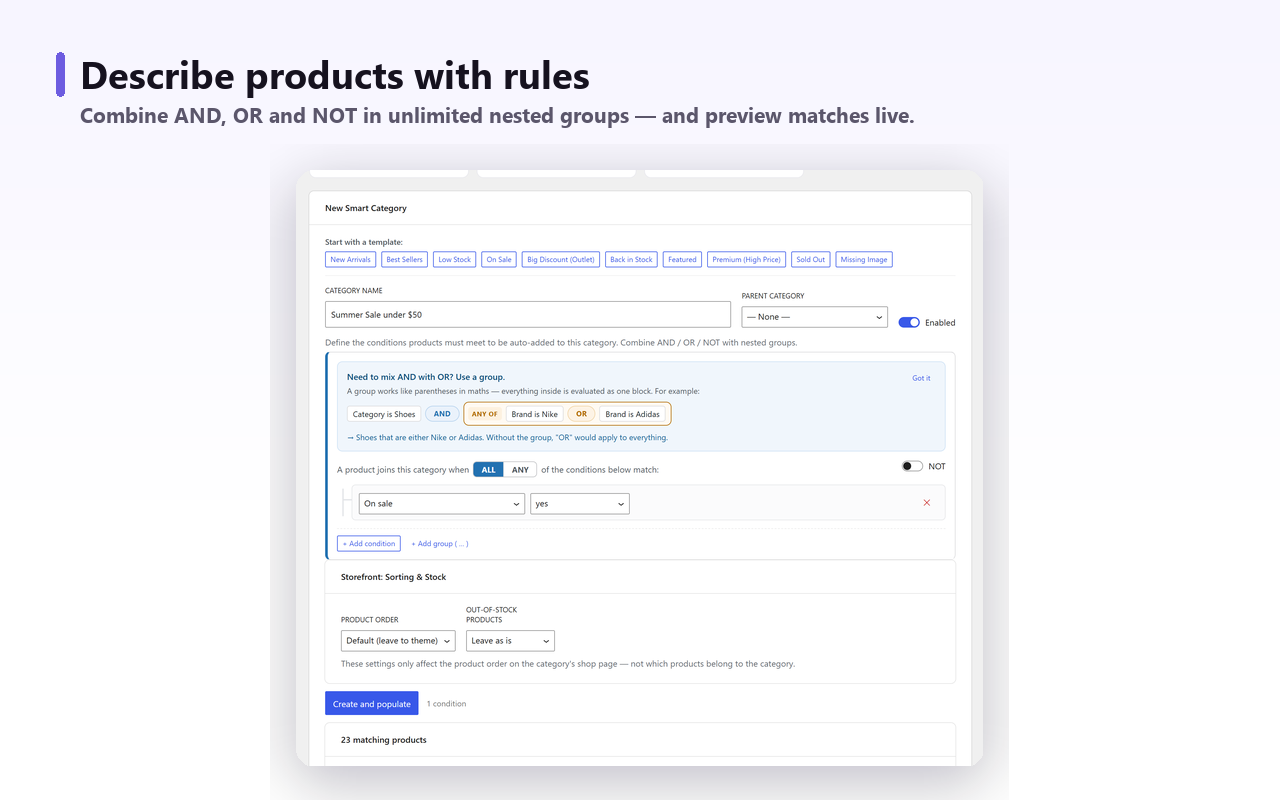
The rule for the example above is two conditions: Colour is Red AND Category is Dresses. Products are re-evaluated on create or update and on a daily sweep, so a new red dress lands in the category with nobody ticking a box, and a product that stops being red leaves it. Anything you assigned by hand stays put — the plugin only removes memberships it created itself. The mechanics are covered in more depth in adding products to a category based on rules.
The Pro version generates one subcategory per attribute value, or per combination of two attributes, with a preview showing the product count for each page before anything is created. That preview is the useful part here: it shows you that 71 of your 96 planned combinations would hold fewer than five products, so you create only the ones that clear your threshold.
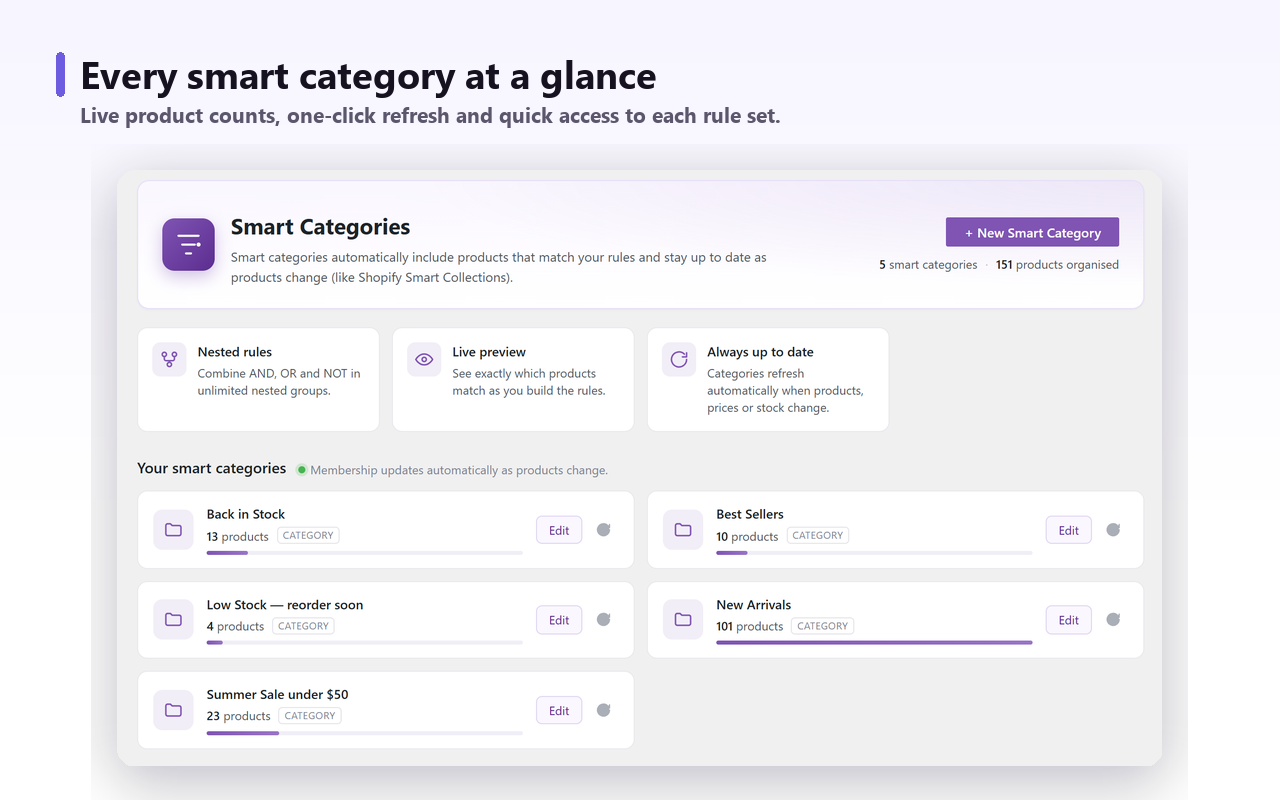
Being plain about the limits: it decides membership, not whether a page deserves to exist. Point it at every combination and you get the same 960 thin pages, faster.
What none of this handles for you#
Whichever route you take — manual, snippet or plugin — these stay your job:
- Meta titles, descriptions, canonicals and noindex. Your SEO plugin’s territory. Yoast, Rank Math and SEOPress all handle category terms — set the rules there before the pages go live.
- Redirects. Retire a combination category and something has to 301 it. A redirect plugin or your server config does that. Deleting a category leaves a 404 behind, exactly as happened to those old
pa_URLs — changing category structure without losing rankings covers the sequence. - Retiring pages that fell below your threshold. There is no “hide category under N products” behaviour in WooCommerce, and none of the above adds one. If a page empties out, you decide what happens to it.
- Unique copy on the page. A generated grid with no description is still thin. If a combination earns a page, it earns two paragraphs written by a person.
The short version#
Keep attributes as attributes. Leave “Enable archives?” off unless you specifically want a store-wide page for every value, and if you do turn it on, set a product attribute base and decide deliberately whether those archives should be indexable.
Promote a combination to a real category only when it passes all three tests: people search it, you can fill a screen with it, and it will still be full next month. In practice that means a handful of single-attribute pages per store — “red dresses”, “leather boots” — and almost no two-attribute ones. Everything else is a filter — and a filter costs nothing to maintain, which is not quite the same as costing nothing. Layered navigation URLs (?filter_colour=red) are crawlable, and a store with enough facets can rebuild the same thin-page problem in a different shape. Point them at the parent category’s canonical and keep them out of the sitemap, and they cost nothing that matters.