WooCommerce New Arrivals Category Page That Keeps Old Products Out
Three ways to build a WooCommerce new arrivals page — sorting, the Product Collection block, or a real category — plus the job that removes old products.
Updated

In this article14 sections
Sorting the shop by date is not a new arrivals page. It is a sorted view of everything you have ever published. If you want a WooCommerce new arrivals category you can drop into the main menu, point a campaign at, and let Google index, you need something with its own URL and its own membership list — and, more importantly, something that takes products back out again.
There are three levels to this and they are genuinely different objects. Most write-ups describe the first one, call it solved, and never mention that the hard half is expiry.
The short answer#
A WooCommerce new arrivals category should be a real product_cat term whose membership is set by a rule — products created in the last 30 days — plus an automated job that removes each product once it ages out.
- The five-minute version. Pages → Add New, title it New Arrivals, insert a Product Collection block, choose the New Arrivals collection, raise the window from its default 7 days, and add the page to your menu. That is a linkable page today, and products drop off it on their own as they age past the window. The rest of this article is about the two things it does not give you — breadcrumbs, counts and filter blocks, and a set the rest of your site can see — and about what happens when you want a real category instead, where nothing leaves unless you build something that removes it.
- Sorting is not a category. Linking to ?orderby=date only gives a date-sorted view of the whole shop: no unique heading or content, nothing ever expires from it, and SEO plugins canonicalise the sorted URL back to the plain archive.
- Shortcodes stop short of taxonomy. The Product Collection block or [products orderby=”date”] will produce a page you can link from a menu, but it has no breadcrumbs, product counts, category widget entry, or layered navigation and filter blocks.
- Expiry is the whole problem. A real product_cat term brings back breadcrumbs, counts, menus and filters, but it only stays accurate if a scheduled daily job adds products as they are published and removes them as they age past the window — without one, New Arrivals becomes a slowly growing copy of your catalogue.
- Pick the date field carefully. Build the rule on date created, never date modified (price edits, stock decrements and bulk updates bump it), and size the window to your publishing rate so the page holds two to four screens of products.
- Require in-stock as well. New products sell fastest, so making stock status part of the membership rule keeps sold-out novelties off the top row without hiding out-of-stock items across the whole site.
The three objects side by side, including the rows most comparisons leave out:
?orderby=date | Product Collection block on a Page | Real product_cat term | |
|---|---|---|---|
| Own URL you can link to | No | Yes | Yes |
| Own heading and intro text | No | Yes | Yes |
| Breadcrumbs, product count, category widget, layered filter blocks | No | No | Yes |
| Old products leave on their own | Nothing to leave — it is the whole shop | Yes, it is a display window | Only if you build something that removes them |
| Setup | A minute | Five minutes | Ten minutes plus a scheduled job |
| Eligible to be indexed and ranked | No — sorted URLs get canonicalised away | Yes | Yes |
Level 1: sorting the shop by date#
WooCommerce already ships this. The catalogue sorting dropdown includes Sort by latest, which sets ?orderby=date on the current archive. It orders by the product’s publish date, descending, with the post ID as the tie-break. You can link straight to it:
https://example.com/shop/?orderby=date
https://example.com/product-category/dresses/?orderby=date
If you want every archive to open that way, set it once under Appearance → Customize → WooCommerce → Product Catalog → Default product sorting and choose Sort by latest. That writes the woocommerce_default_catalog_orderby option; no code needed. On a block theme the Customize link may be missing from the admin menu — open /wp-admin/customize.php directly and the WooCommerce panel is still there.
This is free, instant, and correct as far as it goes. What it is not is a destination:
- No content of its own. You cannot give
?orderby=datea heading, an intro paragraph, or a banner. It is the shop page wearing a different order. - It is a query string, not a page. SEO plugins generally canonicalise sorted URLs back to the unsorted archive, which is the right call — you do not want six sorted copies of the shop competing. But it means the sorted view is not a thing Google will rank.
- It never ends. Page one is new. Page nine is 2019. There is no boundary between “new arrival” and “still in the catalogue”.
- It is not filterable as a set. You cannot say “new arrivals under £50” without stacking more parameters, and you cannot exclude a product from it.
If all you need is for returning customers to spot fresh stock, stop here. It costs nothing and it works.
Level 2: the New Arrivals collection and the products shortcode#
The next step up is a display block you place on a real Page. In current WooCommerce that is the Product Collection block. Insert it, and in the block’s collection chooser pick New Arrivals. By default it shows products created in the last 7 days; that window is editable in the block sidebar, along with the number of products, the column count and an inventory-status filter.
The older standalone Newest Products block still renders wherever it is already in use, but WooCommerce 9.5 soft-deprecated the product grid blocks and hid them from the inserter, so on a new page you will not find it. Product Collection is the replacement. As of WooCommerce 11.1 (September 2026) that is still a soft deprecation rather than a removal — the old blocks keep rendering, they are simply not offered to you any more. Soft deprecations usually end in removal, though, so if you are reading this on something much later, check the inserter before assuming either way.
If you are in the classic editor or a page builder, the shortcode does the same job:
[products limit="12" columns="4" orderby="date" order="DESC"]WooCommerce 3.2 consolidated [recent_products], [featured_products], [sale_products] and several others into [products] with attributes. The legacy names still resolve, and WooCommerce still lists them as supported as of 11.1 (September 2026), but [products] is the one that takes the full attribute set and the one to write into a new page.
Now you have a URL, a title, an intro, and something you can link from the menu. What you still do not have is a category. The distinction matters more than it sounds:
- No term, so no term behaviour. No breadcrumb trail, no product count, no entry in category dropdowns or the category widget, nothing in the Products → Categories list.
- Layered navigation and filter blocks do not apply. Attribute filters operate on the product archive query. A shortcode grid inside a Page is a separate query and filters will not touch it.
- Pagination is awkward. A grid on a Page paginates independently of the Page, and themes vary in how gracefully they handle it.
- Nothing else on the site can see the set. Feed exporters, discount rules scoped to a category, related-product logic — these read taxonomy terms, and there is no term here.
Level 3: a real WooCommerce new arrivals category#
The third option is an ordinary product_cat term called New Arrivals, sitting at /product-category/new-arrivals/, with products actually assigned to it. Everything above comes back: breadcrumbs, counts, menus, filters, the sorting dropdown, and the ability to write a genuine intro on the category description.
Creating it takes ten seconds. Keeping it accurate is the whole problem. A person adding twelve products a week and remembering to tick a box will manage for about a month. What nobody manages is the removal — and a New Arrivals category that only ever gains members quietly becomes “every product we have ever stocked”, sorted badly. This is the same failure mode as a sale category nobody empties, which we covered in how to build a WooCommerce sale category that empties itself.
The half nobody covers: expiry#
Something has to run on a schedule, look at every product in the category, and remove the ones that have aged out. If you want to write it yourself, this is the honest version. Put it in a small site plugin rather than your theme’s functions.php, so it survives a theme change.
<?php
/**
 * Plugin Name: New Arrivals Sweeper
 * Description: Keeps a "new-arrivals" product category limited to the last 30 days.
 */

const MY_NA_SLUG = 'new-arrivals';
const MY_NA_DAYS = 30;

add_action( 'init', function () {
	if ( ! wp_next_scheduled( 'my_refresh_new_arrivals' ) ) {
		wp_schedule_event( time(), 'daily', 'my_refresh_new_arrivals' );
	}
} );

register_deactivation_hook( __FILE__, function () {
	wp_clear_scheduled_hook( 'my_refresh_new_arrivals' );
} );

add_action( 'my_refresh_new_arrivals', function () {

	$term = get_term_by( 'slug', MY_NA_SLUG, 'product_cat' );
	if ( ! $term ) {
		return;
	}

	$cutoff = gmdate( 'Y-m-d H:i:s', time() - ( MY_NA_DAYS * DAY_IN_SECONDS ) );

	// Products that SHOULD be in the category: created inside the window, and in stock.
	$fresh = get_posts( array(
		'post_type'      => 'product',
		'post_status'    => 'publish',
		'posts_per_page' => -1,
		'fields'         => 'ids',
		'date_query'     => array(
			array( 'after' => $cutoff, 'column' => 'post_date_gmt' ),
		),
		'meta_query'     => array(
			array( 'key' => '_stock_status', 'value' => 'instock' ),
		),
	) );

	// Products that ARE in the category right now.
	$current = get_posts( array(
		'post_type'      => 'product',
		'post_status'    => 'any',
		'posts_per_page' => -1,
		'fields'         => 'ids',
		'tax_query'      => array(
			array(
				'taxonomy'         => 'product_cat',
				'field'            => 'term_id',
				'terms'            => $term->term_id,
				'include_children' => false,
			),
		),
	) );

	wp_defer_term_counting( true );

	foreach ( array_diff( $fresh, $current ) as $id ) {
		wp_set_object_terms( $id, array( (int) $term->term_id ), 'product_cat', true );
	}

	foreach ( array_diff( $current, $fresh ) as $id ) {
		wp_remove_object_terms( $id, array( (int) $term->term_id ), 'product_cat' );
	}

	wp_defer_term_counting( false );
} );
The _stock_status clause is the second half of the rule this article recommends, and it costs three lines: a product that sells out stops matching and the next sweep takes it out, and if it is restocked inside the window the sweep puts it back. It needs no special case for variable products — a variable parent’s _stock_status is synced from its variations, so the parent reads instock while any variation is in stock, which is the behaviour you want on this page.
That is a working script, and for a catalogue of a few hundred products on a site with steady traffic it is fine. Know what you are accepting:
- WP-Cron needs traffic. A quiet site may not fire the daily event for days. Disable WP-Cron and call
wp-cron.phpfrom a real system cron if the timing matters. posts_per_page => -1does not scale. At a few thousand products you will want to batch this, and at that point you are writing a queue.- It cannot tell your assignments from its own. If you manually put a hero product in New Arrivals, the next sweep removes it. There is no record of who assigned what — you would need to store that yourself, or pin the exceptions, which takes four lines and is covered below.
- Daily is the resolution. A product published this morning does not appear until tomorrow’s run, and with the stock clause in place an item that sells out this morning sits on the page until then too. Two hooks close that gap, and they are below too.
- Removal can leave a product with no category. If New Arrivals was the only category on an item, it will show up uncategorised. The stock clause makes this matter much more than it first appears, because removal now fires on every sell-out rather than only when something ages out — a product whose only category was New Arrivals loses it the moment it goes out of stock. Give everything a real home category before you let the sweep run on a live catalogue.
Pinning a product the sweep must not touch#
The hand-picked hero product is the objection people raise first, and it is cheap to answer. Add a third constant beside the other two:
const MY_NA_PINNED = array( 1234, 5678 ); // Product IDs the sweep leaves alone.Then skip those IDs in the removal loop:
foreach ( array_diff( $current, $fresh ) as $id ) {
	if ( in_array( (int) $id, MY_NA_PINNED, true ) ) {
		continue;
	}
	wp_remove_object_terms( $id, array( (int) $term->term_id ), 'product_cat' );
}
The trade-off is that a hard-coded array means editing a plugin file every time you pin or unpin something — tolerable for one hero product, tiresome at twenty. Past a handful, write a _na_pinned meta value on the product and test for that instead, and pinning becomes a field in the product editor rather than a file edit.
Adding and removing on the spot, not at midnight#
The daily event is the belt; these two hooks are the braces. One fires when a product is saved, the other when its stock status changes, and both apply the same two tests the sweep applies — created inside the window, and in stock — to a single ID:
function my_na_check_one( $product_id ) {

	if ( wp_is_post_autosave( $product_id ) || wp_is_post_revision( $product_id ) ) {
		return;
	}
	if ( 'publish' !== get_post_status( $product_id ) ) {
		return;
	}
	if ( in_array( (int) $product_id, MY_NA_PINNED, true ) ) {
		return;
	}

	$term = get_term_by( 'slug', MY_NA_SLUG, 'product_cat' );
	if ( ! $term ) {
		return;
	}

	$created   = (int) get_post_time( 'U', true, $product_id );
	$in_window = $created > ( time() - ( MY_NA_DAYS * DAY_IN_SECONDS ) );
	$in_stock  = 'instock' === get_post_meta( $product_id, '_stock_status', true );

	if ( $in_window && $in_stock ) {
		wp_set_object_terms( $product_id, array( (int) $term->term_id ), 'product_cat', true );
	} else {
		wp_remove_object_terms( $product_id, array( (int) $term->term_id ), 'product_cat' );
	}
}

add_action( 'save_post_product', 'my_na_check_one', 20 );
add_action( 'woocommerce_product_set_stock_status', 'my_na_check_one', 20 );
The early returns are not decoration. save_post_product fires for drafts, scheduled products and programmatic saves as well as for the publish you had in mind, so the status check keeps a half-finished product out of the category; the autosave and revision checks are the conventional guard on top of that; and the pinned check stops this function undoing the exception you made in the section above.
And keep the daily sweep even with both hooks in place. woocommerce_product_set_stock_status fires from WooCommerce’s product data store, so anything that saves the product properly — the product editor, the REST API, an order taking the last unit — goes through it. A variation’s own change fires woocommerce_variation_set_stock_status instead, and the parent only reaches this hook when its synced status actually flips. An importer or a snippet that writes _stock_status straight to post meta bypasses the whole layer and fires nothing at all. The sweep is what catches those, and it is the only thing that catches a product crossing the 30-day line, because on that day nothing about the product changed.
The same shape of problem — rules that have to be re-applied, not applied once — is worth reading about in how to automatically add products to a WooCommerce category based on rules, and if you are currently doing this by hand in bulk edit, bulk assigning products to categories covers why that keeps coming back.
Which date should you actually use?#
This is where new arrivals pages go wrong quietly, and it is worth being explicit about the trade-off.
Date created#
WooCommerce’s date_created is the product post’s post_date — when the product record came into existence in WordPress. For a store where someone adds products by hand as stock arrives, that is exactly right and you should use it.
For a store that was migrated or is fed by an importer, it is not. If you moved 4,000 products in from another platform last Tuesday, all 4,000 have a creation date of last Tuesday. Your New Arrivals page is your entire catalogue for the next 30 days, and then it is empty. Worse, some import tools rewrite the post date on every sync, so products keep re-entering the window.
Three ways out, in order of how much work they are:
- Map the real date on import. Most CSV importers let you set the post date from a source column. If your old platform exported a created-at field, map it and the problem disappears permanently.
- Wait out the window. Turn the category on 30 days after the migration. Crude, free, and works if you only migrate once.
- Use your own field. Write a
_first_stockedmeta value when a product genuinely goes live and match on that instead of the post date. This is the only option that survives repeated imports, and it is the one to pick if products arrive from a supplier feed.
The third needs more than a sentence, so here it is. Write the stamp once, the first time a product reaches published:
add_action( 'transition_post_status', function ( $new, $old, $post ) {
	if ( 'product' !== $post->post_type || 'publish' !== $new || 'publish' === $old ) {
		return;
	}
	if ( ! get_post_meta( $post->ID, '_first_stocked', true ) ) {
		update_post_meta( $post->ID, '_first_stocked', gmdate( 'Y-m-d H:i:s' ) );
	}
}, 10, 3 );
Then drop date_query from the sweeper and match on the stamp instead, beside the stock clause — both conditions now live in the same meta_query, which defaults to AND:
'meta_query'     => array(
	array( 'key' => '_stock_status', 'value' => 'instock' ),
	array(
		'key'     => '_first_stocked',
		'value'   => $cutoff,
		'compare' => '>',
		'type'    => 'DATETIME',
	),
),
One warning, because it is the part you find out about after publishing the page: _first_stocked only starts existing the day you install this, so every product already in the catalogue has no value and will never match. Backfill it once for the existing catalogue before you switch the rule over — a single loop over published products, writing a date into the meta key where it is empty — or your New Arrivals page will be empty for a month. Take that date from post_date_gmt where the post date is honest; where it is last Tuesday’s migration, use the old platform’s created-at value or simply any date older than the window, or the backfill recreates the problem this section opened with.
Not date modified#
It is tempting, because “recently updated” sounds close to “recently added”. It is not. A price change, a stock decrement, a typo fix in the description, or a bulk plugin touching meta all bump post_modified. A product from 2021 whose price you corrected this morning becomes a new arrival. Never build the rule on it.
How long is “new”?#
Pick the window from your publishing rate, not from a round number. Aim for a page that is consistently two to four screens deep. If you add ten products a week, 30 days gives you roughly 40 products — a solid page. If you add two products a month, 30 days gives you a two-product page, which is a worse experience than no page at all and a weak candidate for indexing. Stretch the window to 90 days, or do not build the page.
Stop out-of-stock novelties sitting at the top#
This is the specific failure that makes a date-based page look neglected. New products sell out fastest. A date-sorted page puts the newest thing first. So the very top of your New Arrivals page fills with the items you cannot sell, and the customer’s first impression of your freshest stock is a row of greyed-out cards.
Because it is a real category, you have a real fix: make stock part of the membership rule, not just the sort order. The rule becomes two conditions joined with AND — created in the last 30 days and stock status is In stock. An item that sells out drops out of the category; if it is restocked inside the window, it comes back. That last part is the bit hand-rolled scripts usually miss, because it means the rule has to be re-evaluated on stock change, not only on a daily timer. A rule keyed on stock status is also only ever as good as the stock figures behind it: if In stock and Out of stock have drifted from what is actually on the shelf, the category will be confidently wrong, so it is worth reading why WooCommerce stock levels go wrong before you make stock part of a membership rule.
The alternatives, honestly:
| Approach | Effect | Catch |
|---|---|---|
| WooCommerce → Settings → Products → Inventory → Out of stock visibility | Hides out-of-stock products from the catalogue and search | All-or-nothing across the whole site, and the product page stays reachable by direct link anyway |
| Push out-of-stock to the end of the archive | Keeps the product reachable, just last | Needs a query tweak or a plugin; see showing out-of-stock products last |
| Make stock part of the category rule | Scoped to this one category only | Requires re-evaluation on stock change, not just daily |
If your New Arrivals page is the one you link from email campaigns, the third is the right answer. Everywhere else on the store, out-of-stock products should usually stay visible.
If you would rather not maintain the script: Smart Categories#
Full disclosure, this is our plugin. If the code above does what you need, use the code above — it is free and it is yours.
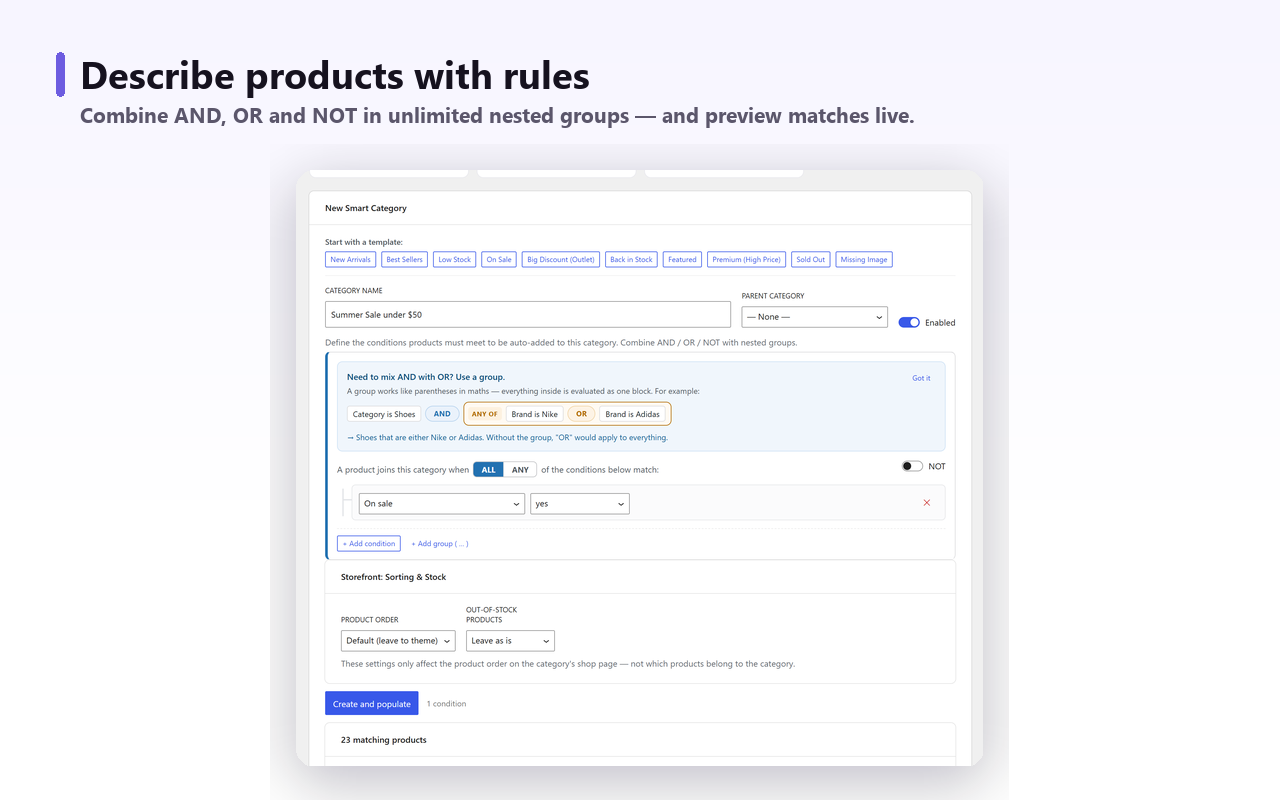
Smart Categories for WooCommerce attaches a rule set to a real product_cat term, so the outcome is the same object described in Level 3 — an ordinary category with an ordinary archive, counts, breadcrumbs and menu behaviour. For this page the rule is two conditions in one ALL OF group:
- Date created — in last 30 days. Or the Custom field matcher with your own
_first_stockedkey, if the post date lies to you. - Stock status — equals In stock. The sold-out novelty leaves the page and returns when it is restocked.
The expiry is the daily sweep. Products are re-evaluated when they are created or updated and when price or stock changes, plus once a day for everything — which is what catches products crossing the 30-day line, since nothing about that product changed on the day it aged out. Matching runs in the background through Action Scheduler in batches, not on page load. Assignments you made by hand are preserved, including products that were already in the category before you attached the rule: the plugin records the memberships it created and only removes those, so there is no pinned list to keep up to date.
You can see the matching products and the count while you compose the rule, before saving, which mostly exists so you find out that your 30-day window returns four products before you publish the page rather than after.
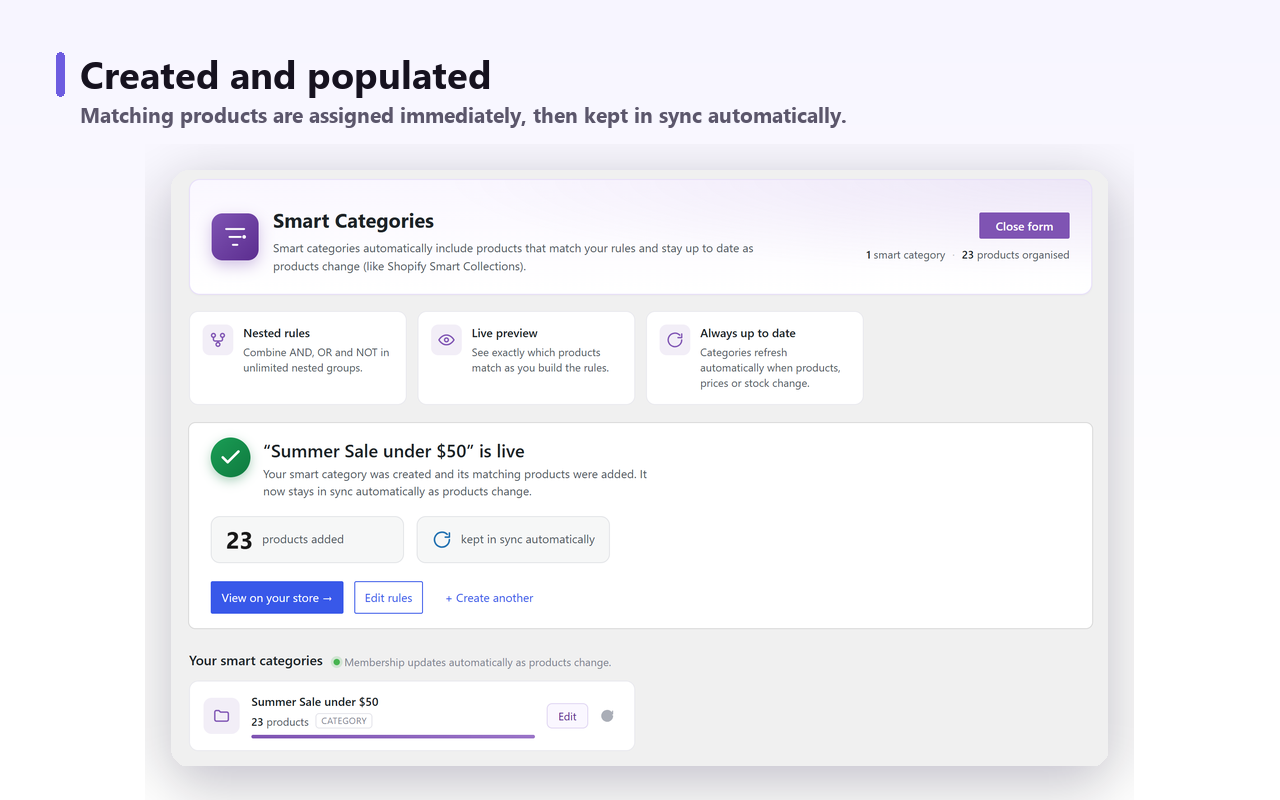
Date created, Stock status and the Custom field matcher are all in the free version on wordpress.org, with no cap on categories, rules or products — true as of September 2026. Nothing in this article needs the paid tier.
What none of this fixes#
A new arrivals category is a merchandising page first and an SEO page second, and it is worth being clear about where the boundary sits.
- Meta titles and descriptions. No category-automation tool writes these, ours included. Yoast, Rank Math or SEOPress own that, and you should write the New Arrivals meta by hand once.
- Whether to index it at all. A category whose membership rotates completely every 30 days, with a handful of products at a time, is a hard page to rank and may not get indexed whatever you do. Decide it on the count: if the page consistently holds roughly twenty products or more — about two screens — and you have written a real category description, index it. If your publishing rate leaves it under about ten most weeks, keep it out of the XML sitemap, set it to noindex in Yoast, Rank Math or SEOPress, and treat it as a menu-and-email page rather than a landing page. Why WooCommerce category pages are not indexed goes into what Google actually does with these.
- Redirects. If you are restructuring categories around this, redirects are a separate job with a separate tool — a redirect plugin or a server rule.
The short version: if you only need customers to find fresh stock, ?orderby=date is free and takes a minute. If you need a page you can link, style and send traffic to, build a real category — and decide on day one what removes products from it, because that decision is the difference between a New Arrivals page and a slowly growing copy of your catalogue.