WooCommerce POS: the built-in point of sale, and every other route
Yes, WooCommerce has a POS mode since 9.6 - on a tablet, in ten countries. What it needs, what it will not scan, and the honest limits of every till.
Updated
In this article20 sections
If you sell over a counter as well as online, you have probably heard that WooCommerce has a point of sale now. That is true, and it is more interesting than the answer used to be — but it is not the whole answer, and the gap between “WooCommerce has POS mode” and “WooCommerce will ring up my shop tomorrow morning” is wide enough to fall into.
This is the map. What POS mode is, what it demands before it takes a single payment, where it runs, what it will not scan, what plain WooCommerce already does at a counter without any of it, and the third route — a till inside the wp-admin you already have open. It also contains the part most vendor pages leave out: the things no browser-based till can do, ours included, written plainly enough that you can rule us out on this page rather than after you have installed something.
What “point of sale” actually means when the shop is already a WooCommerce store#
Strip the category down and a till does four jobs. It gets the right line into a basket quickly, usually from a barcode. It takes money and records how the money arrived. It moves stock. And it leaves a record that still makes sense at the end of the month, when someone counts the drawer and asks why the figures disagree.
A WooCommerce store already owns the hard parts of three of those. The products exist. The prices, tax classes and tax rules exist. The stock figures exist. The order record — the thing every accountant and every report reads — exists. What is missing at a counter is speed and a shape: a screen that is one keystroke wide, and a workflow that does not assume a customer is filling in a checkout form on the other side of the internet.
That framing matters, because it decides what you are actually shopping for. You are not looking for a system to hold your catalogue. You are looking for something to drive the catalogue you have, fast, in front of a person holding a jumper.
The short answer: yes, WooCommerce has a POS mode#
Since WooCommerce 9.6, there is an official point of sale mode. It does not live in your browser. It lives in the Woo mobile app. On WooCommerce 10.9 and earlier the feature had to be switched on under the experimental features at Settings → Advanced → Features; from WooCommerce 11.0 that toggle was removed, and the mode is simply there for stores that qualify. Qualifying is the operative word, and it is where most evaluations end.
It is also actively developed. Everything in the next three sections — the requirements, the device it runs on and the scanning — was true of WooCommerce’s own documentation when this was written, in August 2026, and some of it will have moved on by the time you read it. Check the current docs before you buy hardware on the strength of a blog post — including this one.
What WooCommerce POS mode needs before it rings up a single sale#
The requirements list is longer than the announcement suggests:
- WooCommerce 9.6 or later, plus a recent Woo mobile app — 21.8 as a floor, 24.7 in some countries.
- A tablet. iOS 18 or later, or Android 9 or later with a screen of at least 674 dp on the short side and 800 dp on the long side. Phones are not the target: at the time of writing, iPhone POS is limited to UK merchants, on iOS 26 or later with app build 25.1 or later.
- A supported country, with your store address in it and your store currency matching it. The supported list is real but finite — Australia, Canada, Finland, Ireland, Luxembourg, the Netherlands, New Zealand, Singapore, the UK and the US.
- WooPayments or Stripe, if you want to take cards. Cash is a payment option in the app itself, and it works out the change.
- A card reader for card-present payments — the M2 in the US, the WisePad 3 in the other supported markets, or remote tap-to-pay on an Android phone. The reader is bought, and with WooPayments an external reader also carries a monthly fee in any month it sees three or more transaction attempts, on top of processing fees. Check current pricing rather than assuming free software makes the till free.
- Supported product types. Simple physical, variable and virtual products are covered; other types are documented as coming in future updates.
None of that is unreasonable for what it is: a proper card-present retail terminal backed by a payment processor. It is unreasonable only if you assumed it was a screen you could open on the computer already sitting at your counter.
Where it runs: a tablet, not the browser you already have open#
This is the single fact that decides whether POS mode is your answer, and it deserves more than a bullet. POS mode is an app on a tablet. If your counter has a desktop PC, a laptop, an all-in-one, or a monitor on a shelf with a keyboard under it, POS mode does not run on it. You buy a tablet, or you do not use POS mode.
For a shop that is genuinely retail — a queue, a card machine, a drawer — a dedicated tablet at the till is a sensible purchase and the tablet is not the expensive part. For a workshop, a studio, a market stall, a warehouse trade counter, or an online shop that sells to the occasional walk-in, buying a second device to run a second interface is exactly the overhead you were trying to avoid.
What it will not do: camera scanning, and why that matters for a one-till shop#
POS mode scans. The documentation describes connecting a supported external barcode scanner — a hardware gun — which then drops products into the cart. What it does not describe is scanning with the camera of the tablet you are already holding.
For a shop with a scanner gun, that is fine. For a shop deciding whether to start scanning at all, it is the whole question, because the cheapest scanner in any shop is the phone in the cashier’s pocket. Browsers can decode barcodes from a live camera now — natively where the browser ships a barcode detector, and through a bundled decoder library where it does not — which means a phone can be a till scanner with nothing installed on it. We wrote up how that works at a counter, and where it falls apart, in scanning barcodes at the till with just a phone. If your interest is counting stock rather than selling it, that is a different job with a different rhythm, covered in counting stock with your phone camera.
And whichever device does the scanning, the beep is only half of it. The other half is whether the code the scanner read matches a field WooCommerce actually searches — which is its own failure, with its own post: why your scanner says “product not found”.
What WooCommerce core already gives you at a counter — and exactly where it stops#
Before any of this, plain WooCommerce can record a counter sale today. WooCommerce → Orders → Add order gives you a form: search a product, add the line, set a quantity, attach a customer, set a status, save. For a shop taking three walk-ins a week, that is a legitimate answer and it costs nothing.
It stops in four places, all of them sharp:
- Stock moves when the status says so, not when you save. WooCommerce reduces stock when an order reaches Processing, On hold or Completed, an admin-created one included; nothing moves while the order sits at Pending payment or as a draft. There is no button on the order screen meaning reduce stock now either — the only stock control there is the restock tickbox in the refund panel. So a counter sale parked at Pending payment leaves the shelf and the screen drifting apart until somebody changes the status. That is one more thing a person has to remember, and it has its own post: why manual orders don’t reduce stock.
- There is no scan box. The product picker is a search field designed for someone with time.
- There is no receipt in the roll-of-paper sense, and no returns workflow for a customer who arrives holding the item and no order number.
- Every safeguard is a thing a human must remember at half past five with a queue. That is the real cost, and it does not appear until the month you reconcile.
The order form is not a till. It is a way of writing a sale down after the fact, and whether the stock figure follows depends on a tired person picking the right status on the way out.
The other route: a till inside wp-admin, where a counter sale is a WooCommerce order#
The third option is to put the till in the browser you already have open — a POS screen inside wp-admin, running on the products, prices, tax rules, stock and orders already in the database. That is what Retail POS does, and it is free on WordPress.org. Since we build it, treat this section as a description rather than a recommendation — the limits section below is where you should actually make up your mind.
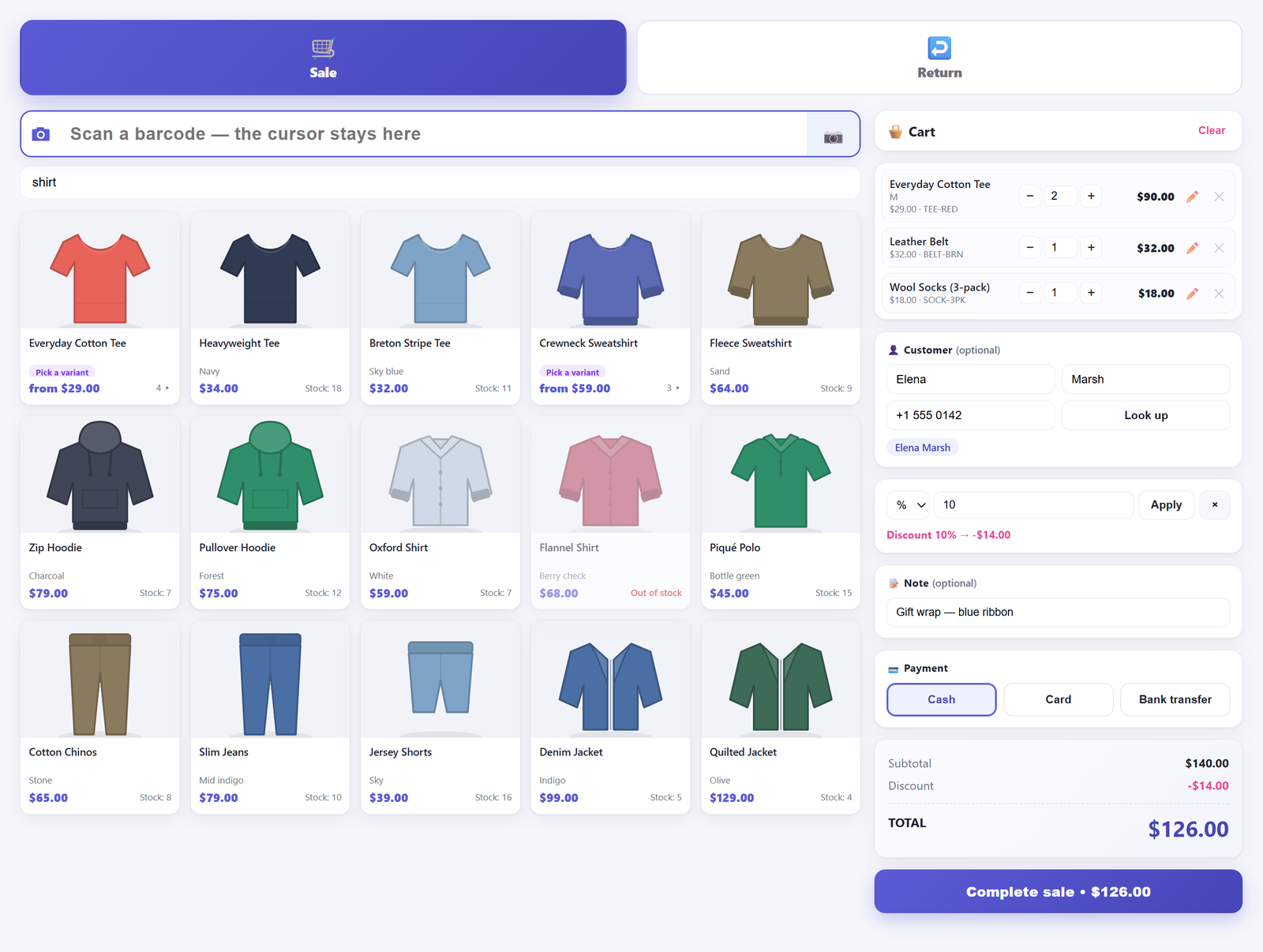
The loop it is built around is short. A scanner gun types into the scan box and it fires by itself once four or more characters land, so there is no Enter suffix to programme and no field to click back into. A scanned code is resolved against the product’s barcode field, then WooCommerce’s own GTIN field, then the SKU, and a variation wins over its parent. No barcode at all? Type two characters of the name. A variable product opens a variant picker with each size’s price, stock and code on screen.
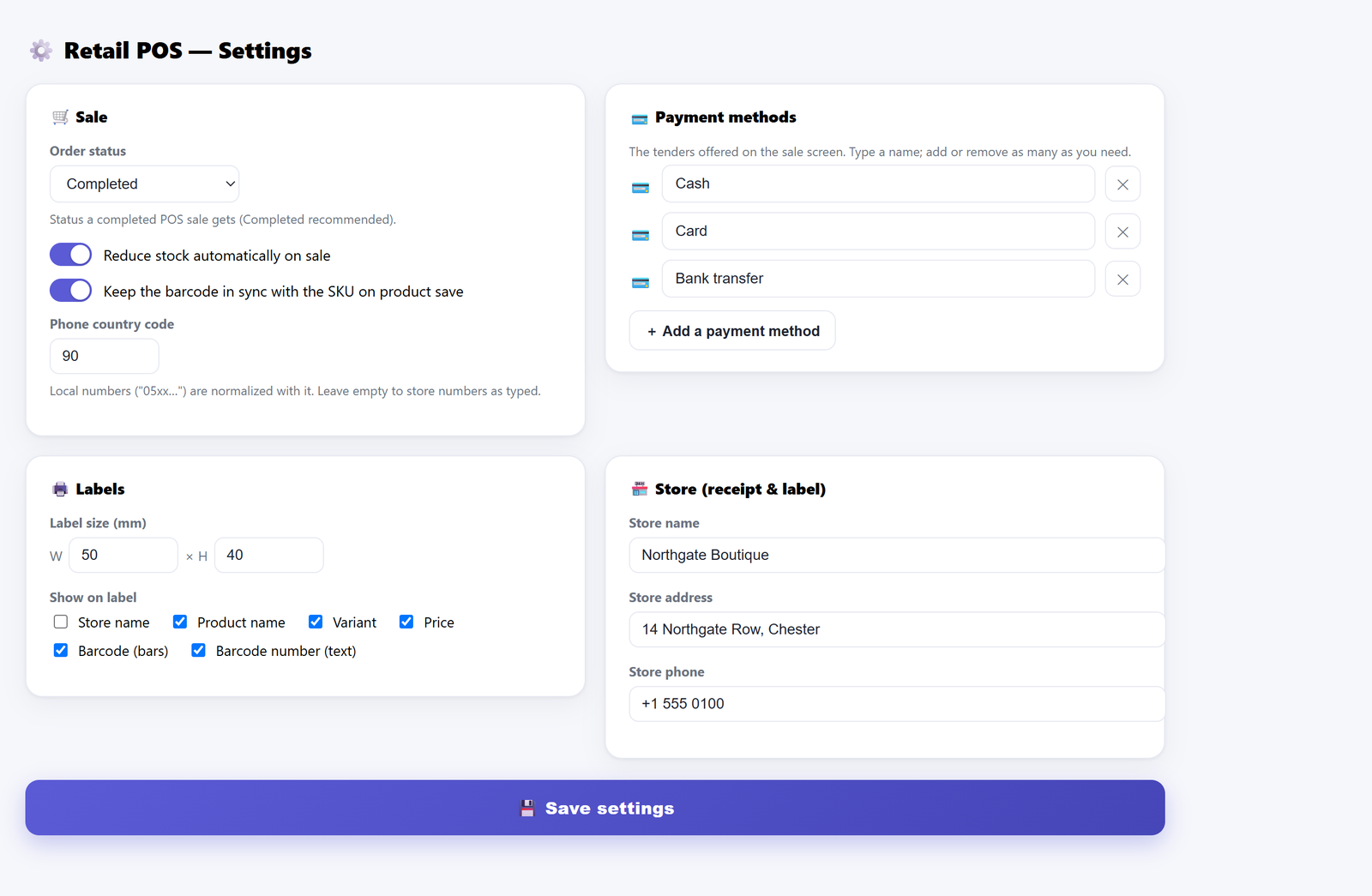
Setup is a settings page rather than a hardware pairing: what a POS order’s status should be, whether a sale reduces stock, the tenders you want on the buttons, and the store details printed at the top of a receipt.
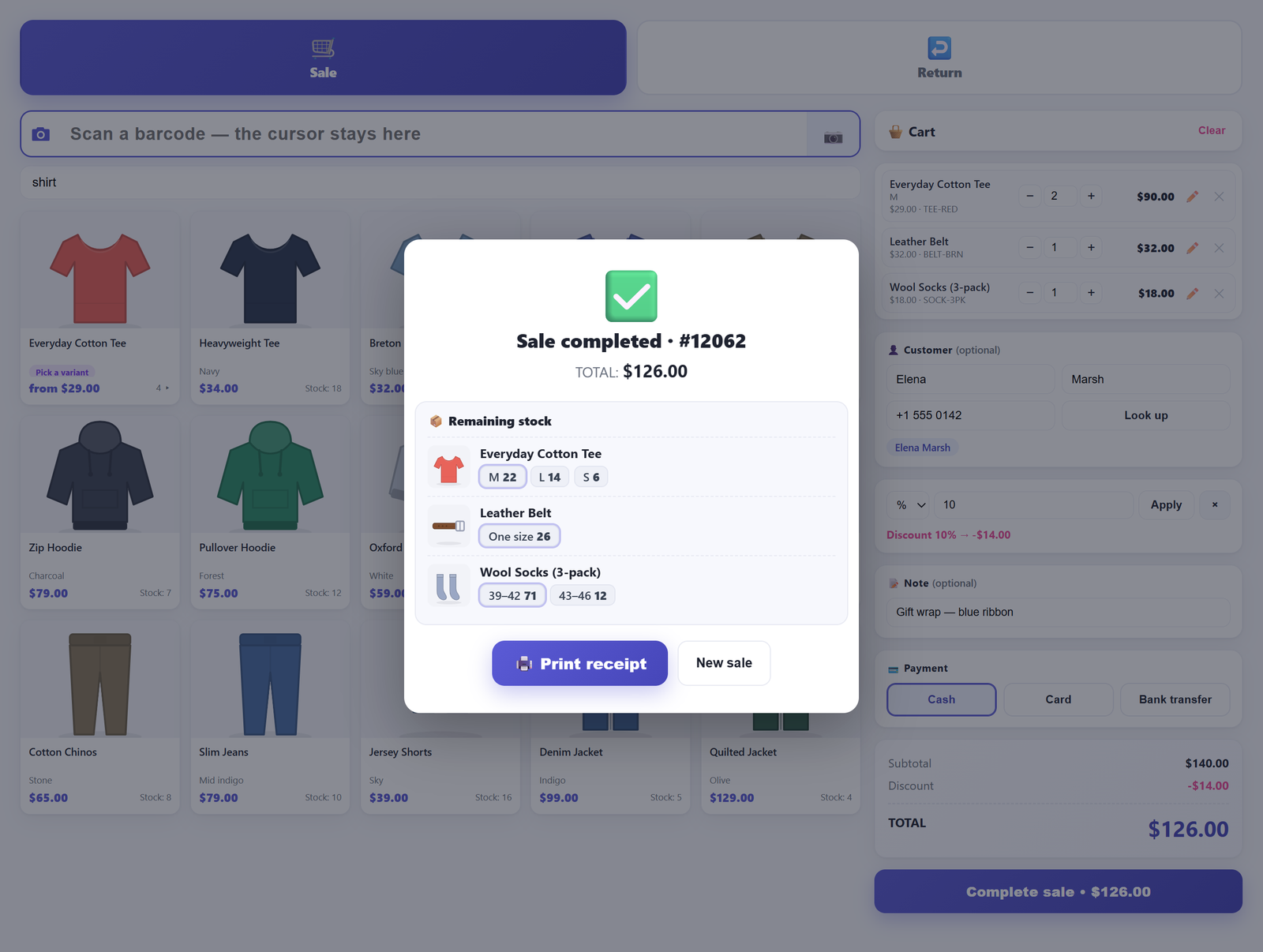
Money behaves the way a counter needs it to. Every figure the terminal quotes — each line, the subtotal, the button you press to finish — is the gross, tax-inclusive amount the customer hands over, whichever way your shop displays prices elsewhere. Tax stays WooCommerce’s job. A manual discount scales the line totals proportionally rather than dropping in a negative fee, which is what keeps VAT correct in a basket that mixes two rates; that argument, with the arithmetic, is in why your discount comes out wrong on tax-inclusive prices. A sale in the free version is settled by exactly one payment method covering the full total — splitting a sale between cash and card is a Pro capability, and the post explains the workarounds before it says so.
Returns are blind, which is the situation WooCommerce has no concept of: the item is here, the order number is not. Scan what came back, refund it, and stock is restored — provided stock reduction is switched on, because a shop that has told the plugin not to touch stock should not have it touched on the way back either. The full workflow is in taking a return without a receipt.
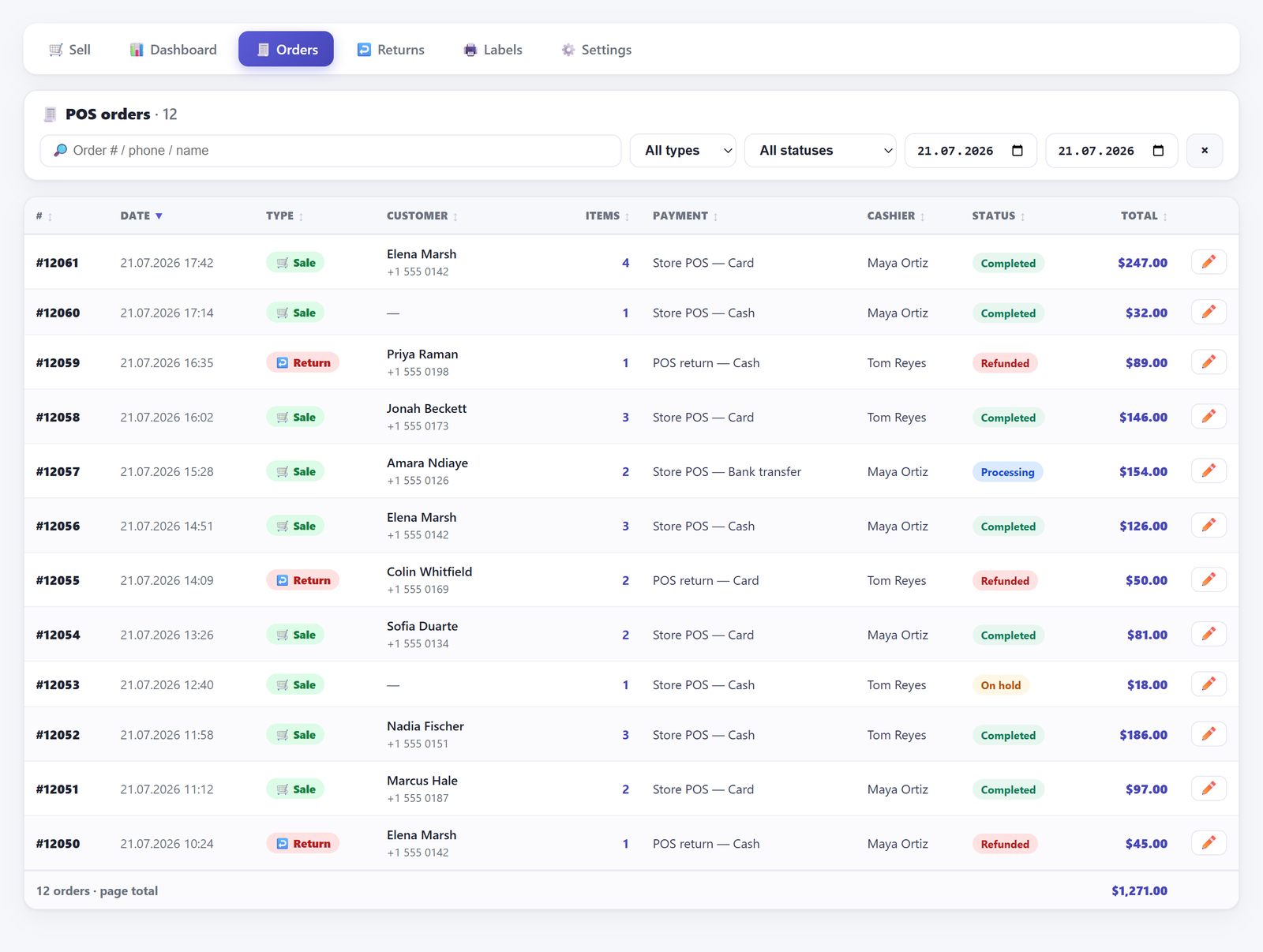
The point of the whole exercise is the record. There is no second system to reconcile, because a counter sale is an ordinary WooCommerce order with a payment method of its own — visible in WooCommerce → Orders, counted by Analytics like any other order of that status, and reachable by whatever you already use to export orders.
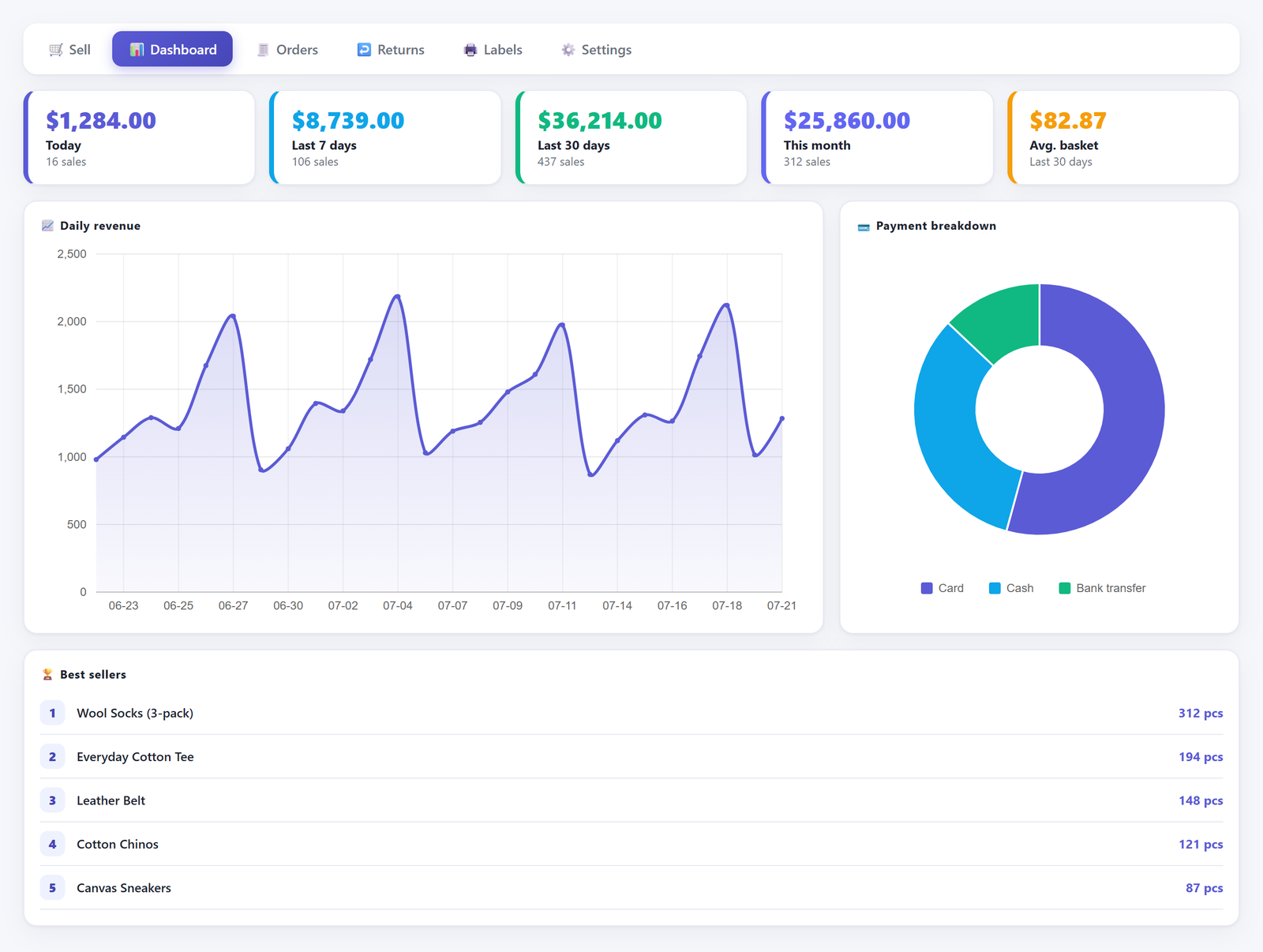
Above that sits a dashboard: today, the last 7 days, the rolling 30 days and the calendar month to date, with returns and partial refunds netted out, alongside an average basket. Those four windows disagree with each other on purpose, because they answer four different questions — which is the most common reason a shop thinks its reporting is broken when it is not. That one is why your sales report doesn’t match the till.
Side by side#
| WooCommerce POS mode | Core “Add order” | A till in wp-admin | |
|---|---|---|---|
| Where it runs | Woo mobile app on a tablet (iPhone in the UK only) | Any browser, in wp-admin | Any browser, in wp-admin |
| Extra hardware | Tablet, plus a card reader for cards | None | None required; a scanner gun optional |
| Card payments | Yes — WooPayments or Stripe, card-present | No | No — you charge on your own terminal and record the tender |
| Scanning | Supported external hardware scanner | None | Scanner gun, phone camera, or a photo |
| Stock movement | Handled by the sale | On a status change to Processing, On hold or Completed; nothing at Pending payment | Handled by the sale, through WooCommerce core, and it is a setting |
| Availability | Ten supported countries at the time of writing | Anywhere | Anywhere |
| Cost | Free software; reader fees and processing fees | Free | Free; Pro is paid |
What no browser-based till can do — including ours#
This is the part to read twice, because it is where a purchase goes wrong.
- There is no offline mode. Not in our free version, not in our Pro version. A wp-admin screen is a conversation with your server: every scan, every search, every sale is a request. If the connection drops at the counter, the till stops with it. If your shop loses internet regularly, buy a terminal that queues sales locally — that is a real category of product and we are not in it.
- We do not process card payments. The payment buttons are bookkeeping labels you define, not gateways. You take the card on whatever machine your bank gave you, then press Card so the sale is recorded against the right tender. If you want the card charged by the same screen that rings the sale, that is precisely what WooCommerce POS mode with WooPayments or Stripe is for.
- No cash-drawer control. Nothing here sends a kick signal to a cash drawer. Pro adds a cash register with opening float, cash-ins, expenses and an expected-versus-counted close — that is a ledger, not a solenoid. The drawer stays a drawer you open with your hand.
- No printer driver, no ESC/POS, no auto-print. The receipt opens as a narrow monospace window sized for thermal roll paper and prints through the browser’s own print dialog. Any printer your browser can print to will work, thermal rolls included, but there is no driver-level integration and no sale that prints itself without a person pressing print.
- The cart caps an oversell; the server does not block one. While you are building a basket, a stock-managed line is capped at the stock on hand and you get a warning — a busy counter cannot quietly sell four of the three you have. The server deliberately does not refuse: if the numbers still do not add up when the sale is submitted, the sale completes, the stock can go negative, and the confirmation screen tells you so in plain language. That is the right default when a customer is standing there holding the item, and it is a design decision rather than an oversight, but you should know which half is which.
- No profit figures in the free version. The quick editor records a unit cost against the product, and free never shows it back to you as a margin, a markup or a profit line anywhere. Profit reporting is Pro. If margins are what you came for, the free tier will not answer that question.
- It prints the codes you have; it does not invent them. The label screen prints scannable labels for products that already carry a SKU or barcode. A product with neither still gets a label with its name and price on it — there are simply no bars, because the plugin will not mint a code that nothing in the shop carries.
- Counter sales stop e-mailing people, and there is no switch on the settings screen for it. A customer who is standing in front of you gets a printed receipt, not a “your order” e-mail, and the admin new-order notice is suppressed for counter sales too — a shop ringing two hundred sales a day should not send its owner two hundred e-mails about transactions they were present for. WooCommerce’s own low-stock, no-stock and backorder notices are a different mechanism and are untouched: they still go out exactly as your stock settings say. Orders from your website are untouched too, and mail exactly as they always did.
How to choose: three shop shapes#
You are an online shop that occasionally sells to someone in person#
Do not buy anything yet. Core’s Add order screen genuinely covers a handful of sales a week, as long as you save each one at a status that reduces stock — Processing, On hold or Completed — rather than leaving it at Pending payment and meaning to come back to it. Come back when remembering that stops working.
One till, a queue, and the computer already at the counter#
This is the shape a browser till fits. You have a machine at the counter, you may have a scanner gun or a phone, you take cash and you take cards on the bank’s own terminal. What you need is speed, stock that moves by itself, receipts, returns without an order number, and one set of numbers at close. Install the free plugin, sell one item, and you will know within a minute whether the counter likes it — the documentation walks through each screen if you want to read first.
Card-present volume is the business#
If most of your money arrives through a card machine and you are in one of the supported countries, WooCommerce POS mode with WooPayments or Stripe is the more coherent answer, because the payment and the sale are the same action instead of two actions you reconcile. Buy the tablet, buy the reader, and accept the constraints on scanning and product types until they lift.
Frequently asked questions#
Does WooCommerce include a point of sale out of the box?#
Yes, in the sense that a POS mode ships with WooCommerce and needs no third-party plugin — and no, in the sense that it will not run on the computer at your counter. It runs in the Woo mobile app on a tablet, in a limited set of countries, and card payments need WooPayments or Stripe with a reader. Plain WooCommerce in the browser gives you an order form, not a till.
Which version of WooCommerce added POS mode?#
WooCommerce 9.6. On WooCommerce 10.9 and earlier it had to be enabled under the experimental features in Settings → Advanced → Features; from WooCommerce 11.0 that toggle is gone. You also need a recent Woo mobile app build — 21.8 as a floor, 24.7 in some countries.
Do I need WooPayments or Stripe to take card payments in WooCommerce POS mode?#
For card-present payments in POS mode, yes — one of those two, plus a supported reader such as the M2 or the WisePad 3, or remote tap-to-pay on an Android phone. Cash needs no reader. If you would rather keep the bank terminal you already have, a wp-admin till is the route that fits: it records which tender settled the sale without wanting to be the one that charges the card.
Can I use my phone’s camera as a scanner with WooCommerce POS mode?#
Not as POS mode is documented at the time of writing: its scanning path is a connected external hardware scanner, and it is built for tablets rather than phones. It is under active development, so check the current documentation before you rule it in or out. Camera scanning at the till is possible in a browser — that is a separate post — but it is not something POS mode offers.
Does a WooCommerce POS work offline?#
Not in any of the routes described here. A wp-admin till needs a live connection for every scan, search and sale, and POS mode’s documentation describes no offline mode — a card-present payment is an online authorisation in any case. Some products cache the catalogue for browsing, which is not the same thing as taking money with the line down. If outages are normal in your shop, make offline queuing your first filter and rule most of this category out on it.
Do counter sales show up as ordinary WooCommerce orders and in normal reports?#
With a wp-admin till, yes: a counter sale is a WooCommerce order, tagged as a POS sale and carrying the status you configure, so it appears in WooCommerce → Orders, gets counted by Analytics like any other order of that status, and moves stock through WooCommerce core rather than through a sync layer. That is the entire point of putting the till inside the store instead of beside it — and it is why, at close, there is one set of numbers to argue with rather than two.