Why your WooCommerce sales report doesn’t match your orders or takings
Refunds, date windows, timezone and order statuses: why a WooCommerce sales report disagrees with your orders and your drawer — rarely because of a bug.
Updated
In this article19 sections
It is six o’clock, the shutters are half down, and two numbers are looking at each other. One is on a screen. One is the cash in your hand plus whatever the card terminal says it settled. They are close. They are not the same. And the gap is never quite the same size twice.
This is one of the most common questions a shop owner asks after their first month of selling in person through WooCommerce. One answer is worth ruling out before anything else, because it is real: WooCommerce Analytics does not read your orders directly, it reads its own lookup tables, and those are filled by background jobs. If that queue is stuck or still catching up, Analytics genuinely lags behind. You can see the queue at WooCommerce → Status → Scheduled Actions, and Analytics → Settings has an Import historical data control that rebuilds the tables. Its signature is distinctive, though: Analytics is behind on everything, including whole orders sitting plainly in your orders list.
Once that is ruled out, a mismatch between a WooCommerce sales figure and the takings at the counter comes from one of five causes, and none of them is usually a bug — they are two screens honestly answering two different questions.
This post walks all five, in the order worth checking them. It is written from the counter, so it assumes some of your sales are rung up in person. If your problem is that a hand-keyed order never moved your inventory in the first place, that is a different failure with a different fix, and it is covered in why WooCommerce manual orders don’t reduce stock. If you are still deciding whether to sell in person through WooCommerce at all, start at does WooCommerce have a built-in point of sale.
Two screens, two numbers, and which one to trust first#
Before you go hunting, decide what you are reconciling to. There are three candidate truths in a small shop and they are not interchangeable:
- The drawer and the terminal. Physical cash counted, plus the card machine’s own settlement report. This is the truth about money.
- The order records. What WooCommerce believes was sold, at what price, on what date, in what status. This is the truth about transactions.
- A report screen. A summary computed from the order records over a window, with rules about which statuses count and how refunds are treated. This is a question asked of the transactions, and the answer changes with the question.
Most mismatches are a disagreement between the second and the third, and the second is the one to trust. Order records are individual, dated and inspectable. A report is an aggregation with assumptions baked in. So the first move is never “which screen is broken” — it is “which orders is this screen counting, and over what dates”.
Cause one: the total counts sales but not the money that went back out#
This is the easiest cause to miss, because a returns figure is invisible by nature. Nobody notices the absence of a subtraction.
There are two separate ways money leaves the drawer after a sale, and a report has to catch both:
- A partial or full refund against the original order. WooCommerce records this as a refund attached to the order. Crucially, the order’s own total does not change — a £40 order that you refund £10 of still reports a total of £40. Only the refunded amount, read separately, reveals the £10.
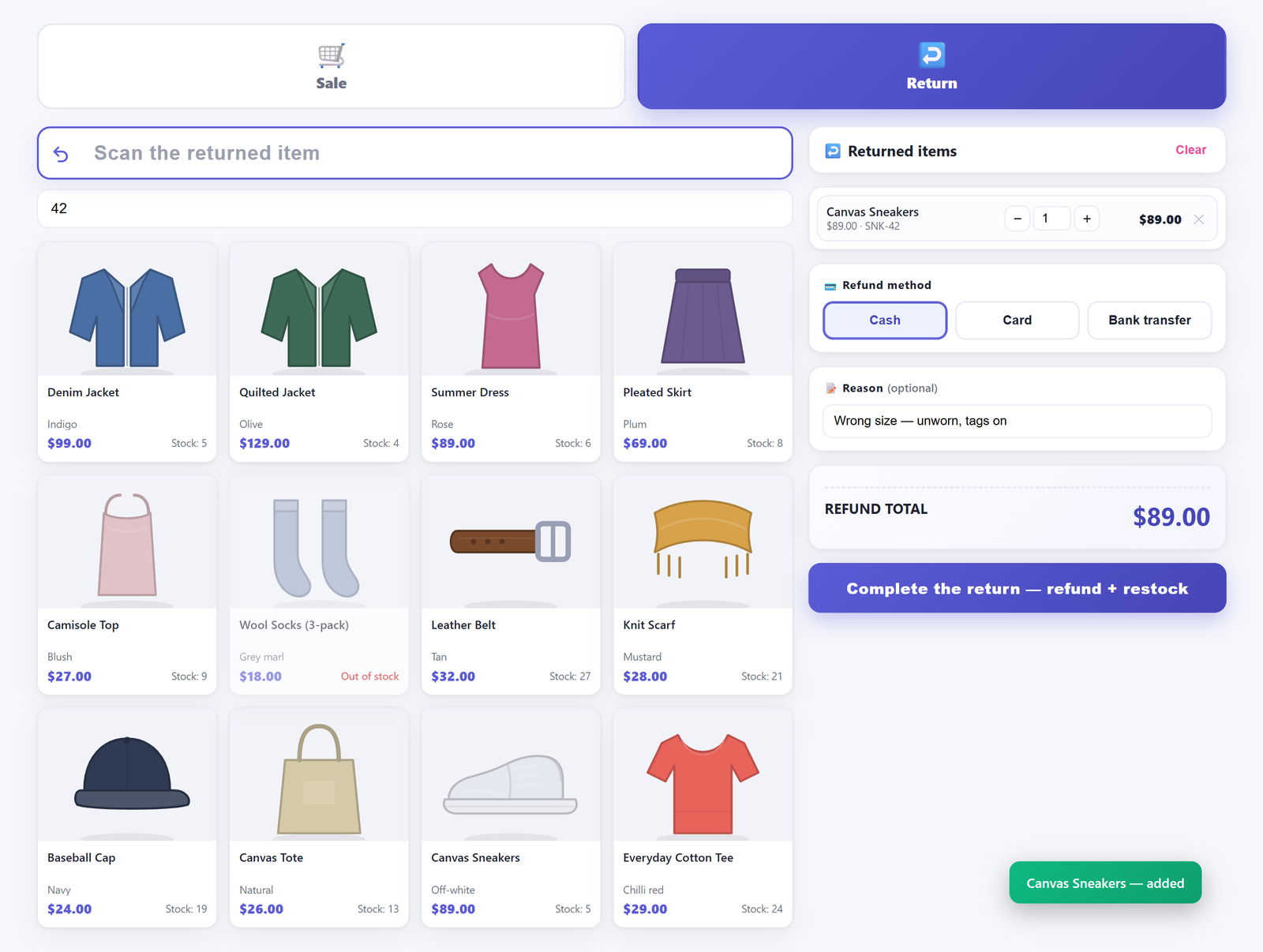
- A return where the original order is not involved at all. Somebody walks in with an item and no order number, and you take it back. There is nothing to attach a refund to, so the return has to be its own document. Details of how that is taken are in how to take a return without a receipt — this post is only concerned with what it does to your totals.
In our counter plugin, a blind return is stored as its own WooCommerce order, with a positive total, parked at the Refunded status and carrying a marker that identifies it as a return. The dashboard reads that marker and subtracts the amount from the period. Refunds against ordinary sales are netted out separately, by reading each order’s refunded amount rather than trusting its status. Both matter, and one without the other still gives you a wrong number.
That marker is doing more work than it looks. Status alone is not proof of anything: a perfectly ordinary counter sale that you later refund in full with WooCommerce’s own Refund button also ends up at Refunded — a partial refund leaves the status where it was. A report that reads “status equals refunded” as “this is money going out” will subtract that sale’s whole value on top of a net that already came to zero — so a £37.80 sale moves the day by minus £37.80 instead of by nothing. If you are writing your own reconciliation query, that is the trap to avoid.
That shape has a consequence outside our own screens too. To WooCommerce’s own reporting, a counter return is an ordinary order carrying a positive total at Refunded with no refund record attached, because the money went across the counter rather than back through a gateway. Whether it appears in those figures at all, and with which sign, depends on which statuses that screen counts. For a netted counter figure, read the counter’s own dashboard.
On WooCommerce’s own Analytics screens, check whether you are reading gross sales or net sales. They are different columns: net sales is gross sales less returns and less coupons, so the gap between them is more than the refunds alone. Gross sales also leaves out tax and shipping, which is a second reason it will never tie out against a counted drawer.
Cause two: “this month” and “last 30 days” are different questions#
People treat these as synonyms and they are not. On the 20th of the month, “this month” covers 20 days and “last 30 days” covers 30, including ten days from the previous month. On the 3rd of the month they differ by almost everything. The two figures can disagree by a wide margin and both be perfectly correct.
A rolling window is the right question for “is trade holding up” — it always covers the same amount of time and it does not lurch on the 1st. A calendar month is the right question for “what do I owe, and what do I report” — your accountant, your VAT return and your rent do not run on rolling windows. Because both are legitimate, our dashboard shows both rather than picking one: a rolling Last 30 days card and a separate This month card for the calendar month to date. Compare one against a figure computed the other way and you will chase a discrepancy that does not exist.
One implementation detail worth knowing if you are checking the maths yourself: Last 7 days means today plus the previous six days, and Last 30 days means today plus the previous 29 — seven and thirty calendar days including the one you are standing in, each starting at midnight rather than at the same clock time 7 × 24 hours ago. A window that starts mid-afternoon 30 days back will not match one that starts at midnight, and that alone accounts for a lot of small disagreements.
Cause three: the day boundary belongs to your shop, not your server#
This one produces the most maddening symptom: totals that are almost right, off by one or two transactions, and only on days when you served someone late.
A “day” is a range between two midnights, and midnight is a local idea. If a report computes its boundaries in UTC while your shop is in Istanbul or Lisbon or Chicago, every sale rung up between your local midnight and the server’s lands on the wrong day. Nothing is lost — the money is all there in the monthly figure — but Tuesday is short and Wednesday is long, and staff who reconcile daily will find it before you do.
Three things to check on your own store:
- WordPress Settings → General → Timezone. Choose a city, not a raw UTC offset. A city knows about daylight saving; a fixed offset does not. A store set to “UTC+1” stays exactly where it is while the local clocks move, so for the part of the year the two disagree, every day boundary is an hour away from the one your staff are working to.
- Which date field the report buckets by. An order has a created date, and it may have a paid date and a completed date. If two screens bucket by different fields, an order created at 23:50 and completed at 00:10 lands on different days on each. At the counter these are usually the same instant, so this bites hardest when orders are edited after the fact.
- Your own habit. If you cash up at 6pm but the shop is open until 8, your “day” and the report’s day are simply different windows. That is not a software problem, but it is a reconciliation problem.
The counter dashboard computes every boundary in the WordPress site timezone, and it double-checks “today” against the order’s own local date so that a daylight-saving shift cannot quietly pull a sale into or out of the day. That does not fix a store whose timezone setting is wrong — nothing can — but it does mean the setting is the only thing you have to get right.
Cause four: which order statuses count as money#
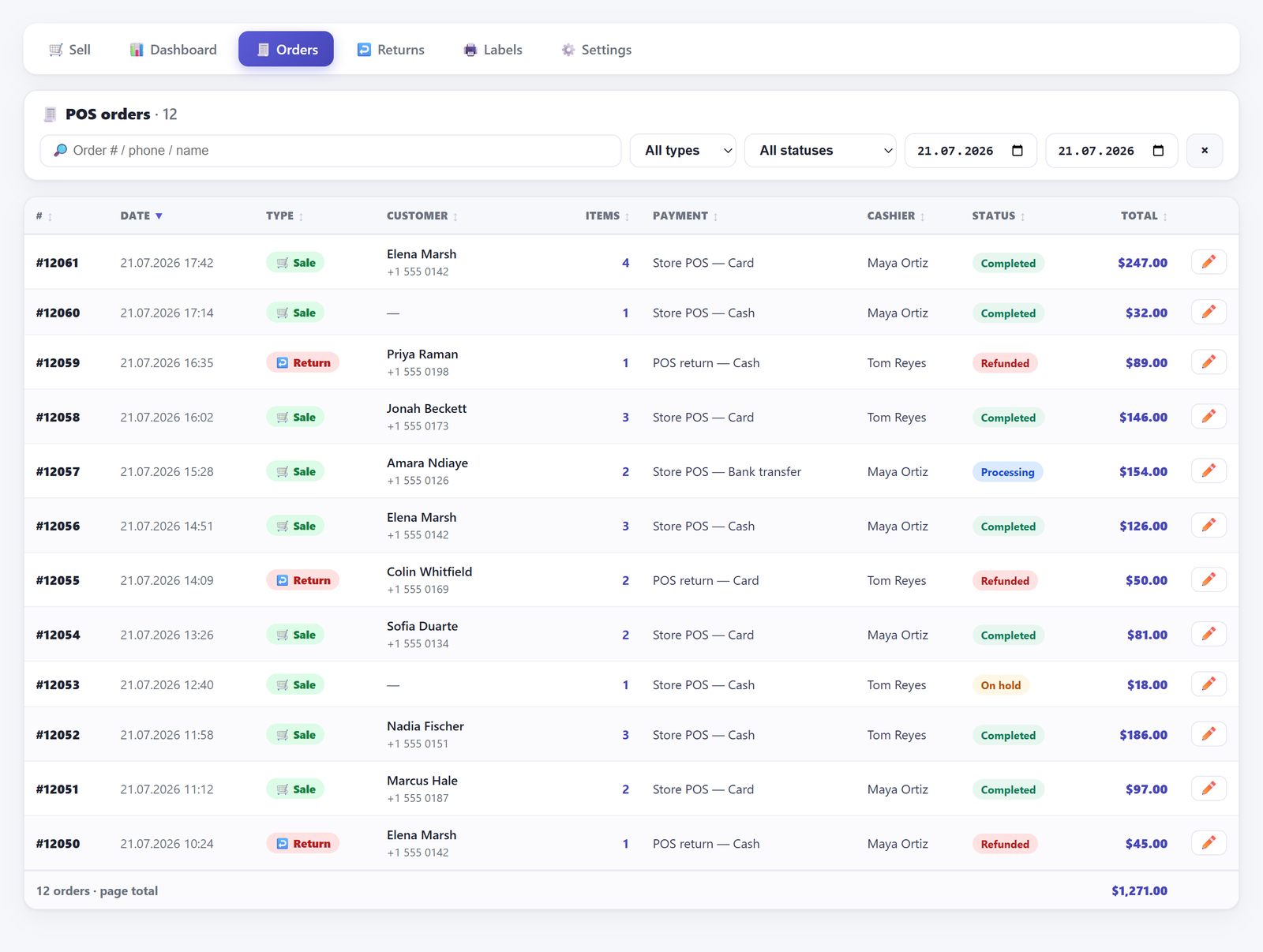
Every report makes a decision about statuses, and different reports make different decisions. On our dashboard the rule is explicit: Completed, Processing and On hold count as a POS sale. Pending, Cancelled and Failed never do. Refunded orders are loaded — they have to be, or returns would be invisible — but they are classified by the return marker described above rather than by their status.
Two practical consequences:
- The status a counter sale is saved with is a setting, and it is the same three options: Completed, Processing or On hold. Most shops want Completed, because the customer paid and walked out with the goods. If yours is set to something else, make sure whatever else you reconcile against counts that status too.
- WooCommerce’s own Analytics has an excluded-statuses setting, which by default excludes Pending payment, Cancelled and Failed. If a status you actively use is on that exclusion list, that whole category of order will be missing from Analytics while sitting perfectly visible in your orders list. Check it before you conclude that orders have gone astray.
A related case worth naming: orders that never entered the numbers properly in the first place, because they were created by hand and something was skipped. Those show up as a shortfall in every report at once, which is a useful signature — a gap that appears on all screens is usually an order problem, not a reporting one. That failure mode is covered in the post on manual orders.
Cause five: counter takings and website orders in the same bucket#
If you sell both online and in person, a single “sales today” figure is nearly useless for cash-up. It mixes money that physically crossed your counter with money that settled through a payment gateway, and there is nothing in the drawer to match the second half against.
Counter sales made through our plugin are all written with the same payment method identifier and a marker of their own, which is what makes them separable. The dashboard is scoped to counter orders only — website orders are not in it. The POS order list is scoped the same way, so nothing from your website appears in it at all, and it adds filters for type, status and a date range on top of that, so you can pull just the returns for a week, or just the sales for one day.
The symmetry cuts both ways: because the dashboard shows counter takings only, it is not a whole-business report. It answers “what did the till take”, and for “what did the business take” you still want WooCommerce’s own Analytics across both channels.
Reading a counter dashboard: four windows, on purpose#
Once you accept that a report is a question rather than a fact, a dashboard with four different windows stops being confusing and starts being useful. Here is what each card on ours is actually measuring.
What each figure means#
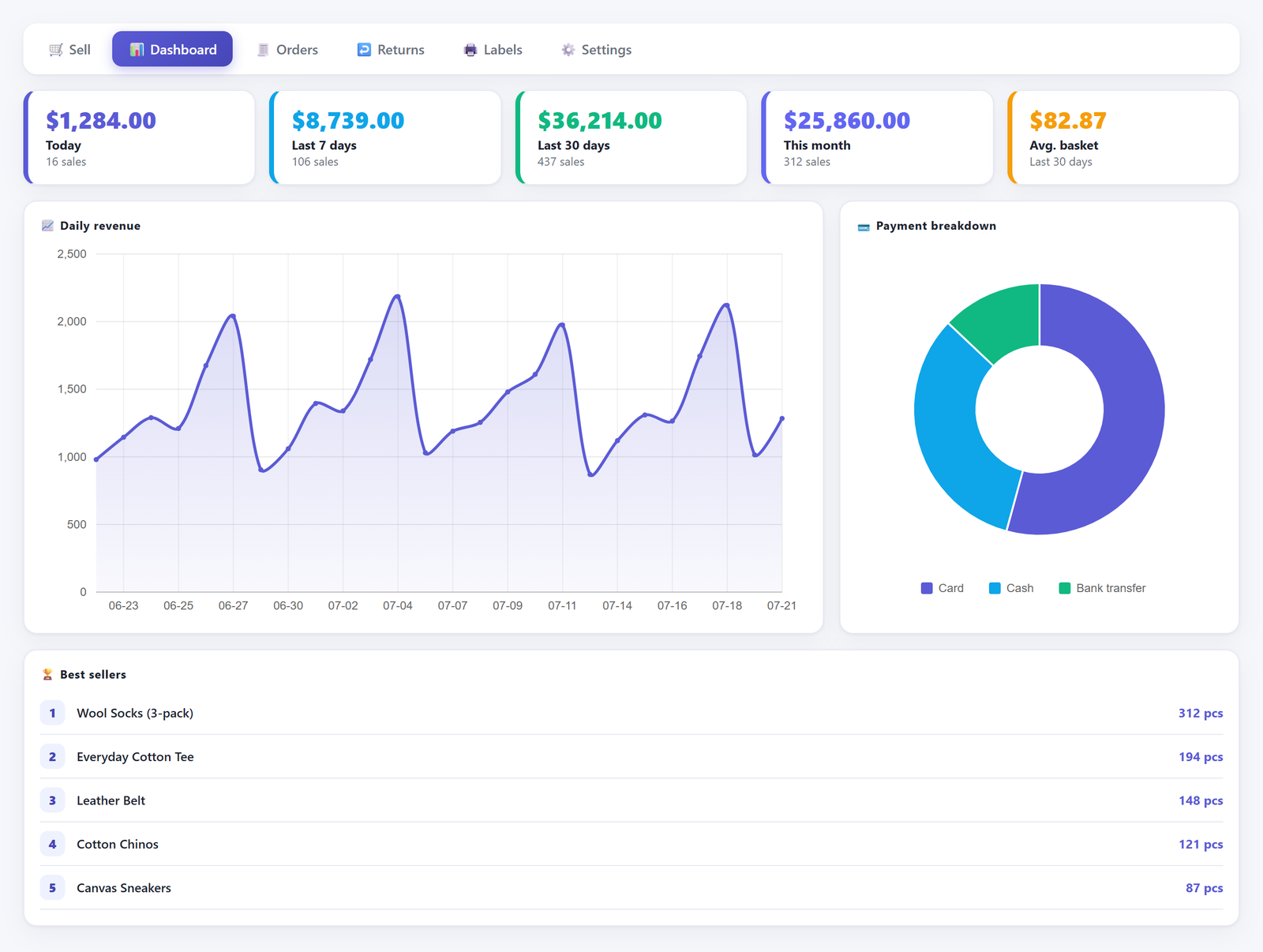
- Today — counter sales since local midnight, net of returns and of any refunds issued against those sales. The sub-label counts sales only, so a day with three sales and one return reads as three.
- Last 7 days and Last 30 days — rolling windows including today, netted the same way. Useful for trend, not for accounting.
- This month — the calendar month to date. This is the one to hand to your bookkeeper.
- Average basket — sales value divided by the number of sales over the last 30 days. Whole returns are deliberately excluded from both halves, because folding them in produces a figure below what any actual customer spent; a refund issued against a sale still comes off the value half.
- Daily revenue, payment breakdown and best sellers — the daily chart plots net takings per day. The payment doughnut splits takings by tender, with a cash refund reducing the cash slice rather than being added to it. Best sellers counts units on sale orders only, so a blind return can never push a product that sold nothing to the top of the list — though units refunded against a sale are not deducted from the ranking.
What it deliberately does not show#
Being clear about the edges saves you a fruitless search:
- The four windows are fixed. There is no date picker on the dashboard at all. For an arbitrary range, use the from-and-to filters on the POS orders list — but note that the total in that list’s footer sums the rows on the page you are looking at, not the whole filtered set.
- There is no export or download on the dashboard.
- There is no profit or margin figure anywhere in the free version. A unit cost can be recorded against a product from the quick-edit box on the sale screen, but nothing in free turns that into a margin. Profit reports are a Pro feature.
- There is no cash-drawer count, no expected-versus-counted comparison and no X or Z close in free. That is also Pro.
The documentation lists what each screen covers in more detail, and the product page is explicit about which side of the line each feature sits on.
The end-of-day habit that catches an error while the staff are still there#
Reconciliation is much cheaper on the day than at the end of the month, for one unglamorous reason: the person who made the mistake is still in the building and still remembers the customer.
A five-minute close that actually works:
- Count the cash first, before looking at any screen. If you read the expected figure first, you will count to it. This is not a character flaw, it is how counting works.
- Read the card terminal’s own settlement total. Not the plugin’s, not WooCommerce’s — the terminal’s.
- Open the POS orders list, filter to today, and read the rows. Twenty or thirty rows is a scan, not an audit. A wrong quantity, a duplicated sale or a return recorded as a sale is visible at a glance in a list of items and totals.
- Compare against the Today figure, then split by tender in the orders list. The Today card is a single net number and the dashboard’s payment breakdown covers the whole rolling window rather than one day, so the per-tender split for today comes from the Payment column on today’s rows. If cash is out but card ties, the problem is in the drawer. If both are out by the same amount, the problem is an order.
- Write the difference down even when it is small. A recurring 20p is rounding. A recurring £5 is a habit somebody has. You cannot tell which without a week of notes. If the small differences are consistently a few pence and always on discounted baskets, the cause may be how the discount is being calculated rather than anything at the counter — see why discounts come out wrong on tax-inclusive prices.
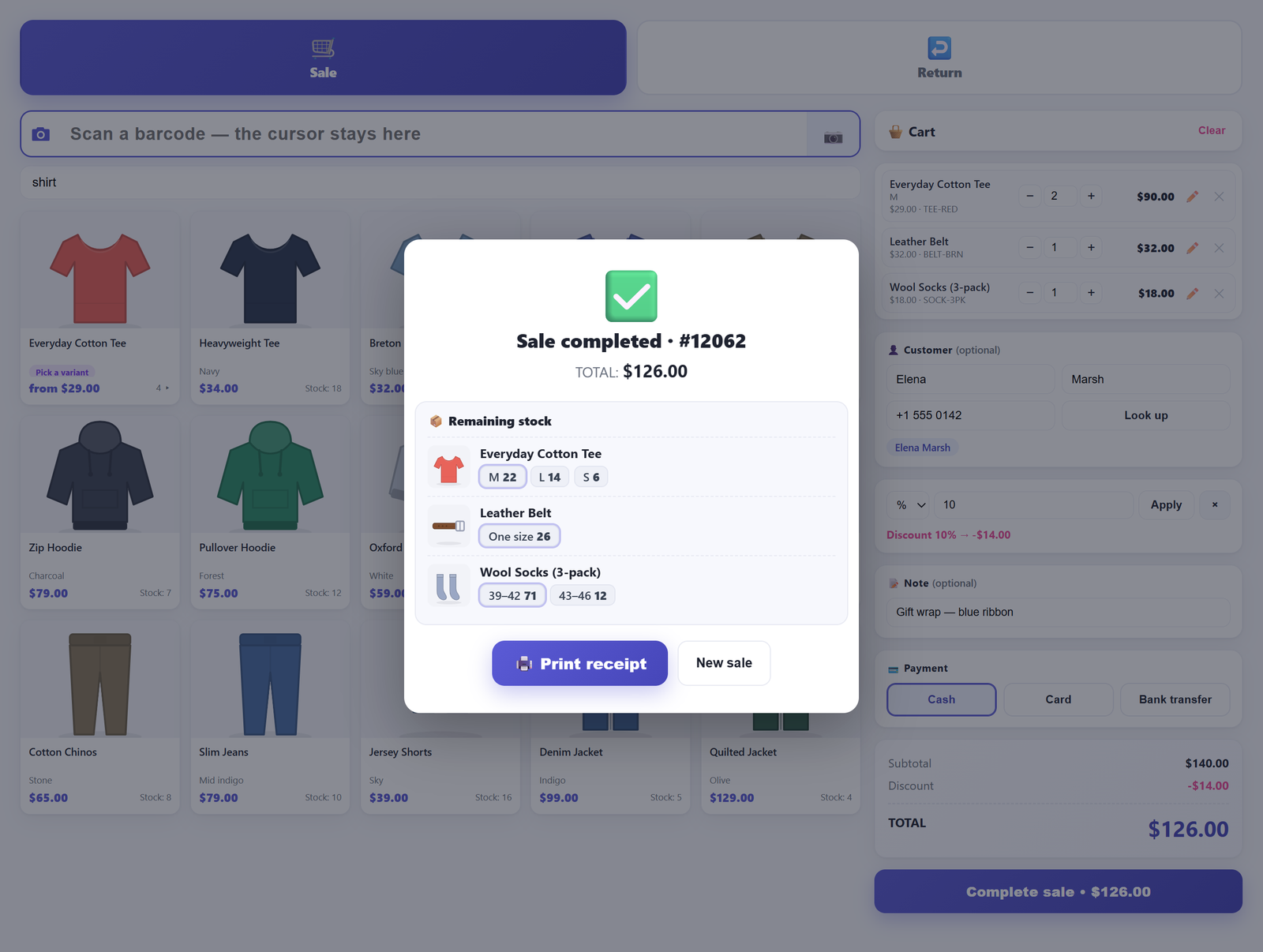
One more thing that surfaces at close: how the sale was tendered. If a customer paid part in cash and part on a card, that has to be recorded somewhere or your two tender totals will never both be right. In the free version a sale is settled with exactly one payment method, so a mixed payment has to be handled another way — the options, and what each one costs you at reconciliation time, are laid out in how to take cash and card on one sale.
What a dashboard cannot tell you, and what counting the drawer is still for#
A report screen knows what was recorded. It cannot know what happened. That distinction covers most of the residual gap once the five causes above are ruled out.
A dashboard cannot see a member of staff taking a fiver for the coffee round, an item handed over without being rung up, change given from the wrong denomination, or a card payment taken on the terminal but never recorded as an order. None of those leave a trace in your order records, which is precisely why the physical count is not redundant. The count is the only independent measurement you have. Everything else is the same data, summed differently.
It is also worth being plain about the limits of any browser-based till, ours included: there is no offline mode. If the connection drops mid-shift, sales cannot be recorded, and any takings you handle on paper in the meantime will have to be entered afterwards — which means that day’s totals will disagree with your drawer until you do. The full list of what a browser-based counter cannot do is set out in the pillar post on WooCommerce and point of sale, deliberately, before anyone has to discover it on a busy Saturday.
A short reconciliation checklist#
| Symptom | Check first |
|---|---|
| Every figure is behind, whole orders missing from Analytics only | The Analytics import queue in Status → Scheduled Actions |
| Total is higher than the drawer | Returns and partial refunds not netted; gross rather than net sales |
| Two screens disagree by a large amount | Rolling window versus calendar month |
| Daily totals off by one or two sales | Timezone setting, or a UTC offset instead of a city |
| Whole orders missing from one report | Order status excluded from that report |
| Total far higher than the counter took | Website orders included in a counter figure |
| Small, consistent difference every day | Rounding, or discount calculation on tax-inclusive prices |
| Difference in one tender only | Mixed payments recorded against a single method |
Frequently asked questions#
Why don’t my WooCommerce sales totals match my actual takings?#
In roughly this order of likelihood: returns and partial refunds are not being netted out of the figure you are reading; the two figures cover different date windows; the day boundary is being computed in the wrong timezone; a status you use is excluded from the report; or website orders are being counted alongside counter takings. Rule those five out before assuming anything is broken — they are mostly two screens correctly answering two different questions. The one genuinely mechanical cause worth checking first is the Analytics import queue, because Analytics reads its own lookup tables rather than your orders.
Do refunds reduce the totals shown in WooCommerce reports?#
It depends entirely on which figure you are reading. WooCommerce Analytics reports gross sales and net sales as separate columns, and net sales is gross sales less returns and less coupons — so refunds are only part of the difference, and gross sales excludes tax and shipping on top of that. Reconciling gross sales against a counted drawer will not tie out. Our counter dashboard shows one figure and it is always net: refunds against a sale and whole returns are both subtracted. A partial refund is the sneaky case, because the original order’s total does not change when you issue one.
Is “last 30 days” the same as “this month”?#
No, and they are rarely close. “Last 30 days” is a rolling window that always covers the same amount of time and usually reaches back into the previous month. “This month” is the calendar month to date, so on the 3rd it covers three days. Use the rolling figure to judge whether trade is holding up, and the calendar figure for anything you have to report. Our dashboard shows both side by side precisely so nobody has to remember which is which.
Why do my daily totals shift by a few hours?#
Because a day is a range between two local midnights, and something in the chain is using a different midnight. Set WordPress to a named city rather than a fixed UTC offset — a city knows about daylight saving and an offset does not — and check whether the screens you are comparing bucket orders by the same date field. Sales rung up late in the evening are the ones that move.
Which order statuses count as a sale?#
On our counter dashboard, Completed, Processing and On hold. Pending, Cancelled and Failed never count. Refunded orders are loaded so that returns can be seen, but they are identified as returns by their own marker rather than by their status — which matters, because an ordinary sale that you later refund in full also ends up at Refunded, and treating status as proof of return-ness would subtract that sale twice. WooCommerce’s own Analytics has its own excluded-statuses setting, so check that it matches how you actually use statuses.
How do I see in-store sales separately from website sales?#
Counter sales made through the plugin are all written with the same payment method identifier, which is what makes them separable from checkout orders. The POS orders list shows only counter orders, with filters for type, status and a date range, and the dashboard is scoped the same way — so the takings figure is counter money only. The trade-off is that the dashboard is not a whole-business report; for combined figures across both channels you still want WooCommerce’s own Analytics. If you want to see how the counter side works before committing to anything, Retail POS is free on WordPress.org, and the documentation covers the dashboard, the order list and the returns terminal in detail — the free version is a complete single-register counter rather than a trial.