Why a WooCommerce discount comes out wrong on tax-inclusive prices
A 10% discount can leave the total right and the tax wrong. Worked numbers for a coupon, a negative fee and one ratio on tax-inclusive prices.
Updated
In this article15 sections
A cashier rings up two items, applies a 10% discount because the customer is a regular, and takes the money. The basket was £45.00, the customer paid £40.50, everyone is happy. Three weeks later the VAT figures for that sale are 50p out and nobody can work out why, because the total on the screen was right, the total on the receipt was right, and the money in the drawer was right.
The total was never the problem. The problem is underneath it: how the discount was split across two different tax rates. It is one of the more quietly expensive bugs in retail software, because it produces numbers that look correct at every point where a human checks them.
Which control applied the discount decides whether you have anything to fix at all, so take that first.
- A percentage coupon. WooCommerce reduces the item lines themselves and recalculates tax from the reduced totals, so your tax is probably already right — here is why it gets away with it.
- A negative fee line. The amount you typed was read as a net figure, so on a shop holding tax-inclusive prices the total fell further than you told the customer — what core really does with that line.
- The total moved and the tax lines did not. Nothing recalculated tax after the discount, so you are declaring tax on money you never took — 50p on a £45 basket, in the table below.
- You would rather not think about it again. One ratio applied to every line comes out right on any combination of the tax settings — the arithmetic, and the PHP that does it.
A 10% discount that isn’t 10% of the number the customer sees#
The symptom arrives in one of two shapes. Either the discount is a few pence off the amount you expected, or the order total is exactly right while the tax lines on the order disagree with what you would calculate by hand.
Both come from the same root: a price in WooCommerce is not just a number. It is a number plus a basis — whether tax is already inside it or still to be added — and a discount calculated against one basis, applied against another, lands somewhere plausible but wrong. The first shape is a rounding artefact. The second is a genuine misstatement of tax, and it is the one worth understanding, particularly if you also sell in person and are reading up on what WooCommerce does and doesn’t cover at a counter.
One setting decides what a price even means#
In WooCommerce → Settings → Tax there is a control called Prices entered with tax. It has two positions, and it changes the meaning of every price in your catalogue.
- Yes, I will enter prices inclusive of tax. The £24.00 you typed into the product is what the customer hands over, and WooCommerce works backwards to find the tax inside it.
- No, I will enter prices exclusive of tax. The £20.00 you typed is the net, and tax goes on top. This is the position WooCommerce ships in.
Further down the same screen sits Display prices in the shop, with a matching setting for cart and checkout. Both default to Excluding tax and both are independent of the entry basis, so a store can quite legitimately hold net prices and display gross ones, or the reverse — four valid combinations, and code that assumes one of them is broken on the other three.
Hence a discount question turning into a tax question. Ten per cent of what: the stored price, the displayed price, the line total, the order total? On a single-rate store a bad method announces itself as a wrong amount, visible and quickly fixed. Add a second rate and it learns to hide, because the total can come out exactly right while the tax underneath it does not.
What WooCommerce actually does with a negative fee#
The common way to bolt a discount onto an order is a fee line with a negative amount: three clicks and a typed figure on the order screen, one call in code. The total drops and the sale looks finished. What core does with that line is worth knowing, because the usual warning about it is wrong and the real problem sits elsewhere.
The usual warning runs: a fee carries one tax class, so the whole discount is relieved at a single rate and a mixed-rate basket is misstated. That is true of a positive fee. It has not been true of a negative one since WooCommerce 3.2. A fee whose total is below zero takes a special path — the amount is divided across the tax classes present in the order, in proportion to what each class contributes, and each share is taxed at that class’s own rate. The fee’s own tax class is never consulted, and negative cart fees are handled the same way. On that count, core behaves. WooCommerce 3.2 shipped in 2017, though, and behaviour that old is worth confirming on your own install rather than taking from a blog: add a fee of −4.50 to an order holding items at two rates, press Recalculate, and read the tax lines. If both rates’ tax has come down, rather than the whole reduction landing on the rate of the fee’s own tax class, the proration is still in place.
What the fee gets wrong is the basis. A fee amount is a net figure: tax is worked out on top of it, exactly as for a line item. The discount a cashier quotes is gross, a slice of the number the customer is about to hand over. Type the gross figure into the fee box on a tax-inclusive shop and the fee takes its own tax off as well, so the total falls further than you said. Nothing flags it, because every number in that chain is internally consistent.
The opposite outcome turns up whenever nothing recalculates the tax — a fee written by code that sets its own totals, or a fee row whose tax boxes were blanked by hand and saved. The money taken goes down, the tax stays put, and you have declared tax on money you never collected. That is the 50p above, and it survives longest because the customer’s total is right.
A third cost has nothing to do with tax: a fee sits beside the goods rather than reducing them, so the item lines keep their undiscounted totals and a per-line refund hands back pre-discount money. This is the same screen on which a hand-keyed sale can leave stock untouched, for the same reason — it assumes someone who knows what every control implies.
And what a coupon does instead#
WooCommerce’s own coupon engine avoids all of it: a coupon resets each item to its subtotal, reduces the item lines themselves, and lets tax recalculate from the reduced totals. Nothing is added beside the goods. The item lines carry the discounted amounts, and each rate’s tax is worked out from them.
The difference that settles most readers’ problem is one of basis. A coupon amount is read on the same basis your prices are stored on — gross on a tax-inclusive shop, net on a tax-exclusive one — while a fee amount is always net, whatever the shop does. That is why the same £4.50 behaves differently depending on which control you reach for: on a tax-inclusive shop, as a coupon it comes off the number the customer can see, and as a fee it comes off the net and takes its own tax with it.
So, plainly: a shop discounting by percentage coupon at the website checkout has nothing to fix here. The rest of this post is about the controls that lack the coupon engine underneath them — the fee box on the order screen, and whatever your till does at the counter.
Money has a basis, and the basis is part of the value. A figure that has lost track of whether tax is inside it or outside it is not a number you can safely do anything with.
The maths that survives: one ratio, every line#
The method that holds up under mixed rates is unglamorous. Work the discount out as a single amount against a gross base, turn it into a ratio of that base, and reduce every line by that ratio so each keeps the remainder. Then let WooCommerce recalculate tax from the reduced lines, as it would for any order.
Against an order that already exists, that is a short function:
function apply_discount_ratio_to_order( $order_id, $percent ) {
    $order = wc_get_order( $order_id );
    if ( ! $order ) {
        return;
    }

    $percent = max( 0, min( 100, (float) $percent ) ); // clamp to 0-100
    $ratio   = 1 - $percent / 100;

    foreach ( $order->get_items() as $item ) {
        // The subtotal is left alone on purpose: core works out the Discount figure
        // on the order screen from subtotal minus total, so no extra line is needed.
        // Totals are stored net whichever way the shop enters prices, and scaling a
        // net figure by a ratio scales its gross by the same ratio, which is why one
        // ratio is right on all four combinations of the tax settings.
        $item->set_total( wc_format_decimal( (float) $item->get_total() * $ratio, wc_get_price_decimals() ) );
        $item->save();
    }

    $order->calculate_taxes();
    $order->calculate_totals( false );
    $order->save();
}

// Call it once, for example apply_discount_ratio_to_order( 1234, 10 ) for 10% off order 1234.
A few things to know before you paste it. It is the order-screen operation, not a cart-level one: if the order has not been placed yet, a percentage coupon is the better tool and does the same scaling for you. It touches item lines only, so a coupon or fee line already on the order is not looked at, and any discount already taken there stays in place and has to be accounted for separately. It multiplies whatever total each line already holds, so running it twice takes the discount twice. And for a fixed amount rather than a percentage, cap the amount at the gross value of the item lines and divide by that value to get the ratio, so a £50 discount on a £45 basket cannot push a line below zero.
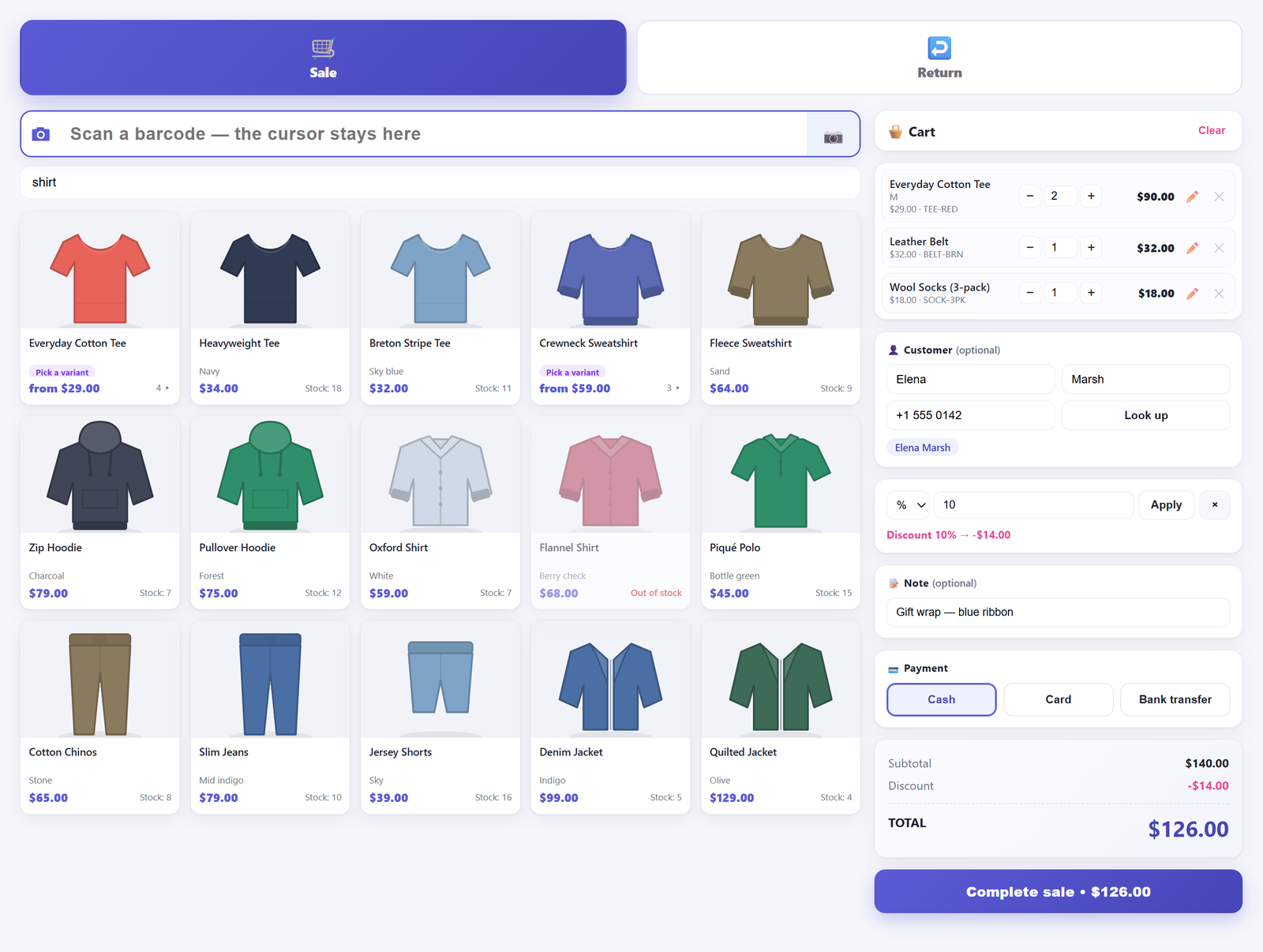
The same ratio is what our Retail POS plugin applies at the counter. A percentage or a fixed amount is entered, the browser shows a live preview, and the server recomputes the whole thing rather than trusting the figure the browser sent: a percentage is clamped to 0–100, a fixed amount can never exceed the basket, and the discount is capped at the order total so a sale cannot go negative. Each line’s total is then scaled by that one ratio and the order recalculated through core.
Three properties follow, and they are the reason to prefer it:
- Every line moves by the same proportion, so the gross total falls by the discount, give or take the smallest unit of your currency once WooCommerce has rounded.
- Tax is recalculated per line from that line’s own class and rate, so each rate’s tax falls by the same proportion as the goods it belongs to.
- Nothing was added to the order, so there is no extra line to explain — and core fills in the Discount figure on the order screen by itself, from line totals now sitting below their own subtotals.
Your store settings still apply on top, including whether tax is rounded per line or at subtotal level, a checkbox on that same tax screen. The till has no opinion: it hands the order to core. The plugin documentation covers the money path in more detail.
Two tax rates in one basket, side by side#
Here is the case that exposes a wrong method in one screen. A store entering prices inclusive of tax sells item A at £24.00 including 20% VAT and item B at £21.00 including 5% VAT. Each is £20.00 net, so the basket is £45.00 gross — £40.00 net, £5.00 tax. The cashier says 10% off, which is £4.50 off the number the customer can see.
| Figure | No discount | 10% percentage coupon | Fee of−4.50, taxes recalculated | Fee of −4.50, taxes left at zero | Every line scaled by the ratio |
|---|---|---|---|---|---|
| Item A (20% VAT), gross | 24.00 | 21.60 | 24.00 | 24.00 | 21.60 |
| Item B (5% VAT), gross | 21.00 | 18.90 | 21.00 | 21.00 | 18.90 |
| Discount line (net) | — | — | −4.50 | −4.50 | — |
| Net total | 40.00 | 36.00 | 35.50 | 35.50 | 36.00 |
| Tax total | 5.00 | 4.50 | 4.44 | 5.00 | 4.50 |
| Order total | 45.00 | 40.50 | 39.94 | 40.50 | 40.50 |
Two columns do what the cashier said out loud, the percentage coupon and the scaled lines: £4.50 off, each rate’s tax down by a tenth — £4.00 to £3.60 on the standard-rated item, £1.00 to £0.90 on the reduced-rated one. The recalculated fee splits its tax across the rates sensibly enough and still takes 56p too much, because the £4.50 was read as a net figure and its own tax came off on top. The untaxed fee takes the right money and leaves tax overstated by 50p on a £45 basket.
The coupon and the ratio agree, and that is the point: the fee is the odd one out. But the coupon column is a percentage coupon, and the word matters. A percentage scales every line by the same fraction whatever basis the shop uses. A fixed-cart coupon is a different animal: its amount is shared across the lines by their share of the subtotal and read on the basis your prices are stored on, so on this tax-inclusive basket £4.50 comes off the gross, while on a shop entering prices without tax the same coupon takes £4.50 off the net and more than that off the customer’s total. It does not inherit this result, and it deserves the same five-minute check as anything else.
The fee that would have removed exactly £4.50 here is −£4.00; on a basket of nothing but standard-rated goods, −£3.75; on nothing but reduced-rated goods, about −£4.29. The figure to type depends on the mix in front of you, which is not a calculation to hand a cashier at a queue. A ratio needs no such solving.
How a discount must be apportioned is ultimately a question for your accountant and your jurisdiction, and this post is not tax advice. What the table settles is narrower: four things that all look like “10% off” produce three tax figures and two totals, so “the total looks right” proves nothing. The pennies assume WooCommerce’s default per-line rounding.
Fixed amounts are the same problem wearing a different hat#
“Take £5 off” looks like it avoids all of this. £5 off what — the gross the customer sees, or the net you typed into the product? On a store entering prices excluding tax and displaying them including tax those are different sums of money, and taking one while quoting the other is the stray-pennies complaint. A fixed amount needs the same treatment as a percentage: read it against a gross base, convert it into a ratio, scale the lines. In the till, £5 off a £45 basket becomes a ratio of 0.1111…, every line keeps the remaining 0.8889 of its value, tax falls proportionally across both rates, and the customer pays exactly £5 less.
The same discipline applies to prices themselves. When a cashier opens the quick-edit box on a cart line, the price shown is the one the rest of the shop displays — and saving it changes the product for the whole shop, not just this sale — so on save the server converts it back to whatever basis your store stores prices in. Without that conversion, on a shop that holds net prices and displays gross ones, opening the box and pressing Save without touching anything would inflate the product by the tax rate, every time. A read-then-write round trip has to be a no-op, or the catalogue drifts upward on its own.
Refunds inherit all of this: sending back a discounted line means sending back the discounted amount, at that line’s own tax, not the shelf price. Worth knowing before you reach for our own receiptless return, which prices a scanned item from the catalogue at its current gross price and has no field to type a different one — refund a discounted sale that way and you hand back more than you took. A blind counter return is for when the original order is genuinely unavailable; when you have the order, refund the discounted line on the order itself.
What the receipt has to print for the paper to add up#
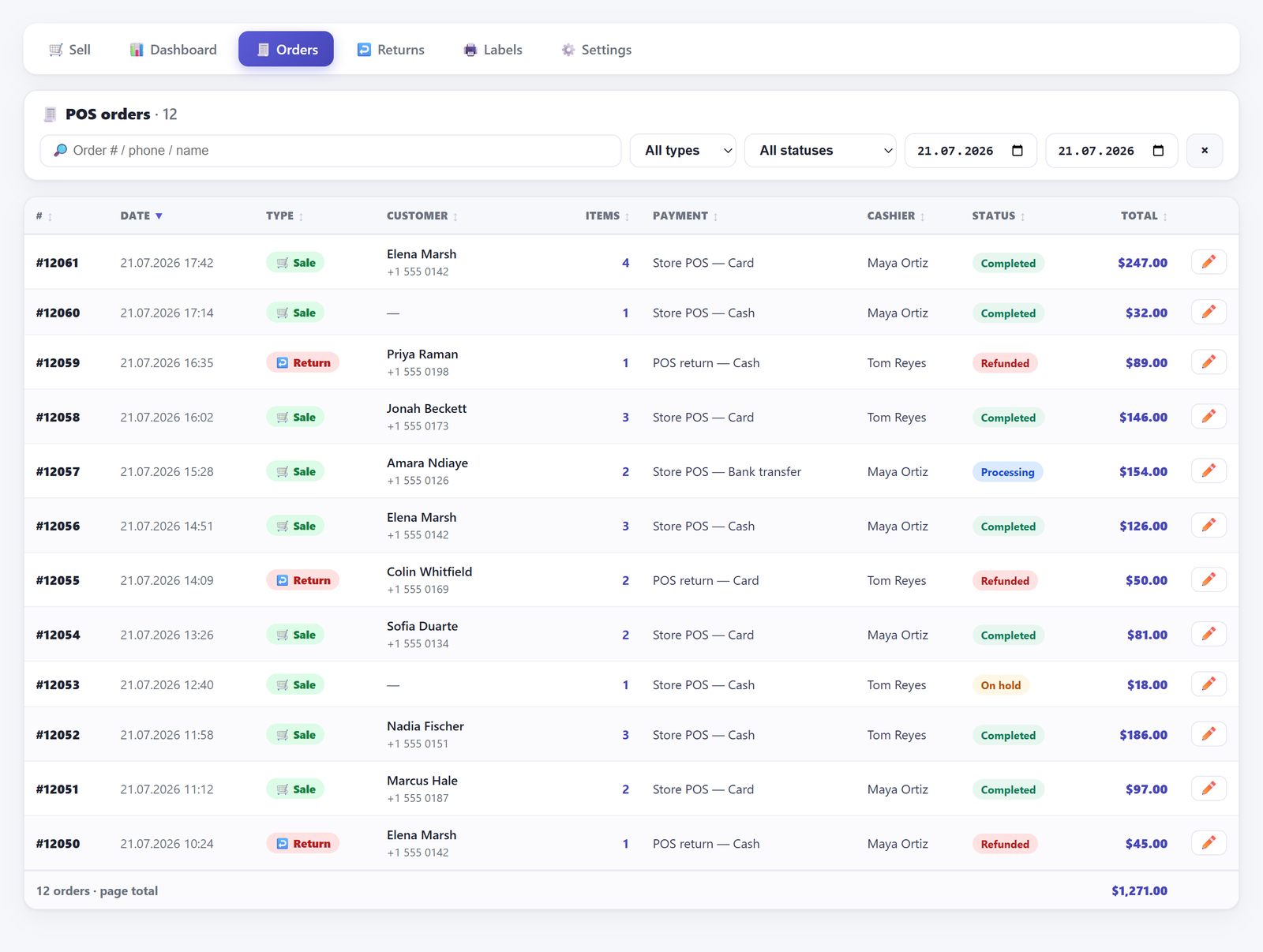
A customer checks a receipt in one specific way: add the item column, look at the subtotal, subtract the discount, compare with the total. If those four figures do not reconcile, they will assume the shop is wrong even when it is right.
That constrains what a receipt may print. Item lines have to be the pre-discount figures, because they sit above a pre-discount subtotal. Print already-discounted lines there and subtract the discount again, and the paper is out by exactly the discount — a receipt nobody can reconcile, produced by an order that is perfectly correct.
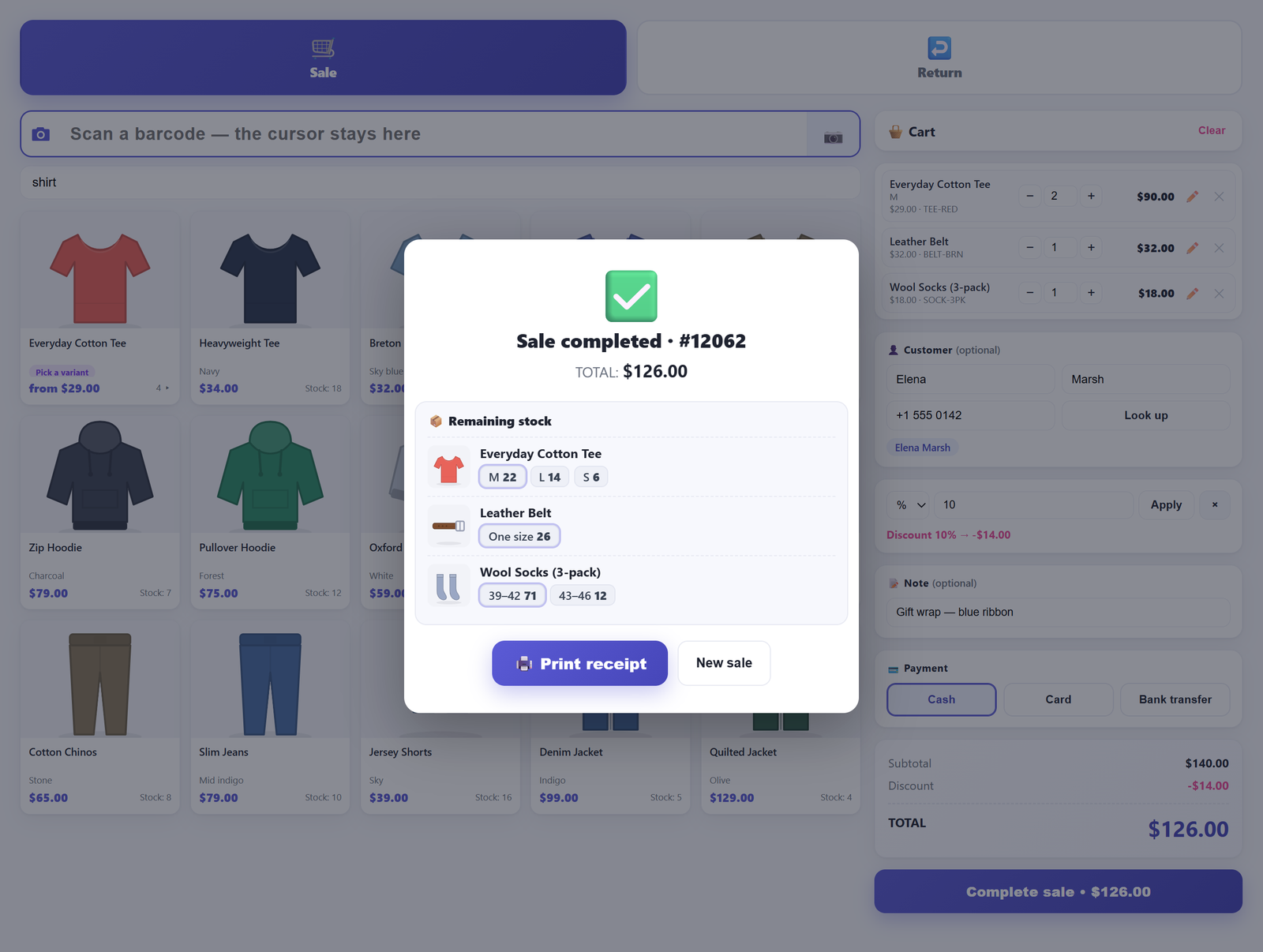
Our till prints the store name, address and phone from settings, then the order number and time, then each item at its pre-discount amount, then — when a discount was applied — Subtotal and the discount with its label, then TOTAL, then the payment method.
Where this stops#
Some honest limits, because a reader who installs on a false premise is worse off than one who reads a paragraph like this and decides not to.
The till applies one discount to the whole sale, a percentage or a fixed amount. There is no per-line discount and no coupon-code box at the counter: coupons stay where WooCommerce keeps them, at the website checkout and on the order screen. The printed receipt shows subtotal, discount, total and payment method, but no tax breakdown by rate. If your paperwork needs the VAT split on paper, it comes from the WooCommerce order — where the tax lines are correct and per-rate — through an invoice tool that reads it, not from the till roll.
Printing goes through your browser: the receipt opens in a narrow window sized for a roll and asks the browser to print it, so a print dialog is always in the way, and there is no printer driver or ESC/POS support. The free build settles a sale with exactly one payment method; taking part of a discounted total in cash and the rest on a card is a split tender, and that is a Pro capability, sold with a 14-day money-back guarantee. And while the till records a unit cost when you quick-edit a product, the free build computes no margin or profit figures, so it will not tell you whether the discount you just gave went below cost.
Check your own store in five minutes#
You do not need our plugin for this, and you should run it against whatever is discounting your orders today.
- Create two products at different tax rates, priced so the maths is easy — say one at 24.00 gross standard-rated and one at 21.00 gross reduced-rated.
- Put one of each into an order and note the tax total before any discount.
- Apply a 10% discount however your setup applies discounts.
- Open the order and read the tax lines, not the total. Each rate’s tax should now be 90% of what it was.
- Check the order total is 90% of the pre-discount total, allowing a penny for rounding.
If the total moved and the tax lines did not, nothing recalculated tax after the discount. If the tax lines moved but the total fell by more than you quoted, the discount was taken as a net figure on a shop whose prices are gross. If one rate’s tax fell by a different proportion from the other’s, the discount was not apportioned across the rates at all. If every rate fell by a tenth and so did the total, your discount is being apportioned properly.
Run the check at the end of a trading day too: penny-level differences are also what makes a sales report disagree with the takings, and it is much cheaper to catch a bad method on a two-item test basket than in a month of real orders.
Frequently asked questions#
Why is my WooCommerce discount a few pence off?#
Almost always because it was calculated against one basis and applied against another — 10% of a net price applied to a gross total, or the reverse. Rounding to your currency’s decimal places then leaves a residual penny that has to land somewhere. Work the discount out as a ratio of a gross base and scale the lines, and the residual disappears into normal rounding rather than accumulating.
Does “prices entered with tax” change how discounts are calculated?#
It changes what the stored price means, which changes what a percentage of it means. On a tax-inclusive store the price already contains the tax, so a discount taken off it reduces goods and tax together. On a tax-exclusive store the same nominal discount taken off the net reduces the gross by more than the figure you typed. Any method that does not know which it is dealing with will be wrong on one of them.
Is a negative fee line a safe way to discount an order?#
Better than its reputation, and still awkward. Since WooCommerce 3.2, core has split a negative fee’s tax across the tax classes in the order in proportion to what each contributed, so the per-rate split comes out right and the old warning about a single rate does not hold — though it is worth one test order on your own version before you rely on it. What the fee cannot do is guess your basis: the amount you type is net, so on a shop quoting tax-inclusive prices a fee sized to the figure you told the customer takes more than that off the total. The item lines also keep their full values, so a per-line refund hands back pre-discount money unless you refund part of the fee too.
Should a till quote the price with tax included or excluded?#
Included, always. A counter quotes what the customer hands over. A shop displaying prices excluding tax — which is what WooCommerce ships with — will otherwise show a cashier one number while the order charges another, and the cashier will take the smaller one. Our till quotes gross on every cart line, on the subtotal and on the Complete sale button, whichever way the shop displays prices elsewhere. It is the same principle behind recording what was actually tendered rather than what was theoretically owed.
If you are weighing up how to sell in person on top of a WooCommerce shop, the wider picture — including what a browser-based till cannot do — is set out in our guide to WooCommerce and point of sale, and if your counter is a phone rather than a desk, scanning with the phone’s camera is covered separately. The behaviour described here is in the free build of Retail POS for WooCommerce, and the money path is documented in full in the documentation.