How to Export a ChatGPT Conversation to PDF, Word or Markdown
What each export route actually gives you, where ChatGPT, Claude and Gemini hide the account export, and which format to pick so nothing is lost.
Updated
In this article13 sections
You need a conversation out of an AI assistant and into something else — a document for a colleague, a note in your own system, a record for a client file. The short version, before any of the detail:
- One chat, to send or file. Scroll to the very top of the thread first, then Ctrl+P (Cmd+P) → Save as PDF.
- One chat, to keep and reuse. Export it as Markdown.
- Everything you have ever written. Settings → Data controls → Export data, then wait for the email.
- The archive as usable notes. Run the script below over
conversations.json.
This covers what actually happens when you export a ChatGPT conversation by each available method, which format to pick for which job, and what to check before you send an export to anyone.
The built-in export, and what it actually gives you#
All three of the big assistants have an account-level data export, and none of them put it on the conversation itself. The routes:
- ChatGPT. Settings → Data controls → Export data → Confirm export. A download link arrives by email and expires, so open it the same day. What lands is a
.zipholdingconversations.json— everything, machine-readable — andchat.html, a viewer that opens in a browser. - Claude. Settings → Privacy → Export data. Same pattern: you confirm, a link arrives by email, and a JSON archive is waiting at the end of it.
- Gemini. The entry point is in the app — Your data in Gemini Apps, in settings — but the export itself belongs to Google Takeout, and that link is where you end up, with Gemini Apps as the product to select.
Two honest observations about what comes back:
- As a backup, it’s the real thing. Everything is in there. Take one occasionally.
- As a way to get one conversation into a document, it’s useless. You can’t pick a single chat out of it without work, the formatting isn’t presentation-ready, and it takes long enough to arrive that the moment has passed.
Backing up and extracting are different jobs, and the account export only does the first — keeping an archive you can search is a third job again.
Print to PDF: the zero-install option#
Press Ctrl+P (or Cmd+P) on the conversation and choose Save as PDF. Nothing to install, works in every browser.
It’s genuinely fine for short conversations, and three settings in Chrome’s print dialog decide whether you get a document or a screenshot of a website:
- Margins → Minimum. Buys a little width, which is the only thing standing between a long line and the right-hand edge of the page.
- Background graphics → off. Removes the grey message blocks and the sidebar furniture, so what prints reads as text rather than as interface.
- Headers and footers → off. Drops the URL banner and the print date from the top and bottom of every page.
Then the honest no: none of that rescues a wide code block. Code in a chat scrolls sideways inside its own box, so the printer clips whatever is off-screen, and there is no print setting that wraps it instead — minimum margins buy you a few characters, not the line. If the conversation contains code you actually need, don’t print it. Export it as Markdown.
Turning conversations.json into Markdown files#
This is the step the whole genre leaves out. You request the account export, a large JSON file eventually arrives, and there is nothing obvious to do with it. What you want out of it is a folder of readable Markdown — one file per conversation, with the title and date on the front, so the thing can be searched, edited and filed like any other text.
Save this next to your export as chatgpt_to_md.py and run python chatgpt_to_md.py conversations.json out/. It needs Python 3 and no packages.
#!/usr/bin/env python3
"""Turn conversations.json from a ChatGPT data export into one Markdown file
per conversation, with YAML front matter. Usage:

    python chatgpt_to_md.py conversations.json out/
"""
import json, os, re, sys, datetime

def slug(s, n=60):
    s = re.sub(r"[^\w\s-]", "", s or "").strip().lower()
    return re.sub(r"[\s_-]+", "-", s)[:n].strip("-") or "untitled"

def branch(conv):
    """Walk current_node up through its parents: the messages you kept,
    not the ones you regenerated away."""
    mapping, node, out = conv.get("mapping", {}), conv.get("current_node"), []
    seen = set()
    while node and node in mapping and node not in seen:
        seen.add(node)
        out.append(mapping[node])
        node = mapping[node].get("parent")
    return reversed(out)

def text_of(msg):
    parts = (msg.get("content") or {}).get("parts") or []
    return "\n\n".join(p for p in parts if isinstance(p, str) and p.strip())

def main(src, dest):
    os.makedirs(dest, exist_ok=True)
    with open(src, encoding="utf-8") as f:
        convs = json.load(f)
    used, written = set(), 0
    for conv in convs:
        title = conv.get("title") or "Untitled"
        ts = conv.get("create_time") or conv.get("update_time")
        date = datetime.datetime.fromtimestamp(
            ts, datetime.timezone.utc).strftime("%Y-%m-%d") if ts else ""
        lines = ["---", 'title: "%s"' % title.replace('"', "'")]
        if date:
            lines.append("date: %s" % date)
        lines += ["assistant: ChatGPT", "source: chatgpt-export", "---", "",
                  "# %s" % title, ""]
        kept = 0
        for node in branch(conv):
            msg = node.get("message") or {}
            role = ((msg.get("author") or {}).get("role") or "")
            if role in ("system", "tool"):
                continue
            if (msg.get("recipient") or "all") != "all":
                continue  # assistant talking to python/web/bio, not to you
            body = text_of(msg)
            if not body:
                continue
            lines += ["**%s:**" % ("You" if role == "user" else "ChatGPT"),
                      "", body, ""]
            kept += 1
        if not kept:
            continue
        stem = (date + "-" if date else "") + slug(title)
        name, n = stem + ".md", 2
        while name in used:
            name, n = "%s-%d.md" % (stem, n), n + 1
        used.add(name)
        with open(os.path.join(dest, name), "w", encoding="utf-8") as f:
            f.write("\n".join(lines))
        written += 1
    print("wrote %d files to %s" % (written, dest))

if __name__ == "__main__":
    main(sys.argv[1], sys.argv[2])
Three details in there matter more than they look. It walks up from current_node through the parent links instead of iterating the mapping dictionary, so what you get is the branch you kept rather than every answer you regenerated away. It drops system messages, tool output and assistant messages addressed to a tool rather than to you — the code-interpreter calls, search queries and memory writes that otherwise land in your notes formatted as though ChatGPT had said them out loud. And it skips non-text parts instead of crashing on them, keeps every prompt with its answer, and names each file from the date and the title — 2025-06-15-fixing-the-deploy-script.md — adding a numeric suffix only when two chats would collide, and leaving the date off the occasional chat that has no timestamp.
Two things it does not do, and both matter before you build anything on it. Images and file attachments are not in conversations.json — only pointers to them — so a picture-heavy chat comes out nearly empty, and no amount of parsing fixes that. And it reads a ChatGPT export and nothing else: a flat folder of files, no vault structure, no tags, no folders, and no help at all with Claude or Gemini, whose archives are shaped differently. The files will drop straight into an Obsidian vault, but the organising is yours to do.
Copy and paste: where the formatting goes#
Selecting the text and pasting it is the fastest route, and with nothing installed it is also the practical way to get a conversation into Word. What survives depends entirely on the destination.
Paste into a rich-text editor — Word, Google Docs — and you’ll usually keep headings, bold and lists, while code blocks arrive as awkwardly styled boxes. Paste into a plain-text or Markdown editor and you get the text with the formatting characters stripped, which means your headings become ordinary sentences.
The specific thing that breaks most often is tables. A table rendered in the chat interface is HTML; pasted into Markdown it becomes a run-on line of text. If your conversation contains a table you care about, don’t paste it — export it.
Which format for which job#
| Format | Use it when | Watch out for |
|---|---|---|
| Sending to someone, filing a record, anything that shouldn’t be edited | Not searchable inside your own notes; not reusable as raw material | |
| Word (.docx) | The conversation is a draft someone will edit | Code formatting rarely survives elegantly |
| Markdown | Going into a notes app, a repo, a static site, or Obsidian | Nothing — this is the right default for anything you’ll reuse |
| Plain text | You want the words and nothing else | Loses all structure, including code block boundaries |
| JSON | You’re going to process it programmatically | Not for human reading — but it is the only format that reads back in fully, with the script above |
The dividing line is whether the file can become something else later: PDF and plain text cannot, Markdown and JSON can.
So if you’re unsure, the answer is Markdown. It’s plain text, so it will still open in thirty years; it keeps headings, lists, code blocks and tables; and every other format can be generated from it later.
Exporting from Claude, Gemini and the others#
The methods above are not ChatGPT-specific, but what each assistant hands you differs. Two questions settle it: is there a way to export one conversation, and where does the account-level export live?
Claude#
No per-conversation export in the interface. The copy button on an individual reply is the whole of it, so for one chat you are back to printing the page or selecting the text yourself. The account export is at Settings → Privacy → Export data, and arrives as JSON by email.
Gemini#
There is a per-response route, and it is not quite the one you want: Share & export on a single answer will push that answer into a Google Doc. One reply, not the thread. For the whole conversation, print it. For the account, the Your data in Gemini Apps link in settings hands you over to Google Takeout, where Gemini Apps is the product to tick — so the entry point is in the app and the export is Takeout’s.
The rest#
Copilot, Perplexity, DeepSeek and the smaller assistants repeat the shape: an account-level export somewhere in the privacy or data section, no per-conversation file, printing as the universal fallback. Worth looking rather than assuming, because what varies between them is less the route than whether an export exists at all.
If you use more than one assistant — which most people now do — it’s worth checking that whatever you rely on covers all of them, rather than discovering mid-export that it only understands one. A tool that handles one assistant well may produce a mess on another simply because the page structure is different. That’s part of the wider problem of working across several assistants at once.
Bulk export#
Exporting one conversation at a time is fine occasionally and impossible as a migration strategy. If you’re moving hundreds of chats — into a notes system, or off a service you’re leaving — you want them out in one operation, as separate files, with sensible filenames. The script above does that for a ChatGPT archive; for the other assistants, or for chats captured as you go rather than recovered from an export afterwards, you need something resident in the browser.
Two things to insist on:
- One file per conversation, not one enormous document. A 400-conversation single file is unusable in every tool you’d want to open it in.
- Metadata preserved — the date, the assistant, the title. Without them a folder of Markdown files is a pile of anonymous text.
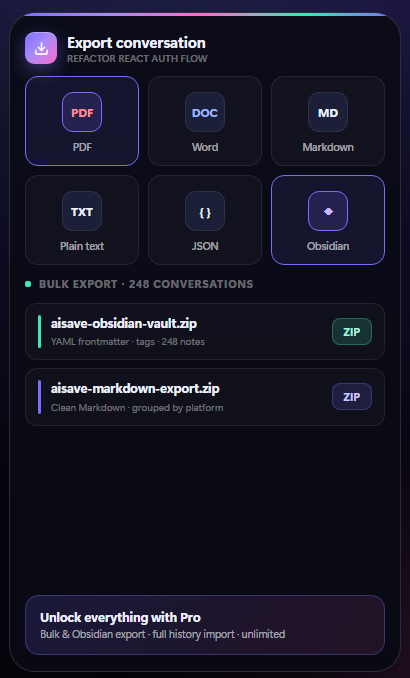
AISave, the browser extension we build, exports single conversations to PDF, Word, Markdown, plain text or JSON. The numbers are worth having before you plan a migration around it: Markdown, plain text and JSON export are unlimited on the free tier, PDF and Word are three a month, and the free tier holds 25 saved snippets, 10 prompts and 5 folders. Free history import covers recent chats only. Bulk export — as a Markdown ZIP or a ready-to-open Obsidian vault — is Pro, $5.99 a month or $29.99 a year, with a 14-day refund window.
One caveat that belongs in a post about not losing things: it keeps everything locally in the browser, which is why nothing is uploaded anywhere — and also why the archive lives in a single browser profile and does not follow you to another machine. Export it periodically, the same as you would anything else you would mind losing.
What to check before you rely on an export#
Four things, each of which has bitten someone:
- Is the whole conversation there? Scroll to the end of the file. Lazy loading and pagination both truncate silently.
- Did the code survive? Check a long line inside a code block for clipping, and check that indentation is intact.
- Did tables survive? This is the most commonly mangled element.
- Are the questions still there? Some exports keep only the assistant’s replies. An answer without its prompt is often unusable later — and if you’re sending it to someone else, actively misleading.
The wider point#
Exporting is a transfer, not a filing system — if you keep exporting the same conversation because you can’t find it in the sidebar, being able to search your own archive is the fix, not a better export. Export when the content needs to leave: to a colleague, into a document, or into notes you’ll build on.
Exporting AI chats FAQ#
How do I export a single ChatGPT conversation?
The quickest no-install route is printing the page to PDF with Ctrl+P or Cmd+P. For anything you intend to reuse rather than file, export to Markdown instead — it keeps headings, lists, code blocks and tables, and every other format can be generated from it later.
Which export format should I choose?
PDF for sending to someone or filing a record. Word when the text is a draft someone will edit. Markdown for anything going into notes, a repo or a knowledge base. Plain text when you want words and nothing else. JSON only if you are going to process it programmatically.
Does the built-in account export work for this?
It is a genuine backup of everything, and a poor tool for extracting one conversation. It arrives as a machine-readable archive rather than a readable document, and it takes long enough to be delivered that the moment has usually passed.
How do I convert a ChatGPT export to Markdown?
Unzip the export and run the short Python script on this page over conversations.json. It writes one Markdown file per conversation with the title and date at the top, follows the branch of each chat you kept rather than the answers you regenerated, and leaves out tool calls. It reads ChatGPT exports only, and pictures and attachments do not come through: conversations.json holds pointers to them, not the files.
What gets mangled most often in an export?
Tables, then code blocks. A table rendered in the chat is HTML and frequently collapses into a run-on line when pasted into a plain-text editor. Code blocks get clipped at the page margin in PDF exports rather than wrapping. Check both before relying on the file.
Can I export hundreds of conversations at once?
Some tools support bulk export. Two things to insist on: one file per conversation rather than a single enormous document, and metadata preserved — date, assistant and title — otherwise you end up with a folder of anonymous text files.