WooCommerce Low Stock Threshold: How to Set a Real Reorder Point
Your WooCommerce low stock threshold should come from lead time and real demand, not a round number - and why the alert email often never arrives.
Updated

In this article13 sections
The short version: reorder point = (average daily demand × lead time in days) + safety stock. Work that out per product, and the answer is the number your low stock alert should be set to.
It goes in the field labelled Low stock threshold on that product’s Inventory tab, where it overrides the store-wide default at WooCommerce → Settings → Products → Inventory. Everything below is where the three inputs come from, and why the round number sitting in the global field is wrong for almost every product you sell.
WooCommerce will tell you when stock is low. It will not tell you when to reorder, and those are different questions — the first is about a number on a screen, the second is about whether a delivery will arrive before you run out.
This covers what WooCommerce gives you natively, why a flat low stock threshold fails, how to work out a real reorder point from data you already have, and why the alert email so often never arrives.
What WooCommerce gives you out of the box#
More than most people use:
- A global low stock threshold at WooCommerce → Settings → Products → Inventory, with an email notification when a product drops below it.
- A per-product override on the Inventory tab of any product, and on individual variations.
- An out-of-stock threshold, which controls when a product is treated as unavailable rather than merely low.
- Stock reporting under Analytics → Stock, sortable by stock status and quantity.
One detail about that email decides whether any of the rest works, and it is not written on the settings screen: the notification is fired by the stock reduction an order performs. WooCommerce raises the woocommerce_low_stock action from the order-driven reduction path, and the email class listens on that action. Edit the Stock quantity field by hand, run a CSV import, or write a quantity over the REST API, and the number changes without the action being raised at all.
So a store that corrects stock manually — after a delivery, after a count, after a breakage — can set a perfect threshold on every product, watch them cross it, and never receive a single email. The usual conclusion is that the feature is broken. It isn’t; it’s wired to sales, not to the stock field. If your mailbox has been silent, there’s a list of the four things to check, in the order to check them, in the FAQ at the end.
The machinery is fine, once you know what moves it. The problem is what you put in it.
Why a flat threshold doesn’t work#
Almost everyone sets the global threshold to a round number — 2, or 5 — and leaves it. Consider what that number means for two products:
- A line selling one unit a month, with a supplier who delivers in three days. A threshold of 5 alerts you roughly five months before you need to do anything. You’ll learn to ignore the email.
- A line selling ten units a day, with a supplier who takes two weeks. A threshold of 5 alerts you half a day before you run out. The alert is technically correct and completely useless.
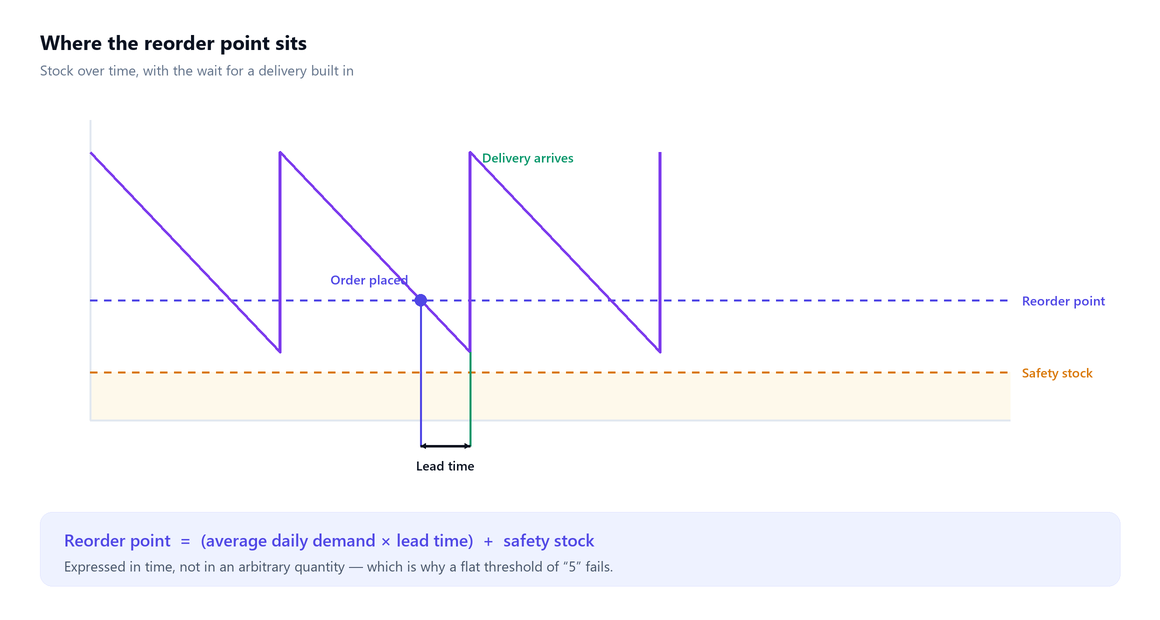
The same number is far too early for one and far too late for the other. That’s the structural flaw: a low-stock threshold measures quantity, but the decision to reorder is about time — specifically, whether you have enough stock to cover the wait for a delivery.
The reorder point formula#
The fix is to express the threshold in terms of how long stock will last:
Reorder point = (average daily demand × lead time in days) + safety stock
In words: enough to cover normal sales while you wait for the delivery, plus a cushion for the days when things don’t go normally. Three inputs, each of which you can get.
Lead time#
The number of days between placing an order and having it on the shelf and sellable. Not the supplier’s quoted shipping time — the whole thing, including the two days the box sat unopened in the back.
Measure it rather than assuming it. Look at your last three or four orders from each supplier: order date to shelf date. Use the realistic figure, not the best one you’ve ever had.
Average daily demand#
Go to Analytics → Products, set a representative date range, and read items sold per product. Divide by the number of days in the range.
Two adjustments that matter more than the arithmetic:
- Exclude periods when the product was out of stock. A product that sold nothing for three weeks because there was none looks like a product with no demand. This one distortion causes more chronic stockouts than any other, because it suppresses exactly the products that keep running out.
- Pick a range that reflects the coming period, not the past one. If you’re setting reorder points in October for the Christmas season, last February’s data will let you down.
The first adjustment needs a method, because Analytics doesn’t offer one — the Products report tells you how many you sold, not how many days you had any to sell. So divide by the days the product was available rather than the days on the calendar. WooCommerce keeps no stock history to read that off, so the dates have to come from elsewhere: your receiving records or supplier invoices, the order notes that logged the last reduction, or simply the most recent stretch you know it sat on the shelf unbroken.
Take the product in the worked example below. 84 units over 28 days is 3 a day; if it was unavailable for 6 of those days, it is 84 ÷ 22 = 3.8 a day. Two things change when you correct it, and neither is the one people expect:
- How much you order when the point fires. At 3 a day, four weeks’ cover is 84 units. At 3.8 it’s about 107. Under-order by twenty-odd units every cycle and you’re back at the reorder point three weeks later, wondering why it keeps going off.
- Whether your peak day is real. A product that spent 6 of 28 days unavailable almost certainly has a suppressed peak as well — and the peak, as the table in the worked example below shows, is the figure that actually moves the trigger. If the real busy day was 8 units rather than 6, the reorder point goes from 54 to 72. That’s the correction that bites.
If there’s no record worth using — no stock-in dates, no period you’d defend — take the shortest recent stretch you’re sure about, accept that the figure is rough, and fix it at the next seasonal recalculation. A rough number from a clean period beats a precise number from a period the product spent half of out of stock.
Safety stock#
The cushion for when demand spikes or the supplier is late. A workable approach for a small store, without needing statistics:
Safety stock = (peak daily demand × longest lead time) − (average daily demand × average lead time)
This asks: how much worse could it plausibly get than normal? Take your busiest recent day and your slowest recent delivery, and cover the difference.
If that gives an uncomfortable number, that discomfort is real information about your supply chain — it’s not a reason to pick a smaller one.
A worked example#
A product sells 84 units over 28 days. Its supplier has taken 7, 9 and 8 days on the last three orders. The busiest recent day sold 6 units.
- Average daily demand = 84 ÷ 28 = 3 units/day
- Average lead time = 8 days; longest = 9 days
- Safety stock = (6 × 9) − (3 × 8) = 54 − 24 = 30 units
- Reorder point = (3 × 8) + 30 = 54 units
So the low stock threshold for this product is 54, not 5. If that seems high, notice what it’s protecting against: a week where you sell double the average and the delivery takes its longest observed time. Both have already happened; they just haven’t happened together yet.
One thing to notice before you do this for a second product. Substitute the safety-stock formula into the reorder-point formula and the two averages cancel exactly: (average daily × average lead) + [(peak daily × longest lead) − (average daily × average lead)] = peak daily demand × longest lead time. 6 × 9 = 54, which is where that number came from. So with this method the trigger is simply your busiest day multiplied by your slowest delivery. The averages still earn their place — they sanity-check the inputs and they size the order you actually place — but they don’t set the trigger. That’s the standard conservative rule, and as a shortcut it’s worth knowing: if you only ever do one multiplication per product, do that one.
| Product | Daily demand: avg / peak | Lead time: avg / longest | Safety stock | Reorder point | Days of cover left when the alert fires: flat 5 → calculated |
|---|---|---|---|---|---|
| One a month | 0.03 / 1 | 3 / 5 days | 4.91 | 5 | 167 → 167 |
| The example above | 3 / 6 | 8 / 9 days | 30 | 54 | 1.7 → 18 |
| Ten a day | 10 / 18 | 14 / 21 days | 238 | 378 | 0.5 → 37.8 |
Row 1 is the honest one, and it cuts against what this post has just argued: for a line selling one a month, the calculated reorder point is 5. The round number is right — by accident. Both versions alert you about five months out, because at one sale a month and a five-day worst delivery there is no level at which the alert is both early enough and useful. For products like that the low-stock email is the wrong instrument; you notice them on a count, not in your inbox. It’s also where the peak-day method over-provisions: if a single unit is the busiest day you’ve ever had, multiplying it by your slowest delivery isn’t much of a calculation. So the flat 5 doesn’t fail everywhere. It fails wherever the product moves, which is exactly where it costs you.
Row 3 is worth owning rather than hiding: 378 units is 38 days of cover for a supplier whose worst observed delivery was 21 days. That’s the peak-day method being cautious with your money, and it’s the point at which you take some of it back.
You can dial the safety-stock element down for products where a stockout is a minor inconvenience, and up for the lines customers come in specifically to buy.
Setting it up in WooCommerce#
- Do the calculation for your A items only to begin with — the top 20% by value, the same ones you’d cycle count most often. The work here is the calculation, not the typing: every product needs a lead time you measured for its supplier, a peak day you’d defend, and a demand range that reflects the coming season. Twenty of those is an afternoon; two thousand is a project you’ll abandon, and bulk editing only ever shortens the typing.
- Enter the result in the Low stock threshold field on that product’s Inventory tab, overriding the global default. There’s no bulk field for this in core, but there are two free ways round that — see below.
- Leave the global threshold as a crude backstop for everything you haven’t calculated. It’s better than nothing, as long as you know that’s what it is.
- Recalculate seasonally. Demand and lead times both move. A reorder point set once is a reorder point that will be wrong within a year.
Setting a lot of them without typing#
The product CSV carries the threshold even though no screen in core lets you edit it in bulk. Products → All Products → Export produces a file with a Low stock amount column — the importer’s name for the same value. Work your reorder points out in a spreadsheet against SKU, then bring them back through Products → Import with Update existing products ticked and only SKU (or ID) and Low stock amount mapped, leaving every other column set to “Do not import” so nothing else is touched.
Two warnings. Run the file against two SKUs first, because an import that maps a column you didn’t mean to map will overwrite it. And read what your export actually contained before you build the spreadsheet: variation rows carry their own SKUs, and a variation with no SKU can only be matched on ID.
If you’d rather do it in code, this handles variations as well as simple products:
// wp eval-file set-reorder-points.php

$points = [ 'SKU-1042' => 54, 'SKU-1043' => 12 ];

foreach ( $points as $sku => $point ) {
	$id = wc_get_product_id_by_sku( $sku );

	if ( ! $id ) {
		continue;
	}

	$product = wc_get_product( $id );
	$product->set_low_stock_amount( $point );
	$product->save();
}
set_low_stock_amount() is available on variation objects as well, so variation SKUs need no special handling, and save() writes through WooCommerce’s own data store, so there’s nothing to flush afterwards.
What core can’t do: stock that’s already on order#
WooCommerce has no concept of stock on order. There is no field anywhere in core for “quantity already on a purchase order”, and so nothing to net that quantity off against the shortfall. A product that has dropped below its reorder point stays below it — on the Analytics → Stock list, in the low-stock filter, in your head — until the delivery is received and the quantity goes back up.
Which means the list doesn’t clear when you act on it. It clears when the box arrives, three weeks later, and in between it keeps showing you the thing you ordered on Monday. A list you’ve learned to skim past is a list that won’t stop the next genuine stockout, and that is the real reason low-stock alerting gets quietly switched off in stores that set it up properly — not that the numbers were wrong, but that nothing in the system could tell you need to order this apart from you already did.
There are two ways out and core gives you neither. Keep your open orders somewhere you can see them, and subtract them by hand before you act on the shortlist. Or keep the shortlist and the open orders in the same place, so the subtraction has already happened by the time you read the list.
Why an accurate count comes first#
Here’s the failure mode that makes all of the above worthless: a reorder point compares against your recorded stock level. There are eight reasons the recorded number drifts from the shelf, and when it has, the trigger fires at the wrong moment — or never.
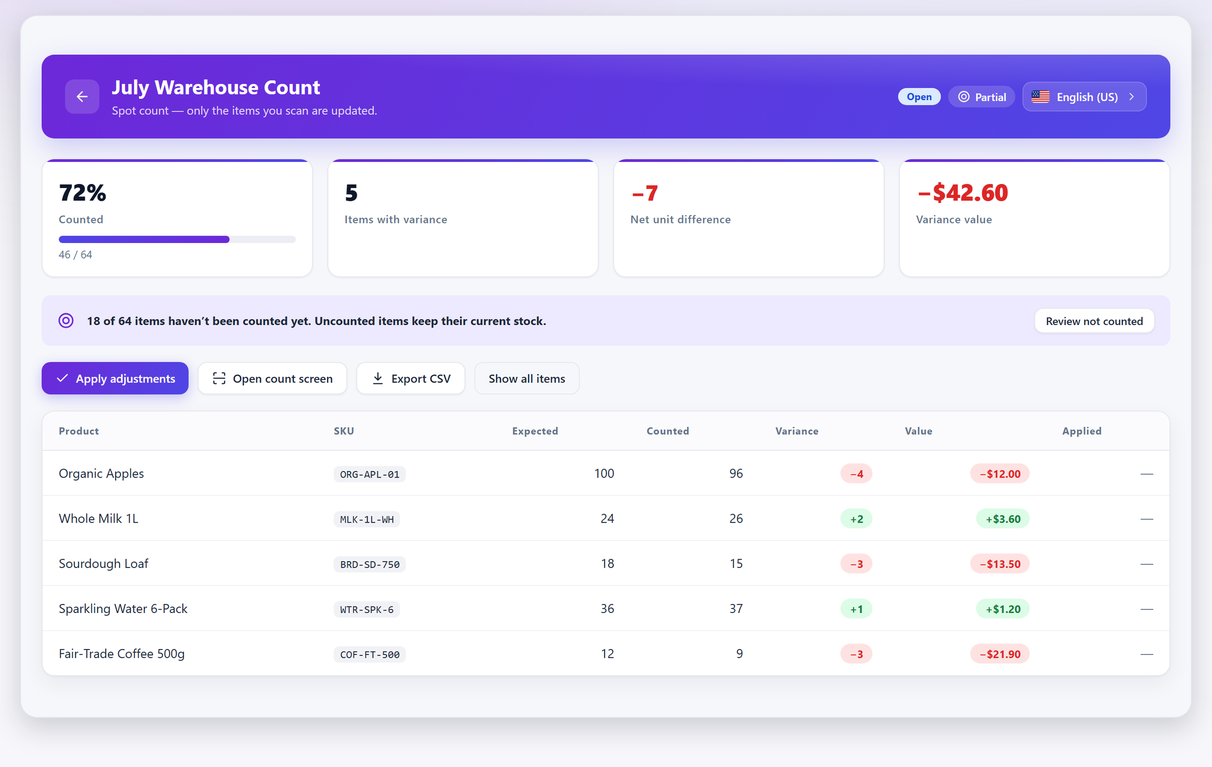
A product whose recorded stock is 12 units higher than reality — a breakage nobody wrote down, a refund that put a faulty unit back on the books before it went in the bin, an order that never reduced stock — will sail past its reorder point without a sound and go out of stock while the system insists it’s fine. This is the mechanism behind the most frustrating pattern in retail: a phantom stockout, where the shelf is empty, the system says available, and nobody was warned.
Two habits close that gap:
- Count your fast movers regularly. The products that hit their reorder point most often are the ones where a stale number costs you the most. They deserve a monthly count, not an annual one.
- Treat negative stock as an alarm, not a rounding error. A negative figure means the store sold something it didn’t believe it had. Whatever caused that is still running.
In Stocktake, the free version includes a reorder and low-stock shortlist with CSV export, plus a warning for products sitting at negative stock — so the list of things to order and the list of things to investigate come out of the same count that fixed your quantities.
What to do with the shortlist#
A reorder list is only useful if it produces an order. A short routine that works:
- Sort by supplier, not by product. You place orders with suppliers, so group the list the way you’ll act on it — and hitting a minimum order value is easier across a whole supplier’s lines.
- Check the count date on anything surprising. A product you didn’t expect to see is either selling better than you thought or has a stock record you shouldn’t trust.
- Look at what’s not on the list but should be. A fast mover that never appears is usually a fast mover with a wrong quantity.
- Order, then note the date. That date is next quarter’s lead-time measurement.
Done by hand, that routine lives in three places at once: the reorder points, the supplier each product comes from, and what is already on its way. PurchaseDesk keeps them together — reorder points and default order quantities set for a page of products at a time, supplier records with the lead time you just measured, and a shortlist that has already subtracted anything sitting on an open order, so you do not buy the same thing twice. Turning that shortlist into draft purchase orders grouped by supplier is a Pro feature.
The whole loop — count, correct, shortlist, order, measure the lead time, recalculate — is what turns reordering from a reaction into a routine. It starts with knowing what you actually have, which is what a stocktake is for.
Reorder point FAQ#
What is a reorder point?
The stock level at which you should place a new order so that it arrives before you run out. The formula is average daily demand multiplied by lead time in days, plus safety stock. Unlike a flat low-stock threshold it is expressed in terms of time rather than an arbitrary quantity.
Where do I set the low stock threshold in WooCommerce?
The global default is at WooCommerce → Settings → Products → Inventory, and you can override it per product on the Inventory tab, including on individual variations. Enter your calculated reorder point as the per-product threshold and leave the global value as a crude backstop.
Why are my low stock alerts useless?
Because a flat quantity ignores both sales velocity and lead time. The same threshold of five units alerts you five months early for a slow line and half a day too late for a fast one. The alert has to be based on how long the remaining stock will last, not on how many units are left.
Why isn't WooCommerce sending low stock emails?
Check four things, in this order. First, Enable low stock notifications at WooCommerce → Settings → Products → Inventory — the checkbox sits directly above the threshold field and takes five seconds to rule out. Second, how the stock changed: the notification is fired by the reduction an order performs, so a manual edit to the Stock quantity field, a CSV import or a REST write changes the number without sending anything. Third, the notification recipient — it defaults to the site admin address so it is rarely blank, but it is often a role address or an old one nobody opens. Fourth, whether the site sends transactional mail at all, which you can test in thirty seconds by triggering a password reset.
Does WooCommerce know what I already have on order?
No. There is no field in core for stock sitting on a purchase order, and nothing to subtract it from the shortfall. A product that has fallen below its reorder point stays on the low-stock list until the delivery is received, whether or not you ordered it a fortnight ago — so either track open orders separately and subtract them by hand before acting on the list, or keep the list and the open orders in one place.
How do I calculate average daily demand?
Go to Analytics → Products, pick a representative date range, read items sold per product and divide by the number of days. Exclude any period when the product was out of stock — otherwise the products that keep running out look like the products nobody wants, and you will under-order them permanently. Analytics reports items sold but not days in stock, so divide by the days the product was available rather than the days on the calendar. WooCommerce keeps no stock history, so take those dates from your receiving records or from the last stretch you know the product was continuously on the shelf.
How much safety stock should I hold?
A workable approach without statistics: peak daily demand multiplied by your longest observed lead time, minus average daily demand multiplied by average lead time. That covers the plausible bad case of a busy week arriving at the same time as a slow delivery.
Why do I still get stockouts with alerts turned on?
Because the alert compares against your recorded stock level, and if that is higher than reality the trigger never fires. The shelf empties while the system insists the product is available — a phantom stockout. Counting your fast movers regularly is what closes that gap.